---
title: "Backup a Cloud Sites MSSQL Database Using a cron"
source: "https://docs.nexcess.com/hosting/cloud-sites/database-management/mssql/backup-a-cloud-sites-mssql-database-using-a-cron/"
description: "Follow these steps to create a cron to back up your MSSQL databases."
vertical: "Hosting"
date: "2024-03-04"
last_modified: "2026-07-02"
---
# Backup a Cloud Sites MSSQL Database Using a cron
| ### **Code Examples:** |
|---|
| The code provided below is only an example. Your specific website may require different code. As explained in our article [Management and Support Levels](https://docs.nexcess.com/hosting/portal/support-center/management-and-support-levels/), we are unable to help you troubleshoot code issues. We recommend speaking with your developer before implementing any scripts. |
[Microsoft SQL Server](https://www.liquidweb.com/sql-server-hosting/) has a built-in backup feature that you can run as a query or a stored procedure. You can configure the output file to write into an FTP folder. This tutorial will explain how to accomplish an MSSQL database backup using scripts to write into the folder. While Cloud Sites now offers automatic backups, MSSQL is not included in these backups, you will need to follow the steps below to create a cron to back up your MSSQL databases.
This article will walk you through the steps of creating the backup folder and the cron job, you will:
1. [Create the Folder](#folder)
2. [Create the Stored Procedure](#procedure)
3. [Create the Web Page](#page)
4. [Create the Cron Job](#cron)
**There are some unsupported commands in cron, see the section [Unsupported Commands in Cron](#commands) for the list.**
| ### **Warning:** |
|---|
| It is important to use caution when running unfamiliar scripts. If you are unfamiliar with running scripts for cron jobs, please consult a developer to help you deploy them. |
## Create the Folder
First, you will need to create a folder to store the backup in your FTP application.
1. Connect your FTP client to the site in Cloud Sites that has the database attached that you want to back up.
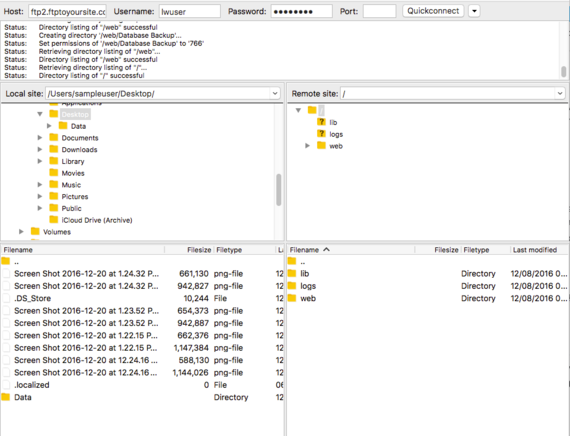
2. Create a folder called backups inside the /web directory.
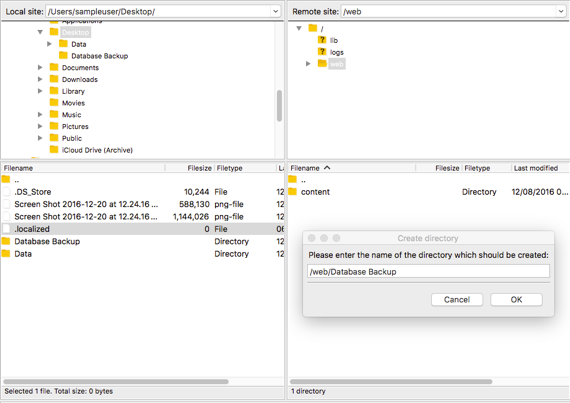
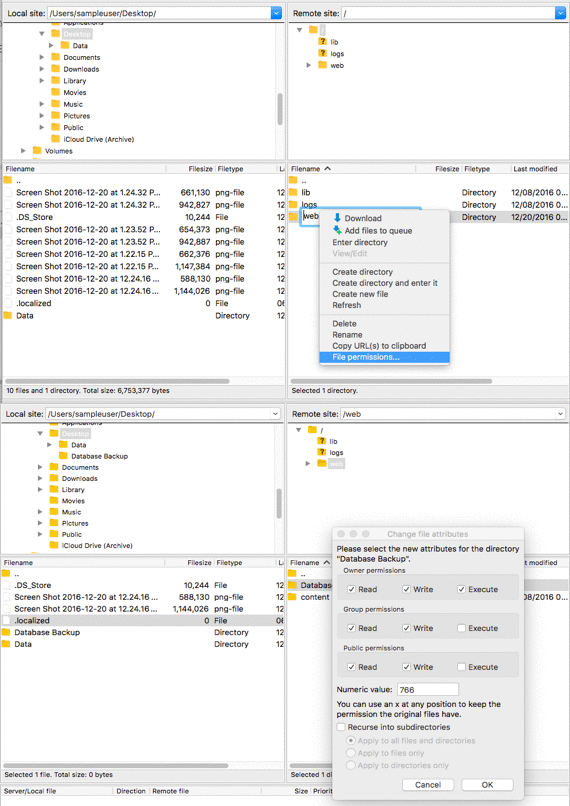
3. In your FTP client, right-click the folder you just created and set its permissions to 766. If you are unable to update permissions in your FTP client, we suggest using FileZilla, CoffeeCup FTP or the Firefox plugin FireFTP.
| ### **Permissions** These permissions give all users write permissions for the folder. For more information on permissions, see our article [What Are File Permissions?](https://www.liquidweb.com/help-docs/what-are-file-permissions/). |
|---|
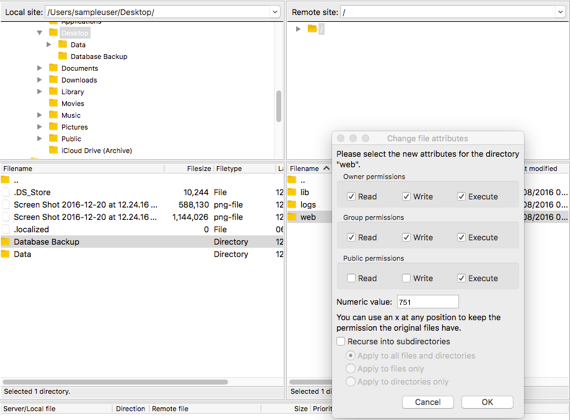
4. Last, you will need to set the permissions on the /web folder on your site to 751.
## Create the Stored Procedure
Now you need to create a stored procedure that will perform the backup with an input parameter for the file name. Connect to your MSSQL server database using [myLittleAdmin](https://www.liquidweb.com/help-docs/logging-into-mylittleadmin-from-cloud-sites/) or [Windows SQL Server Management Studio Express ](https://www.liquidweb.com/help-docs/using-windows-sql-server-management-studio-for-cloud-sites/) and run a query similar to the following one. In this example, the stored procedure is DatabaseBackup.
```
set ANSI_NULLS ON
set QUOTED_IDENTIFIER ON
GO
CREATE PROCEDURE [dbo].[DatabaseBackup]
@FileName nvarchar(256)
AS
BEGIN
SET NOCOUNT ON;
BACKUP DATABASE [123456_YourDatabase] TO DISK = @FileName WITH COPY_ONLY, NOFORMAT, NOINIT, NAME = N'Full Database Backup', SKIP, NOREWIND, NOUNLOAD, STATS = 10
END
```
## Create the Web Page
Last, you’ll create a web page that has the code to execute the stored procedure. You can use any language supported on Windows such as ASP Classic or ASP.NET. For this task, we recommend ASP Classic so that there is no .dll file and no application restart is needed.
1. Create a new ASP page and call it backupdb.asp. Edit the location path and SQL connection string. The content for the site is below.
```
<%@LANGUAGE="VBScript" CODEPAGE="65001"%>
xhtml1-transitional.dtd">
Untitled Document
<%
dim thismonth, thisday, thisyear, location, filename, ver, extention, abolutepath
thismonth= datepart("m", now())
thisday=datepart("d", now())
thisyear=datepart("yyyy",now())
location="fs1-n03stor1wc1dfw8382492382489www.yoursite.combackups"
filename="dbBackup-" & thismonth & "-" & thisday & "-" & thisyear & "_"
ver=1
extention=".bak"
absolutepath=location & filename & ver & extention
set fso = Server.CreateObject("Scripting.FileSystemObject")
while (fso.FileExists(absolutepath)=True)
ver=ver+1
absolutepath=location & filename & ver & extention
wend
'pre Create the file
Dim fs,f
Set fs=Server.CreateObject("Scripting.FileSystemObject")
Set f=fs.CreateTextFile(absolutepath)
set f=nothing
set fs=nothing
'finished creating the file
Set cn = Server.CreateObject("ADODB.Connection")
cn.connectionString=
"Provider=SQLOLEDB;Server=mssql12xx.wc1;Database=123456_YourDatabase;Uid=123456_YourUsername;
Pwd=Yourpassword;"
cn.open
Set cmd = Server.CreateObject("ADODB.Command")
Set cmd.ActiveConnection = cn
cmd.CommandText = "FullBackup"
cmd.CommandType = 4 'adCmdStoredProc
cmd.Parameters.Refresh
cmd.Parameters(1) = absolutepath
cmd.Execute
cn.close
%>
Execution complete: Filename=<%= filename & ver & extention%>
```
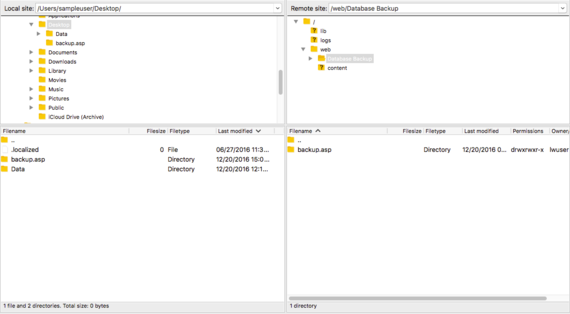
2. Upload the webpage you just created into the folder created in the first step using your FTP client.
## Create the Cron Job
The last step in the process is to schedule the cron job. See our article [Creating Cron Jobs in Cloud Sites](https://www.liquidweb.com/help-docs/creating-cron-jobs-in-cloud-sites/) for information on scheduling a cron job.
| ### **Using cURL to Execute** |
|---|
| When setting up the Cron job, it is important that the script file selected is cURL to properly execute the script. Cron jobs that run over 900 seconds (15 minutes) are automatically terminated. |
## Unsupported Commands and Cron
Some functions of commands have been restricted to protect the integrity of the Cloud Sites Platform. See the list below for the commands that are not supported in Cloud Sites and scripts for crons.
- crontab
- df
- dmesg
- du
- find
- getent
- ifconfig
- links
- ln
- netstat
- ps
- pstree
- route
- rpm
- uptime
- ypcat
- yppasswd
- yum
| ### **Cloud Sites Backups** |
|---|
| There are options for setting up automated backups in Cloud Sites, see our article [What is Cloud Sites Backup?](https://www.liquidweb.com/help-docs/what-is-cloud-sites-backup/) for more information. |