---
title: "WordPress Upgrade and Downgrade"
source: "https://docs.nexcess.com/hosting/cms/wordpress/troubleshooting/wordpress-upgrade-and-downgrade/"
description: "Learn to upgrade/downgrade WordPress via WP-CLI, Softaculous, or Dashboard. Back up first & use troubleshooting tips for common update errors."
vertical: "Hosting"
date: "2025-05-28"
last_modified: "2026-07-02"
---
# WordPress Upgrade and Downgrade
### Overview
This guide covers how to upgrade or downgrade WordPress using various methods, including WP-CLI, Softaculous, and the WordPress Dashboard. It also includes troubleshooting tips for common update errors and how to enable verbose logging for debugging.
Important:Always create a full backup of your site files and database before performing an upgrade or downgrade.
### Methods to upgrade or downgrade WordPress
##### 1. WP-CLI (Recommended)
**Upgrade WordPress**
1. Log in to the server via SSH.
2. Switch to the user that owns the WordPress install:
`su - username`
3. Navigate to the WordPress root directory:
`cd /path/to/wordpress`
4. Run the following command:
`wp core update`
**Downgrade WordPress**
1. Log in to the server via SSH.
2. Switch to the user that owns the WordPress install:
`su - username`
3. Navigate to the WordPress root directory:
`cd /path/to/wordpress`
4. Specify the version you want to downgrade to:
`wp core update --version=x.x.x --force`
Replace x.x.x with required version, example: `wp core update --version=6.1.1 --force`
##### 2. Softaculous (If WordPress was installed via Softaculous)
**Upgrade WordPress**
1. Log into your cPanel account.
2. Go to **Softaculous Apps Installer**.
3. Select your WordPress installation.
4. If an update is available, click the blue update arrows.
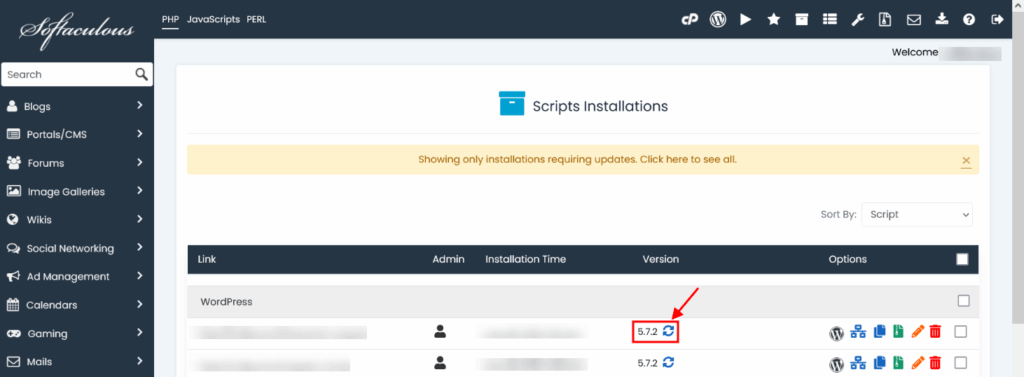5\. Create a backup when prompted.
**Downgrade WordPress**
NoteDowngrading is not supported directly in Softaculous. Use WP-CLI or manual methods instead.
##### 3. WordPress dashboard
**Upgrade WordPress**
1. Log into your WordPress Admin area.
2. If an update is available, you will see a notification at the top.
3. Click **Please update now** to begin.
4. WordPress will download and install the update.
TipUpdate plugins and themes *before* performing the core update to minimize compatibility issues.
**Downgrade WordPress**
NoteDowngrading is not supported directly from WordPress dashboard. Use WP-CLI or manual methods instead.
### Troubleshooting common issues
##### General update errors
**Symptom:** “The update cannot be installed because we will be unable to copy some files.”
**Causes:**
- Incorrect file permissions
- Disk space issues
**Fixes:**
1. Check PHP handler:`/usr/local/cpanel/bin/rebuild_phpconf --current`
2. Ensure correct ownership and permissions:
- Files: `644`
- Directories: `755`
- Ownership: `user:user`
3. Check available disk space: `df -h`
4. Remove leftover `.maintenance` file from root if stuck in maintenance mode.
##### Download failed
**Symptom:** `Download failed. error:0D0890A1:asn1 encoding routines:func(137):reason(161)`
**Cause:** Old OpenSSL version unable to verify SHA-256 certificates.
**Solutions:**
- Move the site to a modern hosting environment.
- Manually update WordPress via FTP.
##### Fatal Error: Undefined function during update
**Symptom:** Corrupt files cause fatal errors post-update, especially blocking wp-admin access.
**Fix:**
1. Download the latest WordPress installation package from [wordpress.org](https://wordpress.org/download/).
2. Extract and replace core directories (`wp-admin`, `wp-includes`) via FTP.
3. Visit `/wp-admin` in a browser to trigger database updates.
TipAlways verify backup functionality before making any replacements.
##### Enable debug logging
To capture more detailed logs during updates:
1. Open `wp-config.php`
2. Add these lines near the top:
`define('WP_DEBUG', true);
define('WP_DEBUG_LOG', true);
define('WP_DEBUG_DISPLAY', true);
error_reporting(E_ALL);
ini_set('display_errors', 1);`
3\. Logs will be written to `wp-content/debug.log`
TipIf Apache can’t write to `debug.log`, create it manually with 666 permissions.
### Summary
Upgrading or downgrading WordPress is a critical task that requires care and preparation. WP-CLI is the most efficient tool for version management, while Softaculous and the dashboard offer convenient UI-based options. Always back up your site, check for compatibility, and troubleshoot carefully using this guide and also take assistance of your development team.