---
title: "Selecting a MySQL Database via Command Line and cPanel"
source: "https://docs.nexcess.com/hosting/server-administration/database-management/mariadb-mysql/selecting-a-mysql-database/"
description: "Have multiple MySQL databases? To avoid editing the wrong one, you must select it first. Here's how to do it using cPanel or the command line."
vertical: "Hosting"
date: "2024-03-04"
last_modified: "2026-07-27"
---
# Selecting a MySQL Database via Command Line and cPanel
If you use MySQL databases to manage your data, you probably have multiple databases. To manage these databases, you’ll need to be able to switch between them. When you edit a database, you need to select it first to make sure you’re editing the right data.
You can select MySQL databases using:
- [cPanel](#cPanel)
- [the command line](#CLI)
## Using cPanel to Select MySQL Databases
If you aren’t familiar with the command line interface, you can [use cPanel](https://docs.nexcess.com/hosting/control-panel/whm/cpanel/getting-started-with-cpanel/) and phpMyAdmin to select specific databases.
1. Log into your cPanel account.
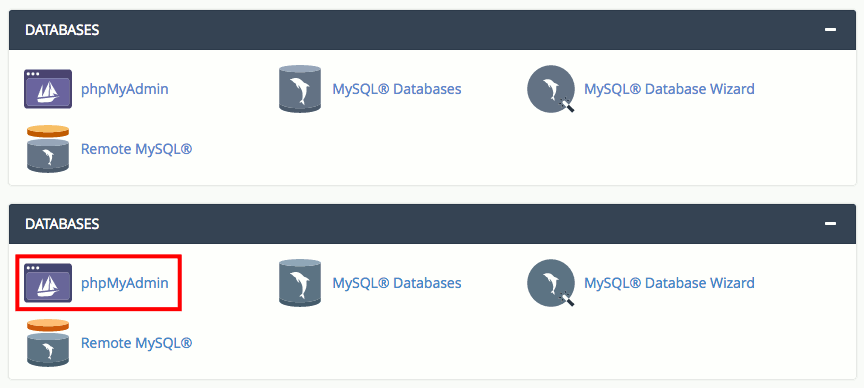
2. Scroll down to the **Databases** section and click on **phpMyAdmin**. The phpMyAdmin interface will open in a new window.
3. Use the side navigation to click on the database you want to work with. Or, click on **Databases** in the top navigation and then click on a database to work on.
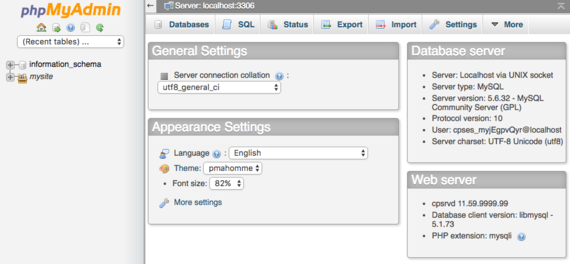
Once you’ve chosen a database, you can view the database data, run SQL queries, export and import data, and more!
## Using the Command Line to Select MySQL Databases
If you’re comfortable with the command line, you can make changes to your databases just by using your keyboard.
1. Using the terminal program of your choice, log into your server as *root*. If you haven’t logged into your server using the command line before, read [Logging into Your Server via Secure Shell (SSH)](https://docs.nexcess.com/hosting/server-administration/linux/logging-into-your-server-via-secure-shell-ssh/) first.
2. Now you’ll log into your MySQL server by typing
```
mysql -u root -p
```
Then press **Enter**. The *-u root* flag tells MySQL you want to log in as the root **u**ser, and the *-p* flag prompts MySQL to ask you for a **p**assword. When prompted, enter your root password and press **Enter**. If necessary, learn how to change your MySQL password first.
3. You’ll now see a MySQL prompt that looks like
```
mysql>
```
4. Now, check to see what database is currently selected. Type:
```
SELECT database();
```
5. The press **Enter**. The output might look like this:
```
+------------+
| database() |
+------------+
| NULL |
+------------+
1 row in set (0.00 sec)
```
“Null” means there is no database currently selected.
6. Now you’ll select a database. Type:
```
USE database_name;
```
and press **Enter**. Replace “database\_name” with database you want to start using. Remember that ever time you want to start working with a different database, you need to use the *USE* command to change databases first.
7. Make sure the database as changed by running the *SELECT* command again.
```
SELECT database();
```
The output should show your selected database:
```
+-------------------+
| database() |
+-------------------+
| tutorial_database |
+-------------------+
1 row in set (0.00 sec)
```
Now you know how to move between different databases so you can manipulate your data.