---
title: "How to use Custom CSS and Scripts using Kadence"
source: "https://docs.nexcess.com/software/kadence/theme/add-custom-css-and-scripts-using-kadence/"
description: "Kadence gives you a lot of flexibility when it comes to adding your own styling and scripts. You can apply them site-wide, or limit them to specific pages or bl…"
vertical: "Software"
area: "Kadence Theme"
date: "2025-09-17"
last_modified: "2026-07-02"
---
# How to use Custom CSS and Scripts using Kadence
Kadence gives you a lot of flexibility when it comes to adding your own styling and scripts. You can apply them site-wide, or limit them to specific pages or blocks depending on what you need.
- If you’re using the **[free Kadence Theme](https://docs.nexcess.com/software/kadence/theme/theme-installation/)**, you can add **Custom CSS** that affects your whole website.
- With **[Kadence Theme Kit Pro](https://docs.nexcess.com/software/kadence/theme/theme-kit-pro-plugin/)**, you can go a step further and add **Custom Scripts** globally, like JavaScript or jQuery.
- **[Kadence Blocks Free](https://docs.nexcess.com/software/kadence/install-kadence-blocks/)** lets you style individual blocks without affecting the rest of the page..
- For more precise control, **[Kadence Blocks Pro](https://docs.nexcess.com/software/kadence/kadence-blocks-pro-plugin/)** allows you to insert Custom CSS and Custom Scripts for a single page or post with **Block Controls**.
This guide will walk you through all the different ways to add Custom CSS and scripts with Kadence so you can tune your design exactly how you want it.
Global CSS (Core WordPress)
WordPress includes a simple, built-in way to add Custom CSS, and the Kadence Theme works perfectly with it.
To use it, you can do the following:
1. Go to **Appearance → Customize** in your WordPress Dashboard.
2. Click **Additional CSS**.
3. Add your CSS code in the text box and hit **Publish**.
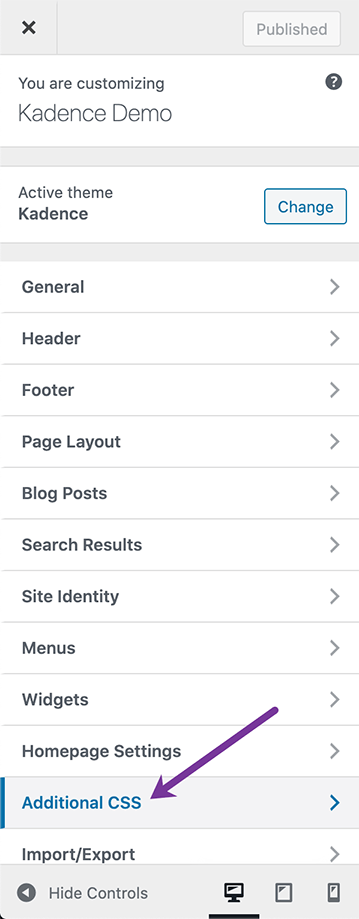
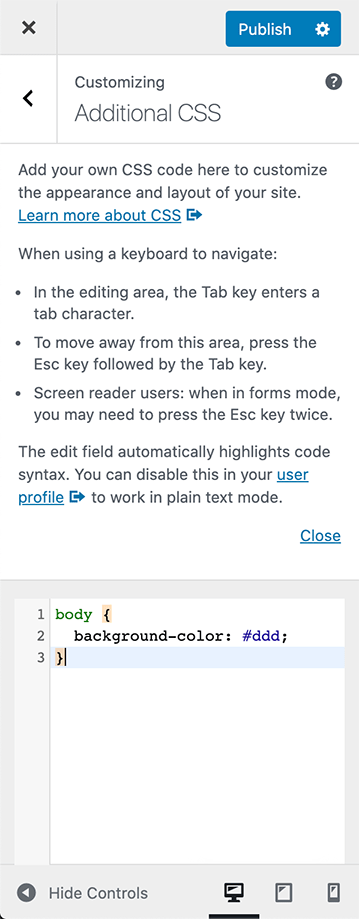
This CSS will apply **across your entire website**, including all pages, posts, and archives.
Global Scripts (Kadence Theme Kit Pro)
**[Kadence Theme Kit Pro](https://docs.nexcess.com/software/kadence/theme/theme-kit-pro-plugin/)** unlocks the ability to use **Custom** **Scripts**, similarly to how *Global CSS* works, but for script-specific content. (JavaScript/JQuery).
To get started, make sure you have installed and activated the **Kadence** **Theme** **Kit** **Pro** plugin. Then, go to the WordPress Dashboard -> Appearance -> Kadence page and enable the **Header/Footer Scripts** option.
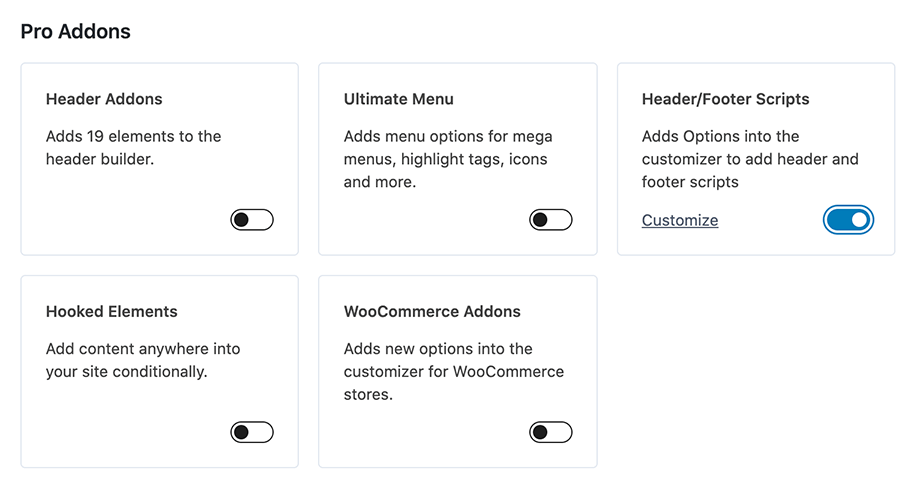
Afterward, click on the **Customize** link to be taken to the **Custom Scripts** section in the WordPress Customizer
(Or go to the WordPress Dashboard -> Appearance -> Customize -> Custom Scripts settings manually).
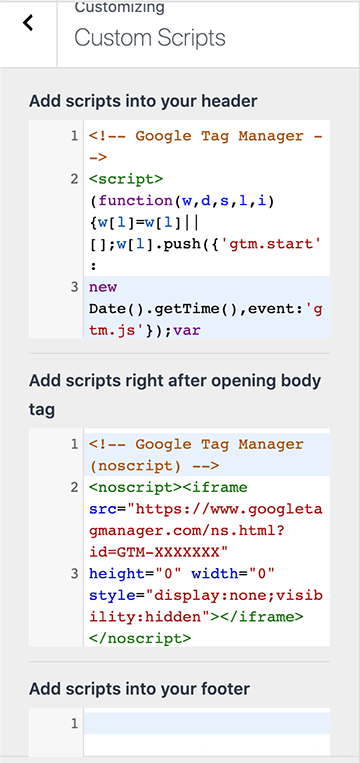
You can add scripts to the **Header**, right **after** the **opening** **Body** **Tag**, or into the **Footer**.
These scripts will appear on **every page** of your site. A common example of this feature being used is by adding Google Tag Manager scripts. *(See the image example.)*
You should ensure your **Script** **Code** is wrapped in **** tags to ensure the code is properly read.
Block-Level Custom CSS (Kadence Blocks Free)
If you only want to style **one** **block** without changing anything else on the page, [Kadence Blocks Free](https://docs.nexcess.com/software/kadence/install-kadence-blocks/) makes it simple.
**Here’s how:**
- Click on a **[Row Layout](https://docs.nexcess.com/software/kadence/row-layout-block/)** or **[Section](https://docs.nexcess.com/software/kadence/section-block/)** block in the editor.
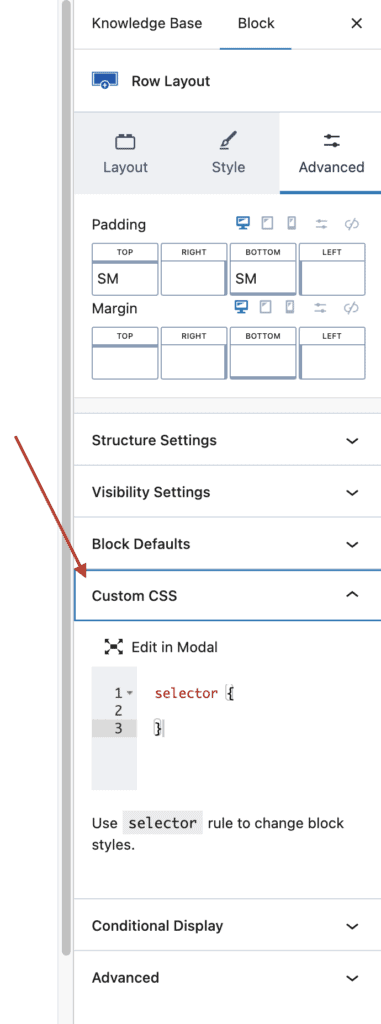
- Go to the **Block settings** sidebar on the right and navigate to the **Advanced** tab.
- Scroll down until you see the **Custom CSS** panel.
- Inside the editor, you’ll see a pre-filled keyword selector.
- Use ***selector*** as a placeholder. It automatically maps to the **current block** you’re editing.
**Example:**
```css
selector {
background-color: #f5f5f5;
border-radius: 10px;
padding: 20px;
}
```
This way, your CSS only affects the block you’re editing, leaving other elements untouched.
You can also expand the selector by targeting **specific** **inner** **elements**, such as paragraphs. For example, see the code below.
```
selector p {
font-size: 16px;
}
```
Use the **Edit In Modal button** if you wish to edit the CSS Selector in a pop-up modal instead of from within the Block Settings panel.
[](https://docs.nexcess.com/wp-content/uploads/2026/06/image-40.png)
Page or Post Specific CSS & JS (Kadence Blocks Pro)
**[Kadence Blocks Pro](https://docs.nexcess.com/software/kadence/kadence-blocks-pro-plugin/)** unlocks the **Block Controls** ([Learn more](https://docs.nexcess.com/software/kadence/blocks/block-controls/)). These controls show up within the WordPress Editor when editing any post type. Within the Block Controls, you can find an option to add Page-Specific CSS/JS. This feature allows you to add **Custom** **CSS** or **Scripts** without it applying globally, but on a specific page.
The **Block** **Controls** can be located at the top right corner of the WordPress Editor. Look for and click on the **K Icon**. Then, locate and expand the **Page** **Scripts** **dropdown** to access the ability to add **post-specific** **codes**.
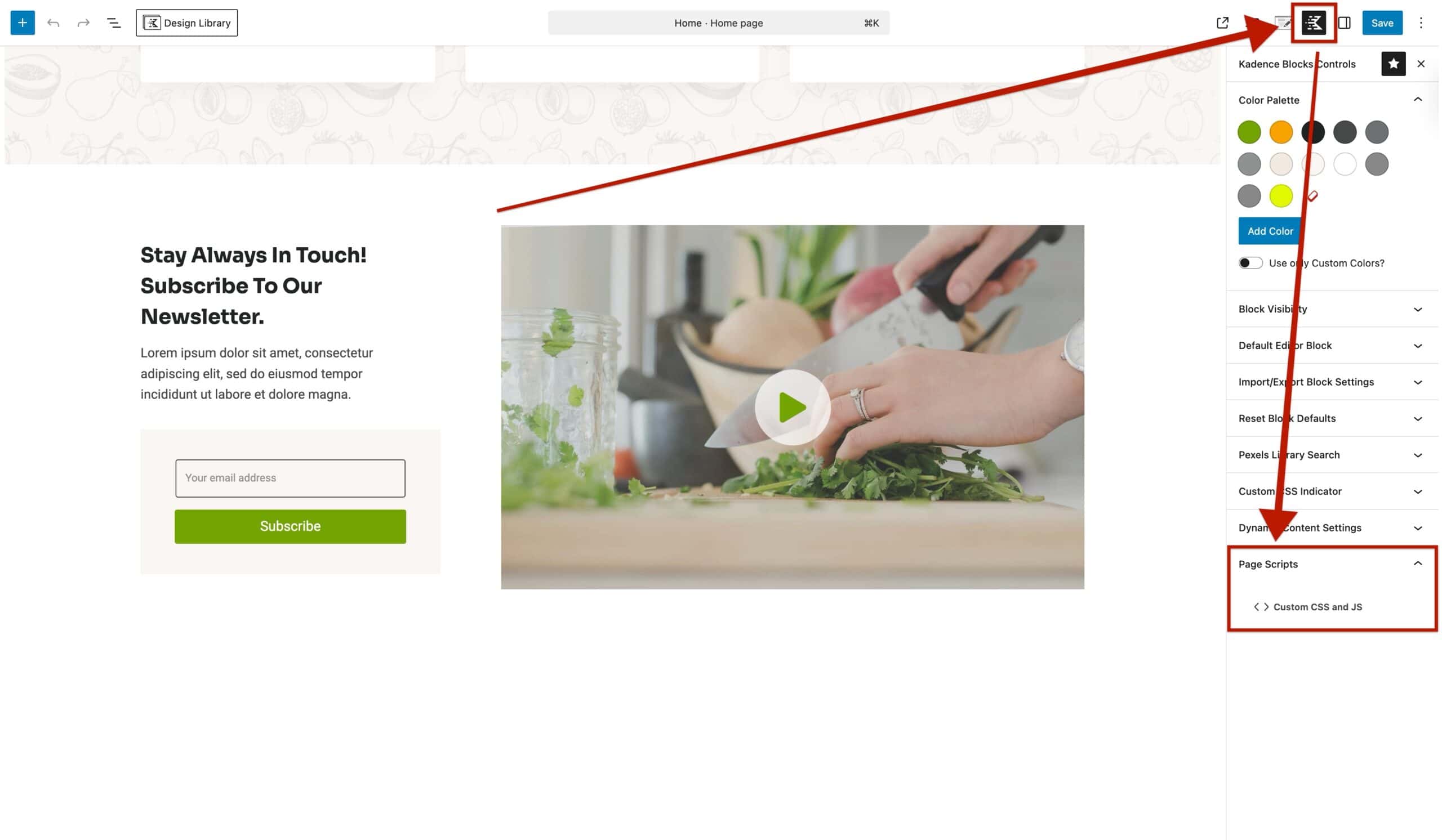This will open a modal where you can add **Custom** **CSS** to the **Post/Page**, or insert **Custom Scripts** into the *Head*, *Body*, and/or *Footer* sections.
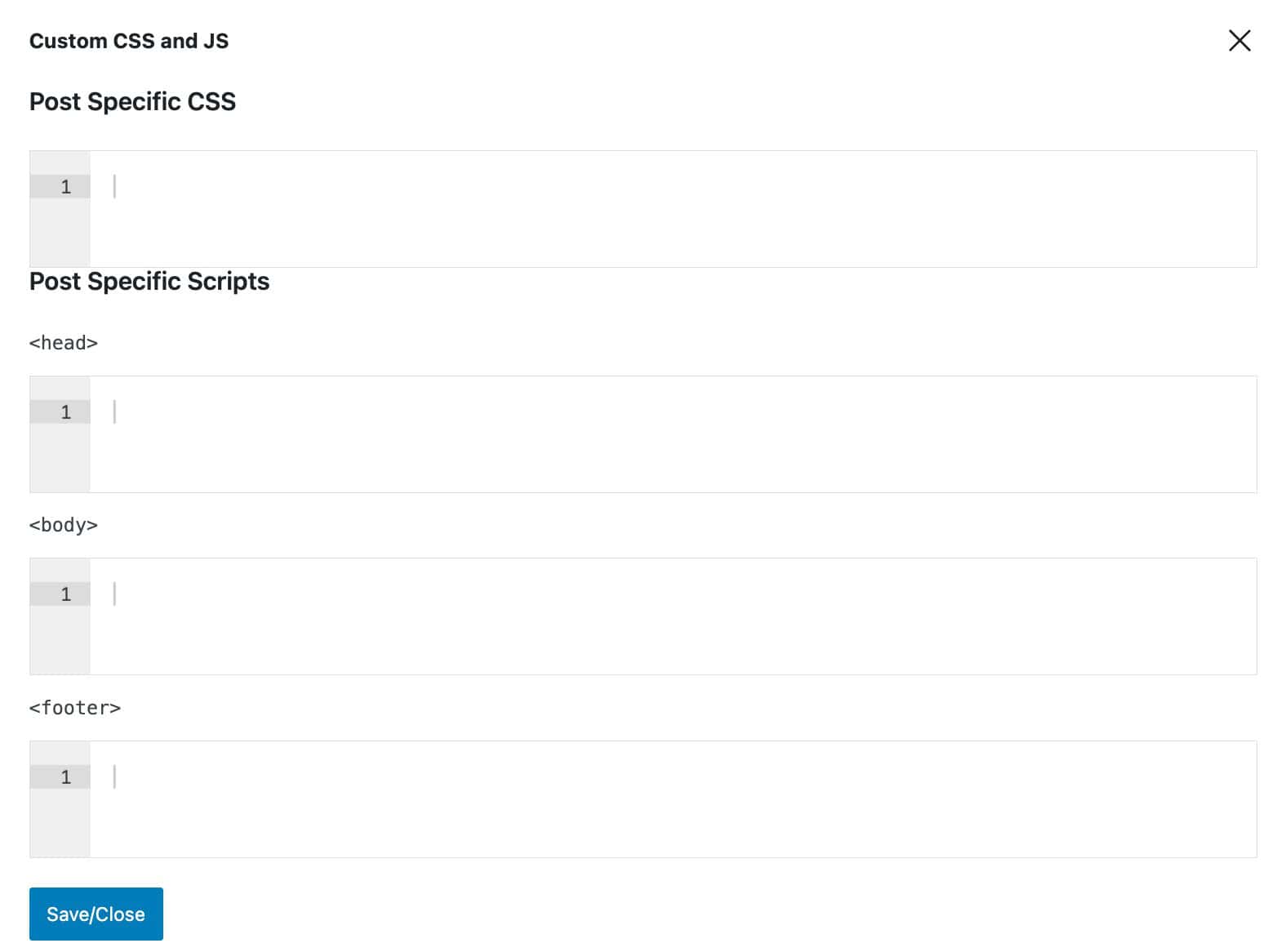
Note: It’s not necessary to include the opening and closing