---
title: "Using BuddyBoss with The Events Calendar"
source: "https://docs.nexcess.com/software/the-events-calendar/buddyboss/"
description: "BuddyBoss is a popular platform that allows you to create a social network hosted right on your WordPress site. Using BuddyBoss can transform your website into…"
vertical: "Software"
area: "The Events Calendar"
date: "2022-06-24"
last_modified: "2026-07-02"
---
# Using BuddyBoss with The Events Calendar
[BuddyBoss](https://www.buddyboss.com/ref/692/) is a popular platform that allows you to create a social network hosted right on your WordPress site. Using BuddyBoss can transform your website into an all-in-one interactive community for your users. By creating a BuddyBoss integration, you can transform your website into a social hub. And with [The Events Calendar](https://theeventscalendar.com/products/wordpress-events-calendar/), you can include calendar functionality as well.
We’ve previously written about [integrating The Events Calendar with BuddyPress](https://theeventscalendar.com/knowledgebase/k/integrating-buddypress-with-the-events-calendar/), which is a standalone plugin. But here, we’ll walk you through all of the steps to easily integrate [BuddyBoss](https://www.buddyboss.com/ref/692/) with our plugins so that your WordPress site will have all of the bells and whistles that you need.
So let’s get started!
## What you need
- [The Events Calendar](https://wordpress.org/plugins/the-events-calendar/) (free)
- [Events Calendar Pro](https://theeventscalendar.com/products/wordpress-events-calendar/) (premium, optional)
- [Community Events](https://theeventscalendar.com/products/community-events/) (premium, optional)
- [BuddyBoss](https://www.buddyboss.com/ref/692/pricing) (free and premium options)
- [LearnDash](https://www.learndash.com/pricing-and-purchase/) (premium, required for online courses)
## Setting up
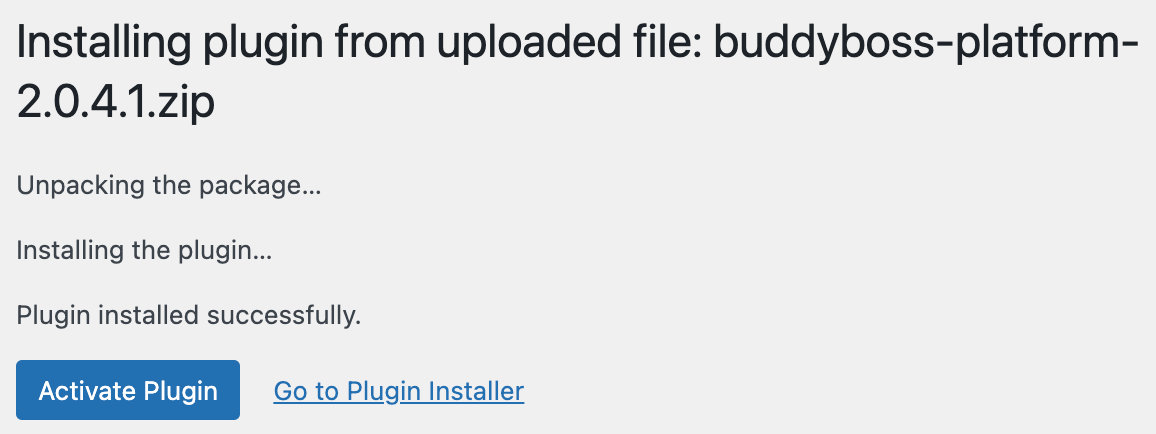
Once you have The Events Calendar [installed and activated](https://docs.nexcess.com/software/the-events-calendar/downloading-and-installing-the-plugin/) on your site, you’ll want to add the BuddyBoss platform, which you can download [here](https://www.buddyboss.com/platform/). You can also get the BuddyBoss theme, which enhances the appearance of your site. Download the BuddyBoss Platform .zip file and upload it under **Plugins > Add New > Choose file**.
From there, you can activate the platform.
If you’re going to use the optional BuddyBoss theme, you can download the .zip file and add it under **Appearance > Themes > Add New**.
Under **BuddyBoss → Settings → Privacy**, you’ll need to uncheck **Restrict REST API access to only logged-in members** option and hit **Save Settings**.
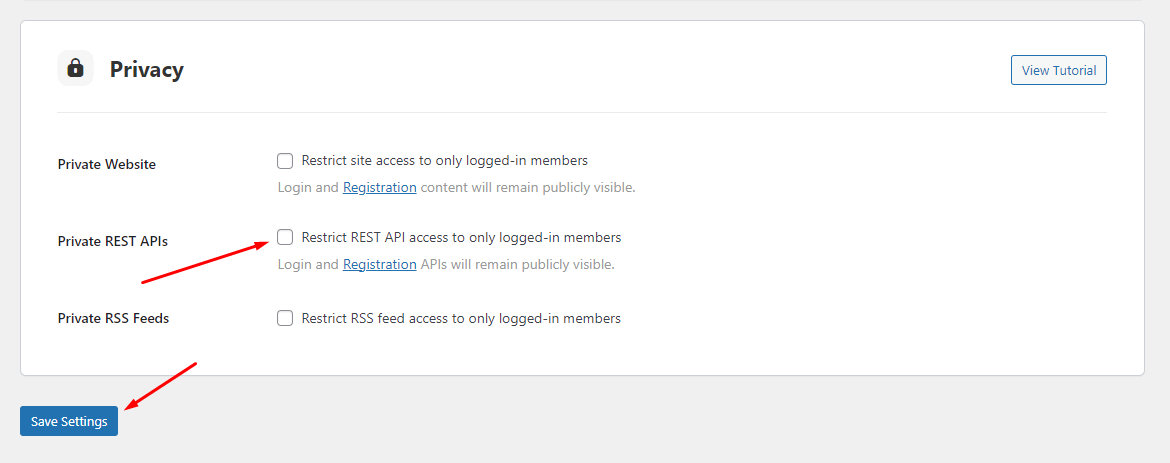This is because our plugins depend on the REST API for proper functionality, so it’s essential to disable this option.
## The calendar
Right out of the box, your calendar will look like this:
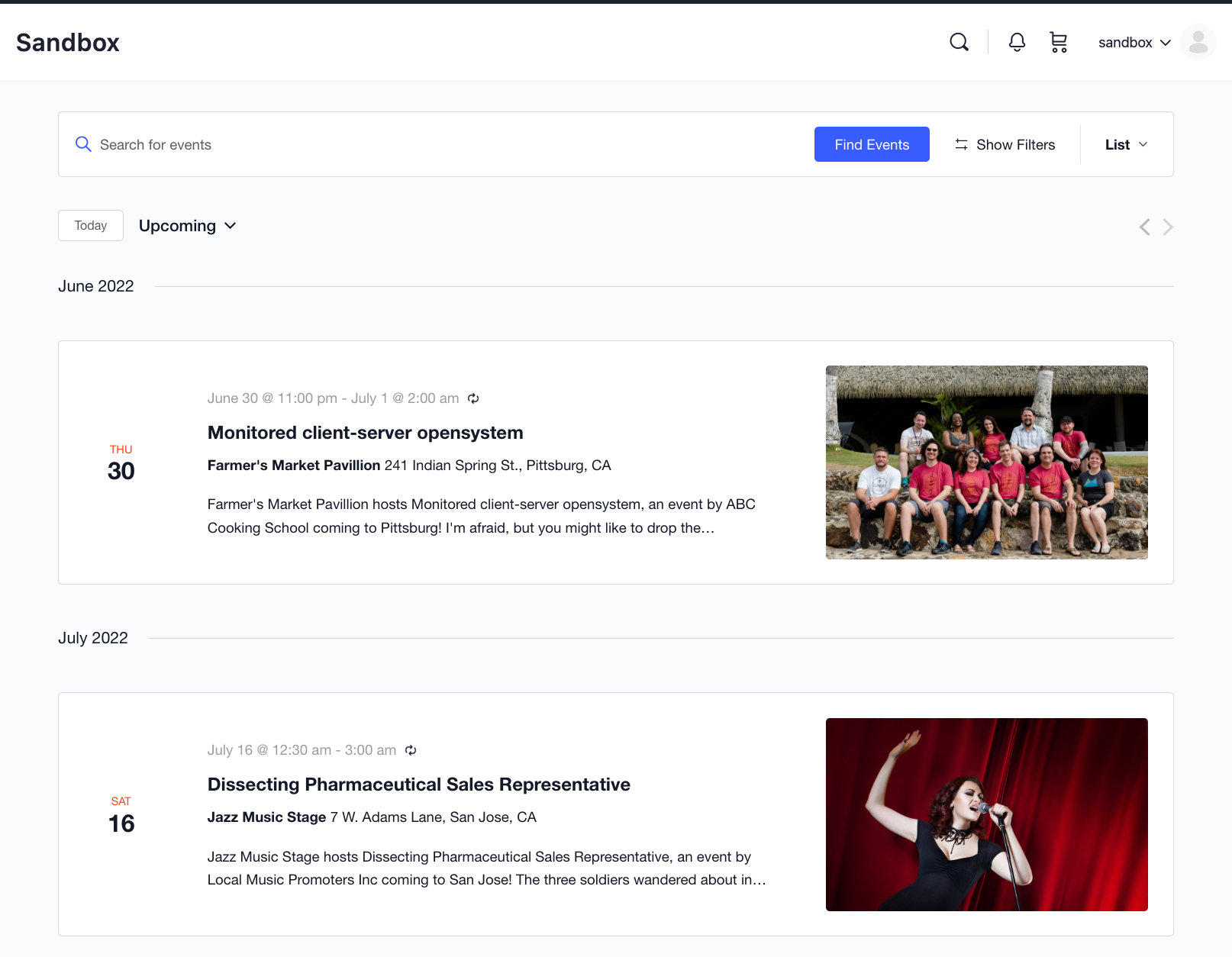You can [create new events](https://docs.nexcess.com/software/the-events-calendar/create-event/) and they will appear on this page. But another thing you can do is to have your events feed into the main [Activity Feed](https://www.buddyboss.com/resources/docs/components/activity/) available with BuddyBoss. The Activity Feed is where members can see updates from all members, so it is a great way to make your events more visible.
## Activity Feed
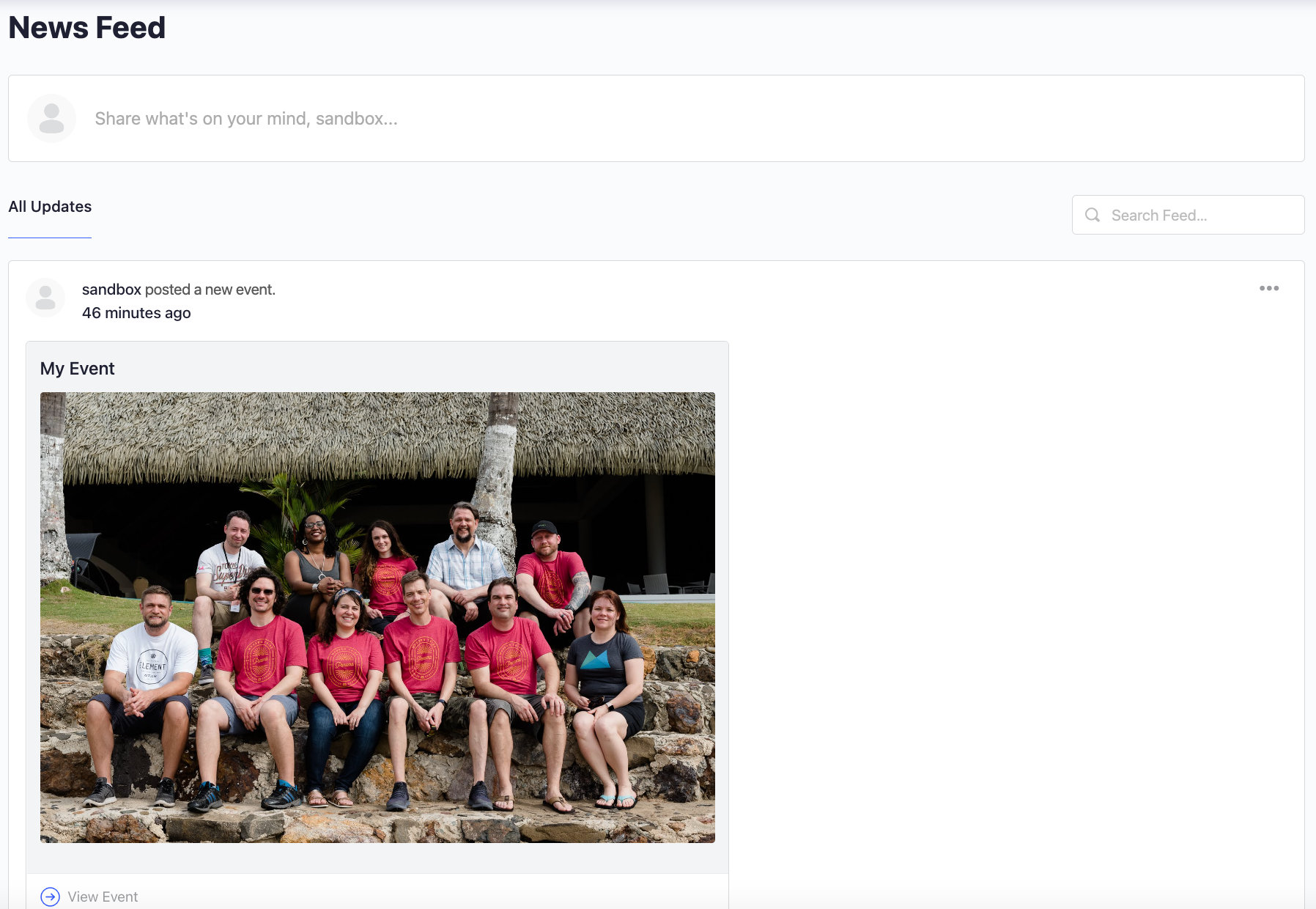
To have all newly-created events added to the Activity Feed, go to **WordPress Dashboard > BuddyBoss > Settings > Activity > Posts in Activity Feed > Custom Post Types**. Check the ***Events*** checkbox and click the **Save Settings** button to automatically generate an activity feed when a user creates an event.
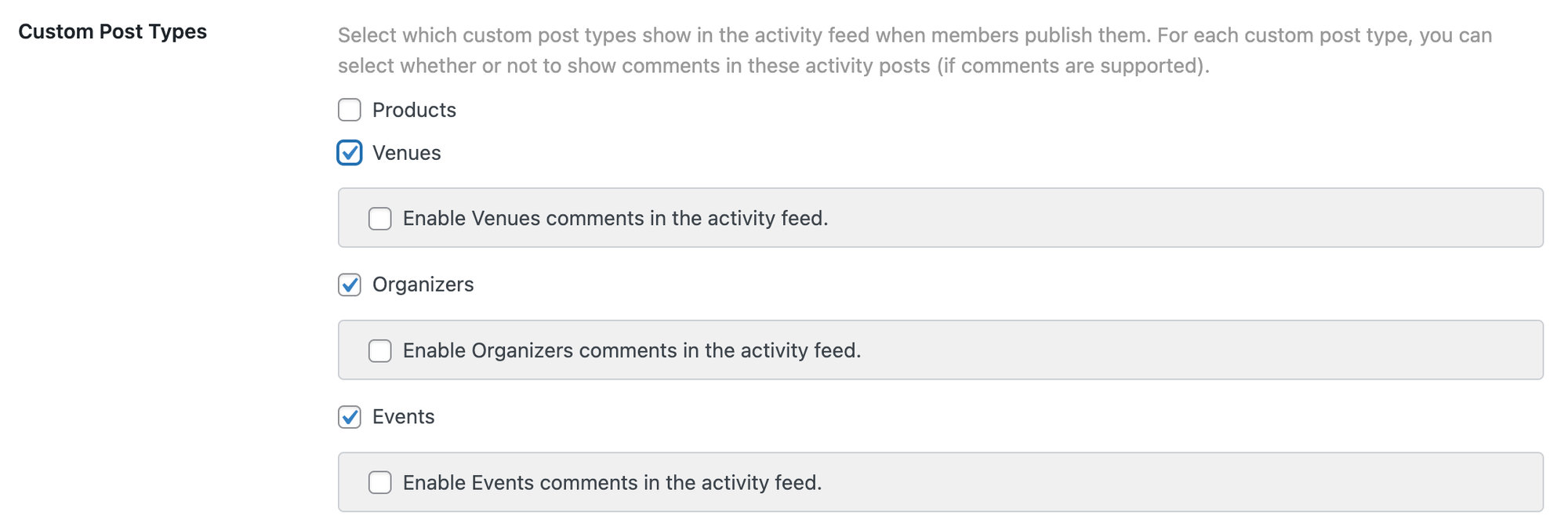You can also enable Venues and Organizers in the Activity Feed if you’d like newly created venues and organizers to appear there as well.
## Community Events
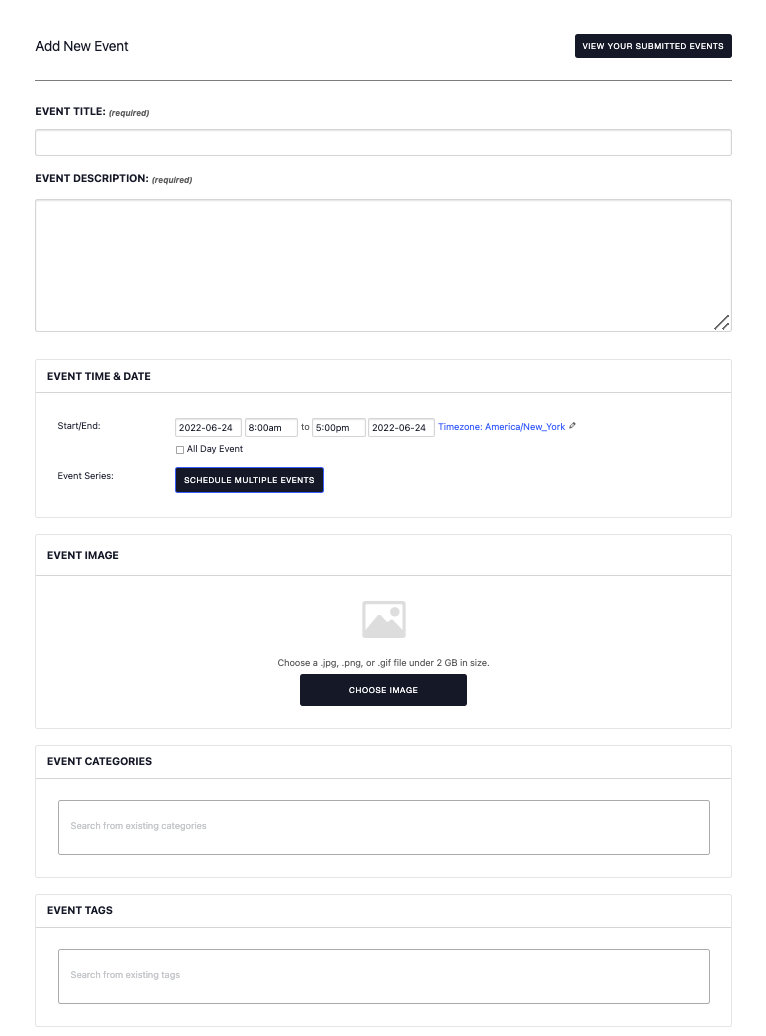
If you’d like create a BuddyBoss integration to allow your users to submit events from the front-end, you can use [Community Events](https://docs.nexcess.com/software/the-events-calendar/community-events/). Once enabled, you’ll see a front-end submission form. Events submitted here will also appear in the Activity Feed with your other events.
## Subscribe to calendar
If you’d like to use the [subscribe to calendar](https://docs.nexcess.com/software/the-events-calendar/subscribe-export-events/) feature with The Events Calendar and BuddyBoss, you’ll need to update the BuddyBoss settings to make this integration work. To do this, head over to **BuddyBoss > Settings > Privacy**. If you have *restrict site access to only logged-in members* checked, then under “Public Website Content”, add the following entries for the different subscription options. Remember to substitute your site’s domain.
| Google Calendar | `webcal://domain.com/?post_type=tribe_events&ical=1&eventDisplay=list` |
|---|---|
| iCalendar | `webcal://domain.com/?post_type=tribe_events&ical=1&eventDisplay=list` and `https://domain.com/?post_type=tribe_events&ical=1&eventDisplay=list` |
| Outlook 365 Outlook Live | `webcal://domain.com/?post_type=tribe_events&ical=1&eventDisplay=list` Note, you will need to copy the above URL (with your domain) into the Outlook subscribe window. |
| Export .ics \* | `/events` or `https://domain.com/events/list/?ical=1` |
| Export Outlook.ics \* | `/events` or `https://domain.com/events/list/?outlook-ical=1` |
\* Note, that adding `/events` to “Public Website Content” area will make your calendar views publicly accessible as well. If you would like to avoid that, than use the URLs instead.
To make copy-pasting easier here is the full list without comments:
```
webcal://domain.com/?post_type=tribe_events&ical=1&eventDisplay=list
https://domain.com/?post_type=tribe_events&ical=1&eventDisplay=list
https://domain.com/events/list/?ical=1
https://domain.com/events/list/?outlook-ical=1
```
## Online courses
Lastly, you can enable online learning with BuddyBoss, by integrating with LearnDash. Read all about how to do that [here](https://www.buddyboss.com/resources/docs/integrations/learndash/learndash-setup/).