Product Configurator
How to Change the Image Cache Settings
Coming soon: Iconic Product Configurator is becoming part of Kadence Shop Kit. You may see both names used while we update the product, documentation, and customer experience.
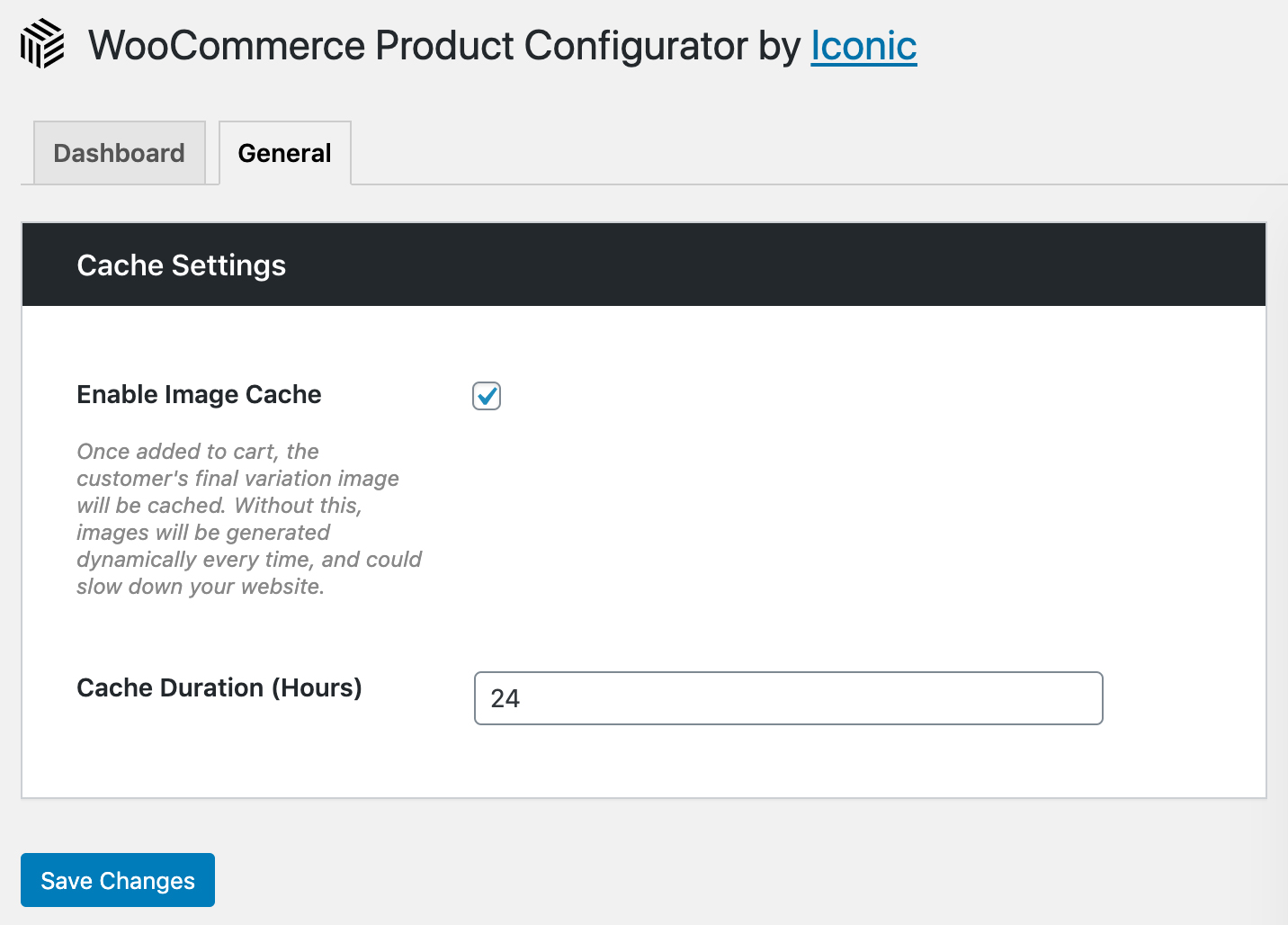
WooCommerce Product Configurator includes image caching to instantly load configured product images for your customers.
If you’d like this to be activated on your site, take the following steps:
From your WordPress dashboard, go to WooCommerce > Configurator > General, and check ‘Enable Image Cache’.
Clearing the Image Cache
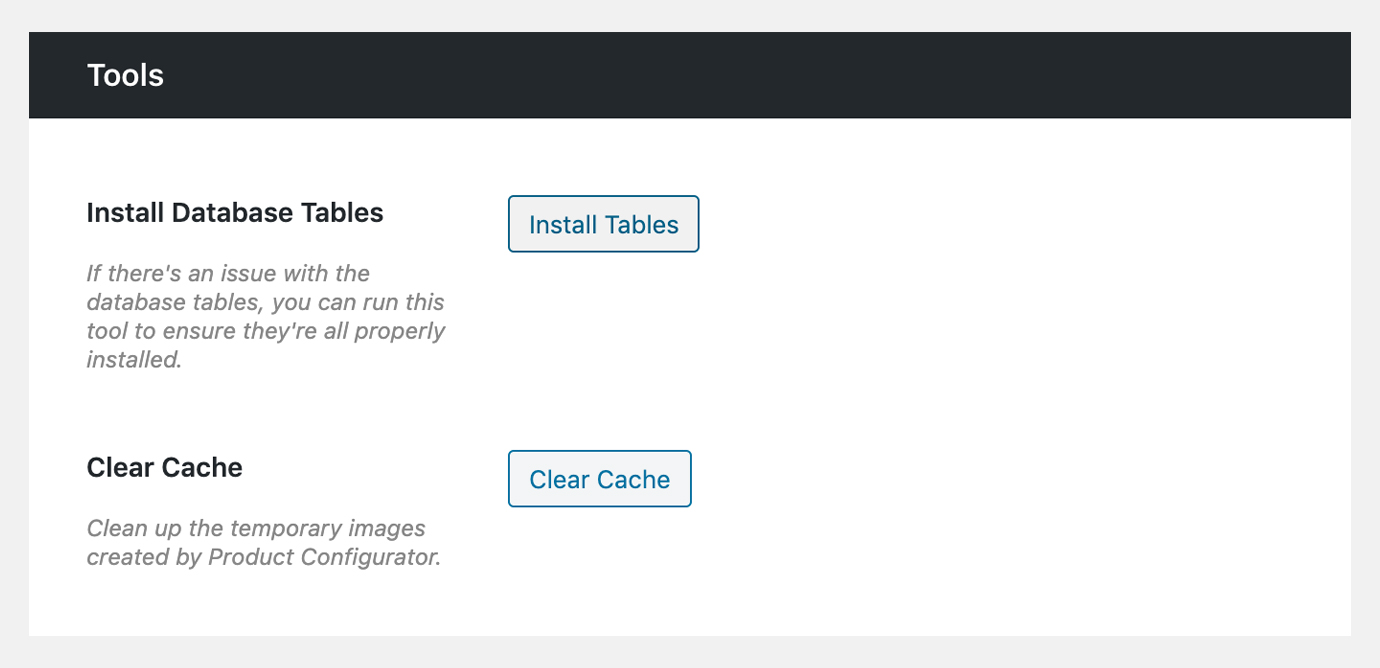
Should you update your product imagery – you may need to clear the image cache to show the changes.
To do this, go to WooCommerce > Configurator > Dashboard and click the Clear Cache button. This will remove all configured images from WooCommerce Product Configurators image directory.