Kadence
How to Install & Activate Kadence Conversions
Kadence Conversions is a lightweight, conversion-focused WordPress plugin that allows you to create targeted popups, slide-ins, and notification banners using the native WordPress Block Editor. Built for optimal performance without heavy script bloat, Kadence Conversions helps drive opt-ins, sales announcements, and user engagement while tracking views, conversions, and conversion rates.
Before You Begin
To use Kadence Conversions, you must also have the free Kadence Blocks plugin installed on your site. If you don’t have Kadence Blocks, you will be prompted to install Kadence Blocks during the installation of Kadence Conversions.

Licensing Kadence Conversions
Nexcess Software manages your licensing through the Nexcess Portal. For full instructions on downloading, installing, and licensing your product, see the official How to Activate Your License document.
Creating a Conversion Item
- In your WordPress dashboard, navigate to Conversions → Add New.
- Choose your preferred starting point:
- Pre-Built Library: Select from professionally designed conversion patterns (modals, slide-ins, and banners).
- Blank Canvas: Build a custom layout from scratch using standard Gutenberg blocks and Kadence Blocks.
- Add your content, buttons, or form fields inside the block editor canvas.
Conversion Types & Display Triggers
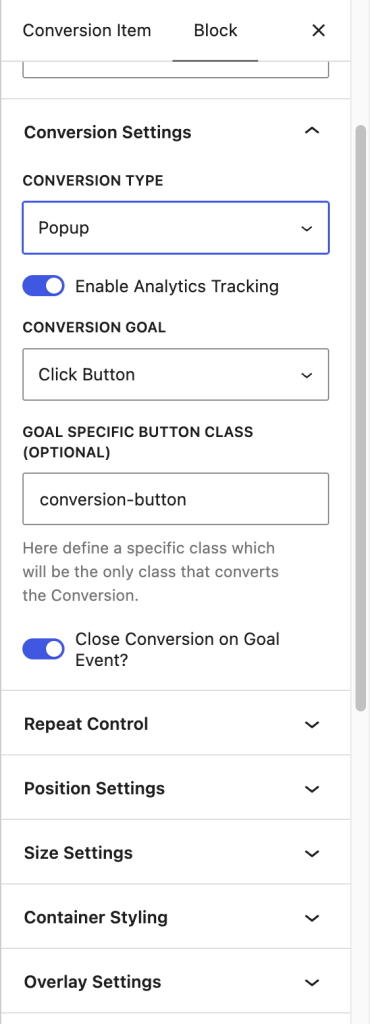
Select the root Conversion Block to configure layout behavior and targeting rules in the right-hand settings panel:
Conversion Types:
- Popup (Modal): Centered overlay window that focuses visitor attention.
- Slide In: Corner element that slides into view without obstructing full-page reading.
- Banner: Responsive bar docked to the top or bottom edge of the screen.
Launch Triggers:
- Time delay (seconds after page load).
- Scroll distance (percentage of page scrolled).
- Exit intent (visitor cursor moves toward closing the browser tab).
- User click (open on custom button or link click).
Targeting Rules: Filter display by post type, taxonomy, device type (Desktop, Tablet, Mobile), user login state, URL query strings, or WooCommerce cart totals.
Analytics & Goal Tracking
Kadence Conversions includes native tracking to evaluate performance:
- Conversion Goals: Measure conversions by Form Submission (e.g., Advanced Form block) or Button Click.
- Automatic Dismissal: Optionally toggle Close Conversion on Goal Event to dismiss the element immediately upon action completion.
- Performance Dashboard: Navigate to Conversions → Dashboard to inspect total impressions, successful goal conversions, and real-time conversion rates across your active campaigns.