Kadence
Kadence White Label
Kadence White Label empowers users to tailor their WordPress admin interface to reflect their unique agency or client branding. With this plugin, you can replace Kadence icons, product names, images, links, and support text with your own custom identity. This functionality particularly benefits agencies, freelancers, and creators seeking complete control over client-facing brand presentations.
Before you begin
Kadence White Label applies to the Kadence Theme and Kadence Blocks, and does not alter third-party plugins or standalone extensions.
Licensing Kadence White Label
Nexcess Software manages your licensing through the Nexcess Portal. For full instructions on downloading, installing, and licensing your product, see the official How to Activate Your License document.
General Settings
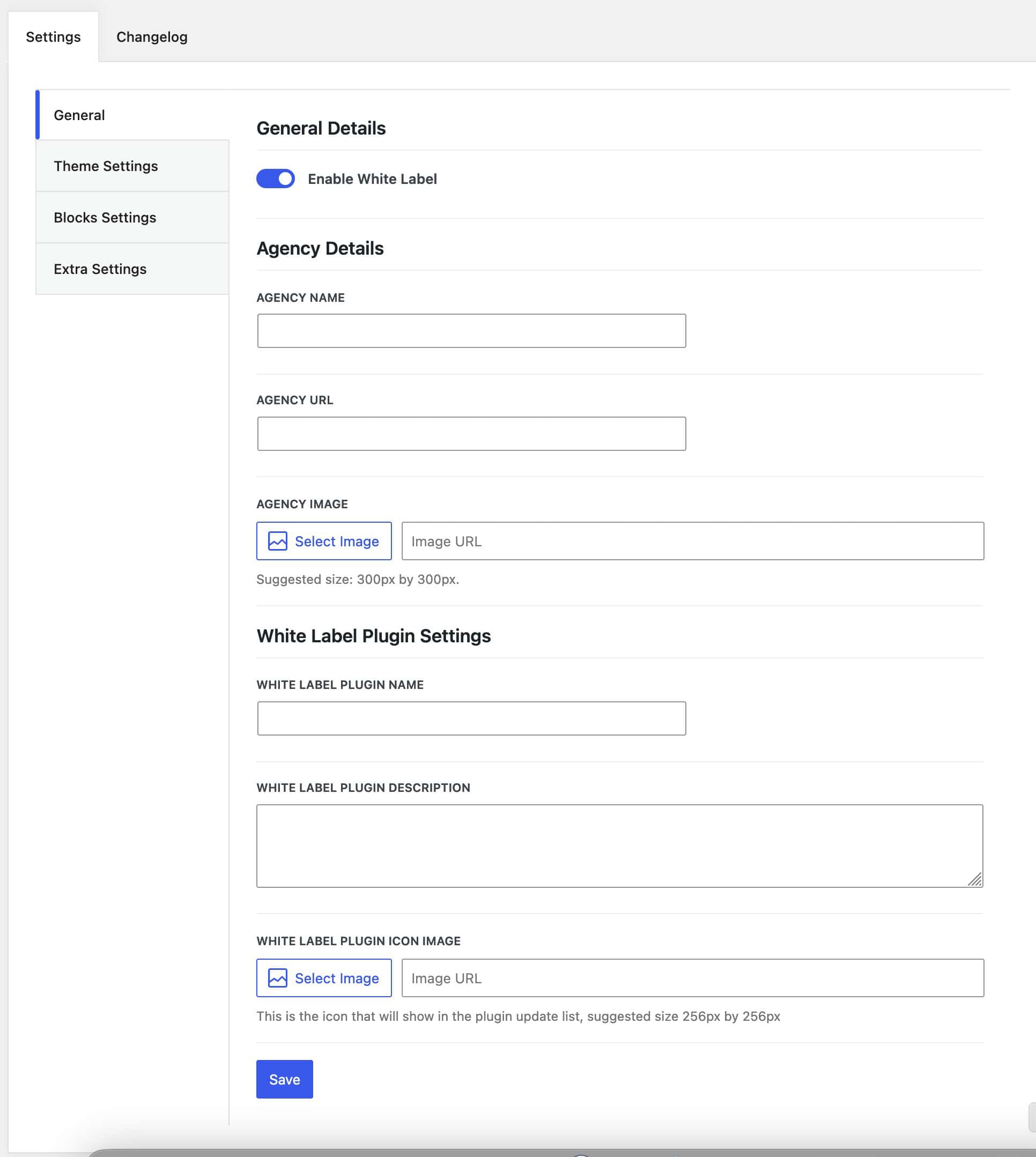
The General settings allow you to Enable White Label.
Under Agency Details, you can specify the details for your Agency.
You can specify your Agency Name and Agency URL. This will be used for your Kadence White Labels.
You can also set an Agency Image. The suggested size is 300px by 300px.
You can use the White Label Plugin Settings to customize how the Kadence White Label plugin appears in your Plugins List.
You can set a White Label Plugin Name.
You can set a White Label Plugin Description.
You can also set a White Label Plugin Icon Image. The suggested size is 256px by 256px.
Theme Settings
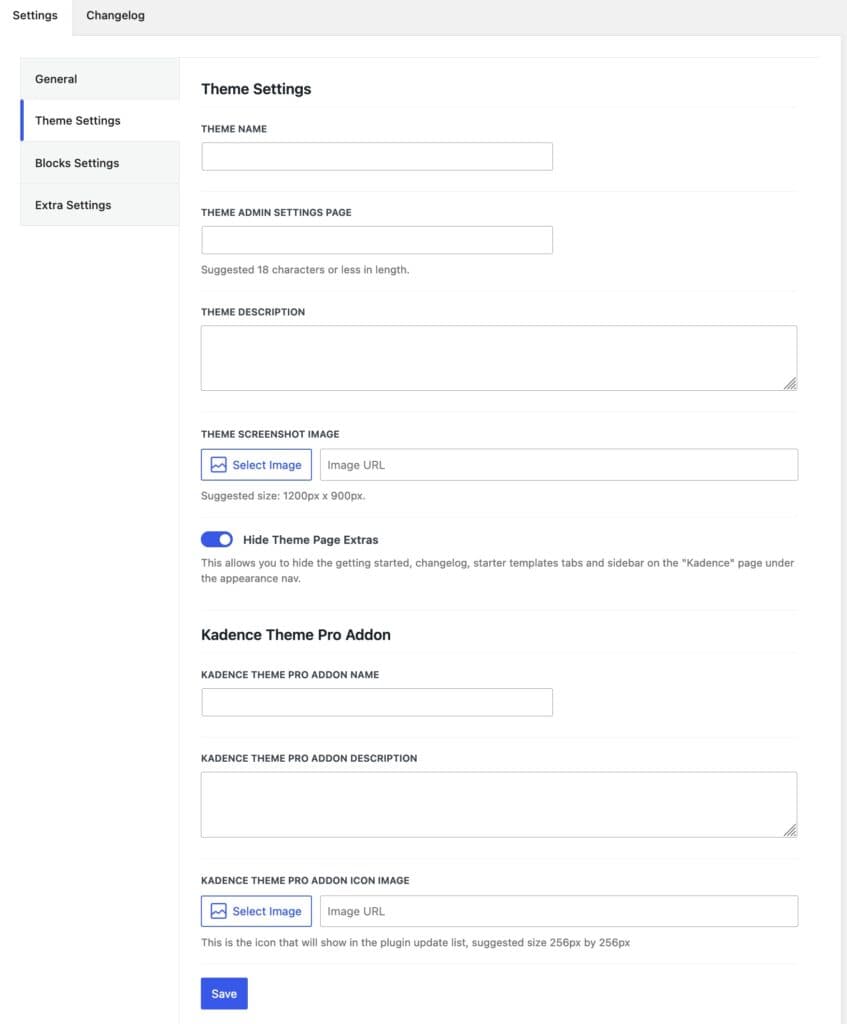
The Theme Settings control the White Label settings for the Kadence Theme.
You can change the Theme name to your preferred name. This will replace the theme name accordingly.
You can set the Theme Admin Setting Page name. This is the setting shown in the wp-admin appearance navigation.
You can set the Theme Description. This will change the theme description accordingly.
You can set the Theme Screenshot Image. This Image will be displayed as your Theme Image in the Appearance -> Themes settings and when viewing the Theme Details.
Additionally, you can Hide the Theme Page Extras. This hides the getting started, changelog, and sidebar on the “Kadence” page under the appearance navigation. This will also hide things like your License Activation box for Theme Kit Pro.
Theme Kit Pro Add-on Settings
You can adjust the Kadence Theme Kit Pro Add-on name and Description to something other than the default.
You can also set a new Kadence Theme Kit Pro Icon Image. This is the icon that will show in the plugin upgrade list. The recommended size is 256x256px
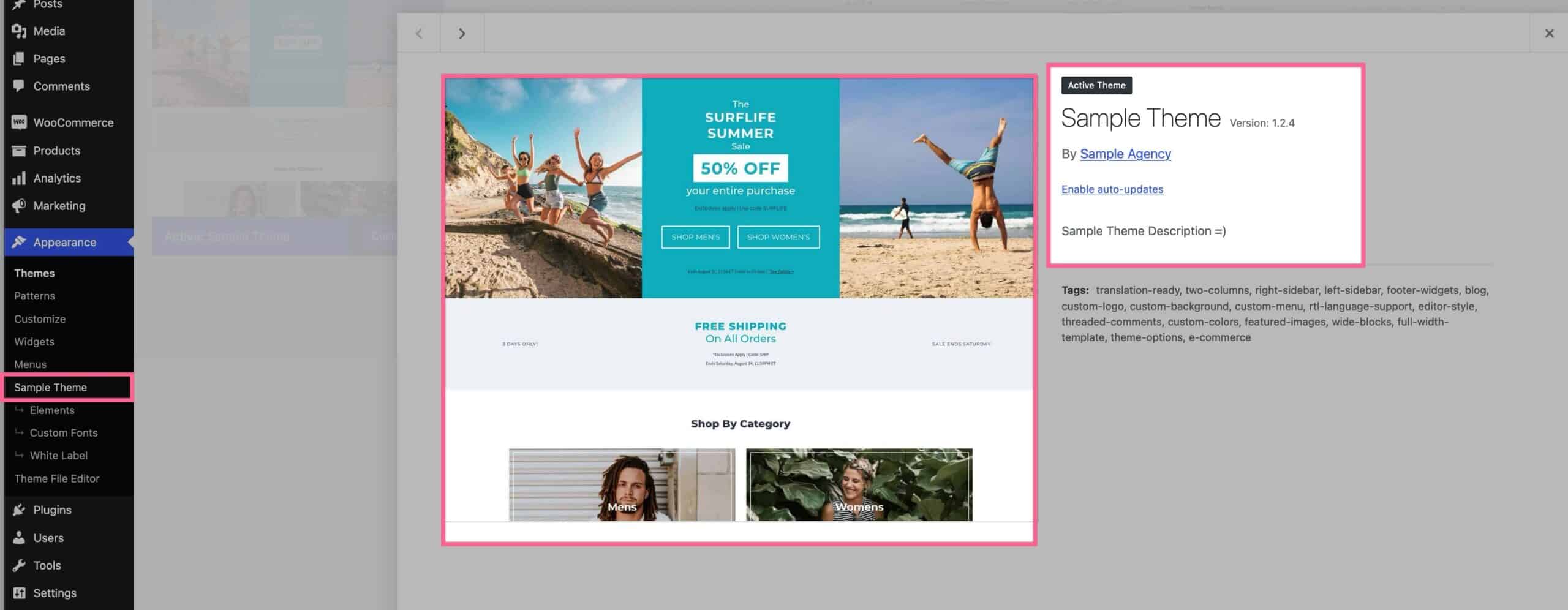
White Labeled Theme Example
This is an example of what a White Labeled Theme would look like if it used the name Sample Theme. Instead of seeing the Kadence Theme, you would see the following:
This is an example of the Theme Settings page with the Hide Theme Page Extras setting enabled.
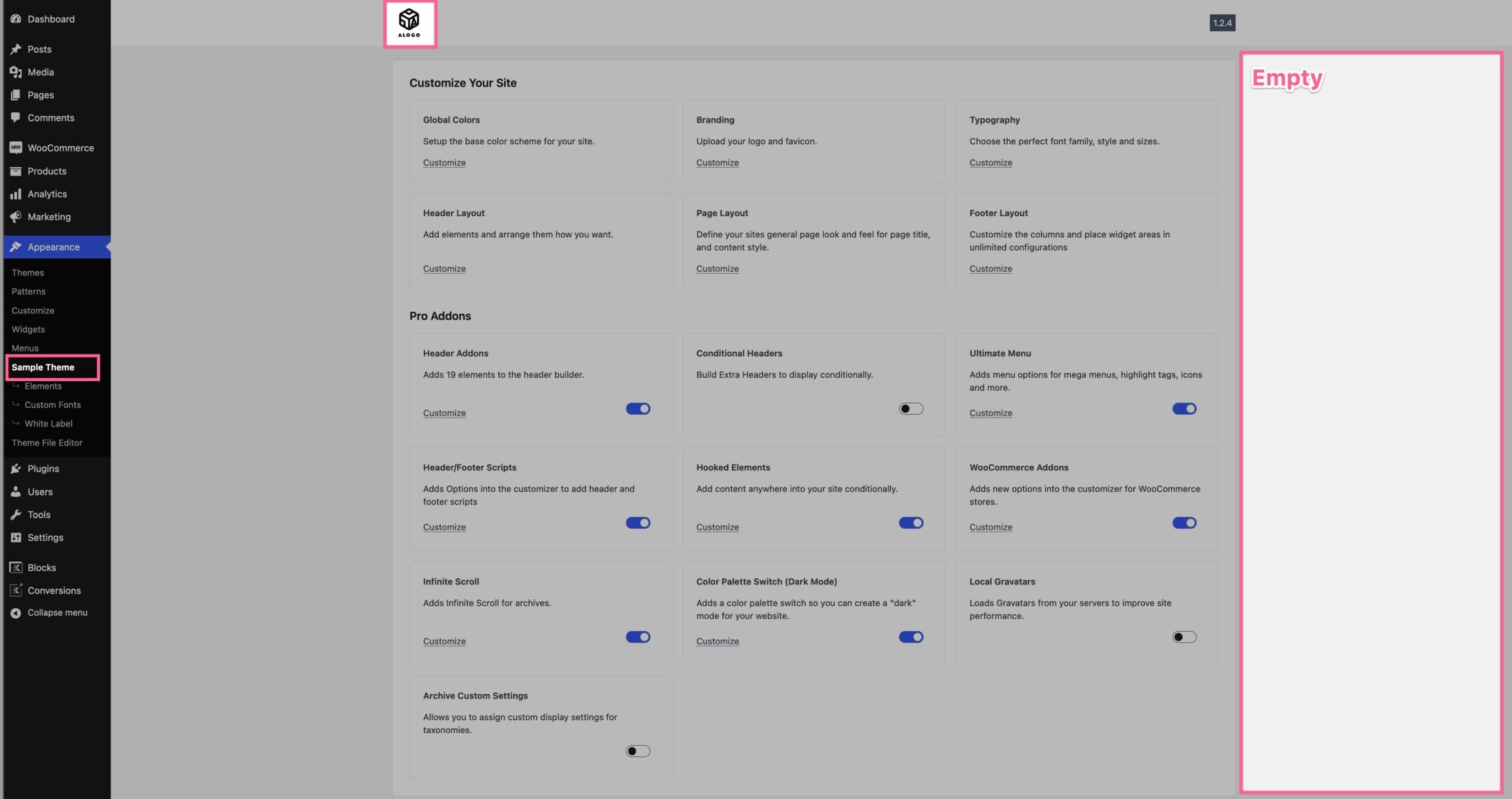
This is an example of the Kadence Theme Kit Pro plugin using a White Label.

Block Settings
The Block Settings control the White Label settings for the Kadence Blocks plugin.
You can change the Kadence Blocks Name to your preferred name. This will change the plugin name accordingly.
You can set a Kadence Blocks Description. This will change the plugin description accordingly.
You can set a Kadence Blocks Icon Image. This will replace the Kadence Blocks Icon across your website. The suggested size is 256px by 256px.
You can set a Blocks Admin Menu Name. This is suggested to use a maximum of 12 characters.
You can choose a Menu Icon. You can also use a Custom SVG for the Menu Icon.
Blocks Pro Add-on Settings
You can adjust the Kadence Blocks Pro plugin Name and Description to something other than the default.
You can also set a new Kadence Blocks Pro Icon Image. This is the icon that will show in the plugin upgrade list. The recommended size is 256x256px
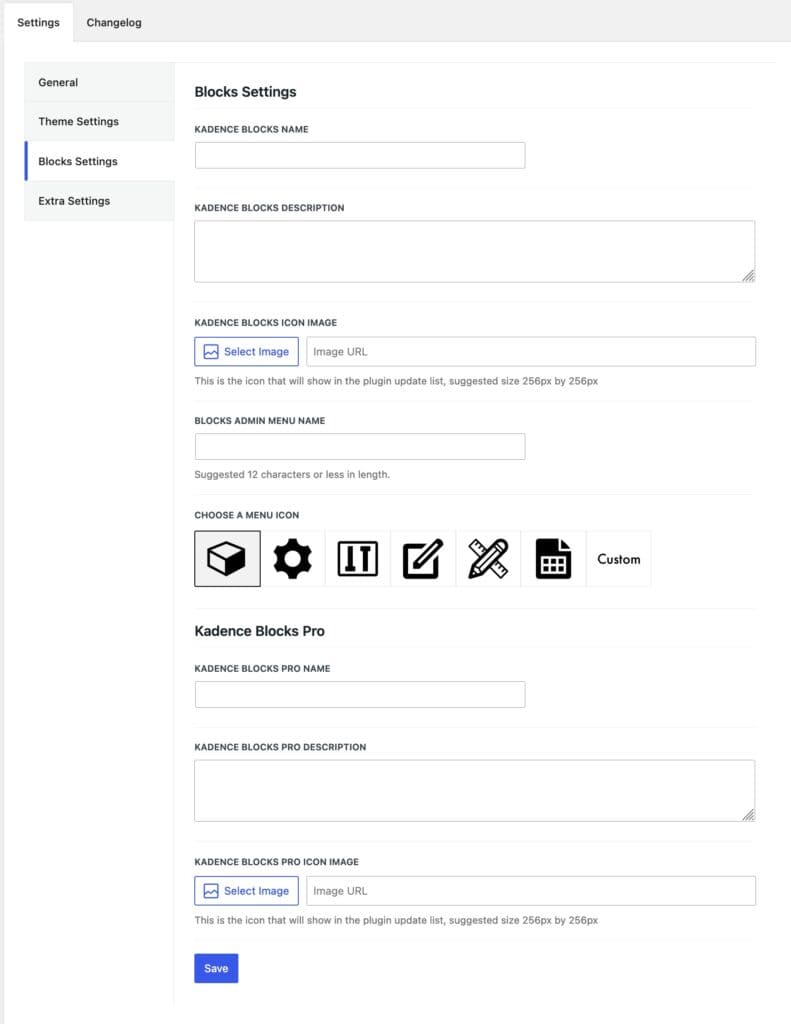
White Labeled Blocks Example
Here is an example of the Editor Block Admin.
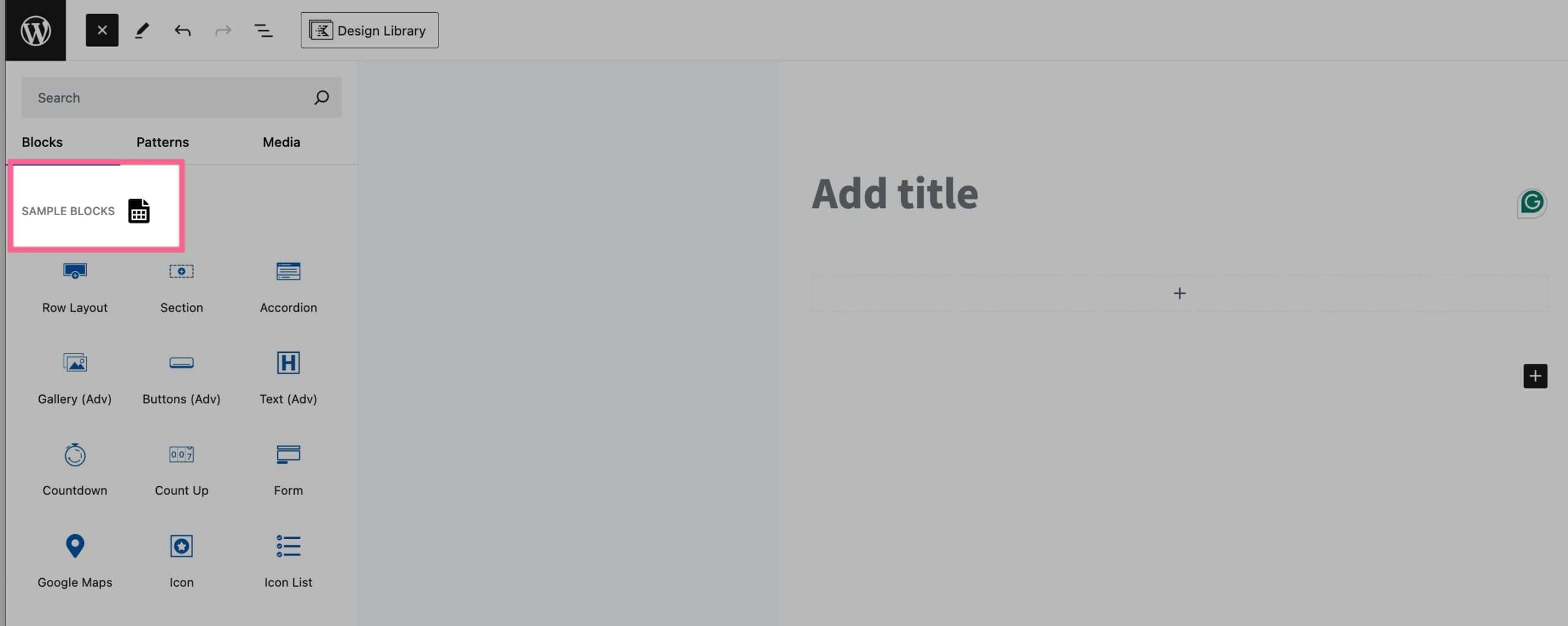
Here is an example of the Kadence Admin Menu Name for Blocks using a White Label.

Here is an example of the Kadence Blocks and Blocks Pro plugins using a White Label.
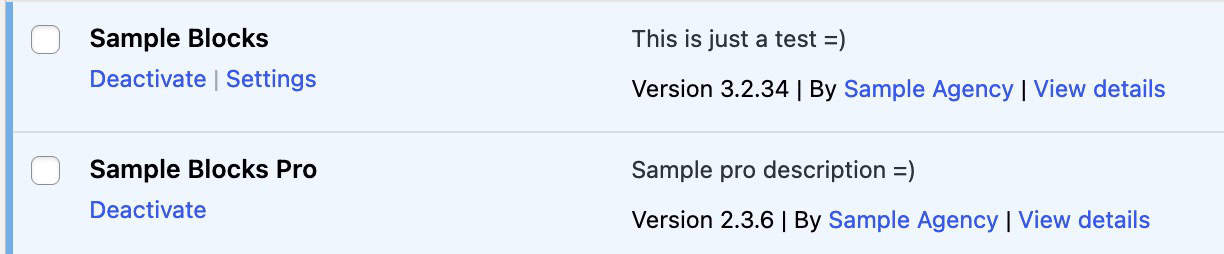
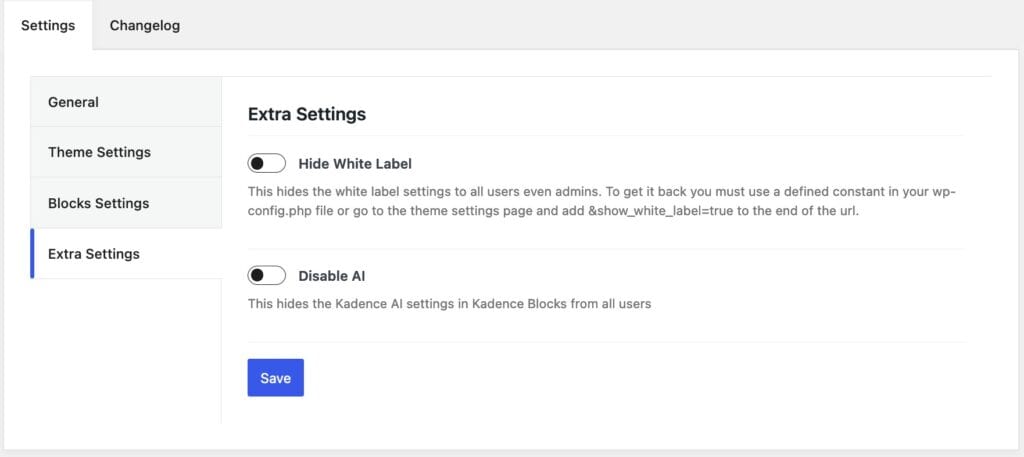
Extra Settings
You can use the Extra Settings to Hide White Label. Whenever you hide White Label, it will disappear from your Appearance Navigation. The only way to get the White Label Page back is to go to your theme settings page and add &show_white_label=true to the end of the URL.
You can also disable AI. This will hide the Kadence AI Settings in Kadence Blocks for all users.