

Ratings, Reviews & Feedback
Setting Up Ratings, Reviews, & Feedback
This guide will walk you through the process of setting up and configuring the essential settings for the Ratings, Reviews, and Feedback add-on on your WordPress site. Configuring these options allows you to collect student testimonials, display star ratings across your courses, and receive private student feedback directly in your dashboard.
Before getting started with Ratings, Reviews, and Feedback, please ensure you have the LearnDash LMS plugin installed and activated, that your site meets or exceeds our prerequisites, and you have the add-on properly installed and activated.
Configuring General Feedback Settings
To configure Feedback, navigate to Dashboard > Course Feedback > Settings > General tab.
Feedback on all courses: Enables feedback by default for all courses across your site.
Feedback notification: Enables automated email notifications to the author whenever feedback is submitted for a course.
Feedback button text: Customizes the label of the feedback button displayed to students on the course page.
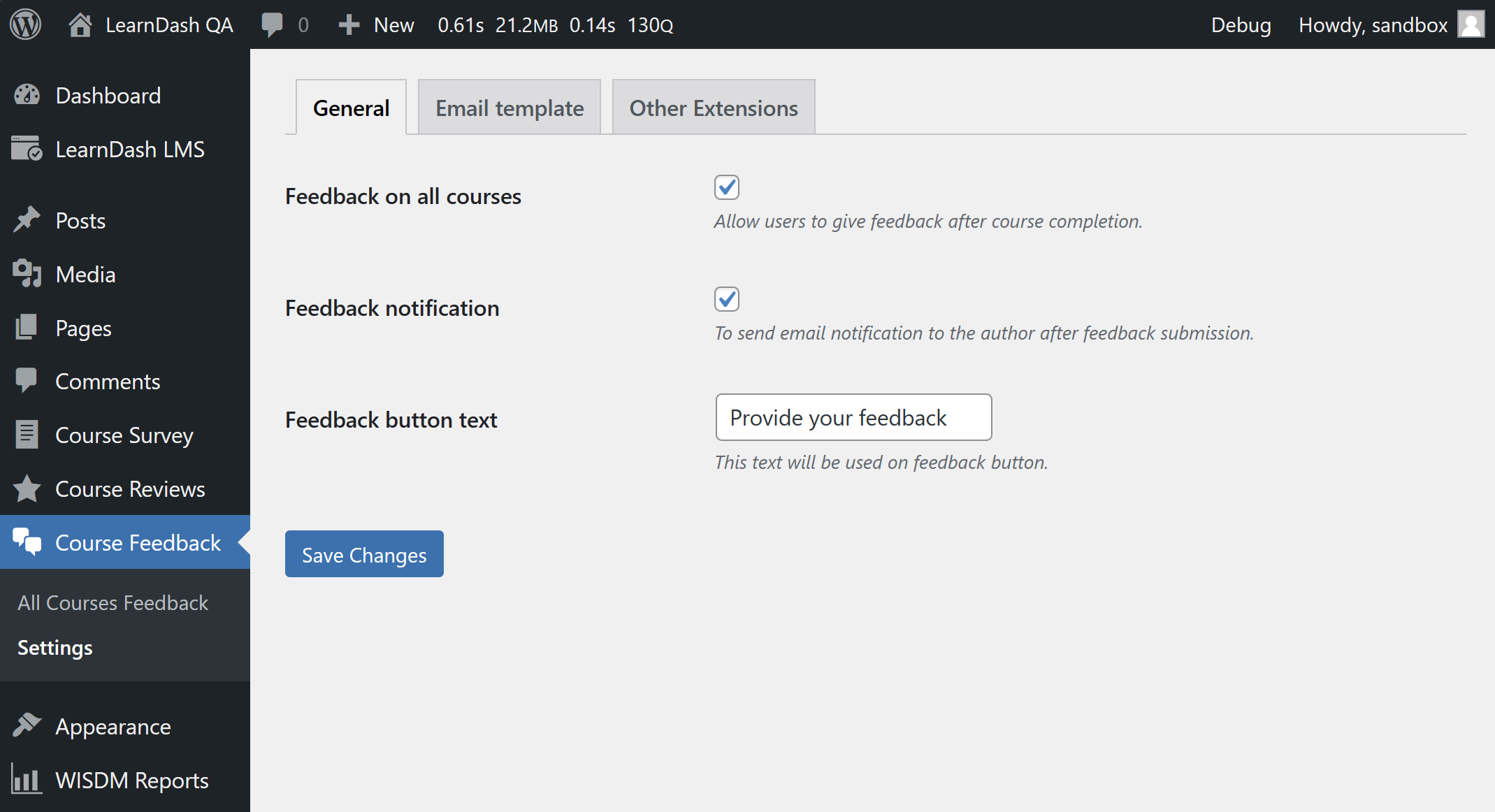
NOTE: This is a global setting that can be overridden for each individual course.
Feedback Email Template
To customize the feedback notification email, navigate to Dashboard > Course Feedback > Settings > Email Template tab.
You can design the feedback submission email to be sent to each instructor with the student details using the wp editor and user info shortcodes.
The list of available shortcodes is mentioned below:
User shortcodes
User first name: [user_first_name]
User last name: [user_last_name]
User display name: [user_display_name]
User email ID: [user_email_id]
User ID: [user_id]
Author shortcodes
Author first name: [author_first_name]
Author last name: [author_last_name]
Author display name: [author_display_name]
Author email ID: [author_email_id]
Author ID: [author_id]
Course shortcodes
Course title: [course_title]
Course link: [course_link]
Course ID: [course_id]
Feedback shortcodes
Feedback of the user: [feedback_content]
Feedback link: [feedback_link]
Feedback ID: [feedback_id]
Course Specific Feedback Settings
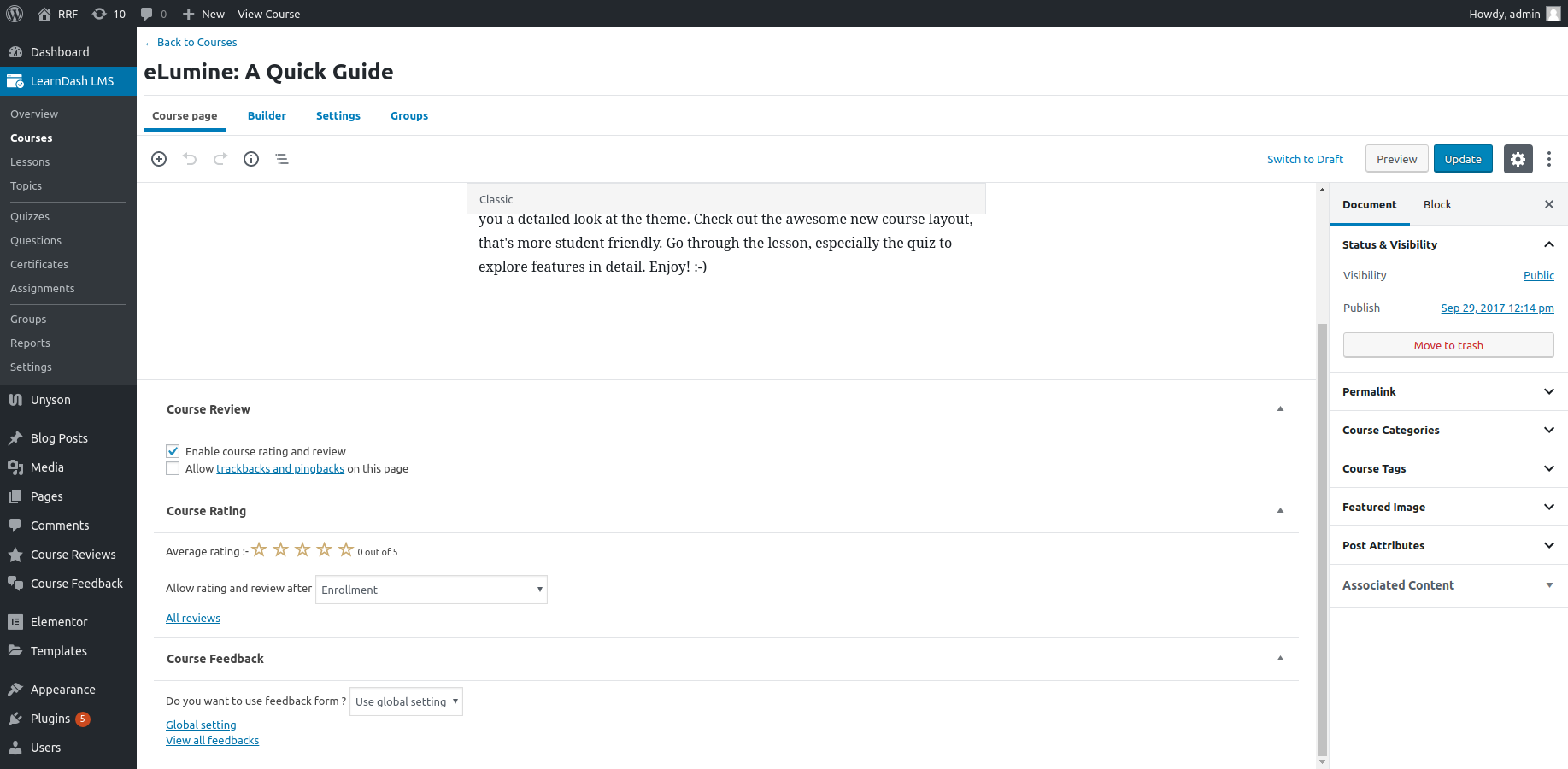
When creating or editing a course, you can choose whether to enable feedback specifically for that course:
- Navigate to LearnDash LMS > Courses and edit a course.
- Select whether to enable, disable, or inherit the global feedback setting.
- Use the provided link to view all feedback submitted for that specific course.
Feedback functions as a direct private message to the instructor. It is only accessible in the WordPress backend and is never shown publicly on the frontend of your site, eliminating the need for an approval/rejection process.
Configuring Ratings & Reviews Settings
To configure public ratings and reviews, navigate to Dashboard > Course Reviews > Settings > General tab.
- Allow comment on reviews: Allows visitors or instructors to leave comments on published reviews.
- Global Course Review Switch: A dual-list toggle selector to quickly enable or disable reviews across all courses at once.
- Admin approval required on reviews: When disabled, student reviews publish immediately without prior administrator review.
- Allow media upload on reviews: Permits learners to upload images and videos alongside their review text.
- Color for filled stars: Color picker used to set the theme color for star icons and rating bars.
- Minimum number of reviews: Sets the minimum number of reviews required before displaying aggregate stars next to a course’s name.
- Review notification: Sends an email notification to the course author whenever a new review is posted.
- Review default rejection email settings:
- Rejection Subject: This allows you to set a subject for the rejection emails sent to the reviewers.
- Rejection Message: Sets the body text explaining why a review was rejected.
Email Template
To customize review notification emails, navigate to Dashboard > Course Reviews > Settings > Email Template.
The list of all the available shortcodes for the email is given below:
User shortcodes
User first name: [user_first_name]
User last name: [user_last_name]
User display name: [user_display_name]
User email ID: [user_email_id]
User ID: [user_id]
Author shortcodes
Author first name: [author_first_name]
Author last name: [author_last_name]
Author display name: [author_display_name]
Author email ID: [author_email_id]
Author ID: [author_id]
Course shortcodes
Course title: [course_title]
Course link: [course_link]
Course ID: [course_id]
Review shortcodes
Headline of the Review: [review_headline]
Course Specific Settings
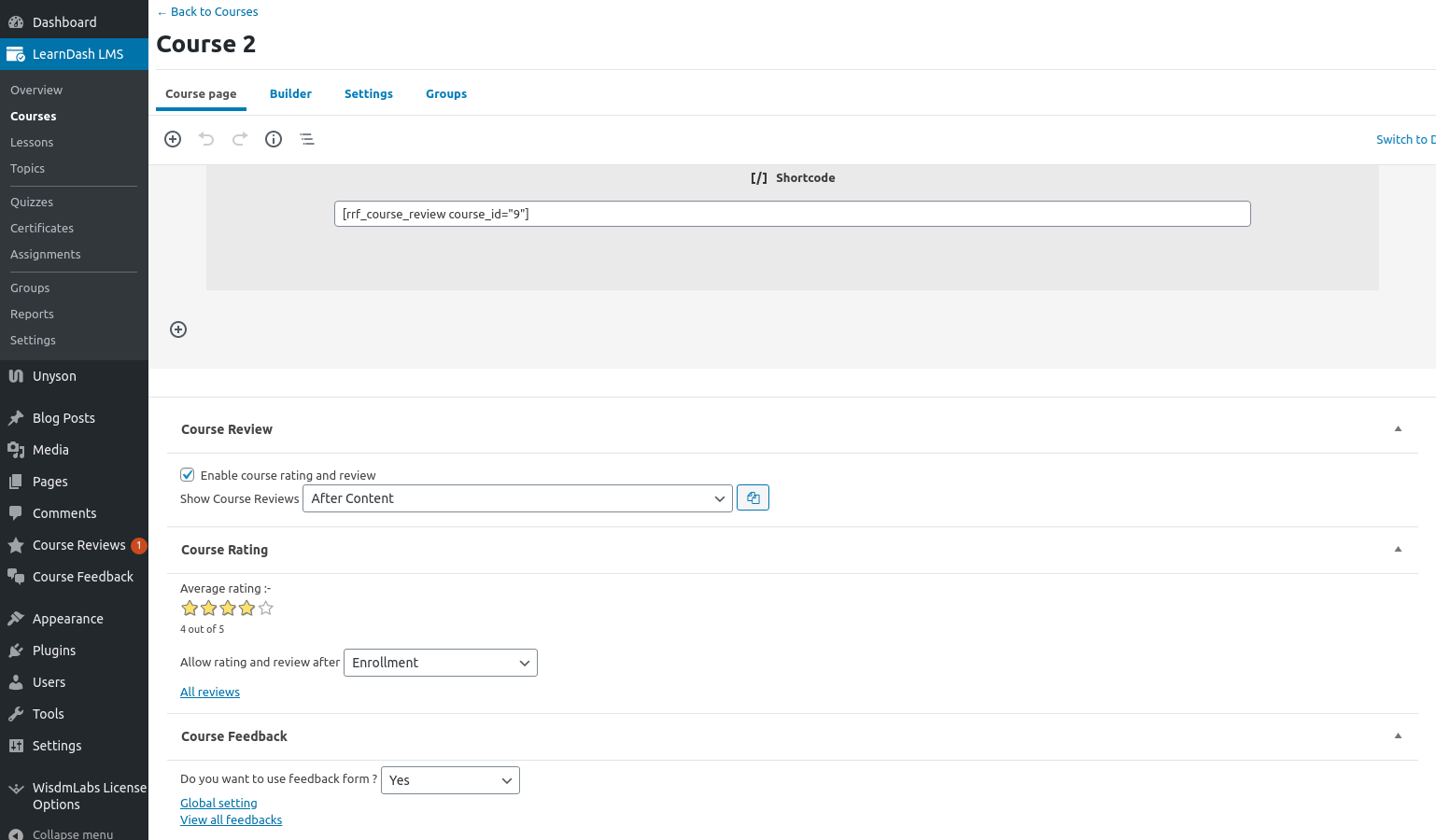
There is also a setting to configure the location of the reviews section i.e., After Content, Before Content, or Custom Location (using [rrf_course_review] shortcode).
Other than these, the instructor will be able to see the average reviews obtained in the course edit page.
Also, the admin will be able to configure when to enable the reviews for a particular course i.e., when the admin/instructor creates a course, he/she gets the option to select whether he/she wants to enable ratings & reviews for that particular course:
- On Course Enrollment
- On Course Completion
- On any of the Lessons completion
- On any of the Topics completion.
All of the reviews posted on the website are in pending approval mode by default and will need to be manually approved or rejected by the website administrator.
This is done to avoid spamming and stop inappropriate reviews from being added by the users.
Other than these, there is a link to see All Reviews submitted for that course.
Review Prompt and Reminder Settings
These settings impact how your review emails and review reminders are presented.
Review Prompt Emails
You can access Review Prompt Email Settings by going to Dashboard > Course Reviews > Settings > Review Prompt Email Settings tab.
Check Enable to activate automated review prompts. When enabled, students automatically receive an email encouraging them to submit a review the moment they become eligible.
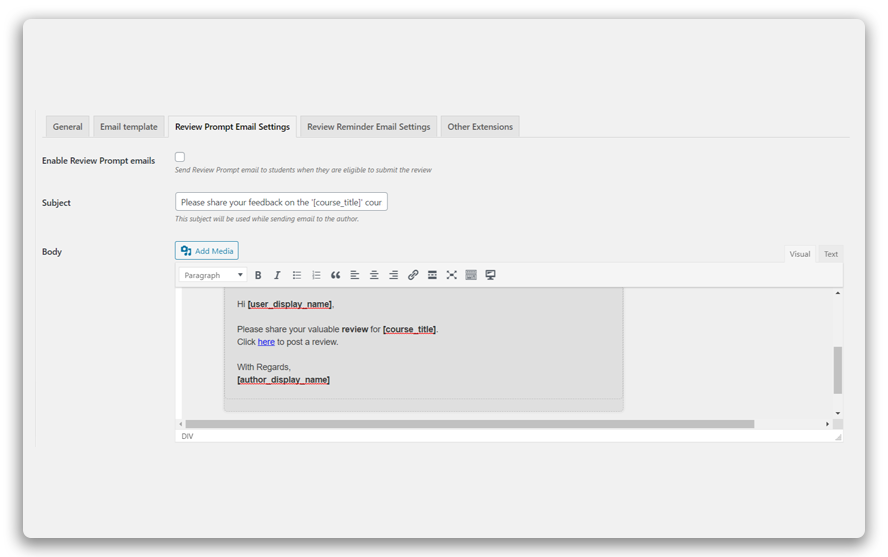
You can even customize and design the email being sent using the email template designer provided as shown above. This comes together with a list of shortcodes that can be used as per your requirements.
Review Reminder Settings
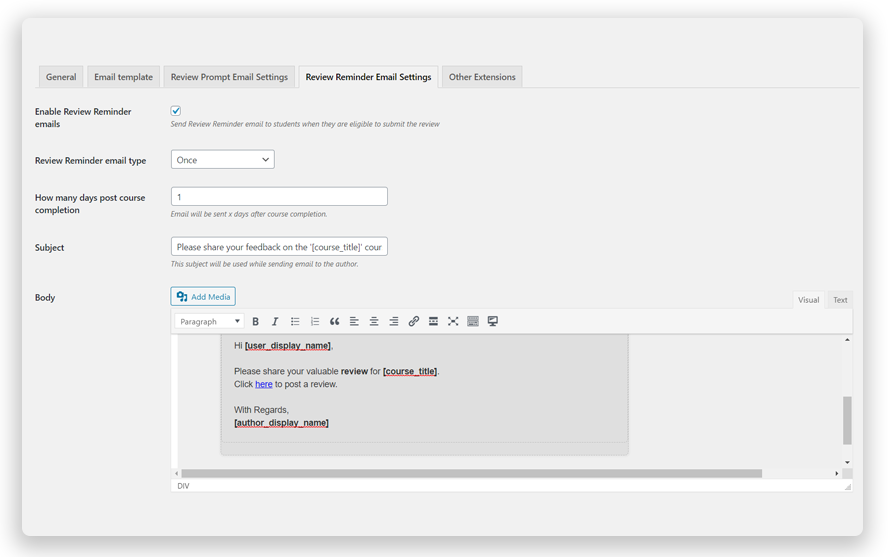
You can access Review Reminder Email Settings by going to Dashboard > Course Reviews > Settings > Review Reminder Email Settings tab.
Check the Enable box to activate automated reminder emails for students who haven’t yet posted a review.
Next, configure your sending schedule:
- For a one-time reminder, select Once and define how many days after course completion it should trigger.
- For ongoing nudges, select Periodic and choose a daily, weekly, or monthly delivery schedule.
To prevent spamming your learners, set a threshold in the Number of reminder emails to be sent field. Finally, customize the reminder text and layout using the built-in email template designer and available shortcodes.
The following video demonstrates both of these features:
Exporting Reviews
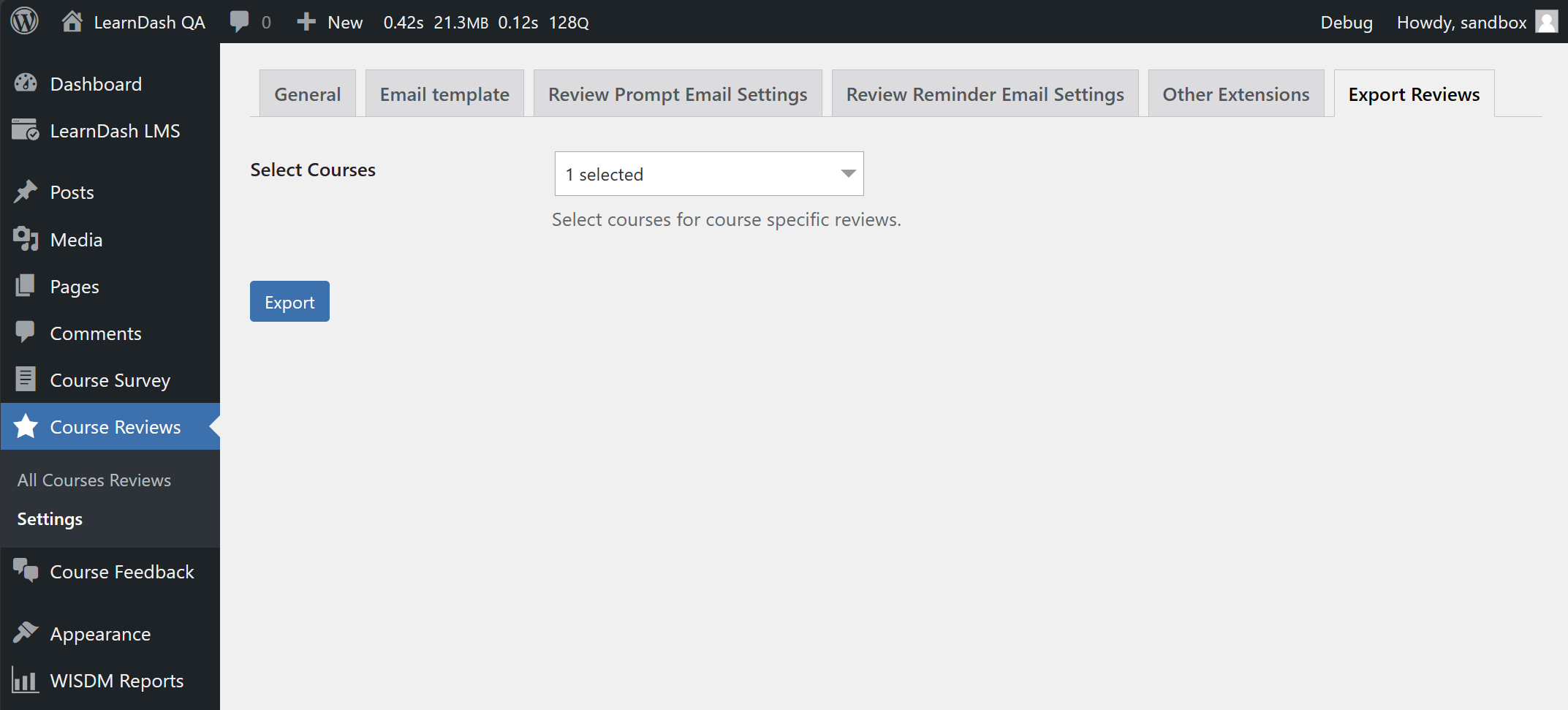
Export your reviews to CSV for deeper analysis or to showcase your best reviews elsewhere on your site. You can access this menu by going to Dashboard > Course Reviews > Settings > Export Reviews tab. This feature allows you to export all of the reviews for a particular course in a CSV file format.
How-To Videos for the Ratings, Reviews, and Feedback Add-on
These videos will walk you through several of our most popular features and how to implement them on your website.
How can students post reviews for your courses?
How can students submit feedback for your courses?
How to send review reminder notifications to students?
How to setup surveys?
Next Steps
Now that your setup is complete, learn how to manage and display your reviews:
- See what Ratings, Reviews, and Feedback can do: Explore frontend display options, shortcodes, and use cases in our Ratings, Reviews, and Feedback Features Guide.
- Troubleshooting and Support: Learn more about core configurations and requirements in the LearnDash Knowledge Base.