

Kadence Blocks
How to Add Custom Design Library Locations in Kadence Blocks
The Kadence Design Library ships with Kadence’s own patterns and pages, but it isn’t limited to them. You can point it at a Pattern Hub you built yourself, at a library a Kadence Creator sells access to, or at any other library you have the address and access key for.
Kadence Blocks only loads patterns from locations your site has approved. This article explains where that approved list comes from, and the three ways you can add your own locations to it.
Already registering a library in code?
If your theme, plugin, or child theme registers libraries through the kadence_blocks_custom_prebuilt_libraries filter, it keeps working exactly as it always has, nothing needs to change.
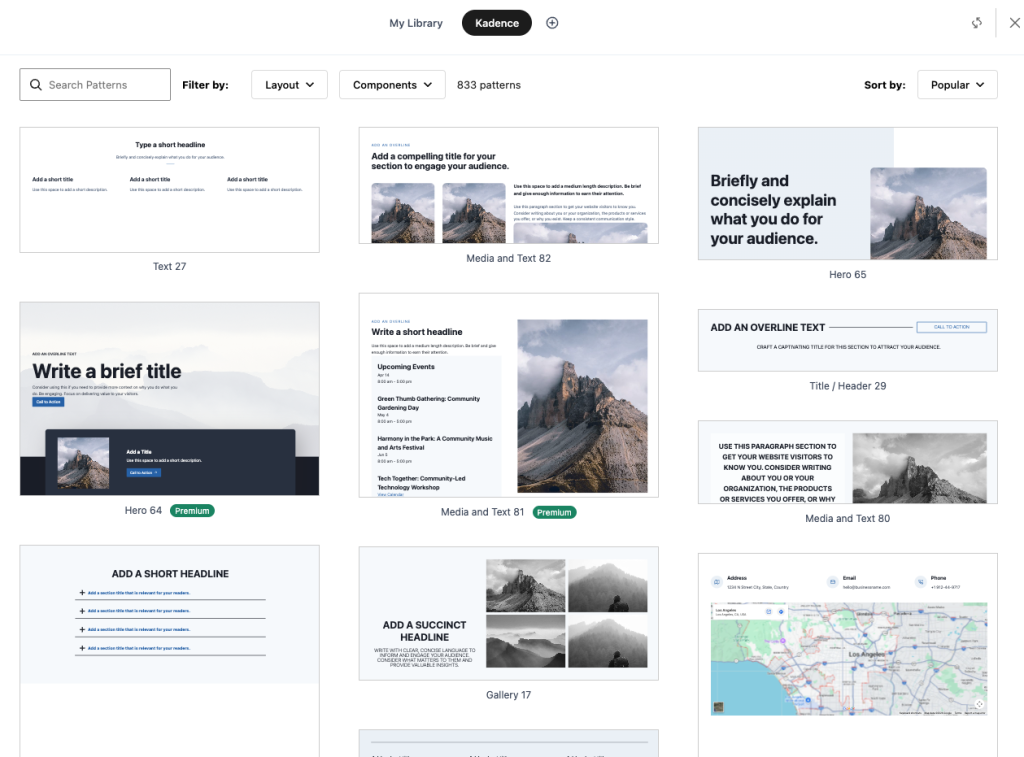
How Kadence Blocks Decides Which Locations to Load
Every time the Design Library requests patterns, Kadence Blocks checks the address against a list of approved locations. That list is built on your own site, from three places:
- Kadence’s own libraries. Always included.
- Pattern Hub connections you added in the Design Library. Added automatically when you save the connection.
- Libraries registered in code, using either of the two filters covered below.
If a location is not on that list, the Design Library will show the message Invalid Request, Unknown Library instead of loading patterns.
Option 1: Add a Pattern Hub Connection (No Code)
This is the easiest option and covers most cases. If you have a Connection URL and a Connection Access Key, you don’t need any code at all.
- Open a page or post in the editor.
- Click the Design Library button at the top left, next to the list view icon.
- Click the Plus Icon to open Cloud Connect.
- Enter your Connection URL and Connection Access Key.
- Click Add Connection.
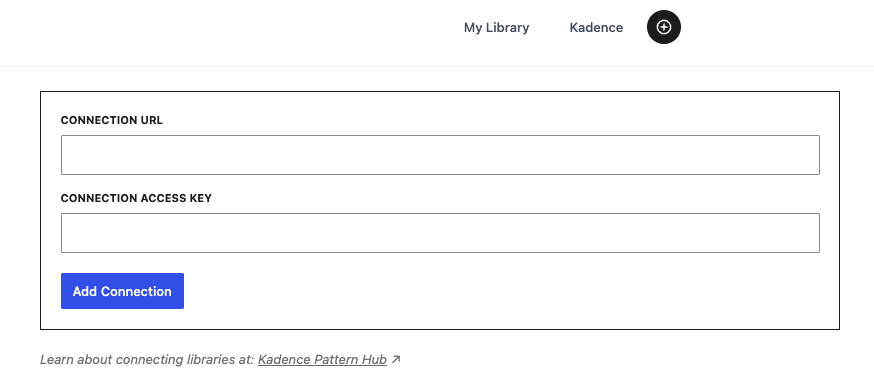
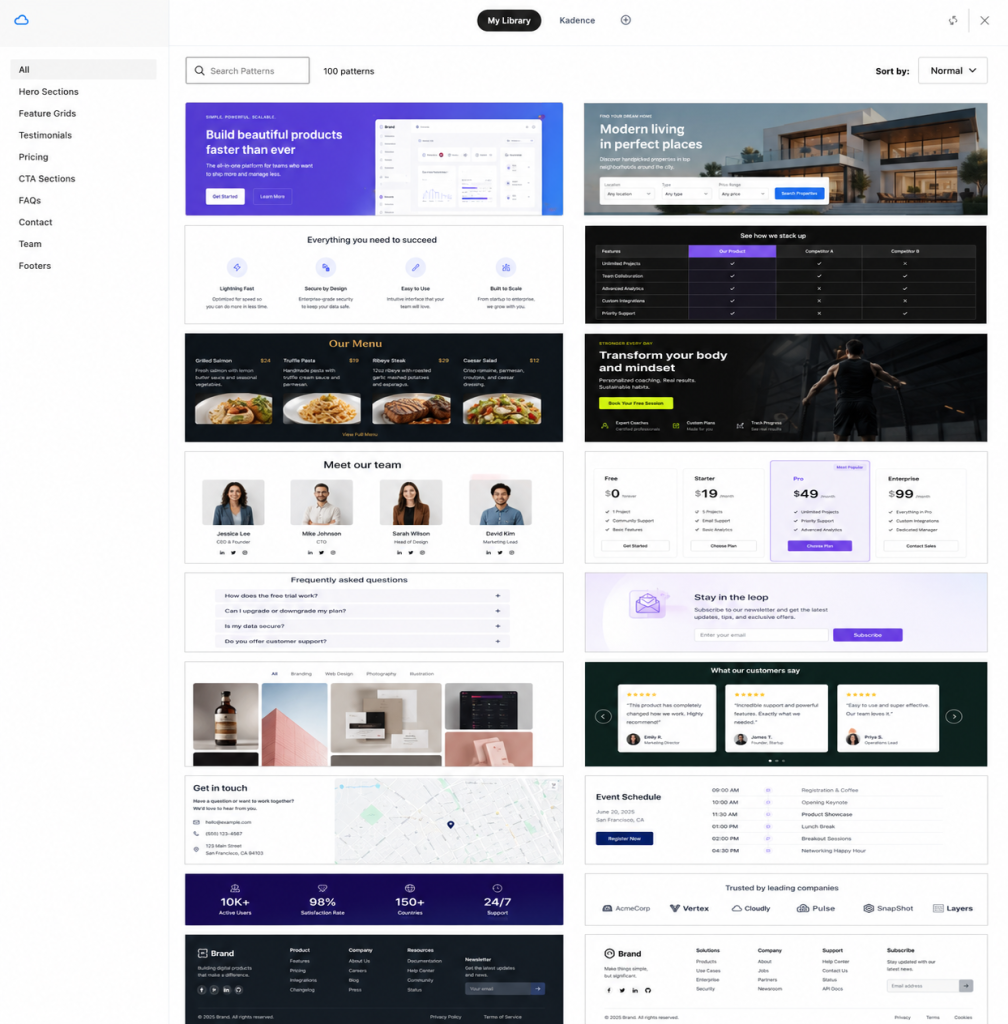
Your library appears as its own tab, and its address is approved automatically. To remove it later, click the Plus Icon again and click the Trash Icon next to the connection.
You can read more about this in How to Access the Kadence Design Library.
Option 2: Register a Library in Code
Adding a library in code is useful when you manage several sites and want the same library available on all of them without connecting each one by hand. It also lets you ship the library as part of a site’s setup, so a client never has to touch the connection form.
Kadence Blocks provides the kadence_blocks_custom_prebuilt_libraries filter for this. One entry in that filter does two things: it adds the tab to the Design Library, and it approves the library’s address.
Before You Begin
Important: Safety First
- Add custom PHP code using one of these safe options:
- A must-use plugin (recommended, explained below), or
- A code snippets plugin, or
- A child theme’s
functions.php
- Test changes on a staging site when possible.
- Create a full backup before adding or changing code.
Why a Must-Use Plugin Is the Best Place for This
A must-use plugin (or “mu-plugin”) is a single PHP file placed in wp-content/mu-plugins/. WordPress loads it on every request automatically, and it can’t be deactivated by accident from the Plugins screen.
That matters here. The Design Library loads patterns through background requests, and your library has to be registered by the time those requests run. A must-use plugin is always loaded early enough. A child theme’s functions.php usually works too, but a must-use plugin removes the timing question entirely, and it keeps working if the theme is switched.
If your site has no wp-content/mu-plugins/ folder yet, create it. WordPress will pick it up on the next page load.
The Code
Save the code below as kadence-custom-design-library.php and upload it to wp-content/mu-plugins/. Then edit the four values in my_design_libraries() to match your library.
<?php
/**
 * Plugin Name: Kadence Custom Design Library
 * Plugin URI: https://www.liquidweb.com/software/kadence/
 * Description: Adds a custom design library to the Kadence Blocks Design Library.
 * Author: Nexcess
 * Author URI: https://www.liquidweb.com
 * Version: 1.0.0
 * Requires PHP: 7.4
 * License: GPL2+
 * License URI: https://www.gnu.org/licenses/gpl-2.0.txt
 *
 * @package Kadence Blocks
 */

// Exit if accessed directly.
if ( ! defined( 'ABSPATH' ) ) {
	exit;
}

/**
 * The design libraries this site connects to.
 *
 * Edit the values below. Copy the whole block to add a second library.
 *
 * slug  Internal name for the tab. Lowercase, no spaces.
 * title The tab label shown in the Design Library.
 * url   The address of the library.
 * key   The access key for the library.
 * pages Set to true if the library also serves full pages.
 *
 * @return array[]
 */
function my_design_libraries(): array {
	return [
		[
			'slug'  => 'my-library',
			'title' => 'My Library',
			'url'   => 'https://patterns.example.com',
			'key'   => 'your-access-key',
			'pages' => true,
		],
	];
}

/**
 * Adds the libraries to the Design Library and allows the editor to load them.
 *
 * @param array[] $libraries Libraries already registered.
 *
 * @return array[]
 */
function my_design_libraries_register( $libraries ): array {
	return array_merge( (array) $libraries, my_design_libraries() );
}
add_filter( 'kadence_blocks_custom_prebuilt_libraries', 'my_design_libraries_register' );
What this does:
- Adds a My Library tab to the Design Library
- Approves
https://patterns.example.comas a location the editor can load from - Sends your access key along with each request, so the library knows the site is allowed to browse it
To add a second library, copy the whole [ ... ] block inside my_design_libraries() and give it a different slug.
Option 3: Approve a Location Without Adding a Tab
Sometimes the tab already exists, added by another plugin or by custom JavaScript, and all you need is for the address to be approved. Kadence Blocks provides the kadence_blocks_allowed_library_urls filter for that.
This filter receives the full list of approved locations, so you can add to it or remove from it.
Approve an extra location:
add_filter( 'kadence_blocks_allowed_library_urls', function ( $urls ) {
	$urls[] = 'https://patterns.example.com';

	return $urls;
} );
Remove a location you don’t want the editor loading from:
add_filter( 'kadence_blocks_allowed_library_urls', function ( $urls ) {
	return array_diff( $urls, [ 'https://patterns.example.com' ] );
} );
You don’t need this filter if you already registered the library with Option 2. That one approves its own address.
How Locations Are Matched
Approved locations are matched by their web address, not by the full link:
- One entry covers every page on that address. Approving
https://patterns.example.comalso covershttps://patterns.example.com/library/springand anything else on it. - Subdomains are covered too. Approving
https://example.comalso covershttps://patterns.example.com. - Only
httpandhttpsaddresses are accepted. Anything else is ignored. - Look-alike addresses are not covered. Approving
https://example.comdoes not coverhttps://notexample.comorhttps://example.com.somewhere-else.net.
Because of this, a trailing slash, an uppercase letter, or an extra path in the address won’t stop a library from loading.
Editing the List Inside Kadence Blocks
If you’d rather not create a file, Kadence Blocks also has a spot in its own code where you can paste addresses directly. Open:
wp-content/plugins/kadence-blocks/includes/resources/Traits/API_Url_Trait.php
Near the top of the file, you’ll find a short commented section inside the get_allowed_library_urls() function with a $custom array. Add your addresses there, one per line:
$custom = [
	'https://patterns.example.com',
	'https://patterns.myagency.com',
];
Note: changes made this way are erased every time Kadence Blocks updates. Use it for a quick test, and move your addresses to the kadence_blocks_allowed_library_urls filter when you’re done.
Troubleshooting
“Invalid Request, Unknown Library”
The address isn’t on the approved list. Check the following:
- The address in your code exactly matches the library you’re browsing, including
https://. - Your must-use plugin is in
wp-content/mu-plugins/and not in a subfolder. WordPress only loads PHP files at the top level of that folder. - If you used a code snippets plugin, the snippet is active, and its location is set to Run Everywhere rather than admin-only.
- Your registration runs on every request, not only in the admin. The Design Library loads its patterns through background requests, so a registration wrapped in
is_admin(), or hooked toadmin_initorcurrent_screen, won’t be in place when those requests run. A must-use plugin avoids this.
The Tab Doesn’t Appear at All
- Confirm the
slugvalue is lowercase with no spaces. - Confirm the Design Library button itself is visible to your user role. See the Design Library section of the Kadence Block Controls.
The Tab Appears but Patterns Don’t Load
- Click the Sync with Cloud refresh icon at the top right of the Design Library.
- Confirm your access key is correct and hasn’t been removed on the library side.
- If the error mentions the library database, work through Troubleshooting the “Unable to access library database” error.
Images From the Library Don’t Import
Images have to be publicly reachable. A library behind a login, a password, or on a private network will import its patterns but not its images.