

Enable Let’s Encrypt for AutoSSL on WHM-Based Servers
Introduction
Providing a free, trusted SSL certificate for every website on your server is essential for security and visitor trust. Your WHM server simplifies this process using the AutoSSL feature. By setting Let’s Encrypt as your AutoSSL provider, you can automatically request, install, and renew free, browser-trusted SSLs for all of your cPanel accounts, ensuring every site stays secure without manual work. This guide will show you exactly how to enable and manage Let’s Encrypt in WHM.
Prerequisites
- A managed Liquid Web server with WHM / cPanel version 58.0.17, or higher.
- Port 80 / 443 must be open on the server.
- WHM / root access.
- A domain with DNS that resolves to a public IP address of the WHM server.
Step-by-step Instructions
- Log into WHM.
- Search for “AutoSSL” in the left search bar. Click on Manage AutoSSL in the SSL/TLS section.

- Select the radio button next to Let’s Encrypt. Read the Let’s Encrypt terms and conditions. If you’d like to continue using Let’s Encrypt, check the box next to I agree to these terms of service and click Save.
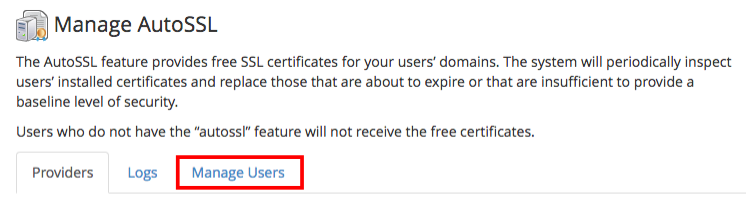
- You’re ready to start using Let’s Encrypt. Click on the Manage Users tab. This is where you’ll manage each domain’s SSL settings.
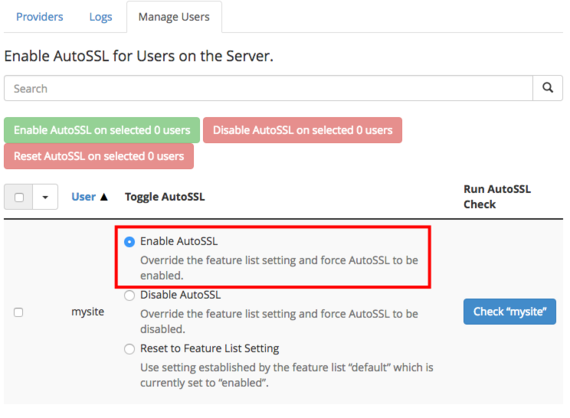
- For every account you’d like to use with Let’s Encrypt, select the radio button next to Enable AutoSSL. SSLs will be updated and installed automatically.
Verify Let’s Encrypt SSL Usage
Once you’ve set up your Let’s Encrypt SSLs, you can make sure they’re installed in cPanel.
- Log into your cPanel account.
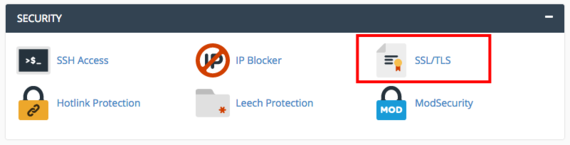
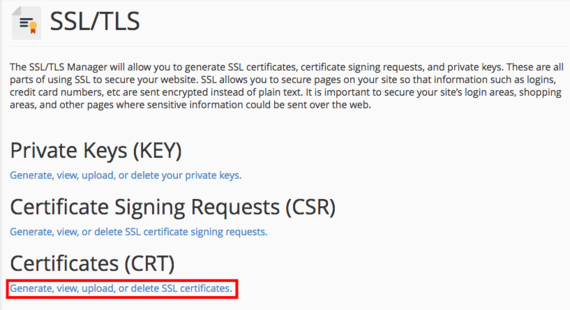
- On the cPanel home page, scroll down to the Security section and click on SSL/TLS.
- Under Certificates, click on Generate, view, upload, or delete SSL certificates.
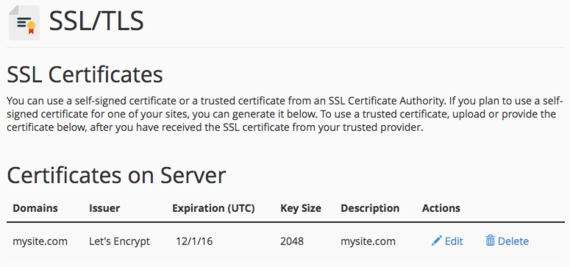
- You’ll be able to see the certificates that are currently active.
Frequently Asked Questions (FAQs)
What’s the difference between “Let’s Encrypt” and the “cPanel (powered by Sectigo)” provider?
Both options are excellent and provide free, automated, and browser-trusted SSL certificates. They both secure your domains and renew automatically. You can choose either provider to secure your sites, but Let’s Encrypt is a very common and popular choice.
I enabled AutoSSL, but my domain didn’t get a certificate. Why?
This is almost always a Domain Control Validation (DCV) error. This means Let’s Encrypt couldn’t verify that your domain actually points to this server. To fix this, you should check two main things:
- Check Your DNS: Your domain’s ‘A’ record (and any subdomains) must point directly to this server’s IP address.
- Check for Proxies: You must disable any proxy or CDN service (like Cloudflare’s “orange cloud”) for the domain you are trying to secure. The proxy blocks Let’s Encrypt from seeing your server’s true IP address.
Common Cloudflare DCV Error
Learn more about troubleshooting the DNS DCV Error in cPanel by clicking here.
I just enabled it. How do I run AutoSSL now instead of waiting?
You can force a check immediately in two ways from the Manage AutoSSL page:
- For all users: Click the Run AutoSSL For All Users button to queue a check for every user you have enabled.
- For one user: Click the Manage Users tab and click the Check button next to the specific user’s name.
How can I see why an SSL failed to install?
The Logs tab is your best tool. In the Manage AutoSSL screen, click the Logs tab. Find the most recent log, click View Log, and scroll to the bottom of the text to find the specific error message from Let’s Encrypt.
Does AutoSSL cover subdomains and addon domains?
Yes. AutoSSL will automatically request a certificate to cover all qualifying domains, subdomains, addon domains, and aliases associated with a cPanel account. Their DNS records will need to point to your server.
How long is a Let’s Encrypt certificate valid?
Let’s Encrypt certificates are valid for 90 days. Thankfully, you don’t have to manage them since AutoSSL conveniently renews the certificate well before it expires (usually within 15 days of expiration).
Are there any limits I should know about?
Yes. Let’s Encrypt has rate limits to prevent abuse. The most common limit is 50 new certificates per registered domain, per week. This limit is very high and does not affect most users. You can read all the current rate limits on the Let’s Encrypt website.