

Give
Recurring Donations
The Recurring Donations Add-on lets nonprofits collect ongoing support through subscription-based giving. It works right inside Give donation forms and integrates with supported gateways like Stripe, PayPal, and more. This guide covers how to enable recurring donations, customize your settings, and manage subscriptions with ease.
Recurring Donations is a Give add-on that must be downloaded, installed, and activated. If this is your first time using a Give add-on, read the instructions on downloading, installing, and activating Give Add-ons.
Introducing How Recurring Donations Works
Recurring donations help nonprofits build long-term support, retain donors, and maintain steady, reliable funding.
This article covers how the Recurring Donations add-on works and how to enable it in your Give donation forms.
Once the add-on is set up and your donation forms are configured, donors can choose to give automatically on a regular schedule—weekly, monthly, or even yearly. When a donor selects a recurring option, Give creates a subscription that handles future donations automatically. You don’t have to do anything—Give keeps track of each schedule, renewal, and payment for you.
Parent and Child Subscription Payments
Each recurring donation starts with an initial transaction called the Parent Payment. This first payment sets up the donor’s subscription.
In Give > Donations, the Parent Payment is labeled with a Payment Type of Recurring. It holds key details like the donation amount, frequency, and payment gateway.

Every time the donor’s subscription renews, Give creates a new Child Payment. These child payments are linked to the original parent and appear in the Donations list as separate entries with a Status of Renewal—making it easy to track every installment.

Viewing Subscriptions
To manage recurring donations, Give creates a subscription entry for each donor’s ongoing gift.
You can find these entries by going to Give > Subscriptions in your WordPress dashboard. Each entry shows the current status, donation form, donor name, amount, and next renewal date.
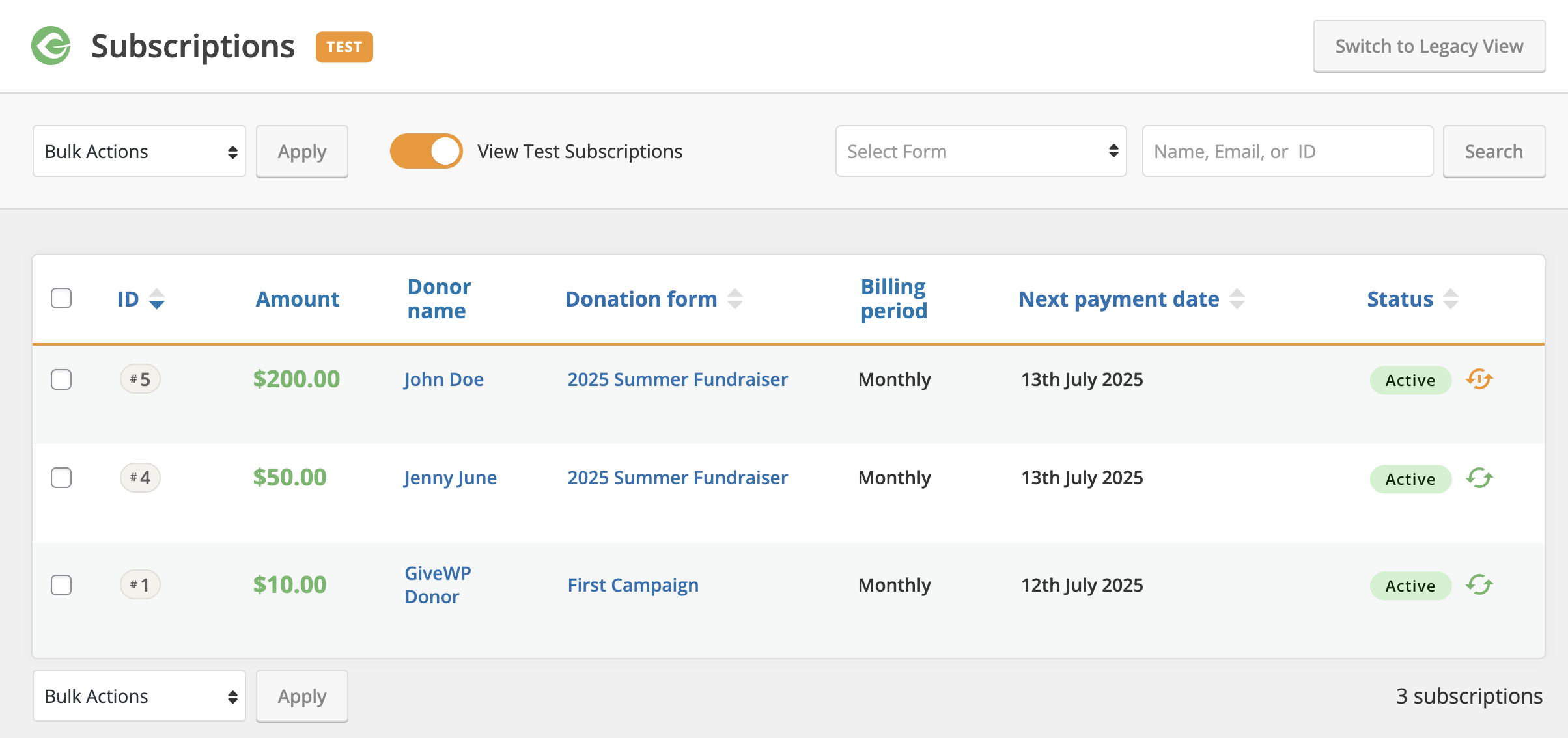
Click on a subscription to view full details—including billing history, renewal schedule, and the payment gateway where the subscription “lives”.
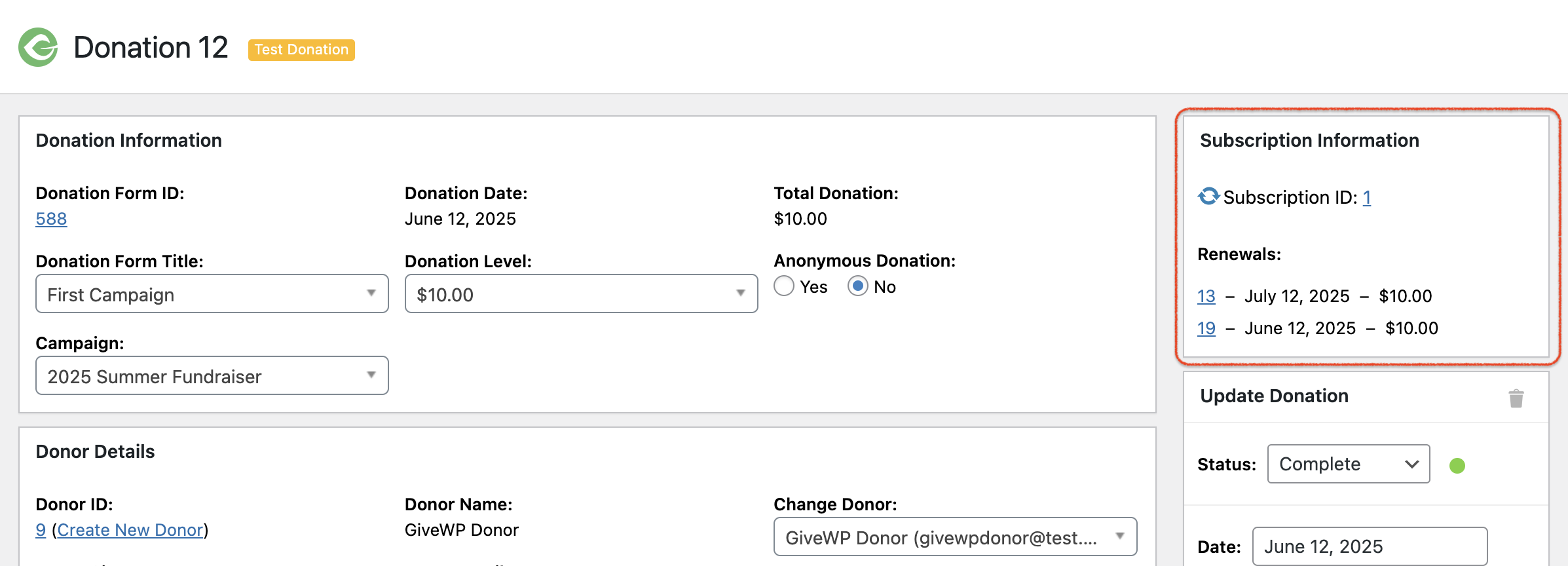
When viewing the Parent Payment, you’ll see a Subscription Information section. This area lists all the Child Payments once one or more recurring donations have been processed.
How Payment Gateways Work with Recurring Donations
When a donor starts a recurring donation, Give sends the subscription details to the payment gateway. This includes the donation amount, billing frequency, and payment method. The gateway handles the schedule from there—charging the donor’s payment source automatically based on the interval you set.
Note: Not all payment gateways support recurring donations—or offer service in every country. Be sure to choose a gateway that supports recurring billing and is available in your region. See supported gateways for details.
After each renewal, the gateway sends a notification back to your site, and Give records the new donation payment automatically as part of the donor’s subscription history. If the payment gateway cannot connect to your site, most will retry a few times (each gateway is different as to how many), the subscription status will changed to Expired. This doesn’t always mean the donor wasn’t charged; it often means the renewal was processed, however, your site wasn’t informed. When this happens, most gateways will send an email notification to the account holder to keep you informed.
How Donors Can Manage Their Subscriptions
Give allows donors to manage their subscriptions inside the Donor Dashboard. With most gateways, you can change the recurring amount, update the card information, and cancel the subscription.
Read more about managing subscriptions »
Enabling Recurring On Donation Forms
There are many ways to configure options for recurring donations. Read the Recurring Donation Form Fields article to find out which settings are available, and how to configure them to achieve your desired result.
Configuring Recurring Emails
Once you have your forms all configured as you like, you might want to notify your donors each time their card is charged for a recurring subscription donation. The Recurring Donations add-on has this capability. Read about this in the Recurring Emails documentation article.