

Kadence
Kadence Child Theme Builder (Create and Sell Child Themes)
Kadence Child Theme Builder allows you to turn your WordPress website designs into distributable, importable child themes. Similar to the official Kadence Starter Templates, child themes packaged with this tool can bundle customizer configurations, layouts, pages, taxonomies, and required plugins, allowing clients or customers to import complete turnkey sites.
Licensing Kadence Child Theme Builder
Nexcess Software manages your licensing through the Nexcess Portal. For full instructions on downloading, installing, and licensing your product, see the official How to Activate Your License document.
Requirements for Exporting and Importing
Requirements to Export:
- The development/staging website being packaged must have the parent Kadence Theme installed and active.
- If you want a lightweight, standard child theme (without demo content or Starter Template wizard integration), leave the Demo Import Config and Pattern Hub Config fields blank.
Requirements to Import via Starter Templates:
- The destination site must have the parent Kadence Theme installed.
- The destination site must have the free Kadence Starter Templates plugin installed and active.
- The child theme package must have been generated with the Demo Import Config fields completed.
- If you want to export a regular Child Theme that doesn’t import through the Starter Templates plugin, leave the Demo Config and Pattern Hub Config information empty when generating a Child Theme. This will generate a regular Kadence Child Theme.
Requirements for Premium & Third-Party Plugins:
- If the child theme relies on premium plugins (such as Kadence Blocks Pro, Kadence Shop Kit, or third-party tools), those plugins must be pre-installed, activated, and licensed on the destination site before initiating the demo import. This ensures all custom post types, metadata, and pro block attributes populate correctly.
Image Handling & Optimization
The import process uses standard WordPress core import protocols. During demo installation, the importer fetches the full-size version of each source image rather than cloning every thumbnail iteration, which keeps import speeds fast and avoids inflating destination media libraries.
When image URLs update to point to the new domain, only the root URL string is replaced dimensions (e.g., -300x300.jpg) appended to filenames remain untouched.
Best Practice: When assembling pages for your export site, always select full-size images or properly scaled assets within your layout blocks to prevent missing image paths on destination sites after import.
Configuring and Exporting a Child Theme
Once the Child Theme Builder plugin is active and your site styling is complete, navigate to Dashboard → Child Builder:
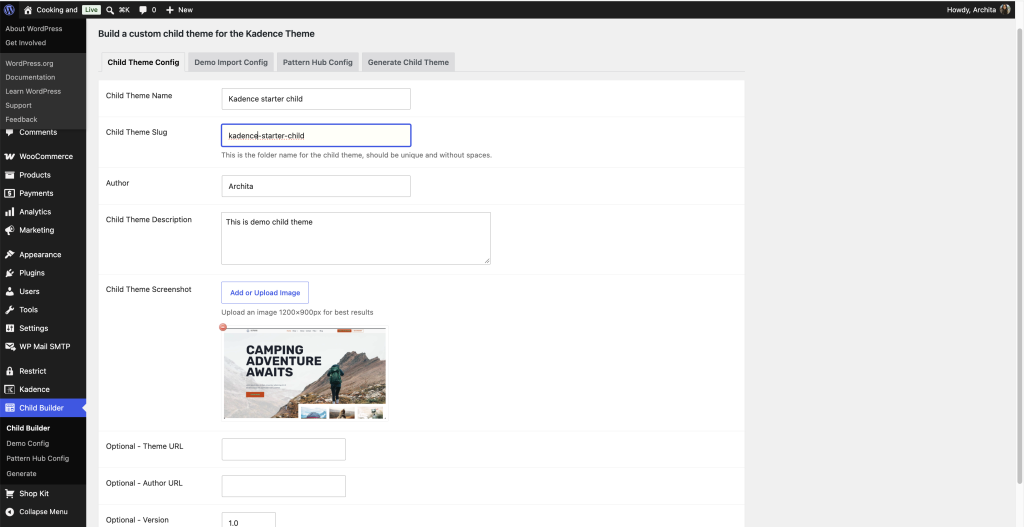
Child Theme Config (Required)
This tab controls how your child theme displays in WordPress under Appearance → Themes:
- Child Theme Name: The display name of your child theme (defaults to
Pro Design). - Child Theme Slug: The folder/directory slug (defaults to
child-theme-name). Use lowercase alphanumeric characters and hyphens without spaces. - Author: Your agency or brand name (defaults to
Pro Author). - Child Theme Description: A brief summary explaining the theme.
- Child Theme Screenshot: Upload an image (
screenshot.png, recommended size1200x900px). This field is required; WordPress will reject child themes lacking a screenshot. - Optional Details: Add your Theme URL, Author URL, and Version (defaults to
1.0). - Click Save Changes. (If you only complete this tab, your generated ZIP will function as a standard child theme).
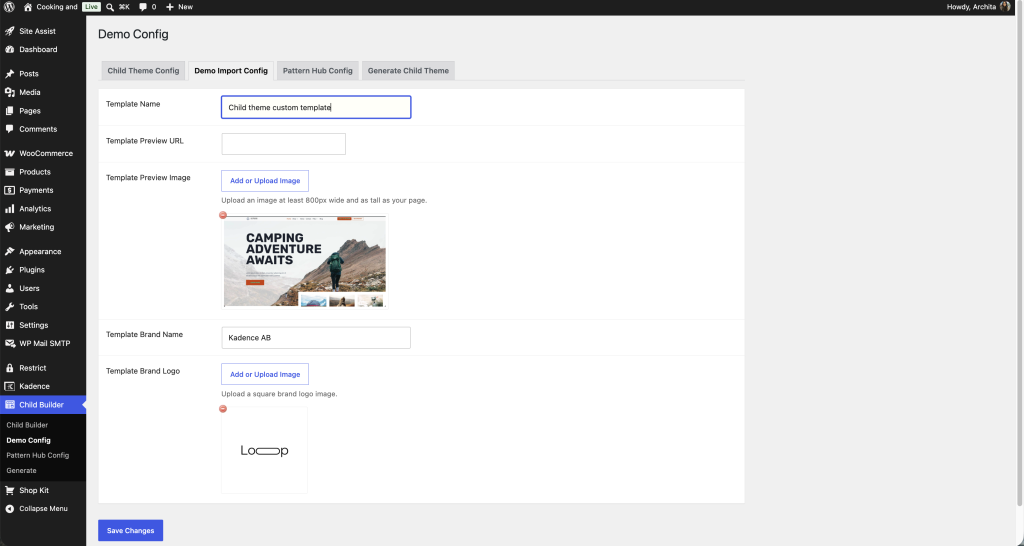
Demo Import Config (Starter Template Import)
Complete this tab to enable users to import your demo layouts via the Kadence Starter Templates wizard:
- Template Name (Required): The public name of the template.
- Template Preview URL: A live URL where customers can preview your template demo.
- Template Preview Image (Required): The card thumbnail displayed inside the Starter Templates browser.
- Template Brand Name: Your business or collection brand name.
- Template Brand Logo: Upload a brand mark logo.
Pattern Hub Library Config (Optional)
If you operate a centralized Pattern Hub and want to grant child theme users automatic access:
- Pattern Hub Name: Enter the display name for the cloud collection.
- Pattern Hub Access URL: Enter your cloud access endpoint.
- Pattern Hub Access Key: Provide the valid subscriber access key.

Generating the ZIP Package
- Go to the Generate Child Theme tab.
- Click Generate Child Theme.
- Your browser will download the compiled, distributable
.ziparchive containing your styles, demo configurations, and theme metadata.

Importing a Kadence Child Theme
- On the destination WordPress site, navigate to Appearance → Themes → Add New.
- Click Upload Theme, select your generated child theme
.zipfile, and click Install Now. - Click Activate.


Importing Demo Content via Starter Templates
- Ensure the free Kadence Starter Templates plugin is active on the site.
- Go to Dashboard → Site Assist
- In the upper-right corner dropdown menu, locate and select the custom Brand Name assigned during export setup.
- Click on your custom child theme demo card.
- Review the import wizard:
- Toggle Import Customizer Settings to copy global color palettes, typography, and header/footer configurations.
- Review the Required Plugins list. If any premium plugins display with an uninstalled or unlicensed status, install and license them before continuing.
- Click Finish and Launch to import content, media, and configurations.