Kadence
Kadence Galleries
The Kadence Galleries plugin enables you to create dynamic image galleries and photo albums effortlessly in WordPress. You can display captions, titles, and categories alongside each image, set up interactive category filters, and choose from multiple layout styles.
Licensing Kadence Galleries
Nexcess Software manages your licensing through the Nexcess Portal. For full instructions on downloading, installing, and licensing your product, see the official How to Activate Your License document.
Creating a Gallery Album
Kadence Galleries features Gallery Albums. These are like Categories for your Galleries. After activating Kadence Galleries, you will see the K Galleries tab in your WordPress admin panel. Click that, then click Gallery Albums to access your Gallery Album settings.
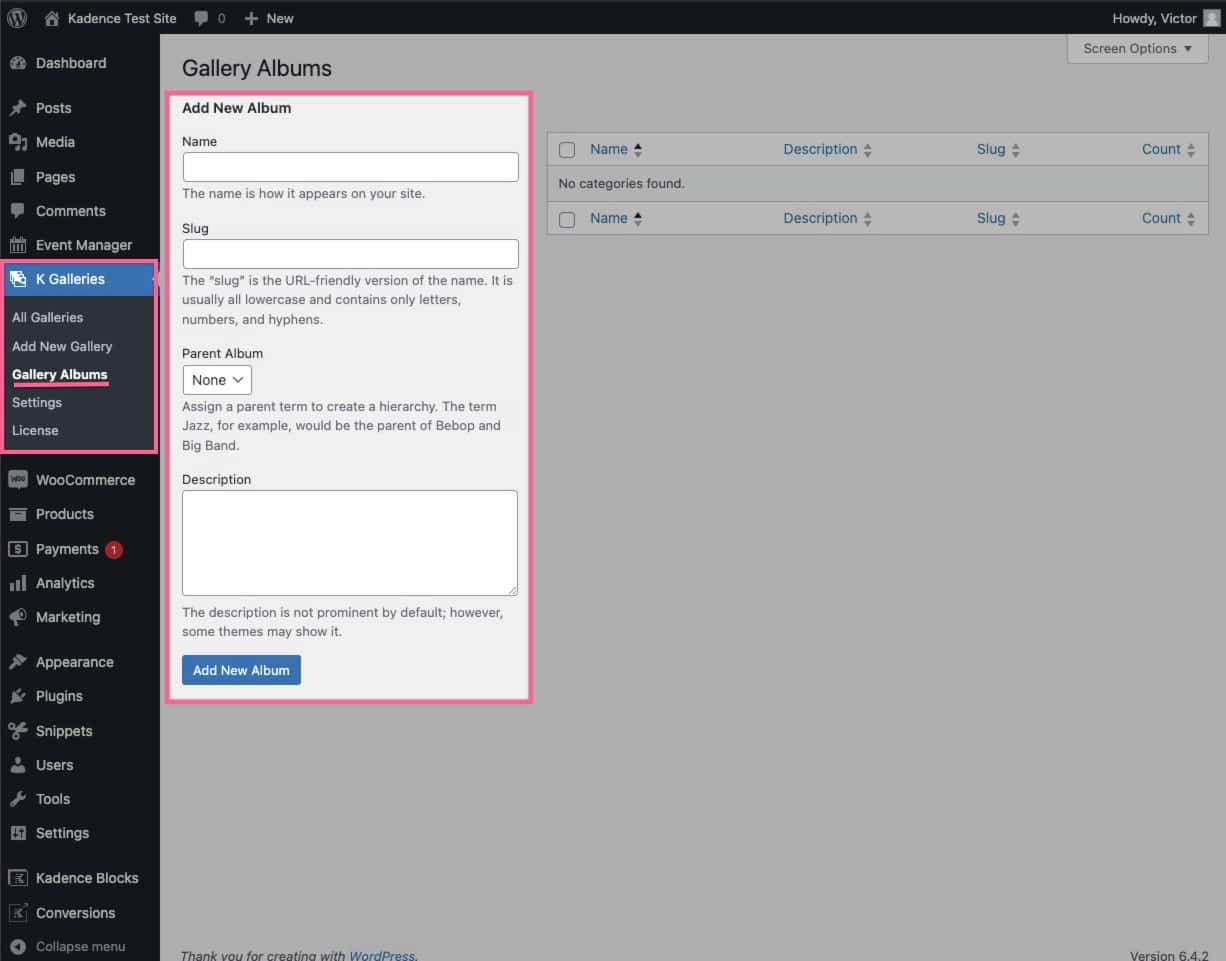
Add a new Album category.
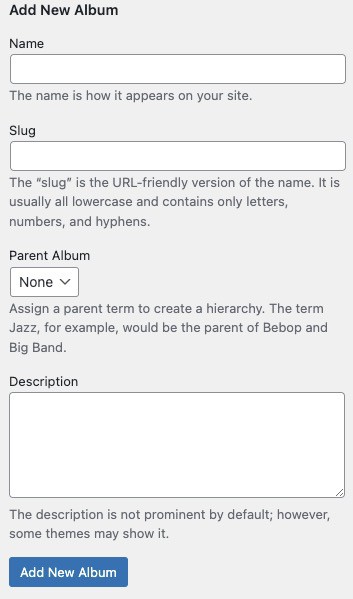
You can give your Album a name. This is the name that it will use when it appears across your website.
You can set a Slug for the Album. This is the Slug used in the URL for when you are accessing this Album.
The Parent Album setting allows you to set a hierarchy for your Albums. You can assign a Parent Album (category) for your Album using the dropdown selection.
The Description is not prominent, however some themes may show it.
Once you have filled out your Album information, you can click on the Add New Album button. You can always edit your current Albums as needed the same way you would edit a taxonomy.
You can create as many Albums as you’d like.
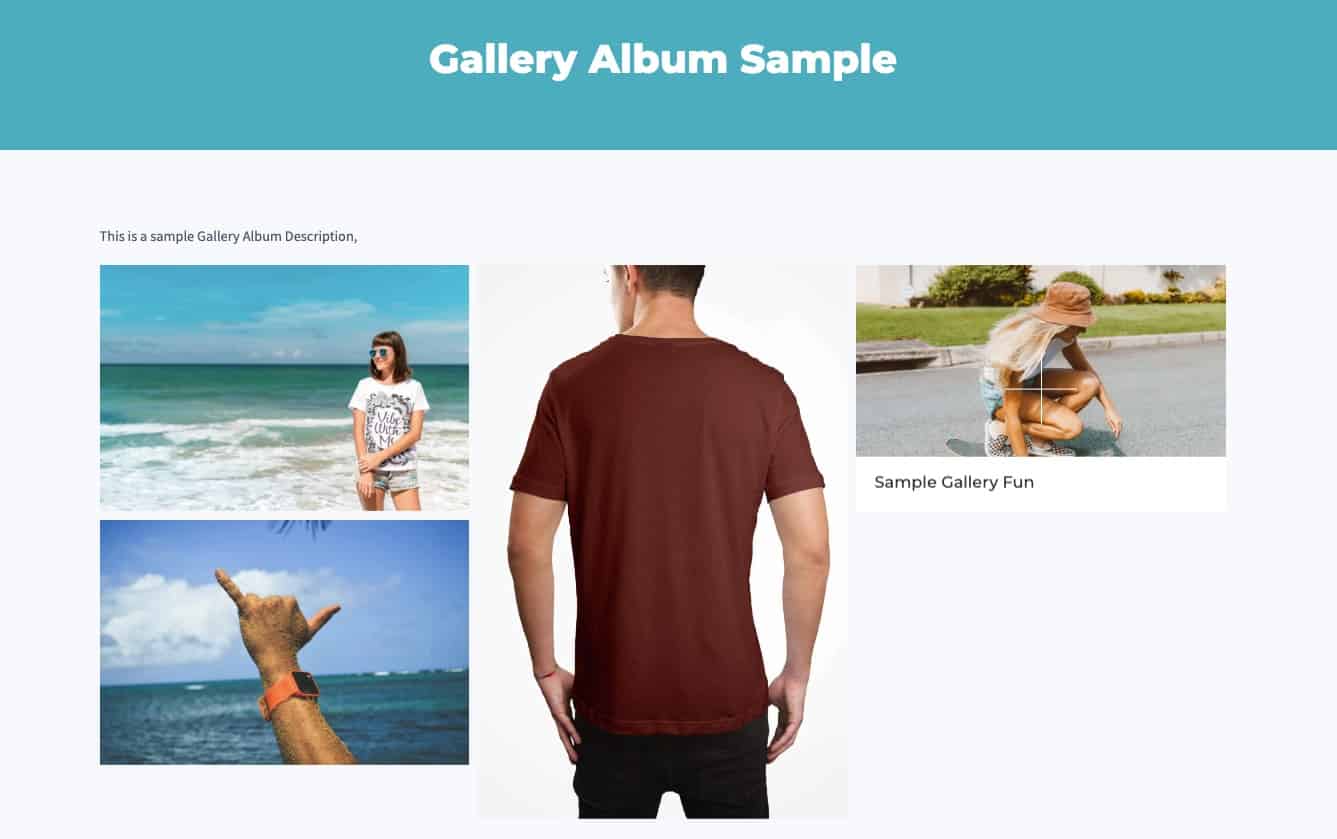
Sample Gallery Album Archive
The Gallery Album Archive pages display an Image from each Gallery within the Album. You can view each Gallery easily and efficiently.
Creating a Gallery
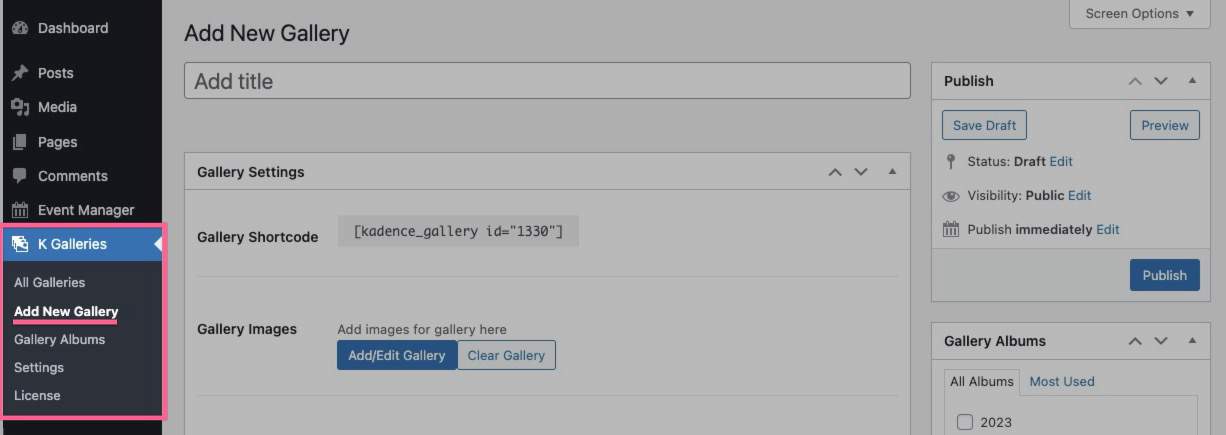
Kadence Galleries features Galleries. These are collections of Images that form a Gallery. You can go to the K Galleries tab in your WordPress admin panel. Click that, then click Add New Gallery to add a new Gallery. You can view all of your Galleries by clicking on All Galleries.
Gallery Settings
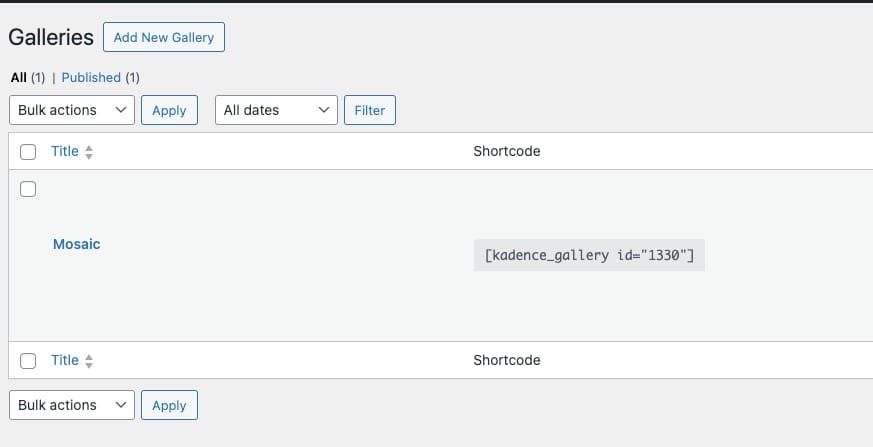
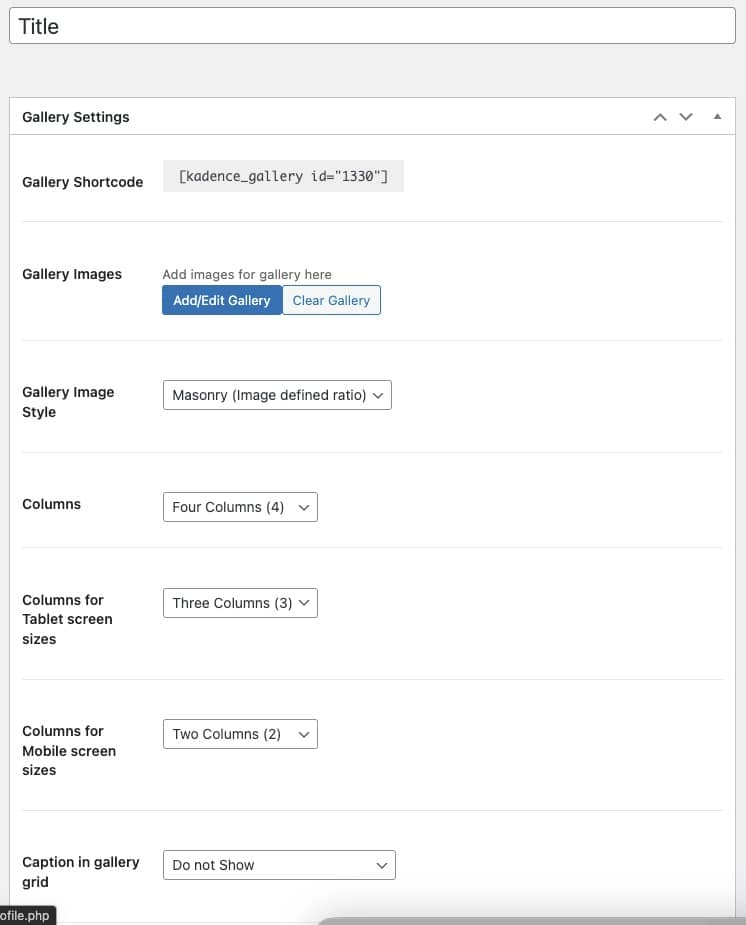
The Gallery ShortCode is the output ID for your Gallery. Each Gallery will have a unique ShortCode ID. This is used to display you Gallery.
Under Gallery Images you will see two buttons. You can add and edit the Gallery by clicking on Add/Edit Gallery. You can use the Clear Gallery button to remove all Images currently in the Gallery.
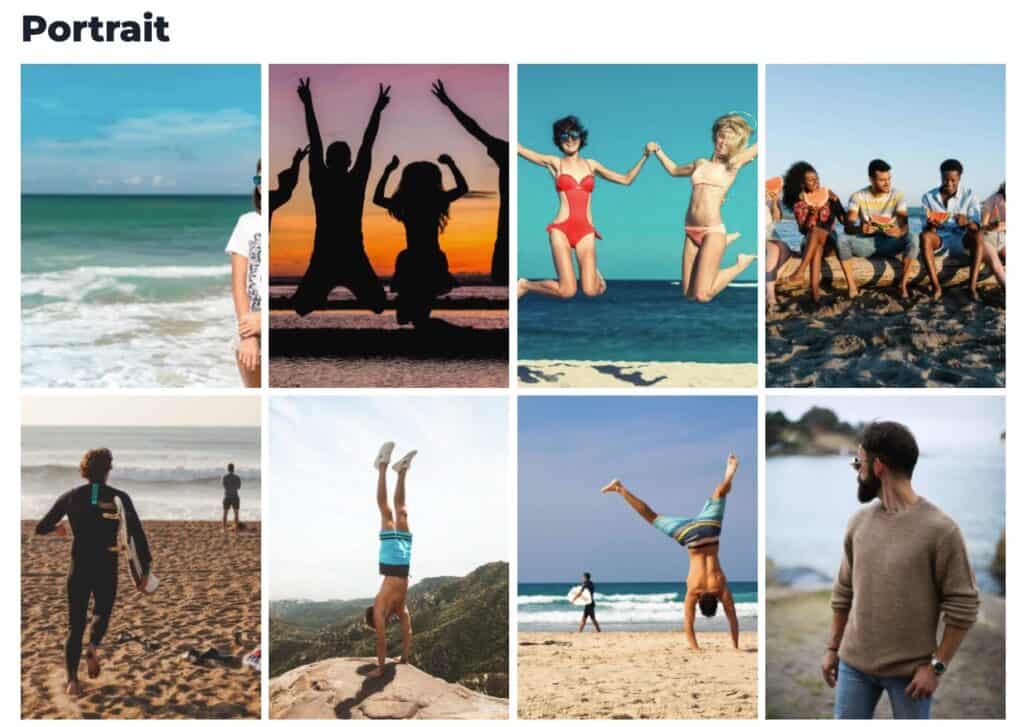
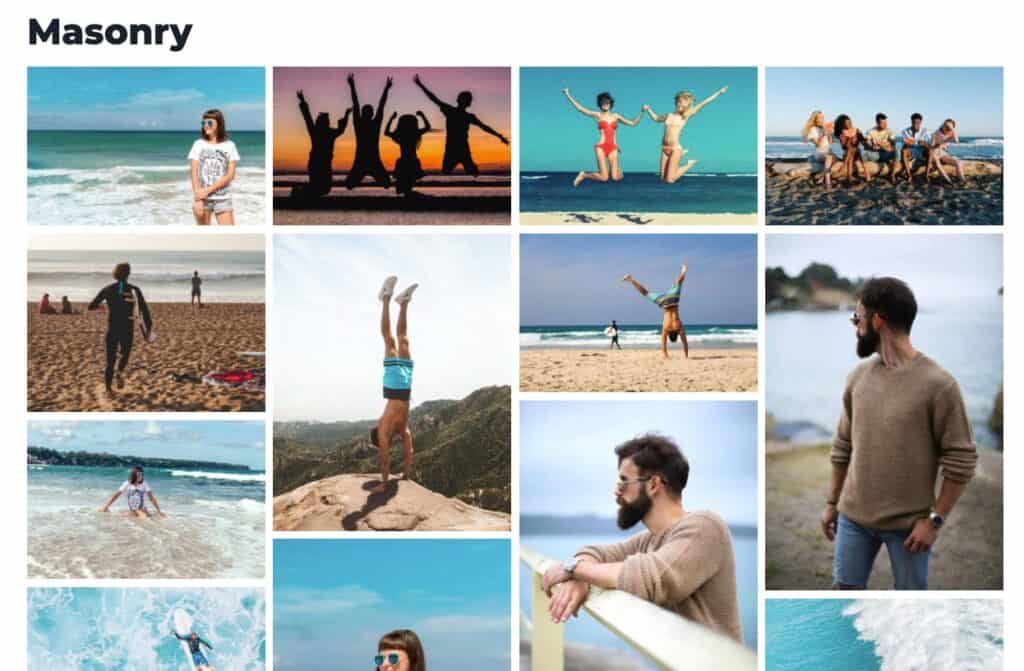
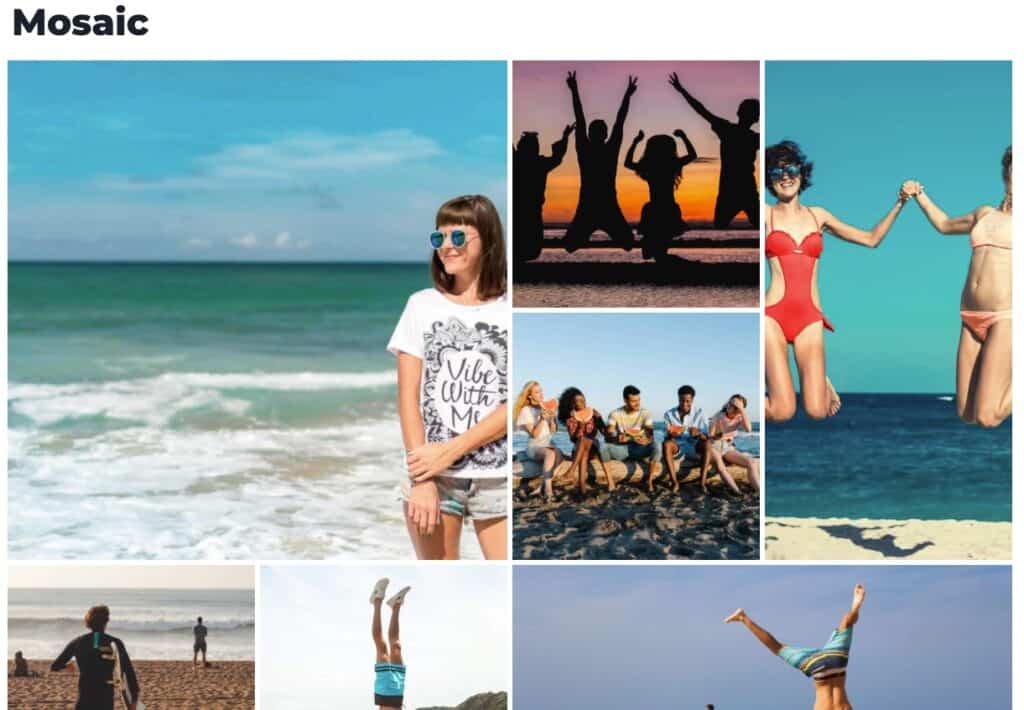
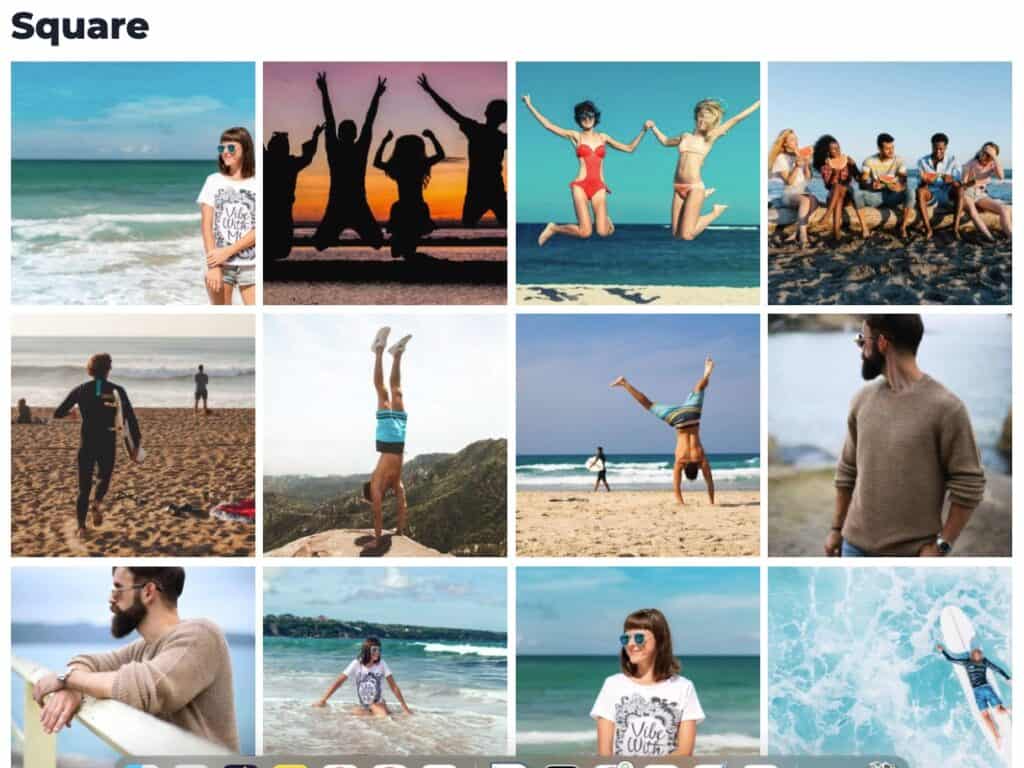
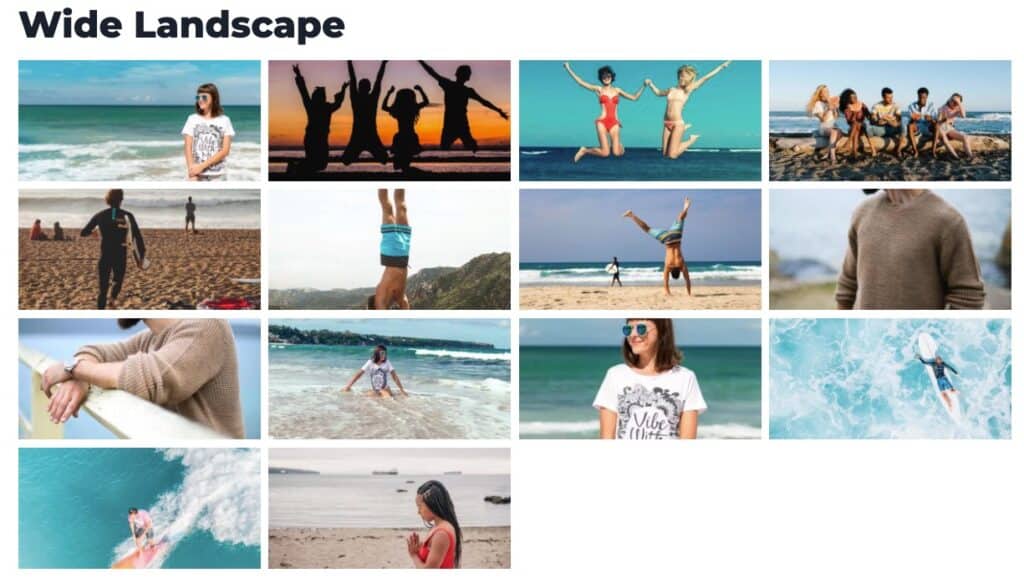
The Gallery Image Style Option allows you to select a Gallery Style. You can pick from; Square, Portrait, Landscape, Wide Landscape, Title, Mosaic, and Masonry.
You can use the Columns setting to adjust the number of Columns used on Desktop.
You can use the Columns for Tablet screen sizes and for Mobile Screen sizes to adjust the number of Columns on each respective device.
You can show or hide you Caption in Gallery grid using the Gallery Setting.
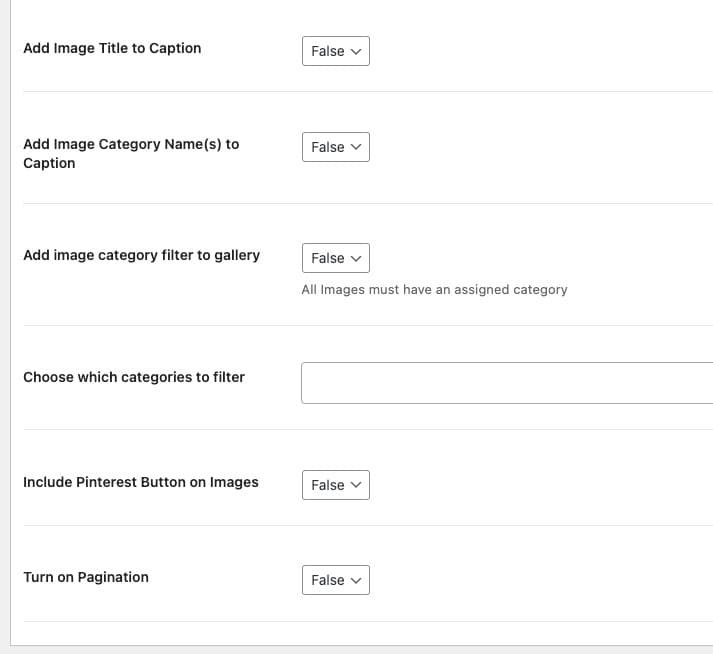
You can use the Add Image Title to Caption setting to add your Image Title to the Caption.
You can also Add the Image Category Names to the Caption.
You can add the Image Category Filter to the Gallery. This adds a filtering system for your Gallery Categories (Albums).
You can use the Choose Which Categories To Filter to add/remove categories from the Category Filter.
You can opt in to Include Pinterest Buttons On Images.
You can also use the Turn on Pagination setting to use Pagination on your Gallery.
Sample Gallery Styles
Custom Fields and Discussion Settings
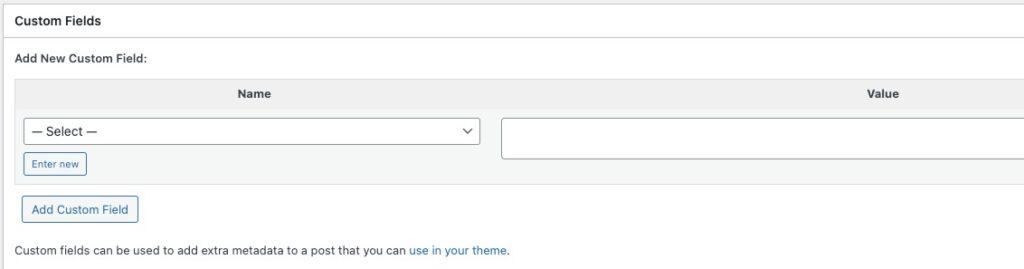
Galleries allow you to add New Custom Fields. Custom fields can be used to add extra metadata to a post that you can use in your theme. The default names available are; attribute_pa_size, footnotes, kt_blocks_editor_width, and total_sales. You can click on the Enter New button to manually enter a name. You can then set the Value using the Value field. You can add more Custom Fields by pressing the Add Custom Field button below all of your Custom Fields.
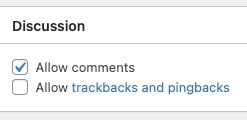
The Discussion settings allow you to Enable or Disable comments using the Allow Comments Setting.
You can also enable or disable the option to Allow Trackbacks and Pingbacks.
Other Settings
You also have the Publish Settings, Gallery Albums Settings, Featured Image, and Post Settings.
Publish Settings
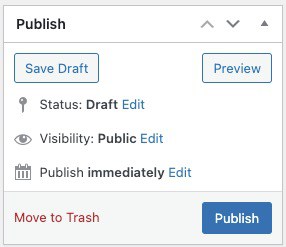
You can save the Gallery as a Draft or Preview it using the respective buttons.
You can change the Status to Draft, Pending Review, or Published and the visibility from Public, Private, and Password Protected.
You can also set the Publish date to Immediately or specify a date and time.
Gallery Album Settings
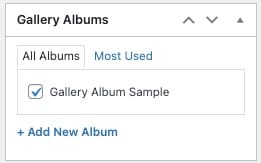
Here you can select and add your Gallery to Gallery Albums.
You can also + Add a New Album directly from your Gallery Editor.
Featured Image and Post Settings
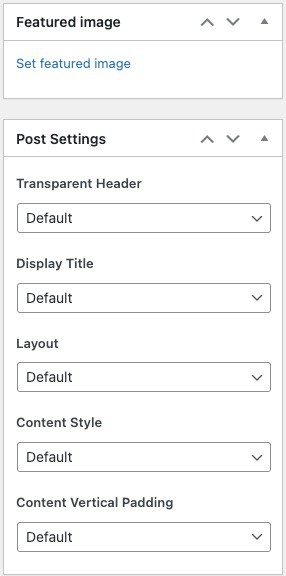
You can set a Featured Image for your Gallery.
You can use the Post Settings to edit your Gallery Post Page.
You can set the Transparent Header to default, enabled, or disabled.
You can set the Display Title to default, enabled, or disabled.
The Layout, Content Style, and Content Vertical Padding settings can also be set to default, enabled, or disabled.
Gallery Settings (Dashboard)
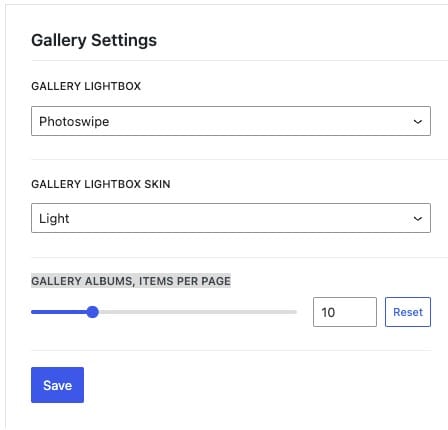
You can find the Dashboard Gallery Settings by going to your WordPress Dashboard -> K Galleries -> Settings.
You can set the Gallery Lightbox to use the Photoswipe or Magnific Popup effects.
You can set the Gallery Lightbox Skin to Light or Dark.
You can set the Gallery Albums Items Per Page. This is the number of Gallery Albums that would be shown per page.
Adding a Gallery to a Page/Post
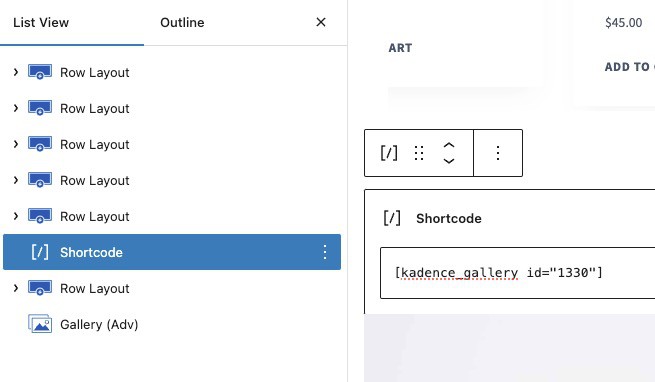
You can use the ShortCode of your Gallery to add a Gallery to your page. You can use the WordPress ShortCode Block to add your ShortCode to the page.