

How to Pay an Invoice with a Credit Card
Overview
This article covers how to pay an invoice with a credit card. Once a credit card is added, it will be used for automatic payments. Also, this article will be helpful if you want to know how to pay an invoice online without saving a credit card on file.
Knowing how to pay an invoice with a credit card is essential as a lack of payment may lead to account suspension. For example, if you placed a new order that failed to activate automatically due to a declined transaction, you must pay the invoice manually, following the steps outlined in this article. Please note that the actions described in this article are available to users with proper permissions. If you cannot visit the Client Portal sections outlined in this article and perform the actions within them, please get in touch with your superuser to elevate your permissions.
Prerequisites
Your sites-portal.nexcess.com login credentials. If you are unable to locate them, please use the Forgot Password? feature.
Valid Credit Card.
How to Add a Credit Card to your account
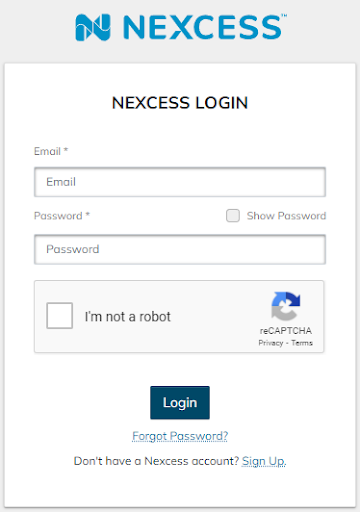
- Navigate to sites-portal.nexcess.com and use your credentials to log into your account.
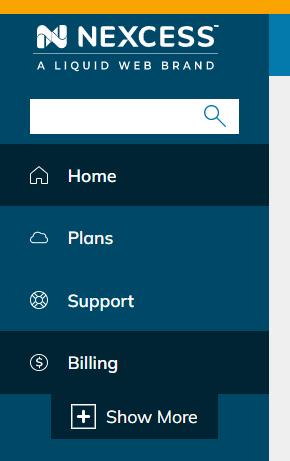
2. Navigate to the Billing Section in the left-side menu.
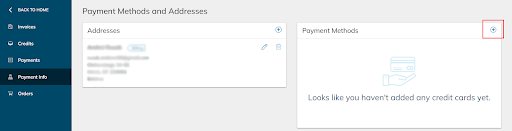
- Proceed to the Payment Info section and click on the Plus icon next to Payment Methods.
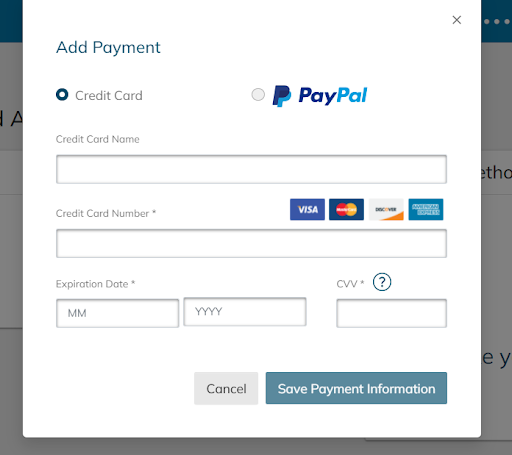
- Fill out your credit card information in the popup window.
Cards Accepted
We accept Visa, Mastercard, Discover, and American Express debit and credit cards.
- Once all the required fields are filled out, click on Save Payment Information. If that is the first card on the account, it will be set as a default payment method.
Naming Cards
You can name each card via the Credit Card Name field to differentiate between multiple payment cards on the account, but only the default card will be used for automatic payments.
How to Pay an Invoice with a Credit Card
- If you are logged in to sites-portal.nexcess.com, navigate to the Billing section as outlined above. The Invoices screen will open by default.
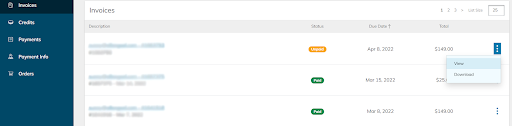
- To open an invoice, you can click on its number or use the three-dot menu on the right side of the invoice and click View, as shown on the screenshot above.
Unpaid Invoices
Unpaid invoices are marked with orange status. If overdue invoices are not paid promptly, they may lead to service suspension. Suspension is automatically lifted as soon as a payment for the unpaid overdue invoice has been received.
- Click on Pay Now on the right side of the page to pay an invoice online.
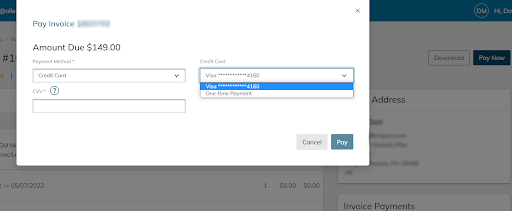
CCV Verification
If you are using a credit card on file, the Card Verification Value (CVV) will be required to verify the payment.
- After filling in all fields, click on Pay to submit the payment. If the payment is successful, the invoice status will change from Unpaid to Paid.
Declined Cards
To help combat fraud, if you are paying an invoice with a credit card and the payment gets declined three times within 24 hours, you will not be able to make any other credit card payments or edit credit card information for the next 24 hours. The only way to override this lockdown is to contact our Billing Team during their business hours, 9 AM to 5 PM Eastern time (ET), Monday to Friday, and pay the invoice with the credit card over the phone.