

Wishlists
How to Customise the Wishlist Buttons
Coming soon: Iconic Wishlists is becoming part of Kadence Shop Kit. You may see both names used while we update the product, documentation, and customer experience.
When using Wishlists for WooCommerce by iconic, it’s possible to customize the buttons and change their positions on the shop pages and single product pages.
To do this, take the following steps:
- From your WordPress dashboard, go to Wishlists > Settings.
- Click the Buttons tab/link at the top of the page.
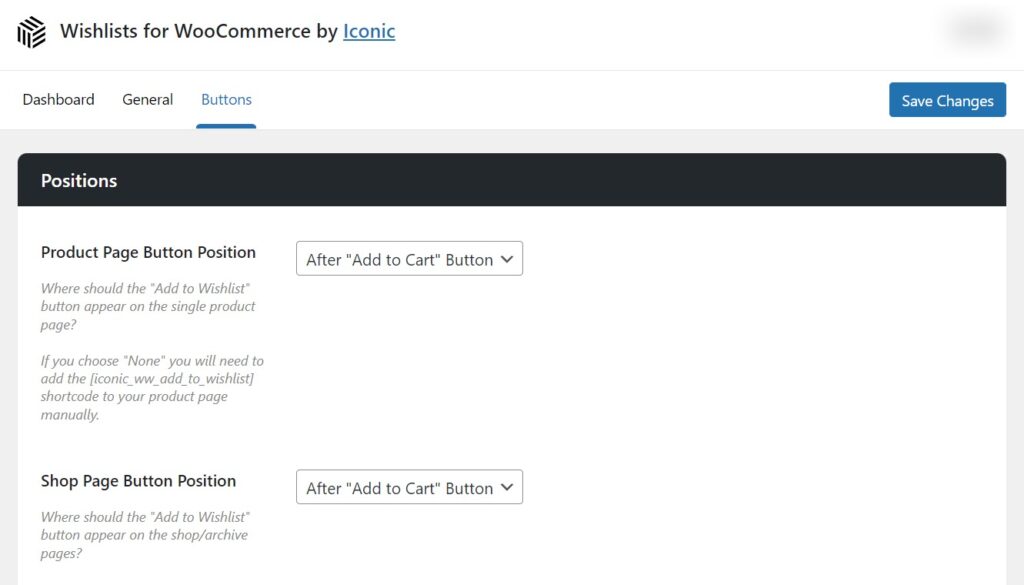
- In the Positions section you can change the button positions throughout your store. Select None if you would like to place the buttons yourself. If so, use the [
iconic_ww_add_to_wishlist]shortcode.
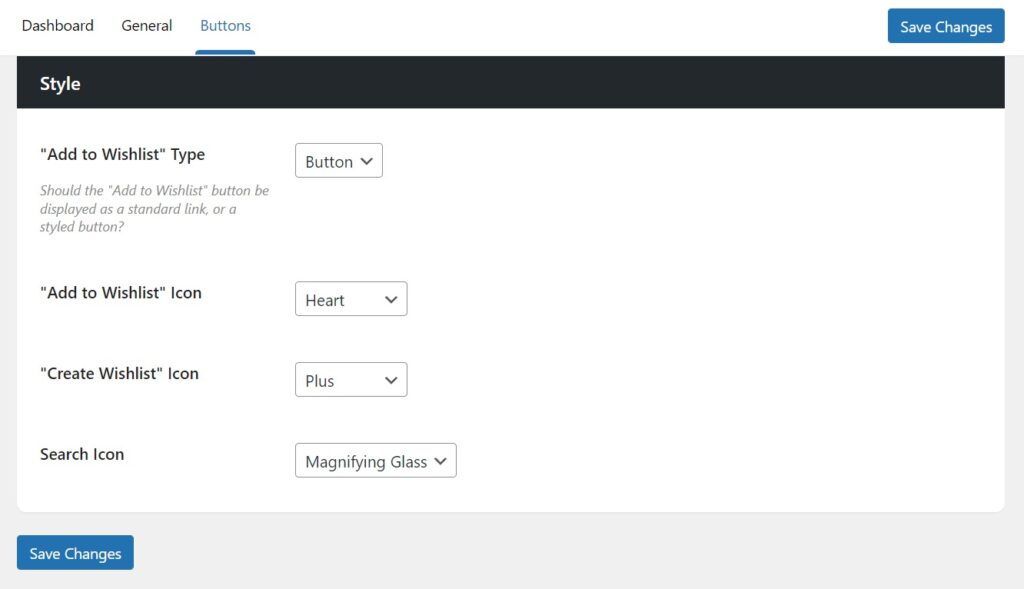
- In the Style section you can modify the button type and also some of the icons that are displayed on the buttons.
Filed under
Uncategorized
Was this page helpful?
Thanks for the feedback!