The Events Calendar
How to Use Event Series
Event Series can be used to display and group any combination of single and recurring events.
Series differs from recurring events because, with recurring events, all events must contain the same event title, description, venue, and organizer. With recurring events, all events are generated simultaneously, containing all of the same information except for the date and time of the event. On the other hand, Series offers the flexibility to group events with different meta information.
For example, you may find the Series option useful if you have the same event occurring across multiple venues. You could create individual events with different venues and link them together with Series.
There are three ways to create a Series:
- From the WordPress dashboard
- From the event editor
- By creating a recurring event
Creating a Series from the dashboard
You’ll see the menu item, Series, under Events in the WordPress Dashboard:
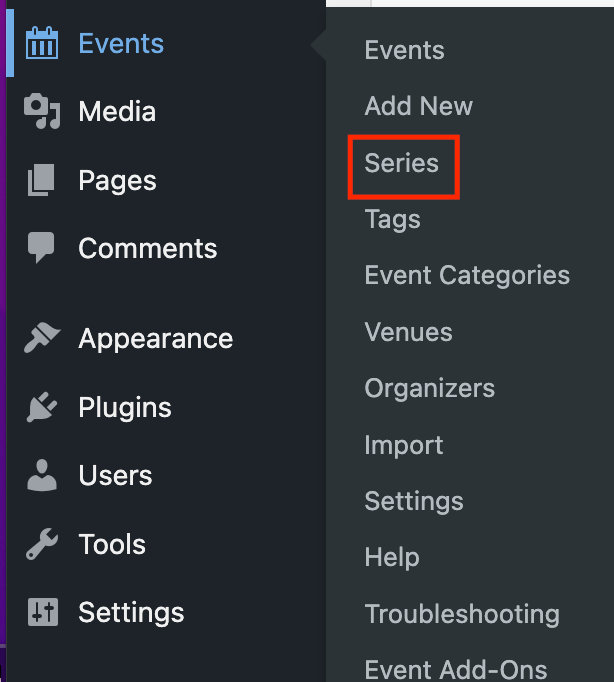
On the Series page, click on Add New to create a new Series from scratch.

Now you can begin to build your Series. You can add a title and description and select the events to add. It’s important to note that you cannot create events on the Series page, so you’ll want to create your events ahead of time, as you normally do.
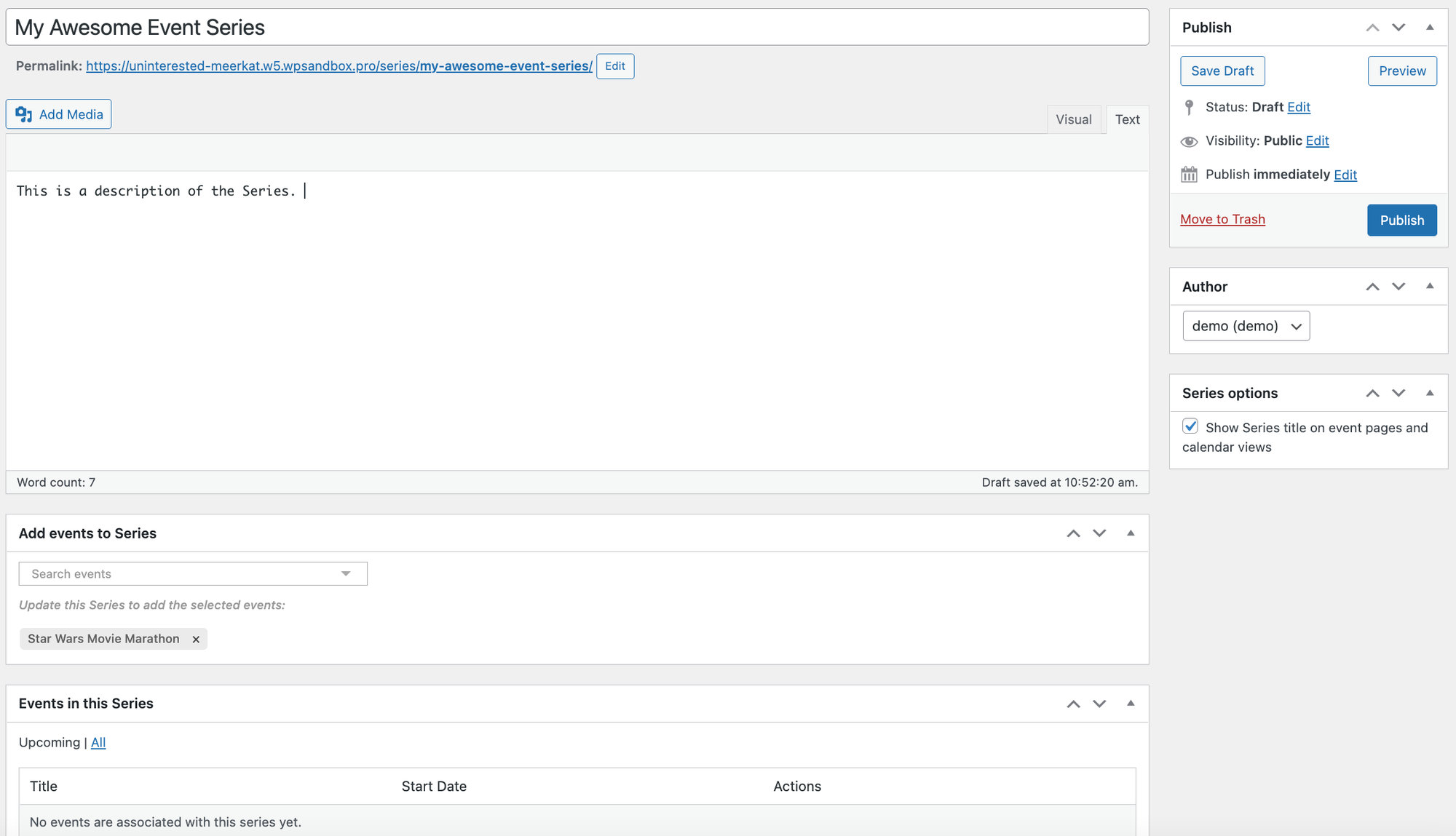
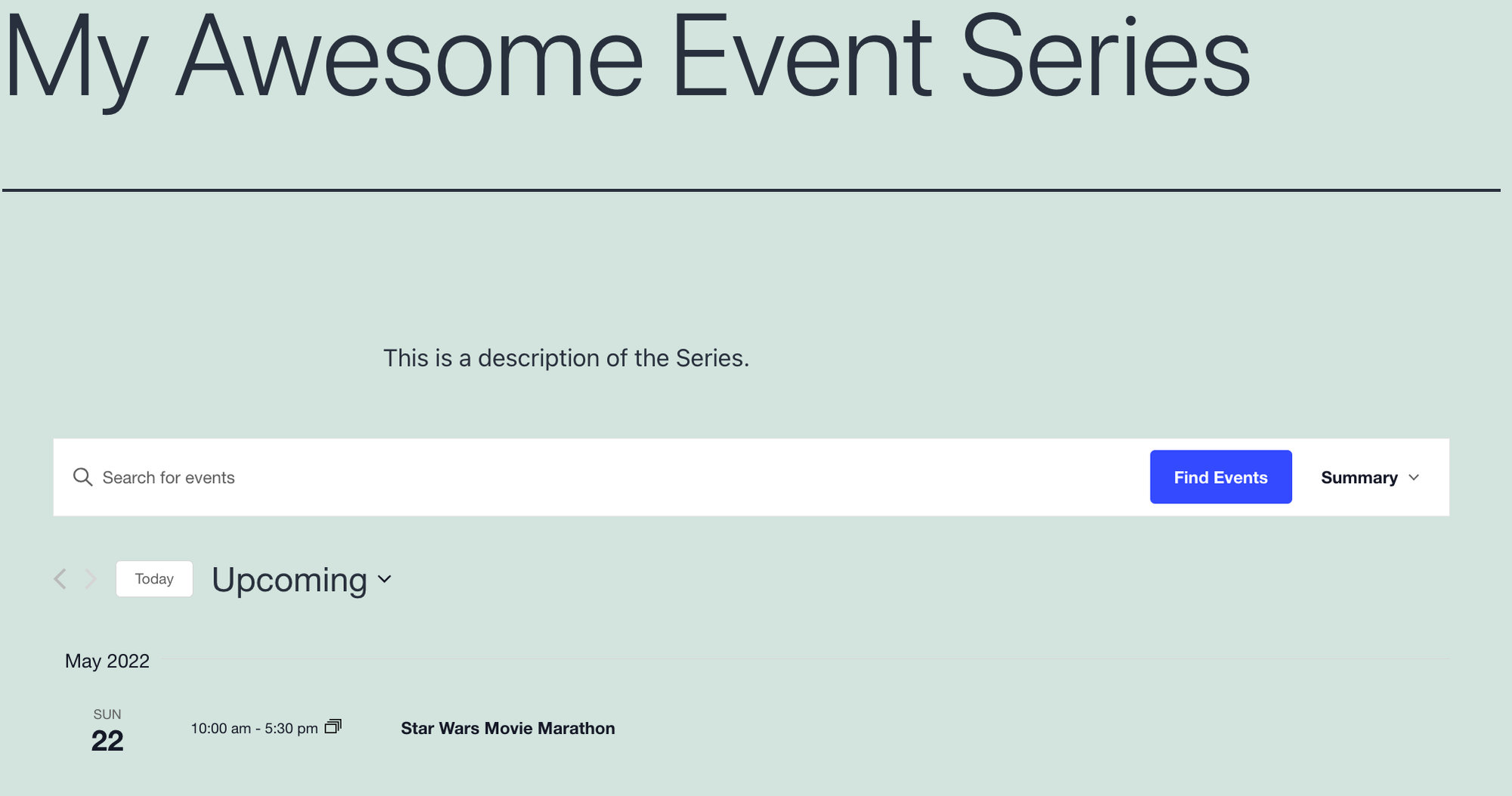
Once you publish your Series, your events will appear under the Events in this Series section. You can always return to this page to edit and manage your Series. On the frontend, you’ll see something like this:
Create a Series from the event editor
Whenever you’re creating an event, you have the option to add it to an existing Series. You can also create a new Series right from the event editor. In both the block and classic editors, you’ll find the Series dropdown in the sidebar:
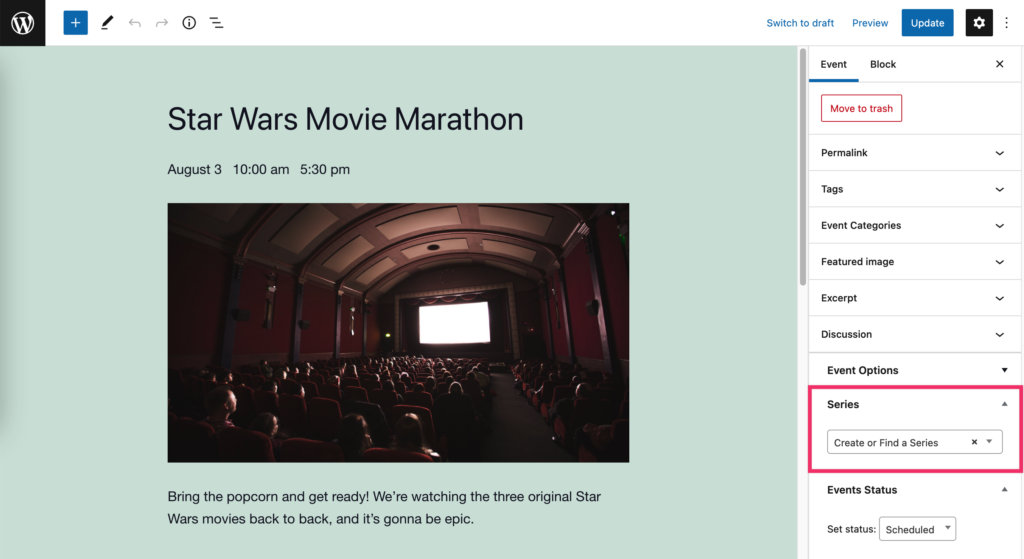
When you create a Series from the event editor, you can only assign a title. However, once you save the event and the Series is generated, you can edit it to add a description or make other changes.
On a recurring event, the Series field applies to the whole recurring event. Changing it moves every date to the other Series, not only the date you are editing. To move one date, first make it a single event (see Converting one date to a single event below), then change that event’s Series.
Automatically generated Series
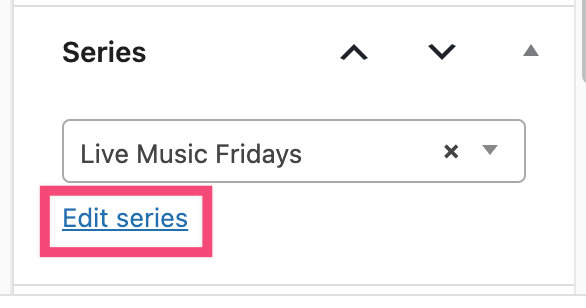
Recurring events are always part of a Series. If you create a recurring event and don’t assign it to a Series, then a Series will be automatically generated when you save the event. Generated Series will have the same name as the recurring event. You can edit the Series by going to Events > Series or clicking the link in the event editor.
Converting one date to a single event
On the Series page, the Events in this Series section lists each event with options to Edit and View. Each date of a recurring event also has a Convert to Single option.
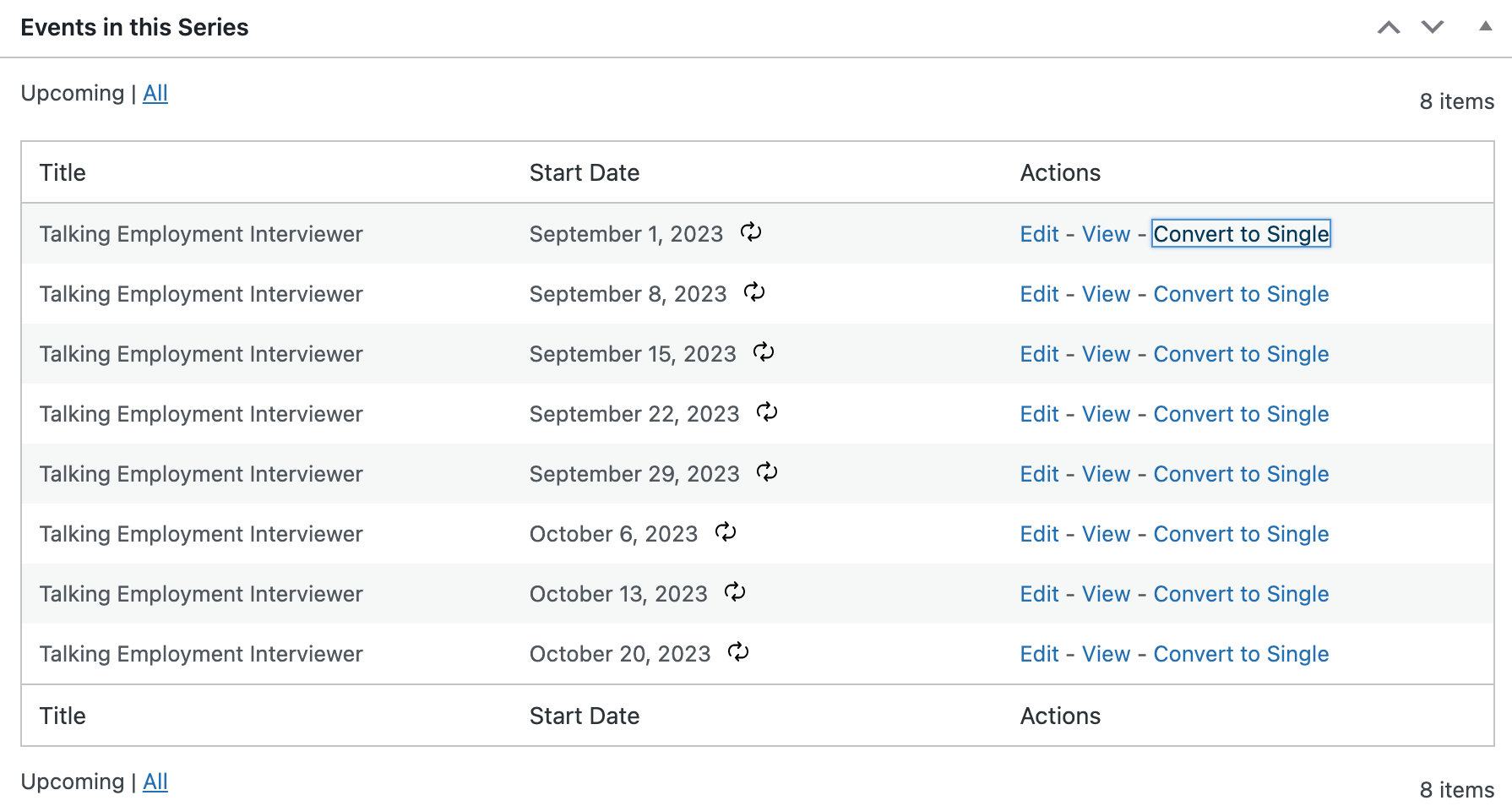
Convert to Single turns that date into a separate single event. The converted event stays in the same Series, and the other dates of the recurring event are not changed. This gives the same result as editing that date and choosing This event when you save. The conversion happens as soon as you confirm the prompt, and it cannot be undone. See Creating Recurring Events for what each option in the edit dialog does.
Removing events from a Series
There’s no “Remove” action on the Series page. To remove a single event from a Series, navigate to the event from the events list screen and edit it. From there, you can remove the event from the Series by taking out the Series that it is currently associated with (screenshot below).
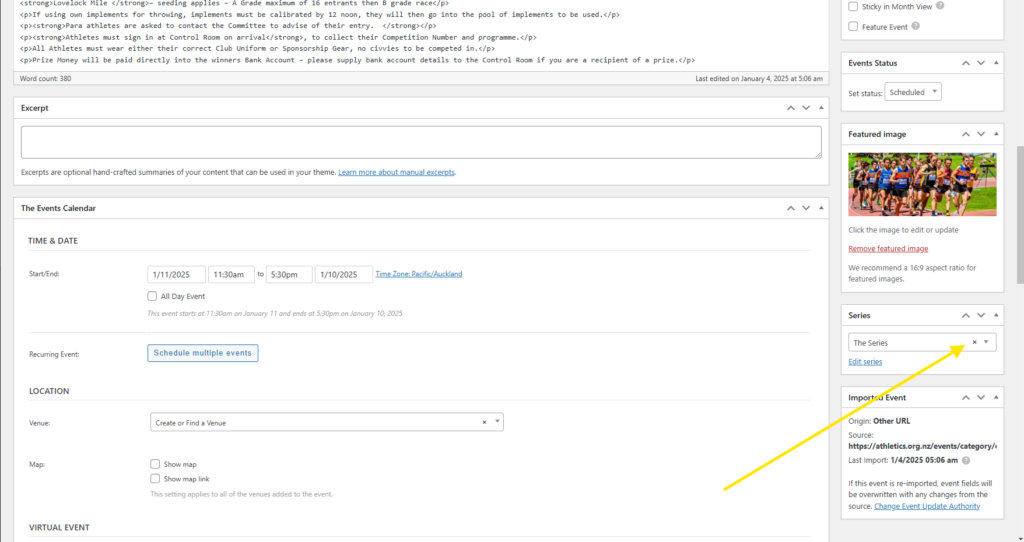
To take one date of a recurring event out of a Series, first convert it to a single event (see above), then edit that event and remove its Series in the same way.
Series Passes
Series Passes enable you to sell a pass that grants attendees access to all events in a Series. Your users can make one purchase instead of signing up for multiple events. Series Passes are perfect for multi-day events, events with multiple venues or stages, or any time you want to upsell attendees to more events. Learn how to create and manage Series Passes in this article.