Viewing Liquid Web Service Statuses
You can read about our SLA’s and service goals in our Terms of Service. But sometimes, problems happen. Don’t fear! You can check the status of all our services online. Checking the status will help you troubleshoot to determine if a service is really down or if another issue is preventing you from reaching your sites and servers.
Liquid Web Status
- Navigate to https://status.nexcess.com/ in your browser.
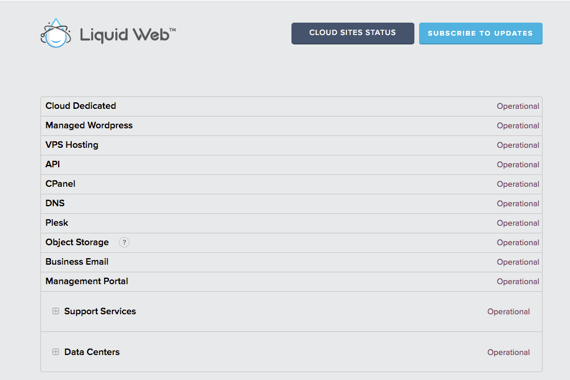
- Here you will see all Liquid Web services and their status.
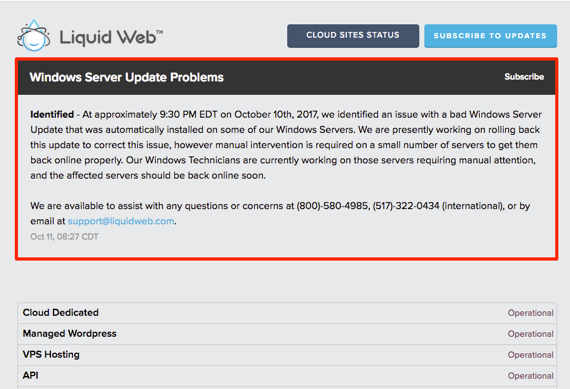
- If there is an immediate issue causing downtime, you will see it posted at the top of the page.
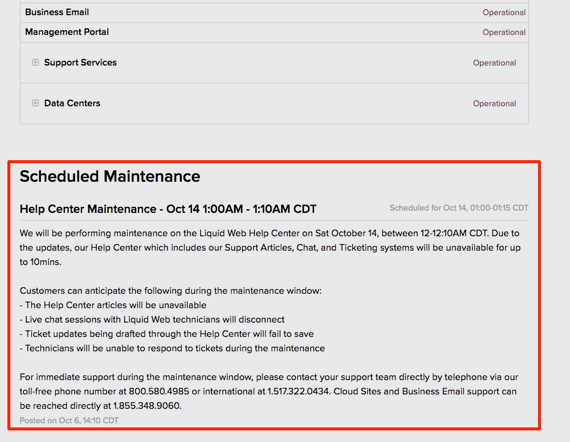
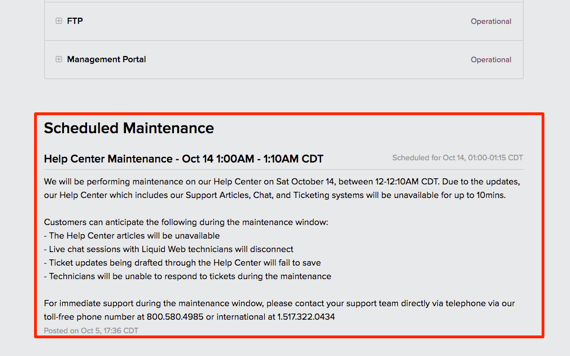
- Additional maintenance and update notifications will be listed below the service statuses.
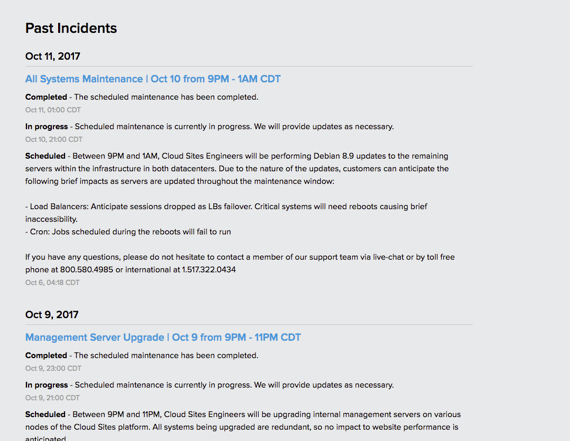
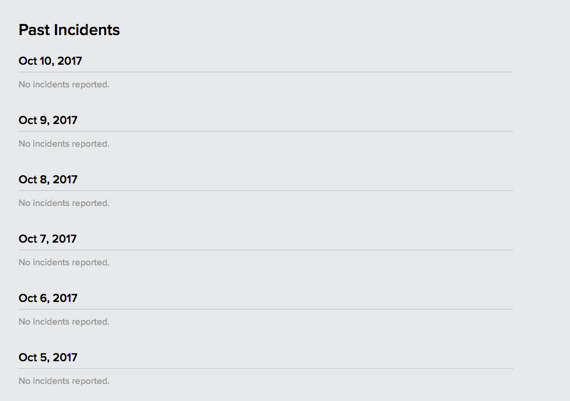
- Past events will be listed at the bottom of the page.
Note: |
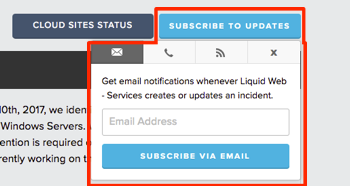
You can subscribe to receive email notifications when any warning, change in status, or update is posted by clicking the Subscribe to Updates button at the top of the page. Just enter your email address and you will get email notifications whenever we create or update an incident.
 |
Cloud Sites Status
Cloud Sites provides its own statuses, separate from the other Liquid Web services. Follow the steps below to view your Cloud Sites service statuses.
- Navigate to https://status.nexcess.com/ in your browser.
- Click the Cloud Sites Status button at the top of the page.
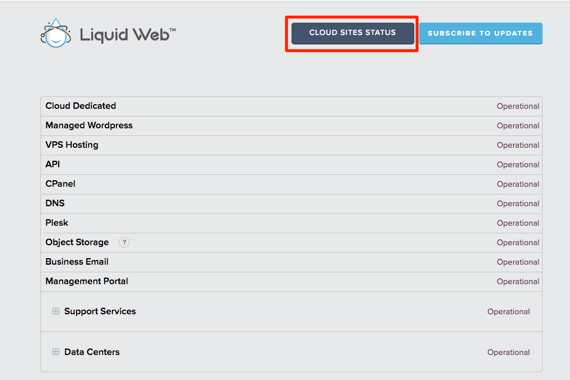
- You will see a listing of the services and their status. If there is an immediate issue causing downtime, you will see it posted at the top of the page.
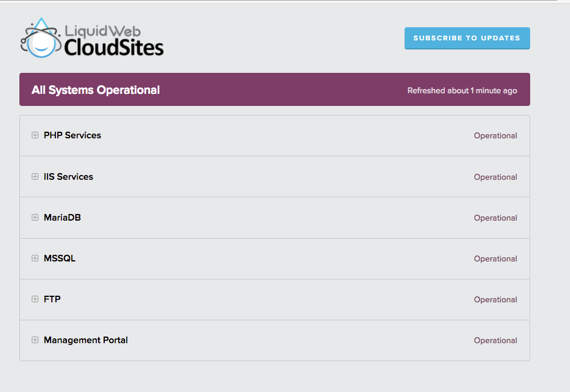
- Additional maintenance and update notifications will show below the service statuses.
- Past events will be listed at the bottom of the page.