

Kadence
Introducing Kadence Blocks Pro
What Is Kadence Blocks Pro?
Kadence Blocks Pro is a premium add-on for the free Kadence Blocks plugin. In short, it unlocks the tools you need to build a whole site in the block editor: advanced blocks for queries, sliders, pop-ups, and more, plus site-wide controls such as filling blocks with live data, showing blocks only to certain visitors, and adding scroll animations.
The free plugin gives you the building blocks of a page, such as rows, advanced text, buttons, and forms. Kadence Blocks Pro adds to those blocks instead of replacing them, so everything you’ve already built keeps working. It works with any WordPress theme and pairs well with Kadence Theme.
Note
Kadence Blocks Pro needs the free Kadence Blocks plugin to be installed and active. Setting Up Kadence Blocks Pro walks you through installing both plugins and activating your license.
Pro Design and Site Controls
Instead of installing separate plugins for animations, custom fonts, or conditional visibility, these site-wide controls build those capabilities directly into the Kadence blocks you already use—keeping your site fast and your workflow in one editor.
Dynamic Content
Fill blocks with live data from your site instead of typing it by hand. Text, images, links, and backgrounds can show a post’s title, featured image, author, or date, details about your site or the current visitor, WooCommerce product data, The Events Calendar event details, and your own custom fields, including fields from Advanced Custom Fields (ACF), Meta Box, and Pods. When the data changes, every block that shows it updates. Pro also adds two blocks for this: Dynamic HTML shows a formatted field, such as an excerpt, and Dynamic List shows a list, such as a post’s categories or tags. For details, see Dynamic Content.
Conditional Display
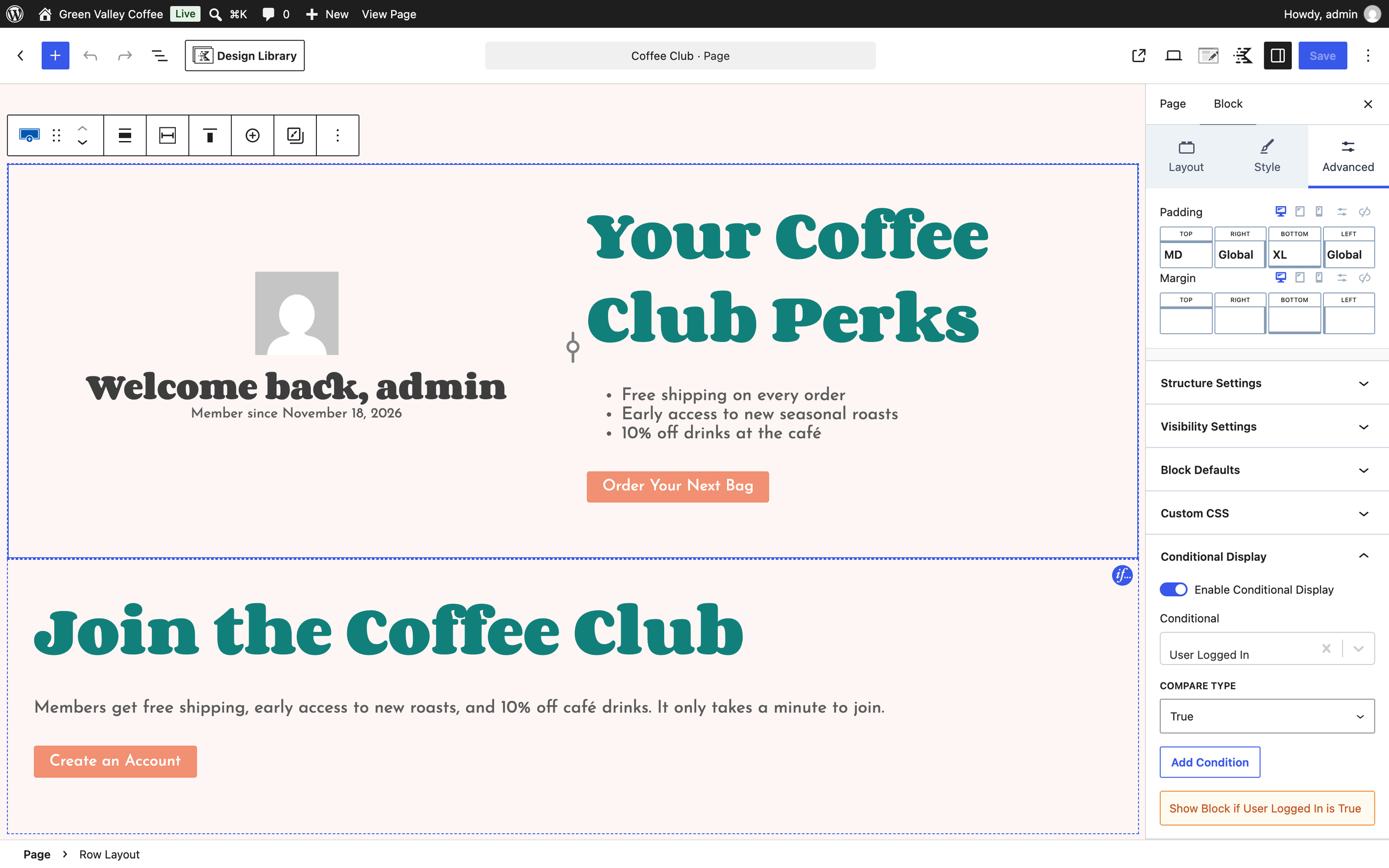
Show or hide a block based on rules you set. A rule can check whether the visitor is logged in, their user role, a post or author field, a custom field, the number of comments, or the page URL and its query parameters. You can combine several rules with AND or OR logic. Conditional Display is in the Advanced tab of rows, sections, and many other Kadence blocks. Without Pro, the free plugin can only hide a block by device or from logged-in or logged-out visitors. For details, see Display Blocks Conditionally (Conditional Display).
Animate on Scroll
Add entrance animations that play as visitors scroll a block into view. Choose from fade, slide, zoom, and flip effects, and set the duration, delay, and easing to keep the motion subtle or make it stand out. For details, see How To Add Animate on Scroll Effects To Your Page.
Custom Icons
Import custom icon sets made with IcoMoon or upload individual SVG icons to use alongside the built-in icon library. For details, see Using Custom SVG Icons with Kadence Blocks Pro.
Custom Fonts
Use your own font files or Adobe Fonts in Kadence’s font settings. This feature comes from the separate Kadence Custom Fonts plugin (included with the same Kadence plans as Kadence Blocks Pro)—upload custom .woff or .woff2 font files or connect Adobe Fonts so your brand typography appears directly inside Kadence’s font selectors. For details, see Kadence Custom Fonts.
Premium Design Library
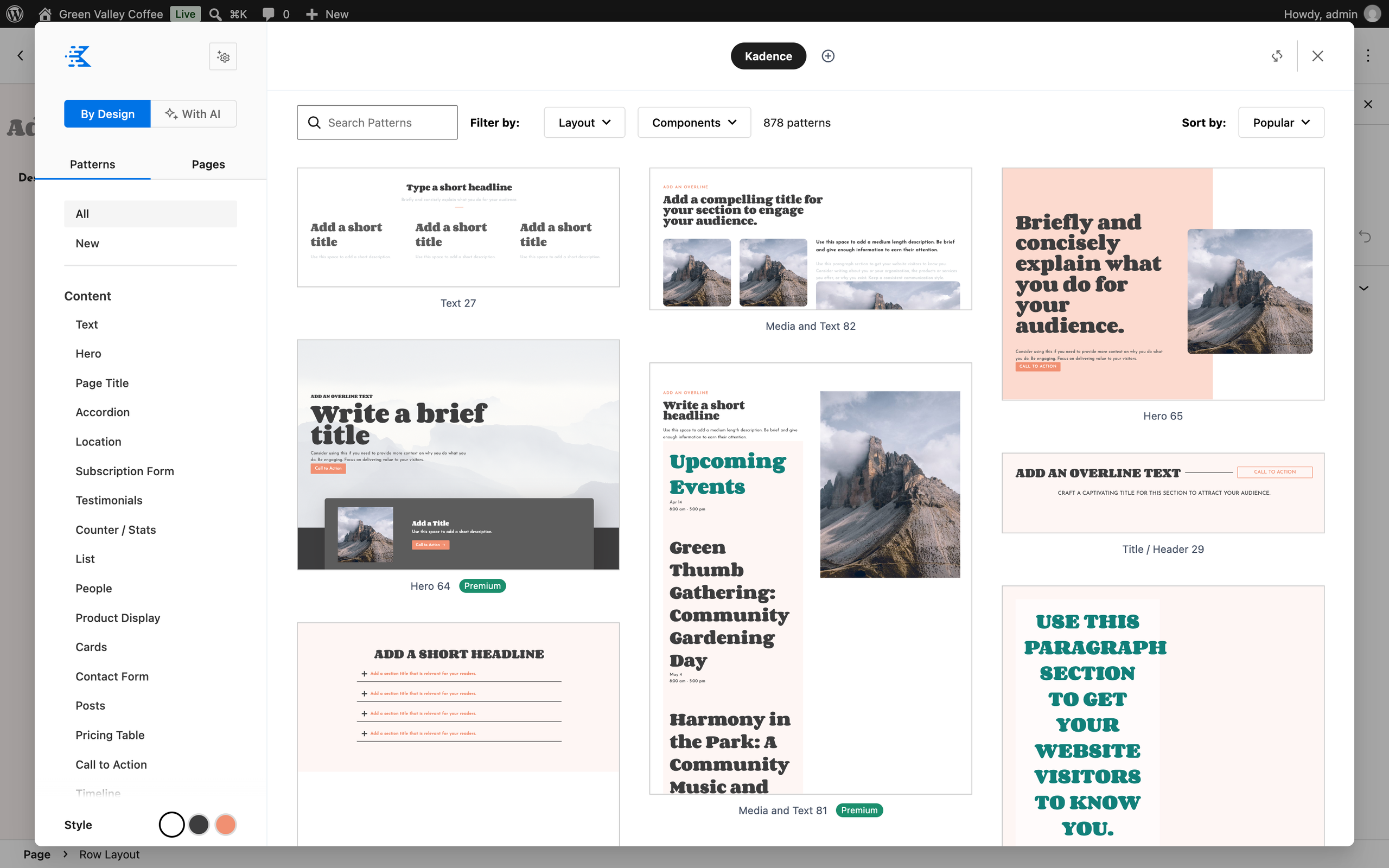
Unlock premium patterns and full-page layouts marked with a green Premium label in the Kadence Design Library—insert any layout and customize it like standard blocks. For details, see How to Access the Kadence Design Library.
Page Specific Scripts
Add custom CSS or tracking and conversion scripts to the head, body, or footer of a single page or post without editing your theme. The code loads only on that specific page. For details, see The Kadence Block Controls.
Pro Blocks
These blocks let you build complex, interactive layouts—like filterable directories, dynamic sliders, and conversion pop-ups—without custom code or third-party page builders.
Query Loop (Adv)
Show a custom list of posts, pages, products, or any other post type, and design each result as a card made from blocks. Visitors can narrow the results with filters such as category buttons, checkboxes, a search box, and date or number ranges, and they can sort them. The results update without reloading the page, and you can add pagination and a result count. For details, see Query Loop (Adv) Block.
Repeater
Show the rows of a repeater field from ACF or Meta Box, such as a list of team members or menu items. You design the layout once, and the block repeats it for every row in the field. For details, see Repeater Block.
Modal
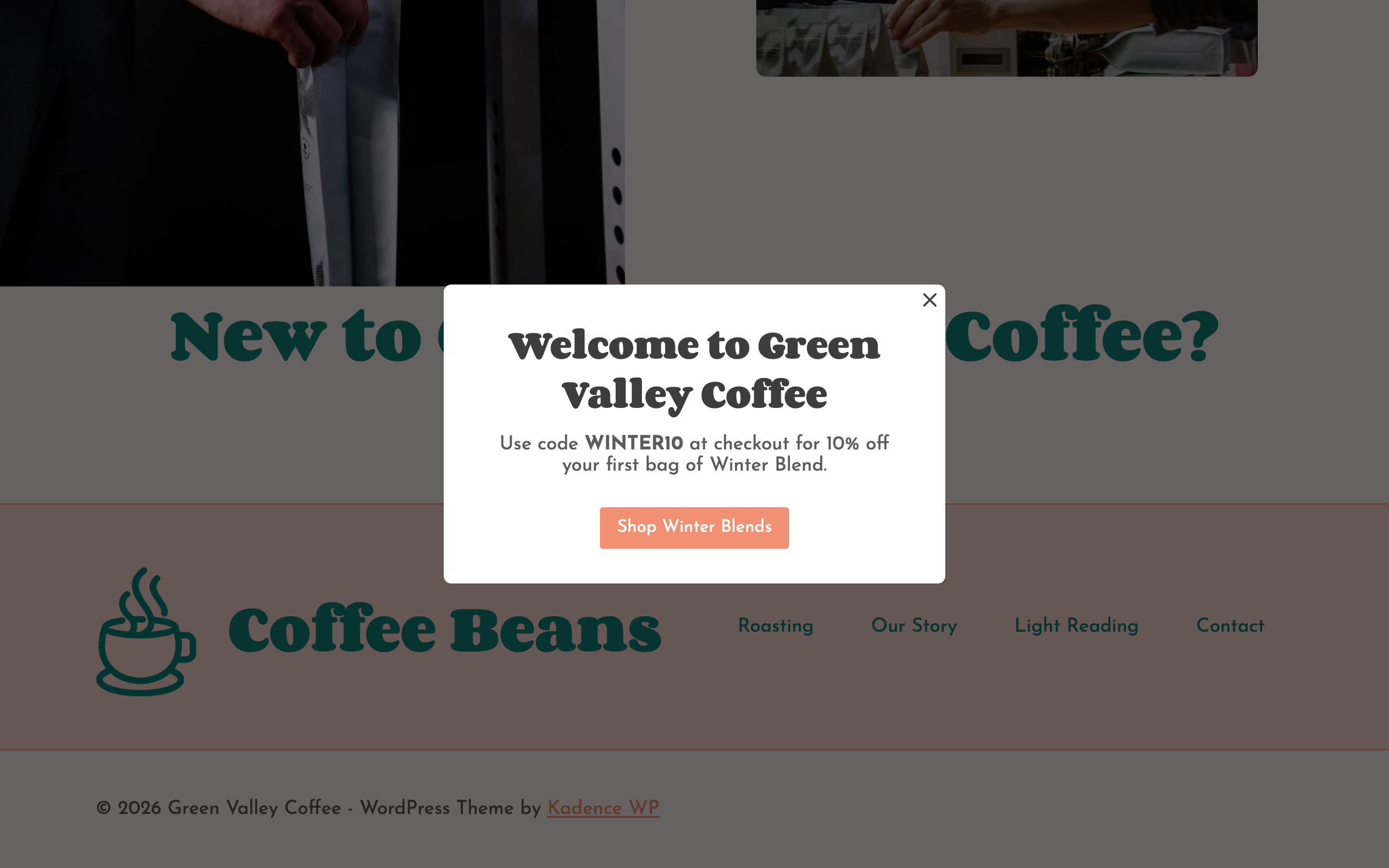
Add a button or link that opens a pop-up window. The pop-up can hold any blocks, such as an offer, a sign-up form, or a video, and you choose its size, position, overlay, and opening animation. For details, see Modal Block.
Image Overlay
Turn an image into a link with a title and subtitle on top of it, and a color overlay that changes when visitors hover over it. It’s a quick way to point visitors to a page, a category, or a collection of products. For details, see Image Overlay Block.
Post Grid/Carousel
Show posts, pages, or a custom post type in a grid, masonry, or carousel layout. Choose posts by category, tag, or author, or pick them one by one, and choose what each item shows, such as the image, excerpt, date, and a Read More button. For details, see Post Grid/Carousel Block.
Portfolio Grid/Carousel
Show posts or a custom post type, such as portfolio projects, in an image-focused layout where the title and details appear over the image on hover. Choose a grid, masonry, carousel, or fluid carousel layout, and add filter buttons so visitors can browse by category. For details, see Portfolio Grid/Carousel Block.
Product Carousel
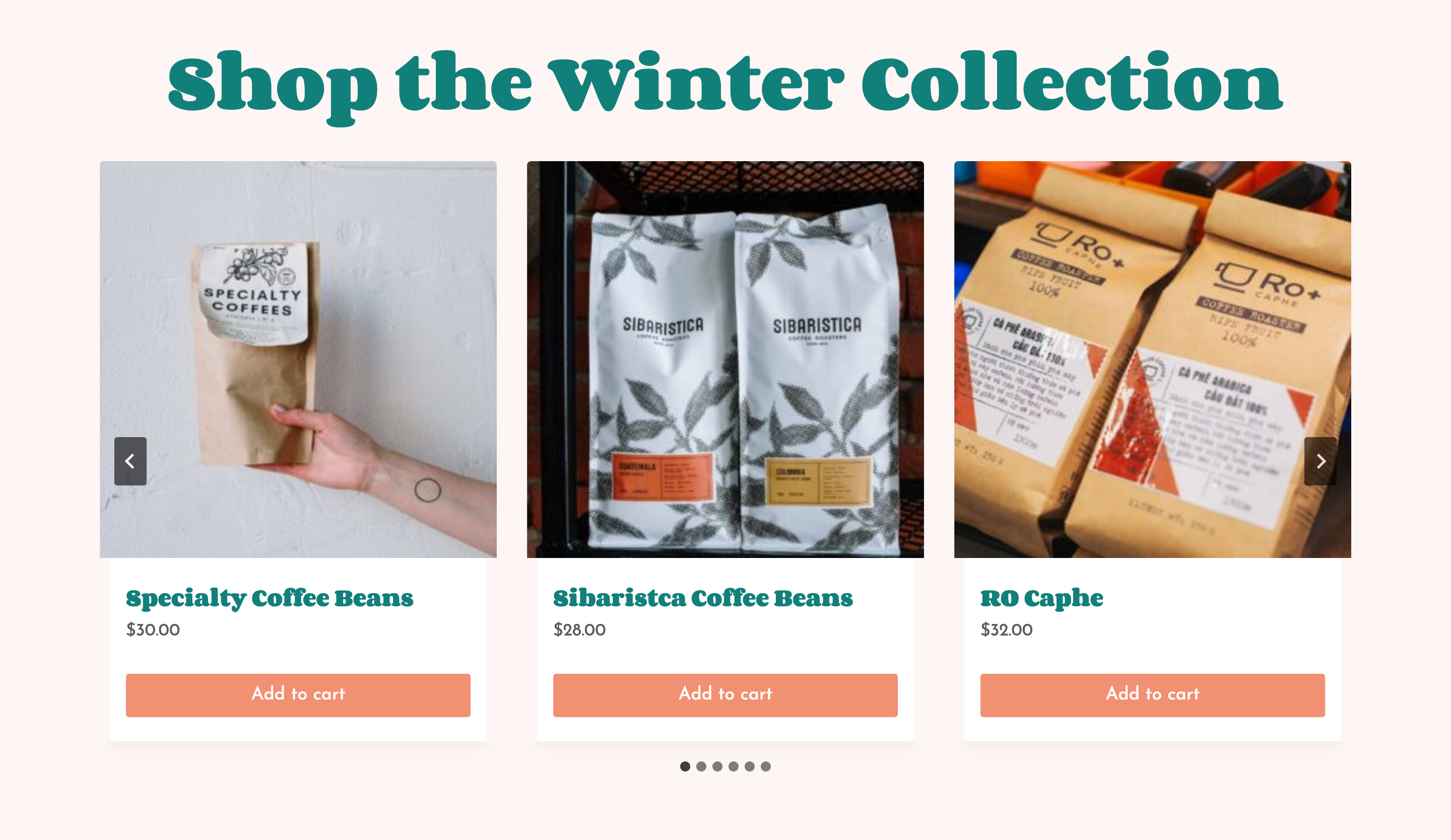
Show WooCommerce products in a carousel with Add to cart buttons. Choose products by category, show on-sale, best-selling, or top-rated products, or pick them one by one. This block requires WooCommerce. For details, see Product Carousel Block.
Split Content
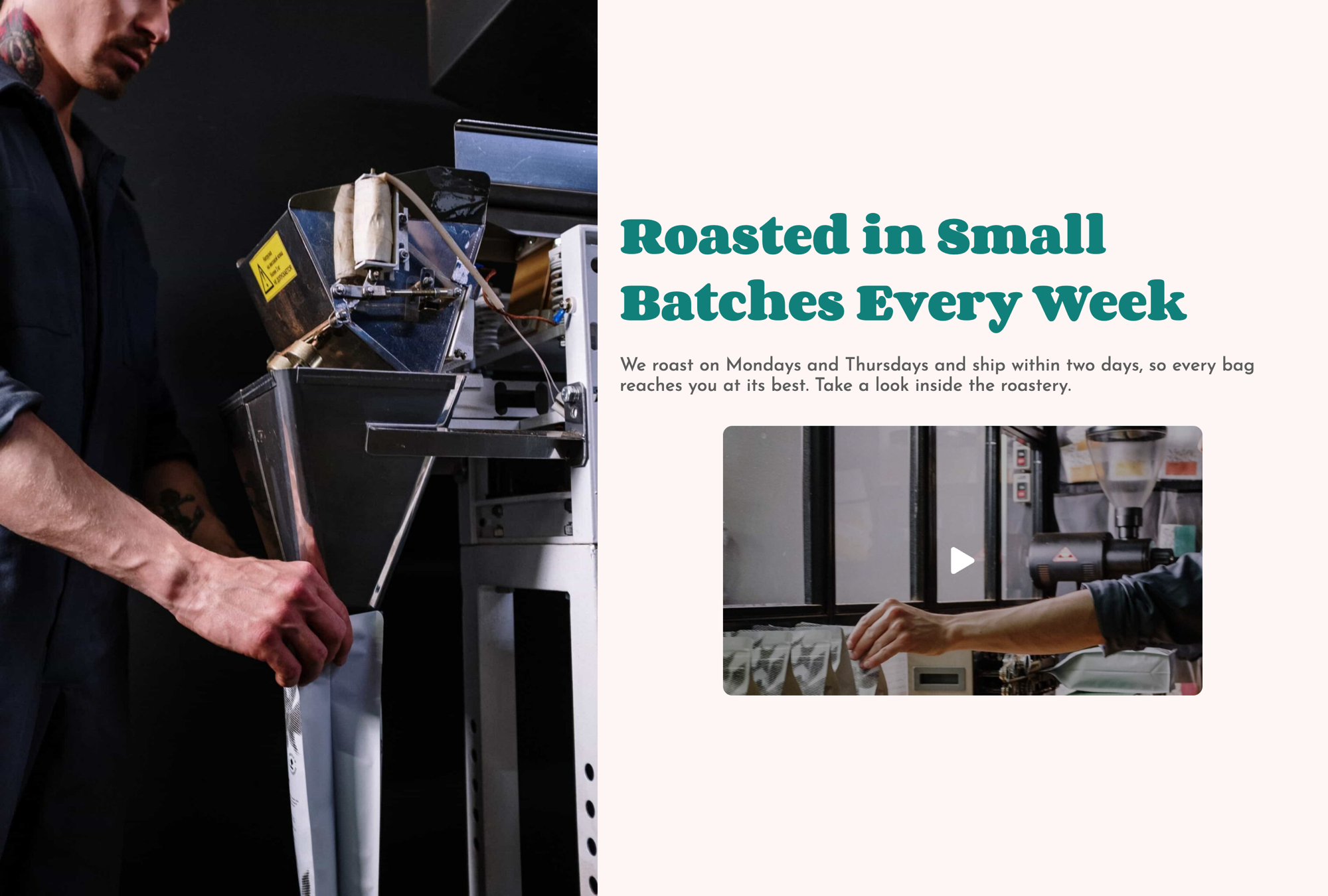
Place an image or video on one side of a full-width section and your content on the other. You choose which side the media goes on and how much of the width it takes. For details, see Split Content Block.
Advanced Slider
Build a slider of full-width slides, each with its own background image, text, and buttons. You can set the height, autoplay speed, slide or fade transition, and the style of the arrows and dots. For details, see Advanced Slider.
User Info
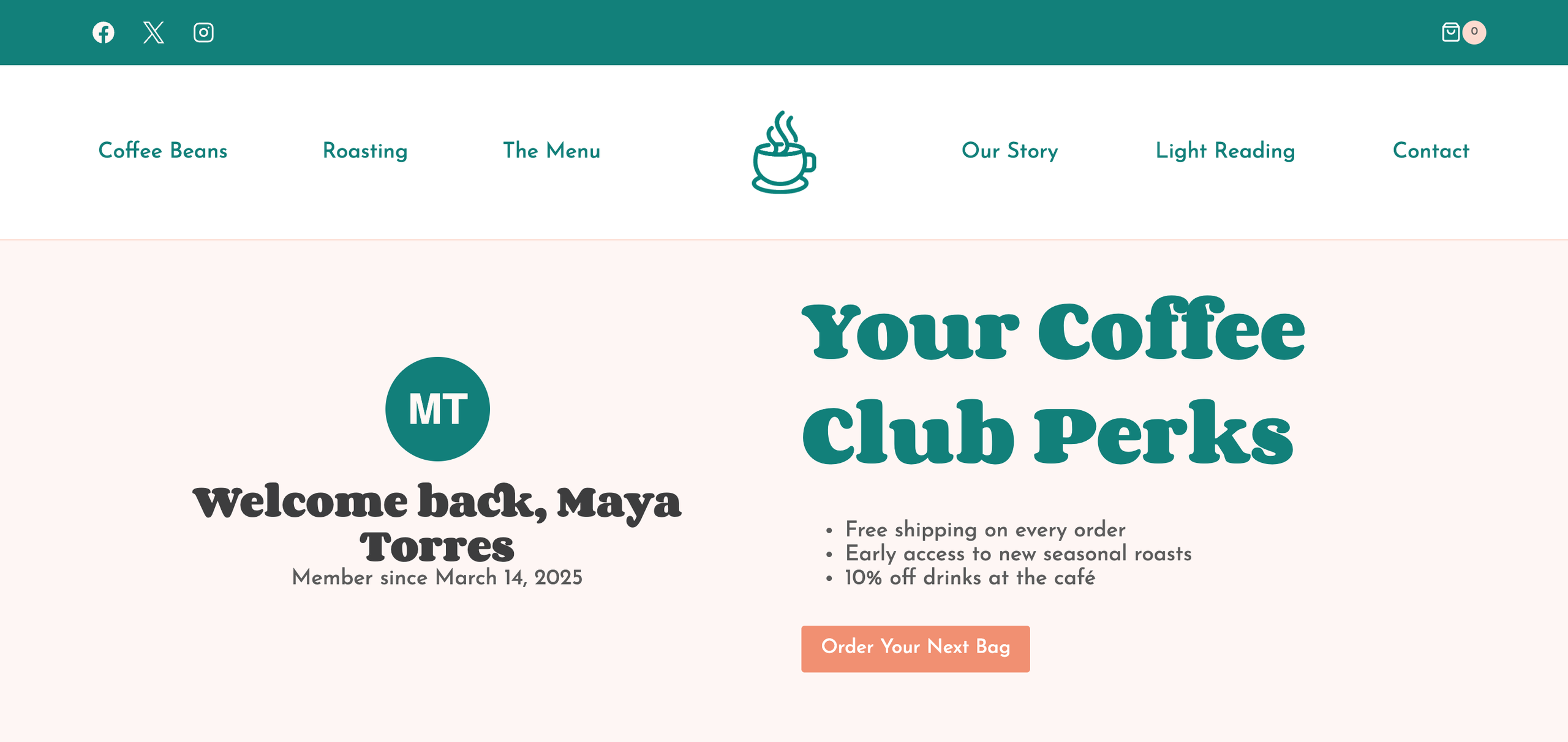
Show details about the logged-in visitor: their profile picture, their name, and the date they joined. You can add your own text before the name and date, such as “Welcome back,” to greet members on an account or members-only page.
Note
The Video Popup block used to be a Pro block too. Since Kadence Blocks 3.4.4, it’s part of the free plugin, so you can use it with or without Pro.
Common Use Cases
Use Case 1: A Blog with Filterable Article Cards
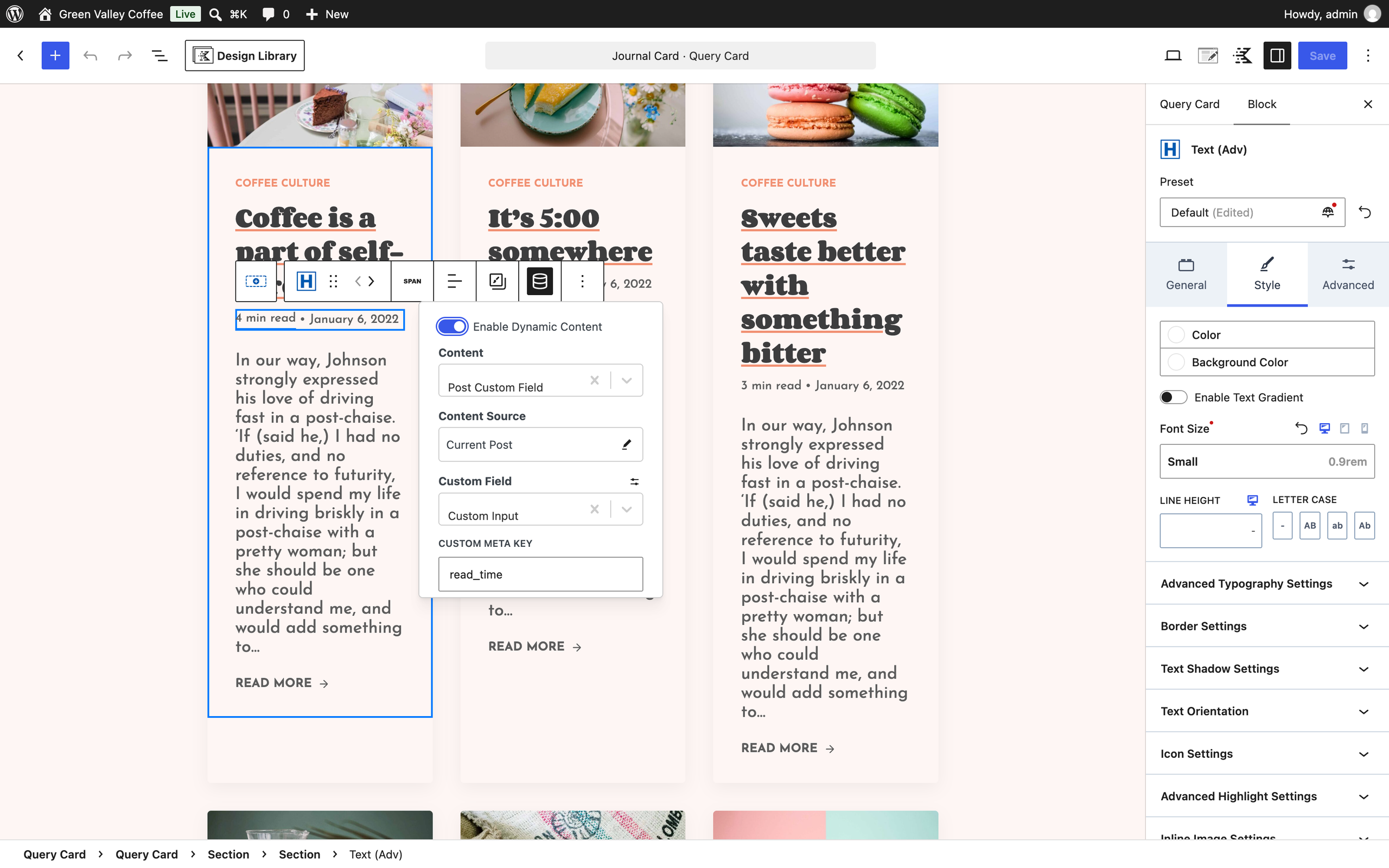
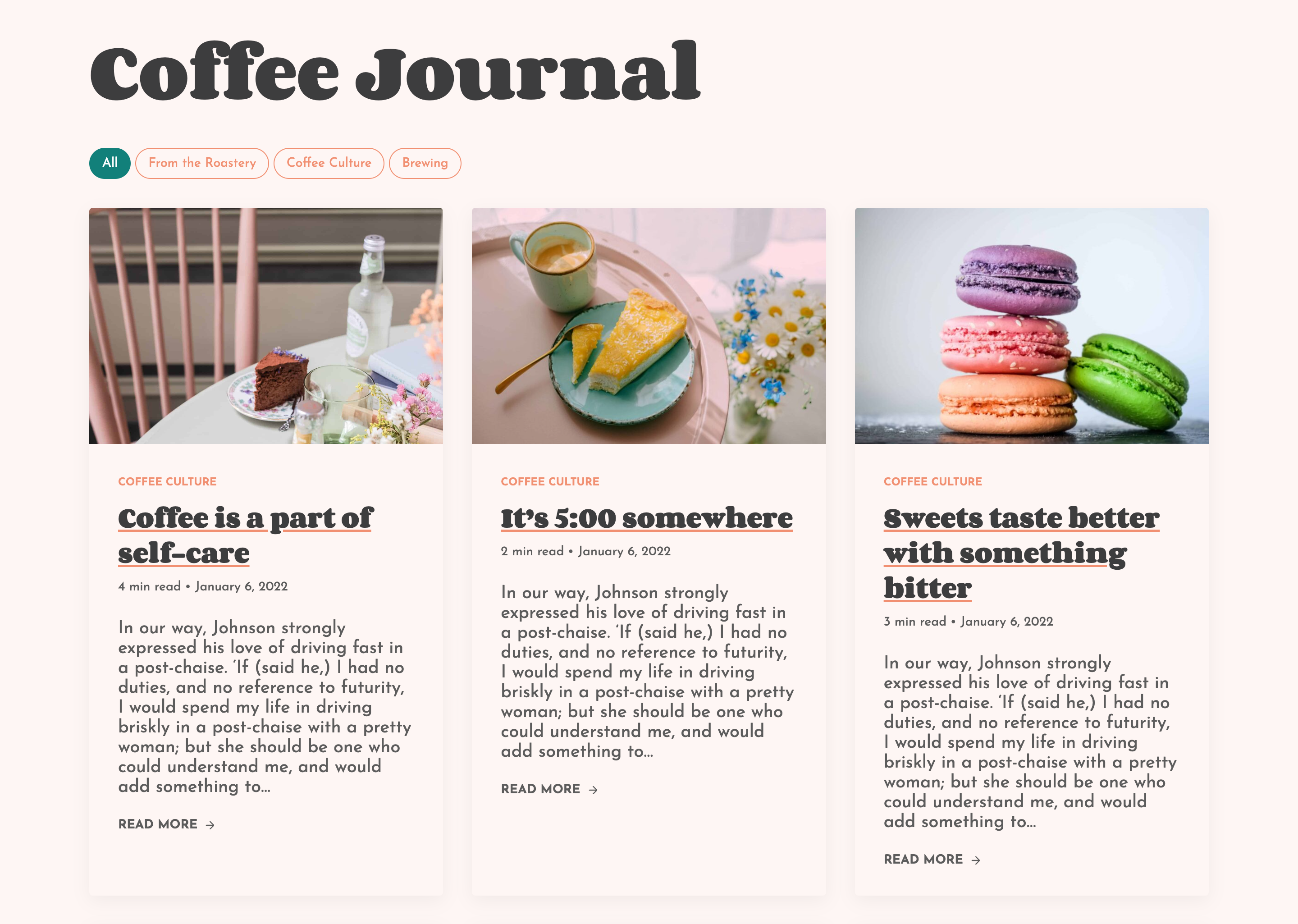
Scenario: A coffee roaster publishes brewing guides and stories on its blog. Readers want to find articles on one topic quickly, and the owner wants every card to show a reading time, which is stored in a custom field on each post.
Solution: The owner adds a Query Loop (Adv) block with category filter buttons and designs one card for every article. Dynamic Content fills each card with the post’s image, category, title, date, and excerpt, and a text block shows the reading time from the custom field. Readers choose a category, and the list updates without reloading the page. To use the same approach for search results, see How to Create a Custom Search Page with Hooked Elements and the Advanced Query Loop.
Use Case 2: A Members-Only Section
Scenario: A café runs a Coffee Club with perks for members. Logged-in members should see their perks, and everyone else should see an invitation to join.
Solution: The Coffee Club page has two rows. Conditional Display shows the first row only when the visitor is logged in. It greets the member by name with the User Info block and lists their perks. The second row shows only to logged-out visitors and asks them to create an account. Members and visitors see different content on the same page, with no extra membership plugin.
Use Case 3: A Seasonal Campaign Page
Scenario: A roaster is launching its winter blends. It wants an eye-catching landing page with a first-order discount, and it wants to track ad conversions on this page only.
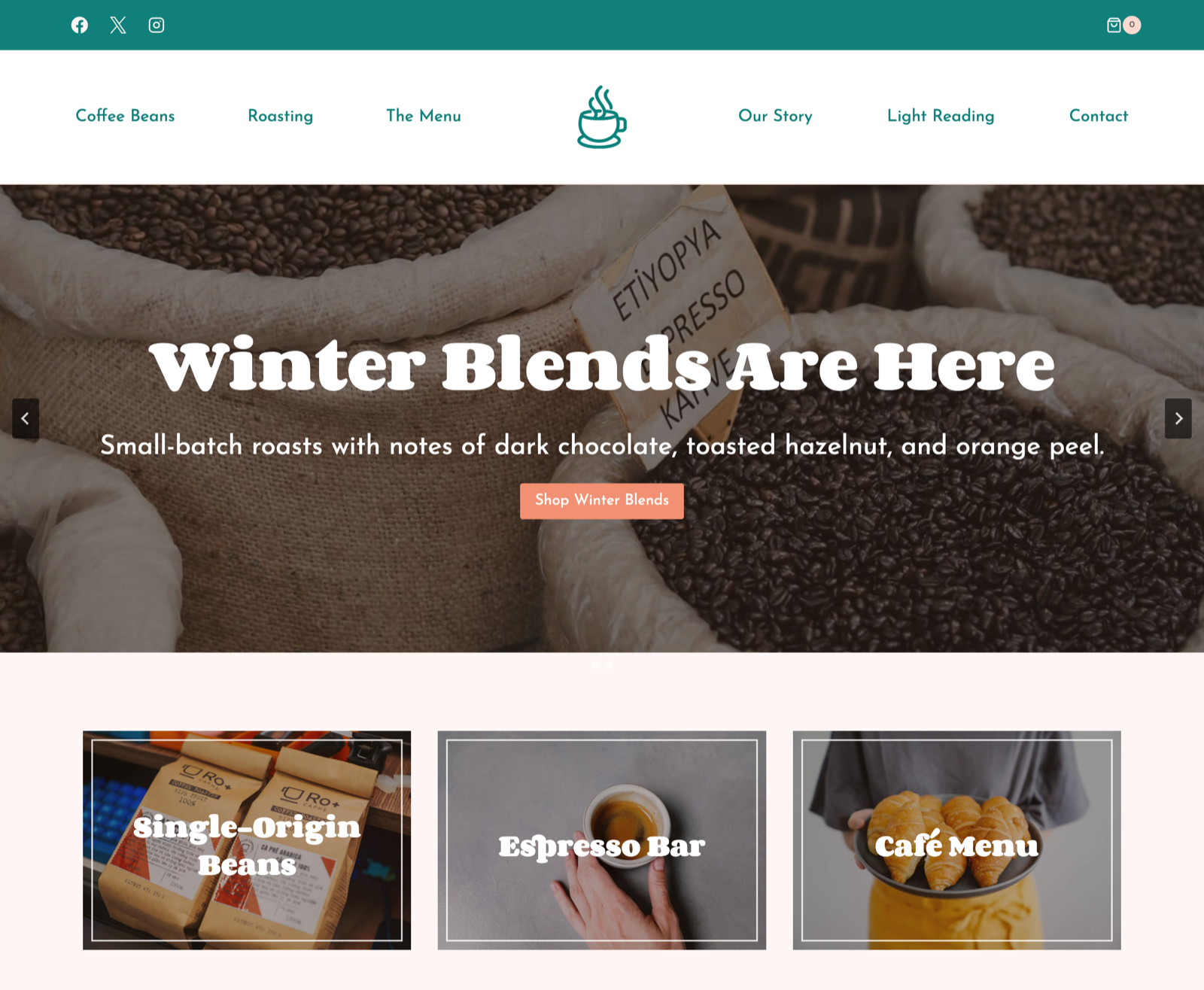
Solution: The team builds the page from Pro blocks: an Advanced Slider for the announcement, Image Overlay links to the shop, the espresso bar, and the café menu, a Product Carousel of the winter coffees, and a Split Content section about the roastery with a video tour. A Modal button reveals the discount code, and Page Specific Scripts adds the ad platform’s conversion code to this page without touching the rest of the site.
Pro Tip: Show an Offer Only to Your Newsletter Readers
Conditional Display can also check the page URL. In your newsletter, link to the page with a parameter of your own, such as ?offer=winter. Then add a Conditional Display rule to the offer’s row that checks the Query Param named offer and shows the row when it equals winter. Newsletter readers see the offer, and visitors who arrive any other way don’t.
Use your own parameter name rather than a utm_ parameter. Some caching setups ignore utm_ parameters and would show everyone the same cached page.
Ready to Get Started?
To install Kadence Blocks Pro, activate your license, and adjust its settings, see our setup guide:
You might also find these articles helpful: