

Events Calendar Pro
Introducing Recurring Events
What Are Recurring Events?
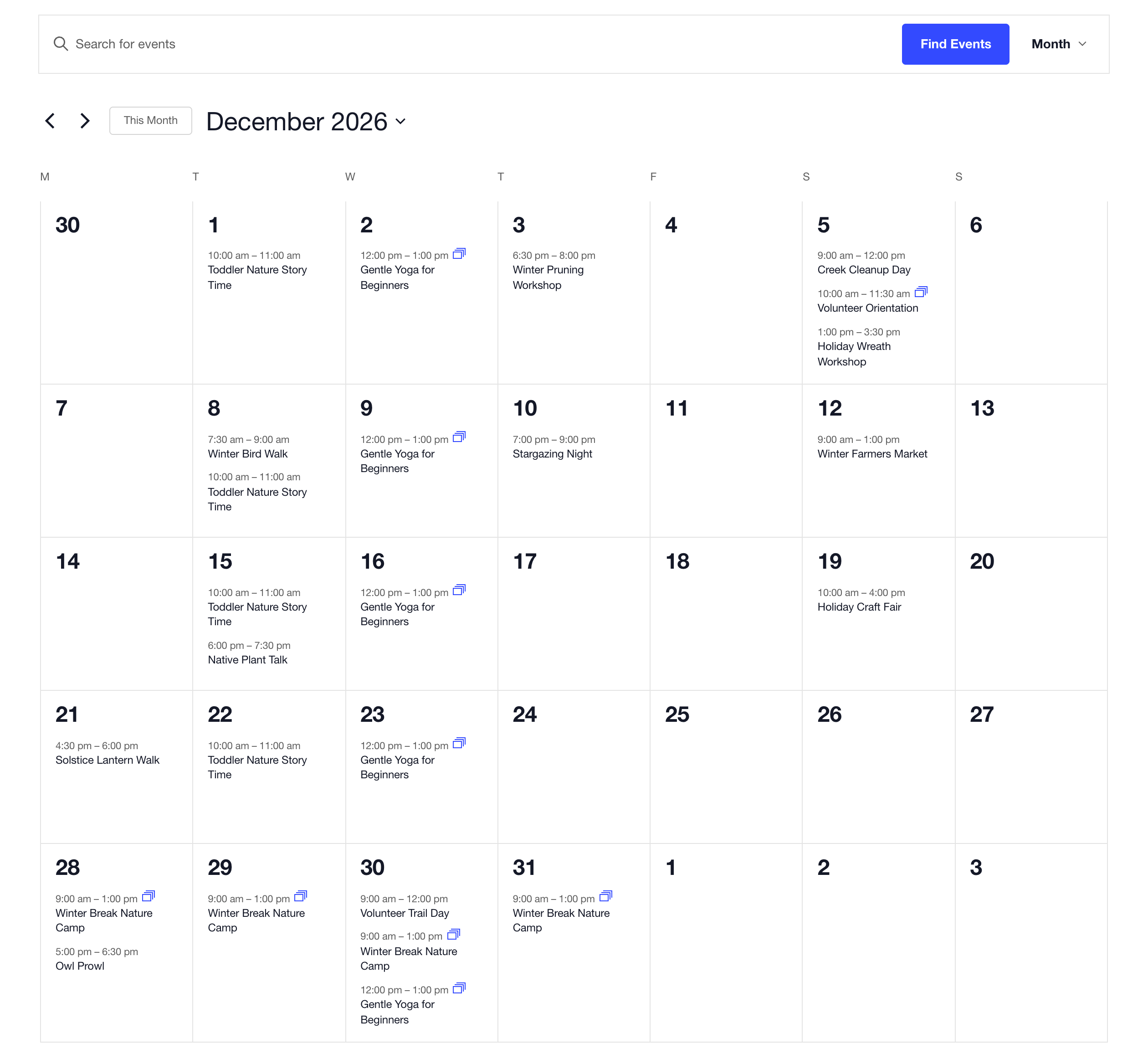
Classes, meetings, camps, and festivals often happen more than once. Recurring events in Events Calendar Pro let you create an event once and have it repeat on your calendar. In short, you choose a pattern, such as every Wednesday or the first Saturday of each month, and Events Calendar Pro adds every date for you.
Why Use Recurring Events?
Set Up a Schedule Once
Instead of copying the same event for every class or meeting, you create it once and choose how it repeats: daily, weekly, monthly, or yearly. A pattern can be as specific as you need, such as every two weeks on Tuesdays and Thursdays, or on the first Saturday of each month. You decide when it ends: on a date, after a number of events, or never. For events that don’t follow a pattern, you can pick the dates yourself.
Skip Holidays and Change One Date
Real schedules have gaps. You can skip a date, such as a meeting that falls on a holiday weekend, without breaking the pattern. When one date changes, for example, a class moves to a different room for a week, you can update just that date and leave the rest as they are.
Every Date Has Its Own Page
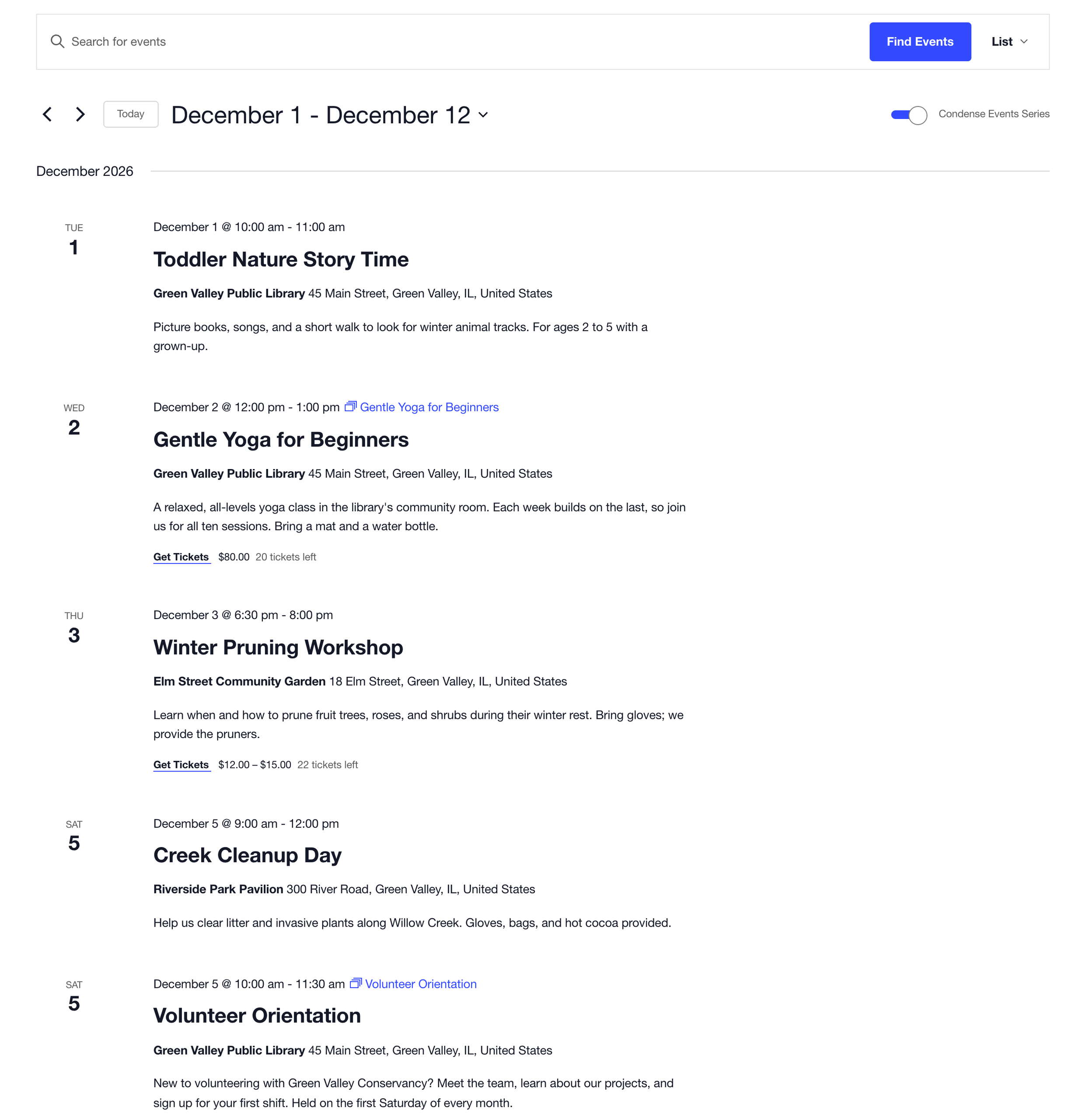
Each date is a full event on your calendar, with its own page and link, such as /event/gentle-yoga-for-beginners/2026-12-09/. Visitors can share the exact date they’re coming to and add it to their calendar. Each page also links to the full event Series, where visitors can browse all upcoming dates.

Keep Your Calendar Easy to Browse
Every recurring event is grouped in a Series automatically, and its Series page lists all of its upcoming dates. Calendar views mark each date with a Series icon. When a weekly or daily event would fill your list view, you can show only its next date, or give visitors a toggle to condense the list themselves.
Common Use Cases
Use Case 1: A Ten-Week Class
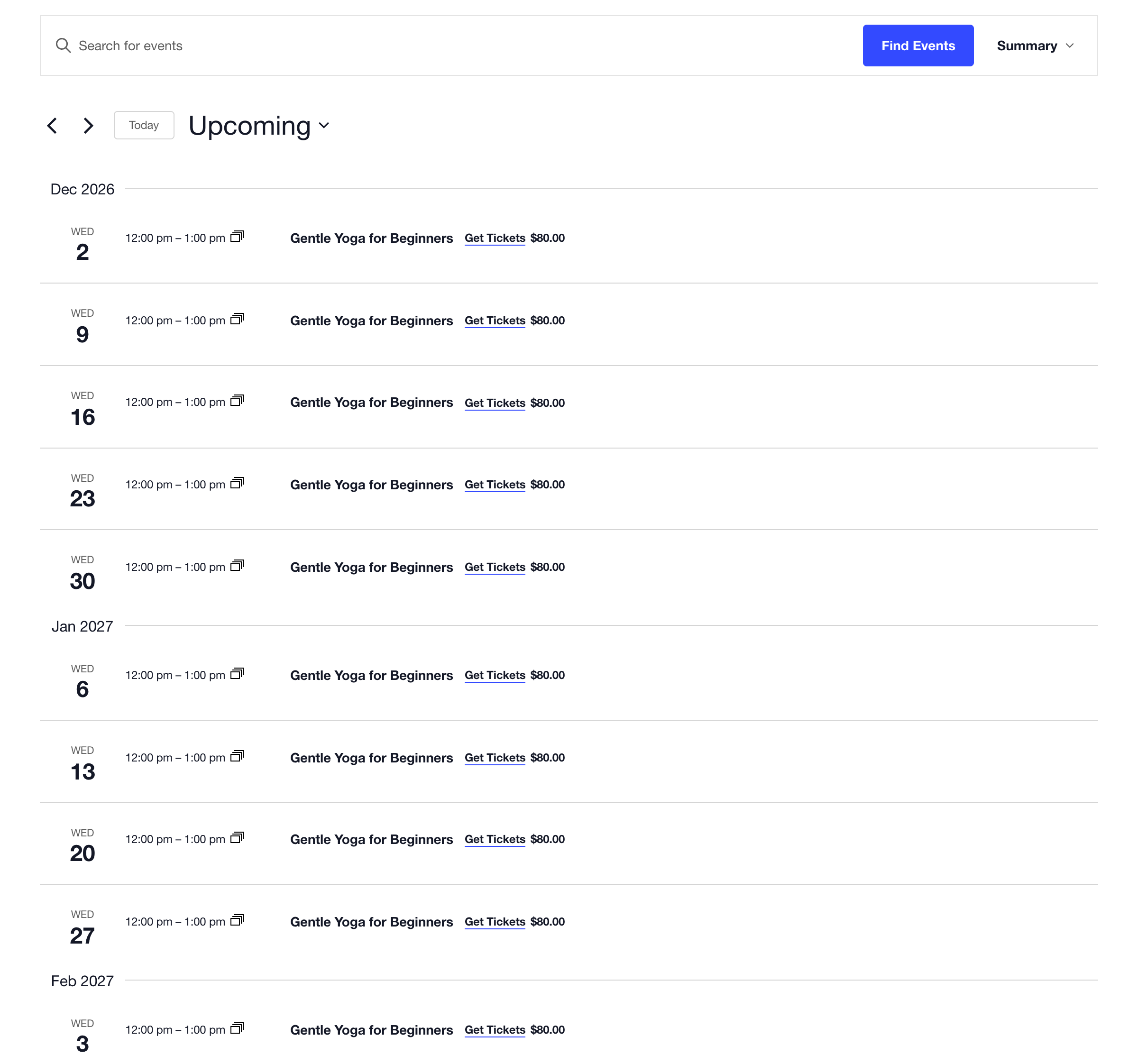
Scenario: A conservancy offers a beginner yoga class every Wednesday at noon for ten weeks. It wants every class on the calendar without entering the same event ten times.
Solution: Create the class once as a weekly event on Wednesdays that ends after 10 events. All ten classes appear on the calendar, and the Series page lists every date. When the library room is closed for the holidays on December 23, change the venue for that date only. The other nine classes stay as they are.
Use Case 2: A Monthly Meeting That Skips a Holiday
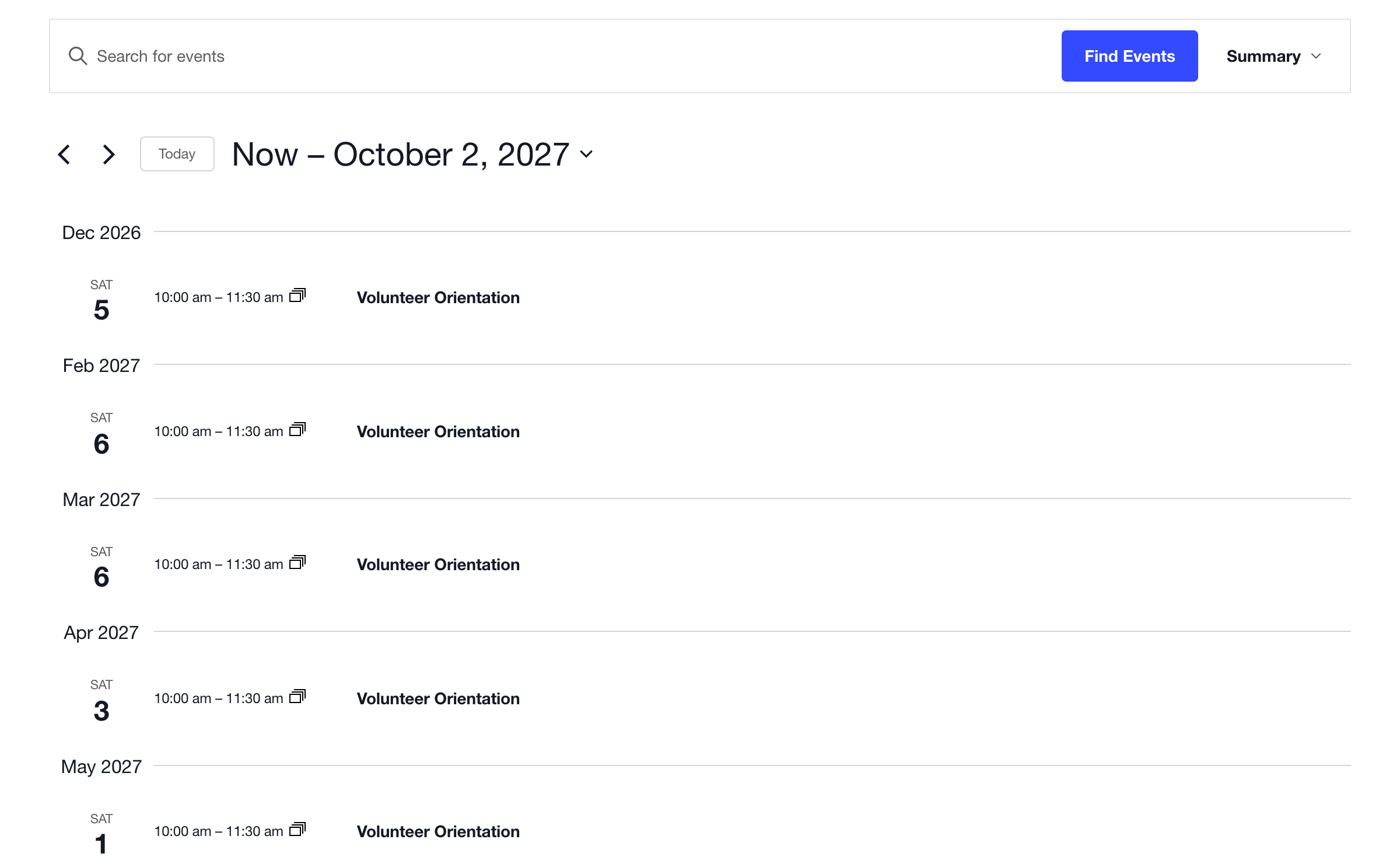
Scenario: A volunteer orientation is held on the first Saturday of every month. In January, the first Saturday is January 2, the day after New Year’s Day, so the meeting takes a break.
Solution: Make the orientation a monthly event on the first Saturday that never ends, and add an exception for January 2. The calendar goes from December 5 straight to February 6, and the orientation keeps appearing month after month without you adding new dates.
Use Case 3: A Holiday Camp Every Morning
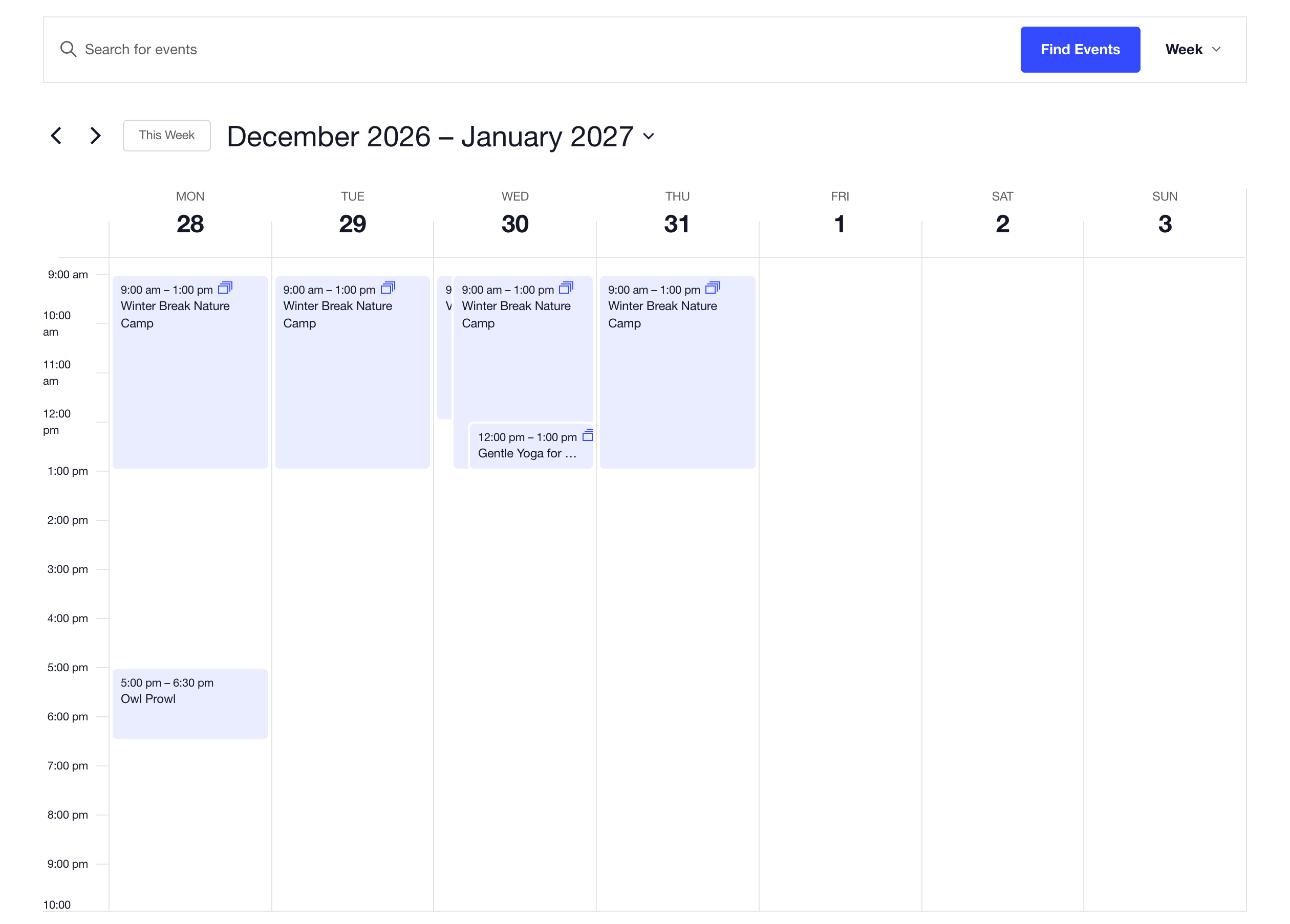
Scenario: A nature camp for kids meets from 9:00 am to 1:00 pm every day from Monday, December 28 to Thursday, December 31.
Solution: Create the camp as a daily event that ends on December 31. Week view shows all four mornings at a glance, and each one links to its own page with the camp’s details.
Pro Tip: Sell One Pass for Every Date
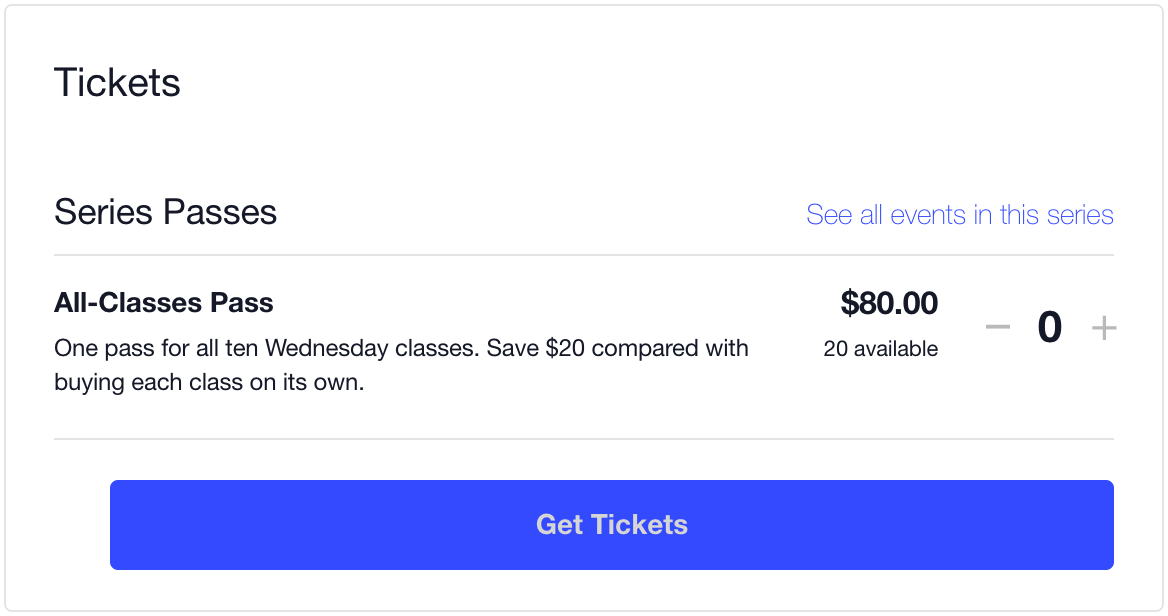
Standard tickets can’t be added to a recurring event, but you can sell a Series Pass instead. Add the pass to the event’s Series, for example an $80 pass for all ten yoga classes. People buy it once and can attend every date. The pass appears on the Series page and on the page of every date, with a link to all the events in the Series, so visitors can buy it wherever they find the class.
Note: Series Passes need Events Calendar Pro and Event Tickets or Event Tickets Plus.
Ready to Get Started?
To learn how to create recurring events, see our setup guide: Setting Up Recurring Events.
You might also find these articles helpful: