

Solid Backups
Kadence Backups Settings
Coming soon: Solid Backups is becoming Kadence Backups. You may see both names used while we update the product, documentation, and customer experience.
Kadence Backups stores backups in Kadence cloud storage and deduplicates unchanged data so retention and site changes affect usage more than calendar time alone. Use this guide to understand storage, retention, exclusions, transfer speed, and integrity options.
Where to change settings
You configure Kadence Backups in Kadence Central, not in WordPress admin.
- Log in to your Kadence Central dashboard.
- Open the site from your Sites list.
- Select the Kadence Backups tab.
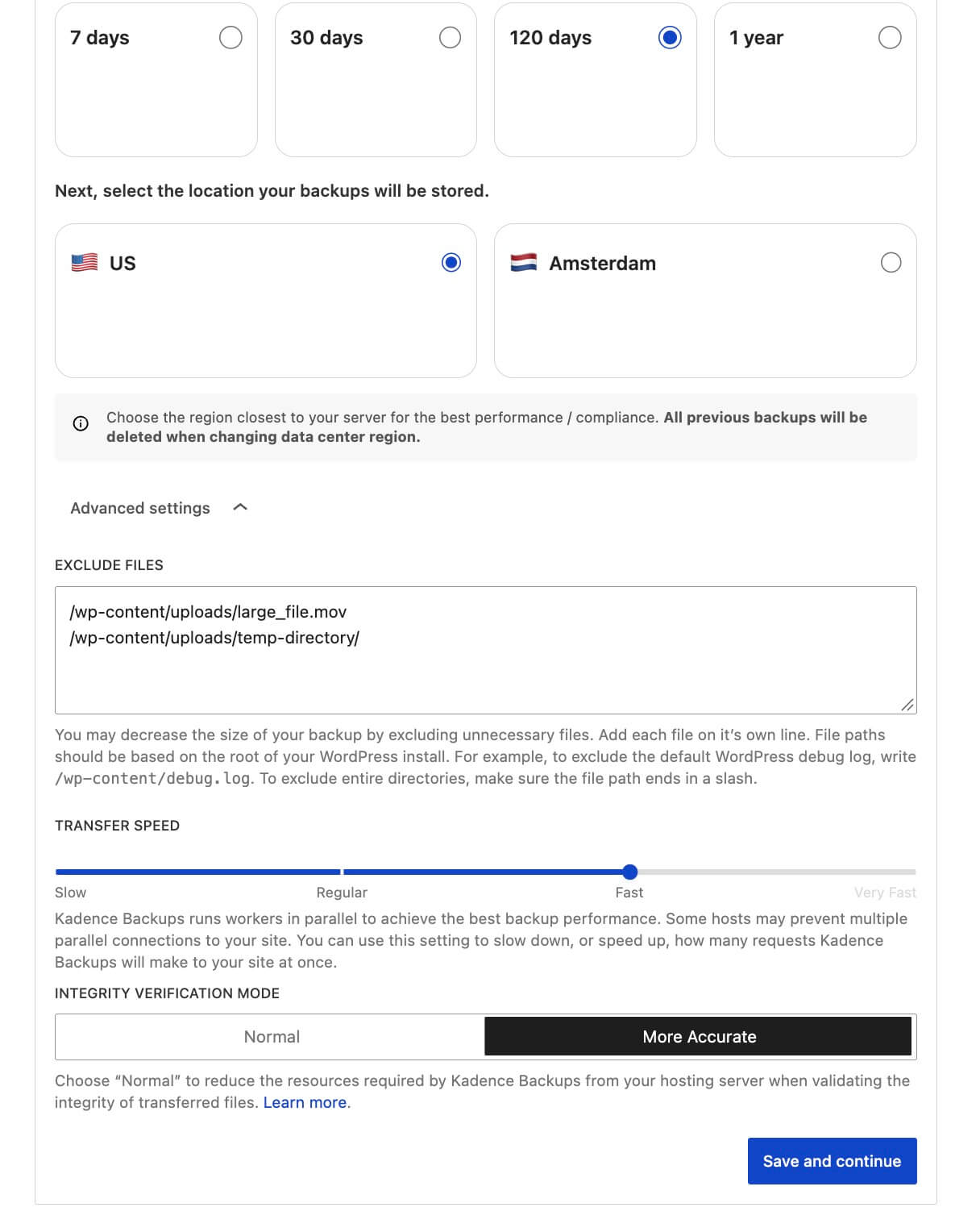
You choose backup retention during initial enrollment. You can review and adjust retention, exclusions, transfer speed, integrity verification, backup region, and related options on the same tab after enrollment. The screen in WordPress Settings → Kadence Backups shows connection status only.
For tab overview, see Managing Individual Sites.
Storage Options
Storage Estimation
This area shows estimated backup size, space used, and space available in your Kadence Backups storage allocation. Use it when choosing retention or deciding whether to exclude large paths.
Backup Retention
This lets you choose how long backups should be stored:
- 7 Days – Choose this option if you need short-term storage for frequent updates.
- 30 Days – Choose this option if you prefer to maintain balanced storage for regular backups.
- 120 Days – Choose this option if you want long-term retention for added security.
- 1 Year – Choose this option if you need long-term retention for archiving and compliance purposes.
Longer retention keeps more restore points and can use more storage, but Kadence Backups only stores changes efficiently when file content has not changed. To reduce storage growth, use Exclude Files (below) for paths you do not need in every backup.
Backup data center region
Kadence Backups supports US (default) and EU regions. You can change the region on the site’s Kadence Backups tab when you need data stored in a specific region.
Important: Changing region permanently removes backups stored in the previous region. Download a recent archive from Timeline before switching if you need a local copy.
See Kadence Backups FAQs for region change steps.
Advanced Settings
Exclude Files
Add file or directory paths you do not want in the backup. Enter one path per line, relative to the WordPress root (the directory that contains wp-config.php).
Examples:
- Exclude the debug log:
/wp-content/debug.log - Exclude a directory (path must end with
/):/staging-site/
If WordPress lives in /public_html/ and you want to skip /public_html/staging-site/, use /staging-site/ as the path.
Excluding large cache folders, redundant media, or local staging copies is often the most effective way to limit storage use.
Transfer Speed
Transfer Speed controls how aggressively Kadence Backups reads data from your server during a backup. Higher speeds finish sooner but use more concurrent connections and CPU on the host.
There are four different speed settings:
- Slow – low server impact
- Regular – moderate transfer speed
- Fast – faster transfer speed
- Very Fast – fastest transfer speed, high server impact
When you save server credentials, Kadence Backups may set a default speed based on your host. The recommended setting is “Fast“, but this might be restricted by some hosts, so you can reduce it to “Regular” or “Slower” to reduce server load for better compatibility.
Integrity Verification Module
The Integrity Verification Module controls how Kadence Backups decides whether a file changed since the last backup. Only changed content is transferred to cloud storage. This is useful for balancing accuracy and performance based on server capabilities.
Comparison modes:
- More accurate (default) — Strongest change detection. Use this when backups complete reliably on your host.
- Normal — Lighter verification to reduce CPU and I/O on the server. Consider this if backups fail or time out on shared or low-resource hosting.
On constrained hosts, Normal pairs well with lowering Transfer Speed to Regular or Slow. See Shared hosting and backup failures below.
Shared hosting and backup failures
On low-resource or shared environments, Very Fast Transfer Speed can cause failed backups (for example MD5 checksum errors or size mismatches). The Timeline may show a message such as:
Solid Backups could not complete the requested backup. Solid Backups did not complete backing up your database.
These failures often mean the backup worker hit the host’s connection, process, or resource limits.
If this happens:
- Lower Transfer Speed to Regular or Slow.
- Set Integrity Verification Module to Normal to reduce checksum usage.
- Review exclusions for very large or unnecessary directories.
- For persistent database or license-check errors, see Troubleshooting Kadence Backups Errors.
- For connection issues, see Kadence Backups Troubleshooting SSH/SFTP Connection Issues.
After changes, trigger a manual backup from Kadence Central and confirm success on Timeline. For ongoing monitoring, see Managing Your Backups.
If settings look correct but backups still fail, contact Software Support with the Timeline error text and reference number.