

Solid Central
Managing Individual Sites
Coming soon: Solid Central is becoming Kadence Central. You may see both names used while we update the product, documentation, and customer experience.
Log in to Kadence Central: https://central.kadencewp.com
- Use the same credentials as your Software Portal account.
- If you still use https://central.solidwp.com from an old bookmark, switch to central.kadencewp.com for accurate connection status.
Related: What is an Application Password? · How to Set Up and Use Central
Once you select a site from the Sites screen in Kadence Central (formerly Solid Central), you get a detailed view for managing that connected site without leaving the dashboard. This article walks through each tab and section of the individual site screen.
Primary Action Buttons
Before the individual tabs, each site in Kadence Central includes primary action buttons at the top for quick access to common tasks.

Site Access:
- Visit Site: Opens the live site in a new tab so you can check the front end without leaving Kadence Central.
- Site Admin: Logs you into the WordPress admin dashboard for that site.
Backup and Deployment:
- Back Up: Starts an immediate backup using Kadence Backups — NextGen (formerly Solid Backups — NextGen).
- Deploy/Migrate: Deploys the site to another location or migrates it to different hosting. The button label is Deploy or Migrate depending on context and available actions. See Kadence Deployments 101 and Kadence Migrations 101.
Site Management:
- Edit Tags: Manage tags for organizing and categorizing the site.
- Refresh Site Data: Syncs the latest data from the WordPress installation (plugins, themes, status, and other details).
Status Indicators:
- Pro Badge: Shows your current Kadence plan level.
- WP Version Badge: Displays the current WordPress version running on your site.
- Kadence Security Pro Badge: Shows whether Kadence Security Pro (formerly Solid Security Pro) is installed and active.
Advanced Features:
- Environments: Create environment groups for development, staging, and production versions of the site. See Kadence Environments 101.
Individual Tabs
Timeline
The Timeline tab shows site-related events and activities. It tracks activity from Kadence Central and from the connected WordPress site.
Key Timeline features:
- Activity Log/Central Activities: Chronological records of site events and actions taken in Kadence Central
- Backup History: Kadence Backups — NextGen backup creation, completion, and restoration events
- Backup Management: Create, download, and restore backup archives from the Timeline
The Timeline tab is the main place to monitor backup operations and site activity across your managed sites.
Admin
The Admin tab is similar in scope to much of the WordPress admin dashboard. From Kadence Central you can view and update plugins, themes, posts and pages, users, comments, and analytics for the site.
The Admin tab provides WordPress management capabilities through Kadence Central so you can handle core site tasks from one interface.
Site Audit
Site Audits in Kadence Central provide one-time or recurring reports on how a site is performing.
Site Audits use Google Lighthouse reporting for Performance, Accessibility, SEO, and related metrics. This is useful for agencies reporting site health to clients.

Kadence Backups
The Kadence Backups tab manages Kadence Backups — NextGen (formerly Solid Backups — NextGen). This cloud-first solution creates complete backups of your WordPress site, including the database, files, plugins, themes, uploads, and configuration.

This is the current recommended backup solution and replaces the Solid Backups Legacy (formerly BackupBuddy) plugin for new setups. See Getting Started with Kadence Backups — NextGen.
Note for sites with legacy Kadence Backups (BackupBuddy) active: A separate Backups tab may also appear in Kadence Central for the legacy plugin.
Security
Kadence Security (formerly Solid Security) is recommended for WordPress sites. When it is installed on a connected site, you can manage some settings from the Security tab in Kadence Central.
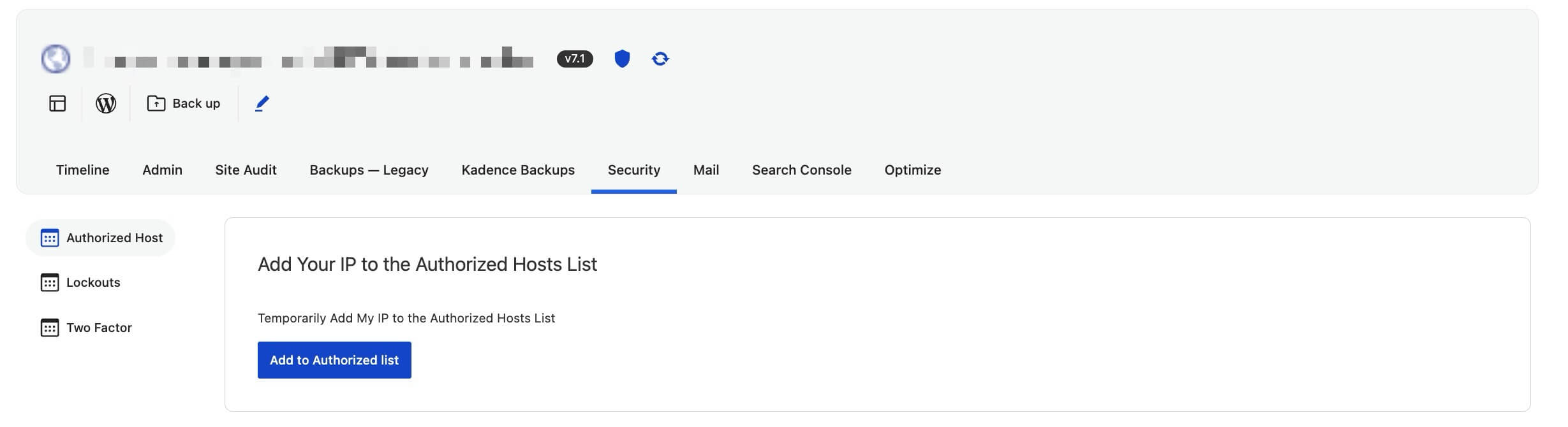
Security Management Features:
- Authorized Hosts: Manage IP addresses that are allowed to access your site, helping prevent unauthorized access from unknown locations
- Lockouts: View and manage user accounts that have been temporarily locked due to failed login attempts or suspicious activity
- Two-Factor Authentication: Configure and manage two-factor authentication settings for enhanced user account security
For deeper security settings, use the site’s WordPress admin or see Kadence Security documentation.
Search Console
On the Search Console tab, connect your Google account to access Google Search Console and related analytics features in Kadence Central. Available data depends on your setup and configuration.
If you see authorization errors, see the Google Analytics/Search Console section in Tips for troubleshooting Kadence Central.
Optimize
The Optimize tab includes options to clean up database bloat on a WordPress site (for example, post revisions and spam comments).
This is a broad cleanup tool. Take a backup you can restore before running optimization.
StellarSites
This tab appears when the site is hosted on StellarSites. It shows connection settings and links to manage your plan, add-ons, and migrate an external site into your account.

Managing Kadence Central via WP-CLI
Kadence Central offers limited WP-CLI support for licensing-related actions, useful when automating site setup or managing licenses across environments.
Available commands:
wp ithemes-licensing showDisplays the current licensing status for Kadence infrastructure products installed on the site.
wp ithemes-licensing activateActivates the license for installed products.
wp ithemes-licensing deactivateDeactivates the active license.
wp ithemes-licensing set-licensed-urlSets or updates the licensed site URL associated with the product.
Note: WP-CLI does not currently support installing or updating Kadence Central site plugins through these commands. Legacy installs may still reference SolidWP in licensing UI at Settings → SolidWP Licensing or Settings → Liquid Web Products, depending on plugin version.