

Solid Backups
Managing Your Kadence Backups
Coming soon: Solid Backups is becoming Kadence Backups. You may see both names used while we update the product, documentation, and customer experience.
Kadence Backups protects your WordPress sites through the Kadence Central dashboard. Monitoring backups and fixing connection issues early keeps restores reliable. This guide covers how to monitor, view, and troubleshoot Kadence Backups in Kadence Central.
How to monitor Kadence Backups?
Regular checks help you confirm backups are completing and catch connection problems before they affect your schedule. Here are the key methods to monitor your backups:
1) View Your Backup Timeline in Kadence Central
The easiest way to monitor backups generated by Kadence Backups is through the Timeline screen in Kadence Central. Timeline lists activity on your sites from Kadence Central and Kadence Backups, including backup runs, restores, and related events. For how Timeline works on a single site, see Managing Individual Sites.
How to check:
- Log into to your Kadence Central Dashboard.
- Open the account Timeline at https://central.kadencewp.com/timeline, or open an individual site and select its Timeline tab.
- Filter “Type” to Site Backup to focus on backup activity.
- Review recent entries for errors or failed backup attempts.
2) Check Connection Status in WordPress Admin
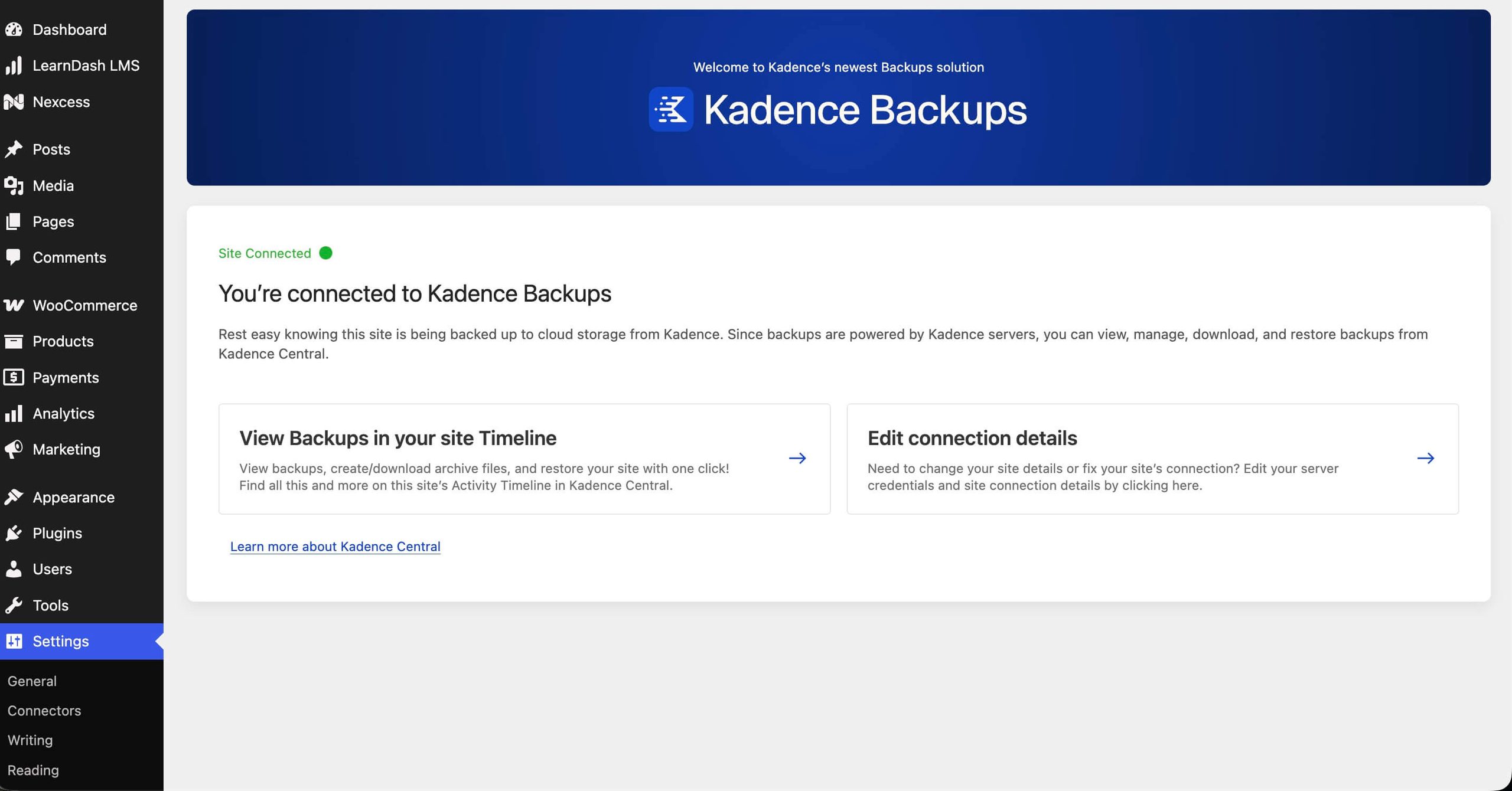
When you are logged in to a site’s WordPress dashboard, you can verify Kadence Backups connection status under WP Settings → Kadence Backups.
Status Indicators:
- Green “Site Connected”: The site is properly connected to Kadence Backips and ready for backup operations
- Red “Site Disconnected”: There’s a connection problem that needs immediate attention
- Gray “Checking Connection: The system is currently verifying the connection status
Example:
3) Check Your Email Inbox
Kadence Central can email you about critical Kadence Backups events, including:
- Site disconnection from Kadence Backups
- Authentication failures (SSH/SFTP credential issues)
- Backup failures caused by connection problems
Look for these messages in your email inbox as they often warn you before scheduled backups miss a run.
Recommended Monitoring Frequency
Establishing a regular monitoring routine helps you catch backup issues early and maintain confidence in your backup system. The following regular checks are recommended for a clear monitoring of the backups processes:
Daily Checks:
- Review the Kadence Central Timeline page to verify that latest backups appear in your timeline
- Check for any error messages or failed backup attempts
Regular Checks:
- Monitor connection status in WordPress Settings → Kadence Backups whenever you’re logged into the site
- Review Kadence Central email alerts related to backups
Weekly Reviews:
- Assess backup success rates and identify any recurring issues
- Confirm retention and storage behavior match your expectations
What Gets Backed Up
Kadence Backups creates a full-site backup of your WordPress installation:
- Database: WordPress tables and data
- Files: Plugins, themes, uploads, media, and custom files
- WordPress core: Core system files
- Configuration files:
wp-config.php,.htaccess, and other critical configuration files
Together, these components support a full restore when you need one.
Viewing and Managing Your Backups
To view and work with backups, log in to Kadence Central and open the account Timeline or a site’s Timeline tab.
From Timeline you can:
- View backup details, completion status, and error messages
- Generate archives on demand from completed backups
- Download backup archives to your computer for safekeeping

Backup Management Best Practices
- Monitor proactively: Establish a routine for checking backup status in Kadence Central Timeline on a schedule, and fix disconnects before the next backup window.
- Document changes: Keep brief notes when you change SSH credentials, hosts, or Kadence Backups settings so troubleshooting stays straightforward.
- Contact support with details: When you open a ticket with Software Support, include Timeline error text and any reference numbers shown in Kadence Central. That helps the team narrow down the cause quickly.
Troubleshooting Common Issues
Connection and authentication problems are the most common reasons backups fail or a site shows as disconnected. If you encounter connection issues, follow the recommendations found in these guides:
If the site remains disconnected after following those guides, see Tips for troubleshooting Kadence Central for Central connection checks (including application passwords and firewall allowlisting).