

Solid Central
Tips for troubleshooting Kadence Central
Coming soon: Solid Central is becoming Kadence Central. You may see both names used while we update the product, documentation, and customer experience.
Log in to Kadence Central: https://central.kadencewp.com
- Use the same credentials as your Software Portal account.
- If you still use https://central.solidwp.com from an old bookmark, switch to central.kadencewp.com for accurate connection status.
Related: What is an Application Password? · How to Set Up and Use Central
Kadence Central (formerly Solid Central) allows you to manage multiple WordPress websites from a central location at central.kadencewp.com. Occasionally, you may encounter issues or errors when managing your Kadence Central Dashboard. This doc gives you an overview of some of the most common errors when using Kadence Central and key troubleshooting steps.
Retrieving Your Site ID
Each site connected to Kadence Central is assigned a unique ID for identification. When contacting Liquid Web Software Support, it’s advisable to include the Site ID of the problematic site, along with screenshots or a screen recording of the issue or the steps you’ve tried. This information helps the team resolve your issue more quickly.
How to Find Your Site ID
- Open your Kadence Central Dashboard and navigate to the Sites screen.
- Locate the domain of the site and right-click on the “Site Admin” button.

- Copy the link and paste it on your notes app or anywhere.
- Take note of the numbers at the end of the URL (after
/login/) – this is your Site ID. - Include the Site ID in your support ticket, along with the details of the issue.

Central Server Whitelisting
Due to the nature of the service, your host or a security plugin could block the Kadence Central Server IP, preventing websites from being connected. If this happens, you may need to whitelist Central IPs, user-agent, and/or access ports.
It’s important to ensure that your server’s: firewall, ModSecurity, or Imunify360 settings isn’t blocking these.
Important Central IPs
Add these IPs to your server’s allowlist:
- 207.246.254.118
- 207.246.255.233
- 207.246.255.133
- 207.246.255.60
Central Access Ports
You can also add the following access ports to your server’s allowlist:
- 443
- 80
Central User-Agent
Kadence Central uses this user-agent:
Mozilla/5.0 (compatible; iThemes Sync/1.0; +http://ithemes.com/sync).
UptimeRobot Whitelisting
If your site uses a security plugin or firewall that restricts traffic by IP, UptimeRobot’s monitoring checks may be blocked and cause false downtime alerts.
To prevent this, you can whitelist UptimeRobot’s IP addresses so its uptime requests are allowed to reach your site. Add the IP addresses listed below to your hosting firewall, CDN, or security plugin’s allowlist. This ensures accurate uptime monitoring without compromising your site’s protection.
You can bookmark the raw list of IP addresses here. Note: this list was updated on April 21st, 2026 to reflect changes to UptimeRobot’s IP addresses
Imunify360 Whitelisting
Imunify360 restricts automated scanning activity on protected servers, which can interfere with Kadence Central’s site monitoring features, specifically plugin and site data collection.
As a workaround, users needing Kadence Central on their servers can manually whitelist the required IP range using one of the following options: IP group management, an external IP list file, or the native agent method.
- https://docs.imunify360.com/dashboard/#firewall
- https://docs.imunify360.com/features/#external-black-whitelist-management
Quick Connection Checklist
When a site fails to connect to Kadence Central, several factors may be responsible, including server configuration, security settings, or WordPress settings. This quick connection checklist helps you work through the most common causes and recommended steps to resolve them:
WordPress Settings
- Enable Application Passwords
- Kadence Central requires the WordPress Application Passwords feature; you must approve the application password request to successfully connect the site to Central.
- To confirm that it’s enabled on your site, check your WordPress user profile in WP Admin → Users → Profile (or edit your account) and you should see an “Application Passwords” section.
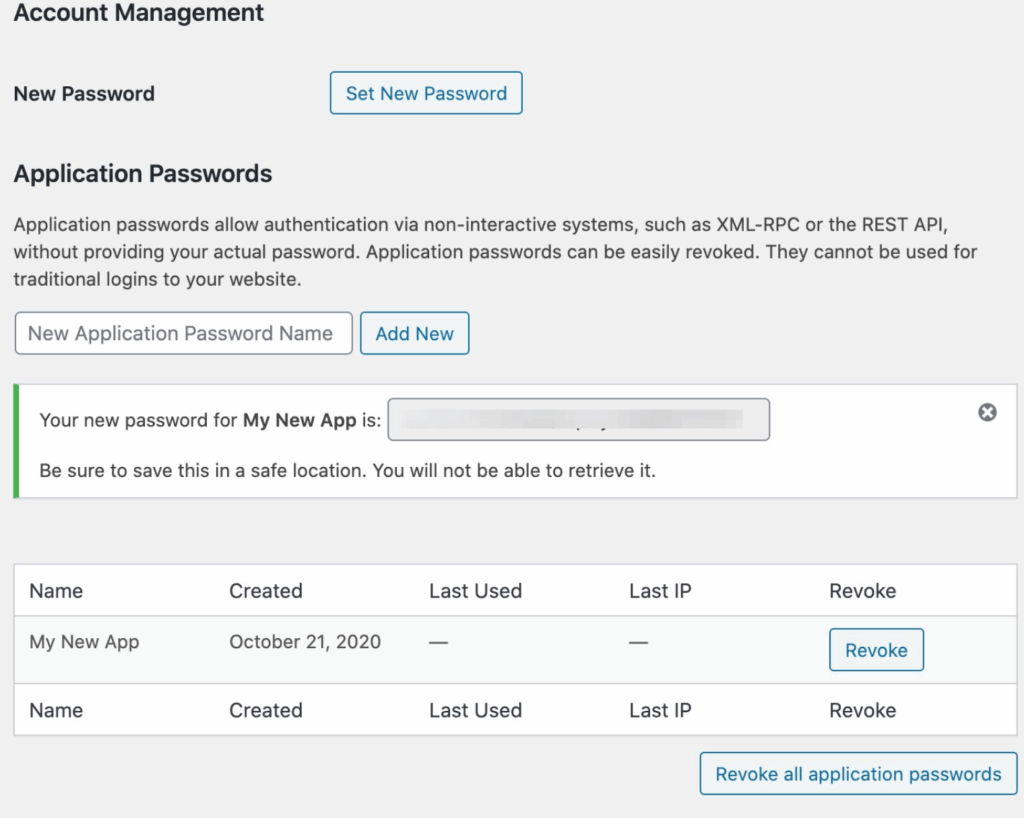 Note: Kadence Central uses the “Kadence” application password name.
 - For Kadence Security users, here’s how to unblock it:
- Toggle ON the Two-Factor Authentication module in Kadence Security settings.
- Go to User Groups and toggle ON “Application Passwords” in the user group your account belongs to.
- Attempt the connection via Kadence Central Dashboard again, ensuring that you accept the application password request.
- See this quick demo: https://www.loom.com/share/eefffff1351a4d7cbe63c7f387be2588?sid=5f67db1f-165e-4478-9f50-5463fb2d0222%20
- If you use other security plugins, check their documentation for enabling Application Passwords.
- For example, Hostinger’s “Hostinger Tools” plugin can disable this feature.
- Ensure site use HTTPS
- Kadence Central requires a secure HTTPS connection to communicate with your site. Test or staging sites using plain HTTP (
http://) may fail to connect, returning errors such as:Could not validate the authorization attemptThe requested user is not authenticatedApplication Passwords authorization endpoint not found
- Solution: Install a valid SSL certificate and connect via the HTTPS version of your site.
- Kadence Central requires a secure HTTPS connection to communicate with your site. Test or staging sites using plain HTTP (
- Verify WordPress URL Settings
- Go to WP Admin → Settings → General and confirm both the WordPress Address (URL) and Site Address (URL) fields use
https.
- Go to WP Admin → Settings → General and confirm both the WordPress Address (URL) and Site Address (URL) fields use
- Check Permalink Structure
- Go to WP Admin → Settings → Permalinks and ensure the structure is not set to “Plain.”
- Avoid Forced Login Redirects
- Make sure that your site does not automatically redirect visitors to the login page.
- Re-attempt With Defaults
- Try running a fresh connection attempt (which means all existing Kadence/SolidWP app passwords must be removed from your WP Profile) while all other plugins are deactivated and while switched to a default WordPress theme (e.g., Twenty Twenty-Five).
- Disable Kadence Security Pro’s Trusted Devices feature
- There is a known incompatibility with Kadence Security Pro’s Trusted Devices feature at the moment, so keep it disabled for now.
Server & Security Configuration
- Verify WordPress REST API Accessibility
- Ensure that the site’s REST API endpoints (e.g.,
https://example.com/wp-json/) are accessible. - If using a security plugin, check if there’s a setting that can disable/restrict REST API and adjust as needed.
- Ensure that the site’s REST API endpoints (e.g.,
- Check ModSecurity or Firewall logs in the Server
- Review your server security logs for blocked Kadence Central requests.
- Specifically, ModSecurity rule 225170 has been reported to block Kadence Central requests. If found, request your host to whitelist Kadence Central IPs or disable this rule for your domain.
- Whitelist Kadence Central
- Whitelist Kadence Central’s IP addresses, ports, and user agent directly on the server not just on your security plugin.
- Verify SSL Certificate, TLS Support, and Proxy Configuration
- Ensure your site has a valid, active SSL certificate that is correctly installed and trusted.
- You can use tools like SSL Shopper SSL Checker or Qualys SSL Labs to confirm the installation.
- Ensure that your server supports TLS 1.2. You can test with Qualys SSL Labs to know if it’s supported.
- If your site uses a CDN or proxy such as Cloudflare, ensure the SSL mode is compatible with authenticated API requests. Cloudflare recommends using Full or Full (Strict) SSL to prevent connection and authorization issues.
- Check for Chain issues
- In SSL Labs, look under the Chain issues section. If you see “Contains anchor“, it means the server is incorrectly sending the root certificate in the chain, which can cause Kadence Central to reject the connection, even if the site appears secure in browsers.
- How to fix? Ask your hosting provider or SSL vendor to remove the root certificate from the chain being served by your web server. Once corrected, re-run the SSL test and confirm the “Contains anchor” warning disappears.
- Ensure your site has a valid, active SSL certificate that is correctly installed and trusted.
- Enable PHP-FPM
- Confirm PHP-FPM is enabled on the server.
- Allow Authorization Headers
- Confirm with your hosting provider that the
Authorizationheader is not being stripped on your server. Some servers strip this header for GET/HEAD requests by default. Kadence Central uses aGETrequest to verify Application Passwords, and blocking this header can cause connection failures. - For Apache servers, add this to your
.htaccessfile:RewriteRule .* - [E=HTTP_AUTHORIZATION:%{HTTP:Authorization}]
- Confirm with your hosting provider that the
Additional Troubleshooting
- If all else fails, try to apply this recommended code snippet in
wp-config.phpto bypass certain conflicts:define( 'ITHEMES_SYNC_SKIP_SET_IS_ADMIN_TO_TRUE', true );
See Site connects initially but disconnects after a while for more details.
Connection Errors
When Kadence Central attempts to connect to your website but is blocked for some reason, it displays an error that can give you a clue on what went wrong. Here are some of the common errors that you may encounter:
Failed to discover authentication, application passwords authorization endpoint not found
This error indicates that Kadence Central’s Application Password request is blocked by a security plugin or setting on your site. To resolve, check your security plugin/settings for a feature that disables the WordPress Application Passwords feature.
You can confirm that the Application Passwords feature is enabled by checking your WordPress admin profile. If enabled, you’ll see an Application Passwords section when viewing or editing your user profile settings. Note: Kadence Central uses the “Kadence” password name.
If you have other security plugins installed, please consult their documentation on how to enable application passwords. If you are on Hostinger, the Hostinger Tools plugin has the ability to disable application passwords. Please consult their documentation or support for how to enable application passwords within their plugin.
Invalid URL, could not connect.
There are several reasons this error is triggered, so try to troubleshoot the following areas on your site and/or server with the help of your hosting provider:
- Ensure your server supports TLS version 1.2. Some servers are set to the newer version of 1.3 (which is okay) but had disabled 1.2, which Kadence Central requires. Note: Kinsta does not enable TLS 1.2 by default and you will need to reach out to their support to have this enabled.
- Ensure REST API is enabled and accessible on the site.
- Ensure the server’s Basic Authentication Authorization header is accessible. The Authorization header is crucial for Application Passwords because it allows authentication requests to be securely processed. If this header is missing or blocked—often due to server configuration, authentication fails, preventing external applications such as Kadence Central from accessing your site’s REST API endpoints.
- You can inform your host that the default behavior during Kadence Central’s connection request is to strip the
Authorizationheader forGETandHEADrequests. Kadence Central makes aGETrequest to verify that we have a good application password and if something is not allowing that header to go through, it could be why it’s failing.
- You can inform your host that the default behavior during Kadence Central’s connection request is to strip the
Failed to discover WP REST, unable to communicate with the site.
This error indicates an issue with accessing your site’s REST API, so double-check that it’s enabled and accessible. If you have any security plugins, try to temporarily disable them.
Could not validate the authorization attempt
If you get this error despite making sure the WP Application Passwords is enabled on your site, the issue may be due to selected Permalink structure.
Double-check that the permalink structure of your site is not set to “Plain” via WP Admin -> Settings -> Permalinks.
Kadence Central was forbidden from accessing your site. Please check if the Kadence Central server IP address has been blocked.
This error is more straightforward than the others, so ensure the Kadence Central IPs listed above aren’t blocked on your server, and have your host whitelist them directly on the server firewall.
Divi’s Exit the Visual Builder Is Broken When Accessing Site Via Central
If you use Divi’s Exit Visual Builder feature, you may encounter a conflict with Kadence Central if you use Central to access your WordPress site via the Visit Site or Site Admin links.
Adding the snippet below to your theme’s functions.php file will resolve this issue.
add_filter('ithemes-sync-admin-bar-item-whitelist-' . get_current_blog_id(), function ($whitelist) {
    if (!in_array('et-disable-visual-builder', $whitelist)) {
        $whitelist[] = 'et-disable-visual-builder';
    }

    if (!in_array('et-use-visual-builder', $whitelist)) {
        $whitelist[] = 'et-use-visual-builder';
    }

    return $whitelist;
});
If Adding from Kadence Central Fails, Connect from WordPress Instead
If connecting your site to Kadence Central from the Kadence Central dashboard doesn’t work, the issue may be related to hosting configurations outside of your control or a plugin that is blocking requests from the outside. In those cases, connect directly from your WordPress admin panel instead.
To do this: Go to WP Admin → Settings → Kadence Central (or Settings → Solid Central on older plugin builds) and click Connect or Set Up Kadence Central.
This method uses the same underlying connection but may succeed where the other fails.
Common Issues
Site connects initially but disconnects after a while
If you’re experiencing connectivity issues with Kadence Central where the connection drops:
- immediately after the site is connected or
- after updating certain plugins (for example, Google Analytics for WordPress by MonsterInsights or Google for WooCommerce)
try adding the following line to your site’s wp-config.php file, just above the line that says: /* That's all, stop editing! Happy publishing. */
define( 'ITHEMES_SYNC_SKIP_SET_IS_ADMIN_TO_TRUE', true );This disables a specific behavior in the Kadence Central connection process that may conflict with how certain plugins load admin privileges during REST API requests.
Is it safe to add this constant?
Adding this constant should be safe in most cases, as it specifically bypasses the remote admin detection behavior of some plugins during REST API calls, and it shouldn’t affect the overall functionality of your site or Kadence Central. Still, if you observe any issue related to admin detection or remote REST API requests after adding it, contact the Liquid Web Software Support for assistance.
Pro tip: You can also try this method if you’re experiencing connectivity issues on a site that hasn’t yet been connected to your Kadence Central account.
Getting Authorization Errors on Google Analytics/Search Console Areas
If you’re seeing errors like:
- “We could not locate this site using your existing linked account(s).”
- “No authorized user found with access to this site. Please add an authorized account.”
These usually indicate a problem with how Kadence Central is connecting to your Google Analytics and/or Google Search Console (GSC) accounts. Below are common causes of these errors and how to resolve them:
Missing or Incorrect Web Stream Tag (GA4)
Ensure that the Web Stream Details Google Tag from your GA4 property is correctly added to the <head> of your website. You can add this manually or via a plugin like Google Site Kit.
Outdated or Cached Measurement IDs
If your website was previously using a different GA property, a cached/outdated Measurement ID can interfere with Kadence Central’s ability to locate the property correctly.
Unlinked GSC and GA Properties
Even if both GA and GSC are enabled for your account, they must be linked together within Google’s platform for Kadence Central to access both correctly.
Broken API Authorization
Google authorizations can sometimes get outdated—especially if you unlink or relink accounts or properties after the initial Kadence Central connection.
How to resolve GA/GSC issues on Kadence Central?
- Confirm that the correct Web Stream Details Google Tag from your GA4 property is correctly added to the
<head>of your website. Use Google Tag Assistant or your browser’s View Page Source to confirm. - Confirm that the ID shown is the correct ID generated by the property.
- Clear your browser’s cache and cookies. Also, clear and server-level and plugin caches.
- Try reconnecting via Kadence Central Dashboard.
If the above doesn’t help, proceed with removing Kadence Central from your Google Account Permissions to hard reset the connection:
- Open myaccount.google.com and sign in with the authorized account.
- Navigate to “Data & privacy” in the sidebar menu.
- Clicking “Data from apps and service you use” will scroll you to the section with “Third-party apps and service” and select it
- Scroll down and select “Kadence Central”
- Click the “Delete all connections you have with Kadence Central” link at the bottom
- Go back to Kadence Central and attempt authorization of Google Analytics/Search Console again
Note that restarting the connection will happen on all sites connected to Kadence Central using the same Google account.
I cannot find the Kadence Central plugin on my WordPress dashboard view
The Kadence Central plugin can be hidden from a user’s WordPress dashboard view via the Kadence Central Dashboard’s Hide and Show setting. This is controlled by a setting called show_sync within the plugin’s internal options.
In some cases, the Kadence Central plugin may appear hidden from the WordPress Plugins page, even though it is installed and active, and is not being hidden from the dashboard setting.
To temporarily reveal the plugin, visit:/wp-admin/plugins.php?ithemes-sync-force-display=1
This sets a user-specific transient that displays the plugin for approximately 10 minutes.
To permanently unhide the plugin, update the show_sync option to true via WP-CLI or a must-use (MU) plugin. Example WP-CLI command:
wp site option update ithemes-sync-settings '{"show_sync":true}' --format=jsonFor sites without WP-CLI access, create a file named unhide-kadence-central.php in the wp-content/mu-plugins/directory and add:
<?php
/**
 * Plugin Name: Unhide Kadence Central
 * Description: Permanently unhides the Kadence Central (iThemes Sync) plugin for all users.
 */

add_action('init', function() {
    if (is_admin()) {
        $settings = get_site_option('ithemes-sync-settings', []);
        if (!is_array($settings)) {
            $settings = [];
        }
        $settings['show_sync'] = true;
        update_site_option('ithemes-sync-settings', $settings);
    }
});
This ensures the Kadence Central plugin remains visible in the WordPress dashboard.
Cannot copy file error when connecting to Kadence Central
This error usually appears when the web host blocks file operations due to missing permissions or required PHP extensions. In most cases, the zip or pclzip extensions are not installed, or the hosting environment is preventing the plugin from copying files.
When a site connects to Kadence Central for the first time, the system attempts to automatically install the Kadence Central plugin. If that installation fails, the connection cannot complete.
Solution:
Manually install the plugin by following these steps:
- In the WordPress dashboard, go to Plugins → Add New.
- Search for Kadence Central.
- Click Install Now, then Activate.
Once the plugin is installed and active, return to Kadence Central and try connecting the site again.