

Solid Central
Vulnerabilities in Kadence Central
Coming soon: Solid Central is becoming Kadence Central. You may see both names used while we update the product, documentation, and customer experience.
Log in to Kadence Central: https://central.kadencewp.com
- Use the same credentials as your Software Portal account.
- If you still use https://central.solidwp.com from an old bookmark, switch to central.kadencewp.com for accurate connection status.
Kadence Central (formerly Solid Central) includes a Vulnerabilities view that helps you identify, review, and resolve security issues reported from your connected WordPress sites. This guide explains what the page shows, how to use it, and what to do when a vulnerability is detected.
Managing Vulnerabilities in Kadence Central
The Vulnerabilities page lists known issues affecting your connected sites, grouped by plugin, theme, or WordPress core. You can use it to prioritize fixes across one site or many.
What you see on the Vulnerabilities page
When you open your Kadence Central dashboard and go to Vulnerabilities, you will primarily see a list of known vulnerabilities affecting your connected sites.
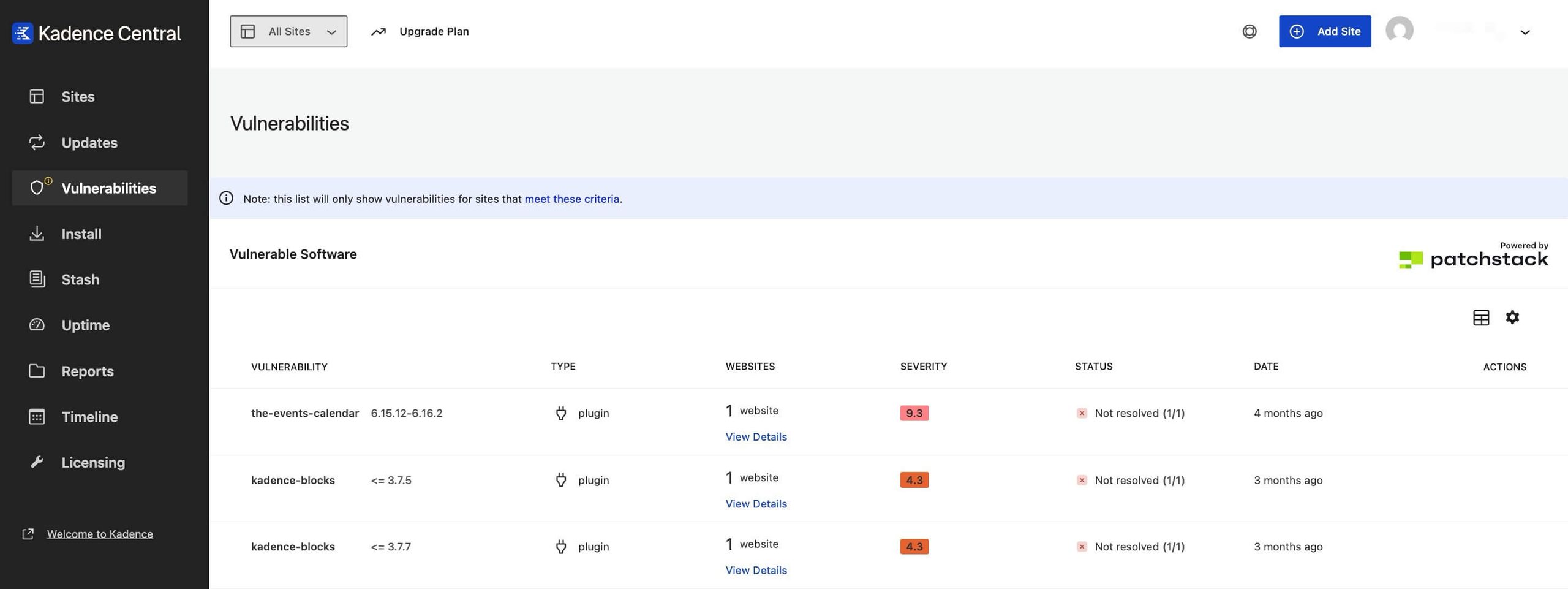
Each row includes details that help you prioritize action, such as:
- Affected software
- Severity and status
- Affected sites
- Suggested fixes
Viewing and understanding vulnerabilities
Open any listed vulnerability to see full details, impacted sites, whether virtual patching is applied (for Kadence Security Pro sites), and recommended next steps.
Use those details to decide what to do next. In most cases that means updating the software to a safe, patched version, or deactivating or removing the vulnerable software from the site.
- Affected software: The plugin, theme, or core component name, including version information when available.
- Severity and priority: A CVSS score (for example, 6.5 Medium) and a priority indicator to help triage work. On the site itself, Kadence Security may also show a Patchstack Priority score, which reflects real-world WordPress risk alongside CVSS.
- Virtual patching: Whether a virtual patch is available and the protection status for each site (Kadence Security Pro).
- Details: A brief summary of the issue and discovery credits.
- Impacted sites: How many connected sites are still affected.
- Status:
- Active: The vulnerability is currently detected on at least one site.
- Resolved: A later update or site scan confirmed the issue is no longer present (or is “not seen”) via Kadence Security. This can happen after you update to a safe version, remove the plugin, or deactivate it on the affected site.
- Mitigated: The site is protected by virtual patching, but the vulnerable software version is still installed. Risk is reduced, not removed. Update to a patched version when you can.
Minimum Site Requirements
If the Vulnerabilities page is empty or you do not see expected data, confirm each connected site meets these requirements:
- The site has the Kadence Central plugin (listed in Plugins as Kadence Central – Site Management, Backups, Security, and Reporting, or the legacy Solid Central name on older installs) version 3.1.0 or newer, installed and activated.
- The site has Kadence Security Basic version 9.0.0 or newer, or Kadence Security Pro version 8.0.0 or newer, installed and activated.
- The site appears on the Sites screen in your Kadence Central account.
How vulnerability status updates work
First, Kadence Security on each site performs the vulnerability checks. When it determines a vulnerability is gone (because you updated or removed the software), it sends an “all clear” signal toward Kadence Central.
The Kadence Central plugin on that site then confirms the details and sends a resolved update to your Central dashboard.
The Refresh action in Kadence Central updates general site information, but vulnerability status only changes after the site sends that resolved update.
So why does a resolved vulnerability still appears?
If the site hasn’t sent the “resolved” update yet (or couldn’t), Central will still show the vulnerability on the dashboard’s Vulnerabilities page until the next successful check. Here are the causes on why the site can’t push the signal:
- Kadence Security is turned off on the site.
- A site scan hasn’t run yet to confirm the fix.
- The site hit a temporary error while sending the update (e.g. REST call failing).
- The event to push the signal fired during scan-complete, where the Kadence Central plugin skips sending the resolution notice.
What to do if something still shows as active
- Ensure Kadence Security (or Kadence Security Pro) is active on the site.
- Run a manual Site Scan from Security on the site where the vulnerability was detected, then refresh the Vulnerabilities page in Kadence Central (including a full browser refresh). That path can trigger the resolution flow outside scan-complete suppression so a resolution notice can be sent.
- If the dashboard still does not update:
- Check the site for failed resolution notices or REST errors in the site’s logs.
- Verify scheduled tasks (cron) are running so queued notices can send.
- If WP CLI is available, you can run:
wp option get solid_central_notice_queue | grep vulnerability-resolution
Look forsecurity/vulnerability-resolution-failednotices, which indicate the site tried to notify Kadence Central but failed (for example, due to admin impersonation or a REST error).
- Connection and Application Password issues are covered in in Tips for troubleshooting Kadence Central and What is an Application Password?.