

Solid Central
What is an Application Password?
Coming soon: Solid Central is becoming Kadence Central. You may see both names used while we update the product, documentation, and customer experience.
Introduction
Introduced in WordPress 5.6, Application Passwords offer a secure way for external services to communicate with your WordPress website. In contrast to traditional passwords, application passwords are unique, site-specific, and associated with a particular user account. These passwords are generated through the WordPress user profile interface and can be used to authenticate API requests without the need to use your primary WordPress account password.
For an in-depth technical dive into how Application Passwords are integrated into WordPress, see the WordPress Application Passwords Integration Guide.
This article describes how to create an Application Password in WordPress for use with Solid Central (becoming Kadence Central), part of the Kadence infrastructure suite formerly sold as SolidWP.
Why use Application Passwords?
Application Passwords make it possible for external services such as Kadence Central to perform specific actions on your site by utilizing the role and permissions of the associated WordPress user.
By using application passwords you ensure better security practices by removing the need for direct access to the user’s login credentials and making it simple to revoke access when it’s no longer required, thus making it easier to integrate third-party services with your WordPress website.
What type of systems use Application Passwords?
Site management applications (like Kadence Central): By creating an application password for third-party applications/services, you can grant the application secure access to your WordPress website to do things like updating plugins or other permission-based actions without needing the login credentials of the associated user account.
Custom CRM Integration: If you use a custom CRM (Customer Relationship Management) system that syncs data from your WordPress site, you can generate an application password for the CRM to access the data it needs safely.
Mobile App Access: If you have connected your WordPress website to a mobile application that retrieves or posts data, you can create an application password to authenticate requests between the app and your website.
How to Create an Application Password with WordPress
Creating an application password in WordPress is done via the WordPress User Profile page. Follow these steps on how to create one:
1. Log into your WordPress Admin Dashboard. Make sure you are logged in as a user with the correct permissions (typically an Administrator account, or another user who can manage site settings).
2. Navigate to the Users -> Profile page and scroll down until you find the “Application Passwords” section.
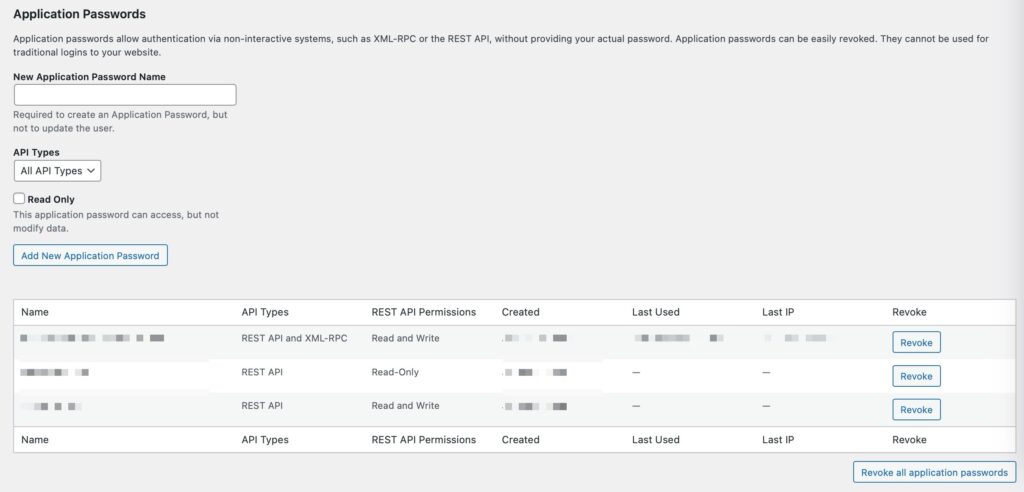
3. Add a name for your application password in the “New Application Password Name” field. It’s recommended to make it descriptive to help you identify what it is connected to (the name is used for internal purposes only).
4. Select the “Add New Application Password” button to create your password.
5. Copy the generated application password and make sure to save it in a secure location.
6. You can now use the application password to authenticate a third-party application that is connected to your WordPress website using REST API.
Note that while you can create an unlimited number of application passwords, it’s recommended to generate one per external application, so you can easily revoke it when you want to or when it’s compromised.
How to Create an Application Password with Kadence Central
Kadence Central (formerly Solid Central) is a central hub for managing multiple WordPress sites from one place: updates, health reports, and connections to Kadence Backups and other site tools.
- Note: Firewall, site scanning, and other plugin-specific features run on each site through plugins such as Kadence Security, not inside the Central dashboard itself.
Generating an application password for Kadence Central is straightforward. It happens automatically when you connect a website from your Kadence Central Dashboard during the Smart Site Connection process. In Users → Profile → Application Passwords, the entry appears with a name starting with Kadence (or SolidWP for older installs) followed by a date and time stamp (for example, Kadence Sep 11, 2026 3:45 AM).
Why Are WordPress Application Passwords Important for Kadence Central?
WordPress Application Passwords play a crucial role in the security and functionality of Kadence Central for several reasons:
- Enhanced Security for Integrations: Kadence Central requires access to your WordPress sites to provide security insights, updates, and performance reports. By using application passwords, Kadence Central can securely authenticate and communicate with your WordPress sites without exposing or using your primary login credentials. This minimizes the risk of password theft or misuse.
- Granular Control Over Permissions: With WordPress Application Passwords, you can define specific access rights for Kadence Central. This means Kadence Central can only interact with the WordPress sites based on the permissions granted by the application password, enhancing security and limiting unnecessary access.
- Seamless, Secure API Access: Kadence Central relies on secure API calls to collect data, push updates, and manage configurations across multiple WordPress sites. Application passwords allow these API calls to happen securely and reliably without relying on traditional user login methods. Only authorized services (like Kadence Central) can interact with your site.
- No Shared Credentials: Using WordPress Application Passwords prevents the need to share your personal WordPress credentials. This is particularly important for security plugins like Kadence Security and managing multiple sites, as it helps prevent unauthorized access from malicious parties.
- Easy Management: Application passwords can be easily generated, viewed, and revoked from the WordPress dashboard. This allows administrators to efficiently manage integrations with Kadence Central or any other third-party applications. If an integration is no longer required or if there’s a security breach, you can quickly revoke access to protect your site.
How to unblock Application Passwords when Kadence Security’s Two-Factor Authentication (2FA) is active
When Kadence Security (formerly Solid Security) is installed, Application Passwords for Central are controlled under Security → Settings → User Groups → Two-Factor → Application Passwords. If Application Passwords are disabled for the user group your account belongs to, Kadence Central cannot connect even if the Application Passwords section still appears in your WordPress profile.
Here’s how to allow Application Passwords for users with appropriate privileges when Two-Factor Authentication (2FA) is enabled.
Steps to Unblock Application Passwords
- In your WordPress dashboard, go to Security → Settings.
- Open the User Groups section.
- Select the user group for the user connecting the site to Kadence Central.
- Scroll to the Two-Factor section.
- Toggle Application Passwords to enabled for that user group.
- Click Save at the bottom of the page.
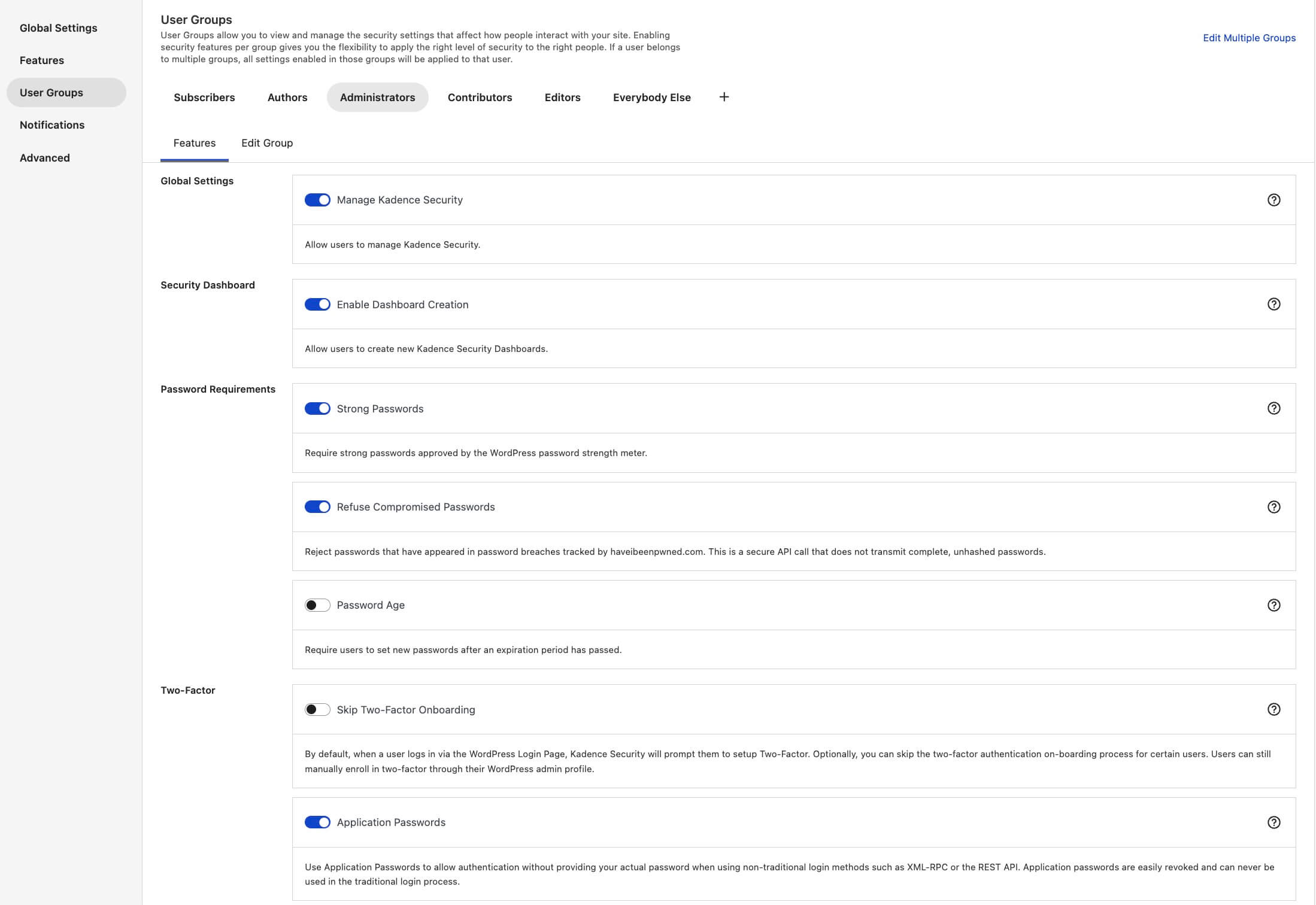
By following these steps, you can unblock Application Passwords for users in specific user groups while Two-Factor Authentication (2FA) is enabled. This ensures that users can securely authenticate through external applications or services using application passwords without compromising the additional security provided by 2FA.
The Importance of REST API Access for Using Application Passwords
For Application Passwords to function properly in WordPress, the REST API must be accessible. The REST API serves as the communication channel between WordPress and external applications, allowing them to interact with the site’s data and perform tasks like creating posts, managing settings, or integrating security features. When an application password is used, it authenticates API requests made by third-party services without requiring the main user password. However, this process relies heavily on the REST API, as it ensures secure, programmatic access to the site’s functionalities. If the REST API is disabled or restricted, application passwords won’t work effectively, preventing external tools—like Kadence Central—from interacting with the WordPress site. Ensuring the REST API is accessible is crucial for maintaining smooth, secure integration with external applications while keeping the site’s data safe and protected.
Read more about REST API restrictions with Solid Security here.
Conclusion
Application passwords are a powerful tool for securely integrating external applications with your WordPress site. By utilizing this feature, you can grant secure access to your site without sharing login details, thus reducing security risks. Following the above best practices, you can ensure seamless functionality of Application Passwords to Kadence Central, while still being protected by Kadence Security.