

Change Your Payment Information
Introduction
Keeping your billing information up to date is easy and helps ensure your services continue without interruption. This guide shows you exactly how to add, update, or change your primary payment method directly from your portal.nexcess.com account. You can add a new credit card or link a PayPal account in just a few clicks. By adding a valid payment method, you gain the convenience of Autopay and eliminate the risk of suspension due to non-payment.
More information on Billing and past due balances, found here: Understand Your Past Due Bill.
Billing Detail Change Limit
To help protect your account security, we limit changing credit card details to three changes per month, determined by your billing cycle. If you need more than three changes to your billing information in a single billing cycle, contact our Billing team by opening a Support Case.
Autopay
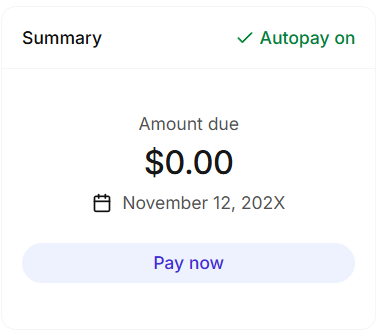
Once you’ve successfully setup a payment method, the system will automatically enable AutoPay. Check your Autopay status under the Summary card.
Prerequisites
- A Liquid Web account.
Step-by-step Instructions
Change your payment information by following these instructions.
- Log into your portal.nexcess.com account with your username and password, or sign in with Google SSO.
- Click on your User Avatar on the top right and select the Billing Center. This will take you to the Billing section of the Account Settings page.
- Click the Change Method icon located on the right hand side of the Payment Method card.
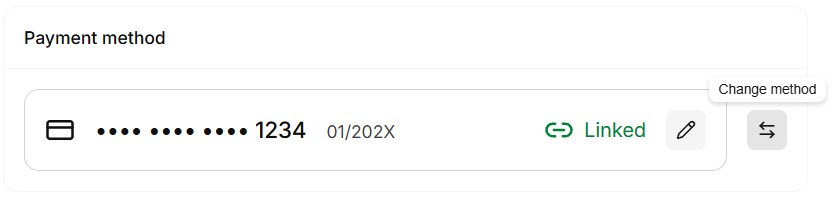
- Select Connect Paypal or New Card to adjust your payment method.