

Make a One-Time Payment
Introduction
Normally, your payment will be automatically deducted from the payment method you have on file. Need to use a different card for this payment? You can make a one-time payment without changing your saved information by following the instructions below.
Change Your Payment Information
Need to permanently change your current payment method? Click here for more information.
Prerequisites
- A Nexcess hosting / Liquid Web account.
Step-by-step Instructions
- Log into your portal.nexcess.com account with your username and password, or sign in with Google SSO.
- Click the Make a payment button to the right of your balance at the bottom left hand corner in the portal.nexcess.com portal. The Make A Payment popup will appear. By default, the full balance is shown behind a locked field.
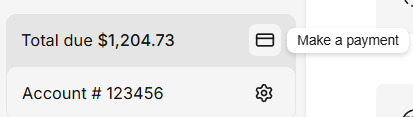
Alternative Locations to Make a Payment
Pay now buttons are conveniently located on the right hand sides of the portal.nexcess.com Portal homepage and the Billing Center. These options will also bring up the Make A Payment popup.
- Click the Pay full balance toggle to unlock the payment text field.
- Type in your desired payment amount. Your Remaining balance will adjust accordingly.
- By default, the default payment method is used. If desired, click Use a different payment method to choose a one-time payment method.
- Click Continue and proceed to review your payment details.
- Click Pay now to complete your one-time payment.