

View Your Billing Information
Introduction
Nexcess makes it easy to view your billing statements and gives you an even deeper look into what hosting services you’re billed for in the Billing center in your Nexcess account. Let’s take a look at the different ways you can view your billing information from your account.
Account Balance
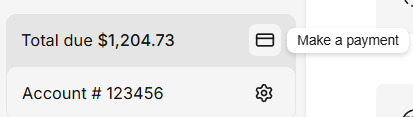
Find your account balance at the bottom left hand corner in the portal.nexcess.com portal with an easy Make a payment button to the right of your balance.
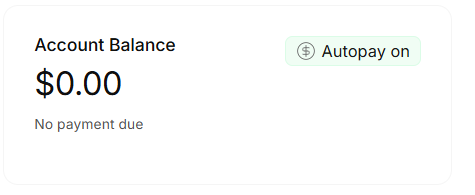
Account Balance, Autopay status and the current amount due is also displayed at the portal.nexcess.com portal homepage.
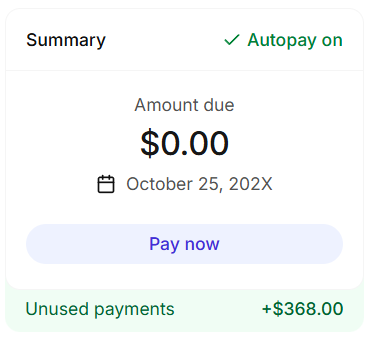
Alternatively, you can find your Account Balance at the top of the Billing Overview in the Billing Center with your Unused Payments, or Credits, if you have any. A convenient Pay now button found underneath.
Outstanding balances
If you have an outstanding balance, it will appear in all of these locations.
Clicking Make a payment or Pay now allow you to make a full or partial payment with the payment method on file. By default, the payment screen will request your full balance using your default payment method.
- Clicking the Pay full balance toggle will allow you to make a partial payment.
- Clicking Use a different payment method brings up the ability to use PayPal or a New card to make a one-time-payment.
Billing Center
Your Billing Center contains your Billing Overview and Transactions.
Billing Overview
The Billing Overview contains all of the information related to billing for your account. From here, you can find the following:
- Your total balance, autopay status, due date, and a ‘Pay now’ button.
- Your Unused Payments or Credits, if you have any.
- A celebration of our years together.
- A description of your Support tier.
- Your payment method on file, including an option to change it.
- A list of your recent invoices available for download. Select ‘See All’ to view or download older ones.
Transactions
The Transactions section allows you to search or filter through all of your invoices. Clicking any of your invoices will bring up the complete details including:
- Billing information.
- Invoice date.
- Status.
- Service period.
- Products covered under the invoice.
- Total taxes, charges, and payments due.
Payment Method
Your payment method is found in the Billing Overview. There you can edit your payment method, or change it altogether. Payment method information includes:
- PayPal details, if you use PayPal.
- Card details, if you are use a card. These include:
- Card Number, Expiry Date, and Security Code.
- Your billing address, with an option to designate it the same as your contact address.
Autopay enrollment
You are automatically enrolled in autopay if you have a valid payment method on file.