

Managing Site Backups with StellarSites
Backups are your safety net—and with StellarSites, you never have to worry about losing your work. Every StellarSites website is backed up daily through Solid Central, giving you the power to restore your site or download a full backup anytime you need it. Whether you’re troubleshooting a broken update or just want a local copy of your site, backups are only a few clicks away.
Let’s walk through how to manage your backups like a pro.
Accessing Site Management
Start by logging into your StellarSites dashboard. From your account details, click “Manage Site” for the site you want to work with.
When you signed up for StellarSites, you automatically got access to Solid Central, the command center for managing your site’s backups, security, updates, and performance—all without logging into WordPress directly.
Navigating to the Backup Timeline
Inside the site panel, look for the “Go to Solid Central” button. Clicking it opens your site in Solid Central. If prompted, log in with your credentials.
Once inside, you’ll land on the Sites screen. Locate your site and select it to access its admin settings.
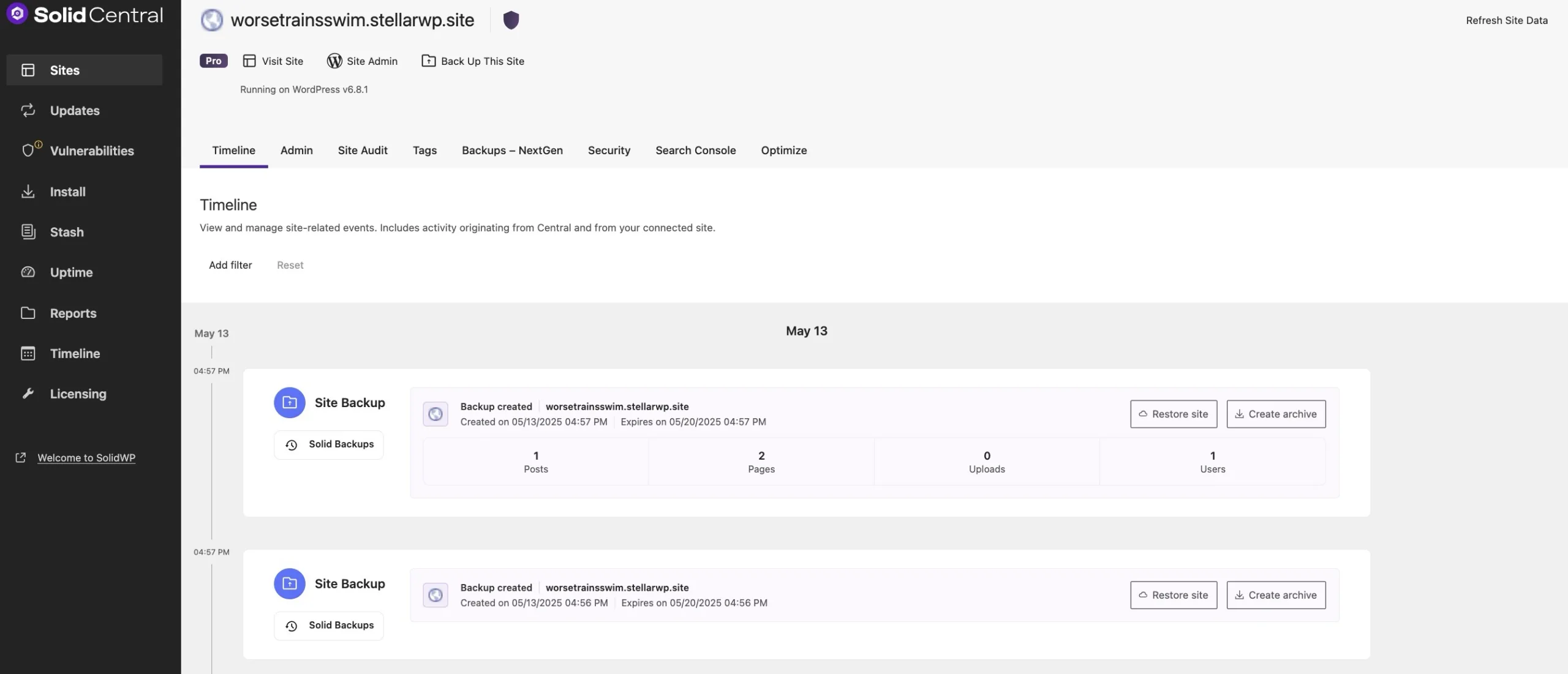
Then, view the backup Timeline. This is where you’ll see a visual history of your site’s backups—each card represents a different restore point.
Restoring a Previous Version of Your Site
Need to undo a change or recover from an issue? Restoring a backup takes just a few clicks.
Let’s say your database broke on April 8th. Just scroll back to the April 7th backup card, click “Restore Site,” and confirm.
We recommend turning on maintenance mode before restoring to avoid showing visitors a half-loaded site during the process.
Once confirmed, Solid Central will rewind your site—files, database, and all—to that backup’s state.
Downloading a Backup Archive
Want a ZIP file of your entire site, including files and database? You’ve got it—just not instantly.
Because StellarSites stores backups dynamically (not in pre-made folders), you’ll need to create an archive first:
- Find the backup card you want.
- Click “Create Archive.”
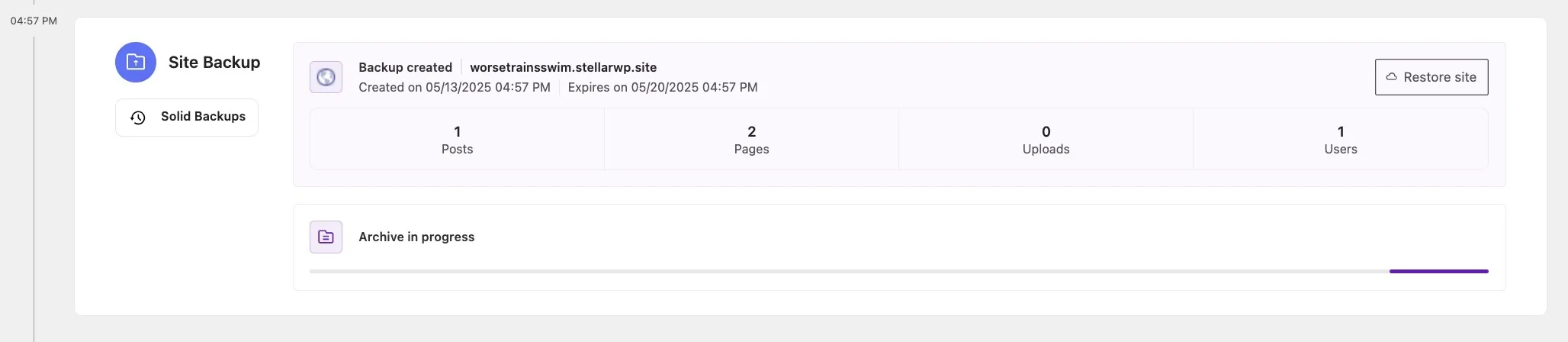
- Wait for the system to prep the file (you don’t need to stay on the page).
- When it’s ready, you’ll see a download option appear.
Click to save it to your computer and you’re good to go.
Pro Tips & Good to Know
- Archives can take a few minutes depending on your site’s size, but you’re free to navigate away while they build.
- StellarSites backs up your site every single day, automatically.
- You can restore or download from any backup in your timeline—no limits, no hassle.
Frequently Asked Questions
How often are backups created with StellarSites?
StellarSites automatically creates daily backups of your website through Solid Central. This ensures that you have a recent restore point available at all times.
Can I download a backup of my site?
Yes, you can download a full backup of your site, including files and database. To do this, navigate to the desired backup in Solid Central, create an archive, and download it once it’s ready.
What should I do before restoring a backup?
Before restoring a backup, it’s recommended to enable maintenance mode to prevent visitors from seeing a partially restored site. Then, select the desired backup in Solid Central and initiate the restore process.
Are backups stored offsite?
Yes, StellarSites stores backups offsite to ensure they are safe from server-related issues. This provides an added layer of security for your website data.