

Managing Your StellarSites Subscription
Accessing Your Subscription Details
To manage your StellarSites subscription, log in to your StellarSites account and navigate to the Subscriptions tab in the left-hand menu. Here, you can view key details about your plan, including:
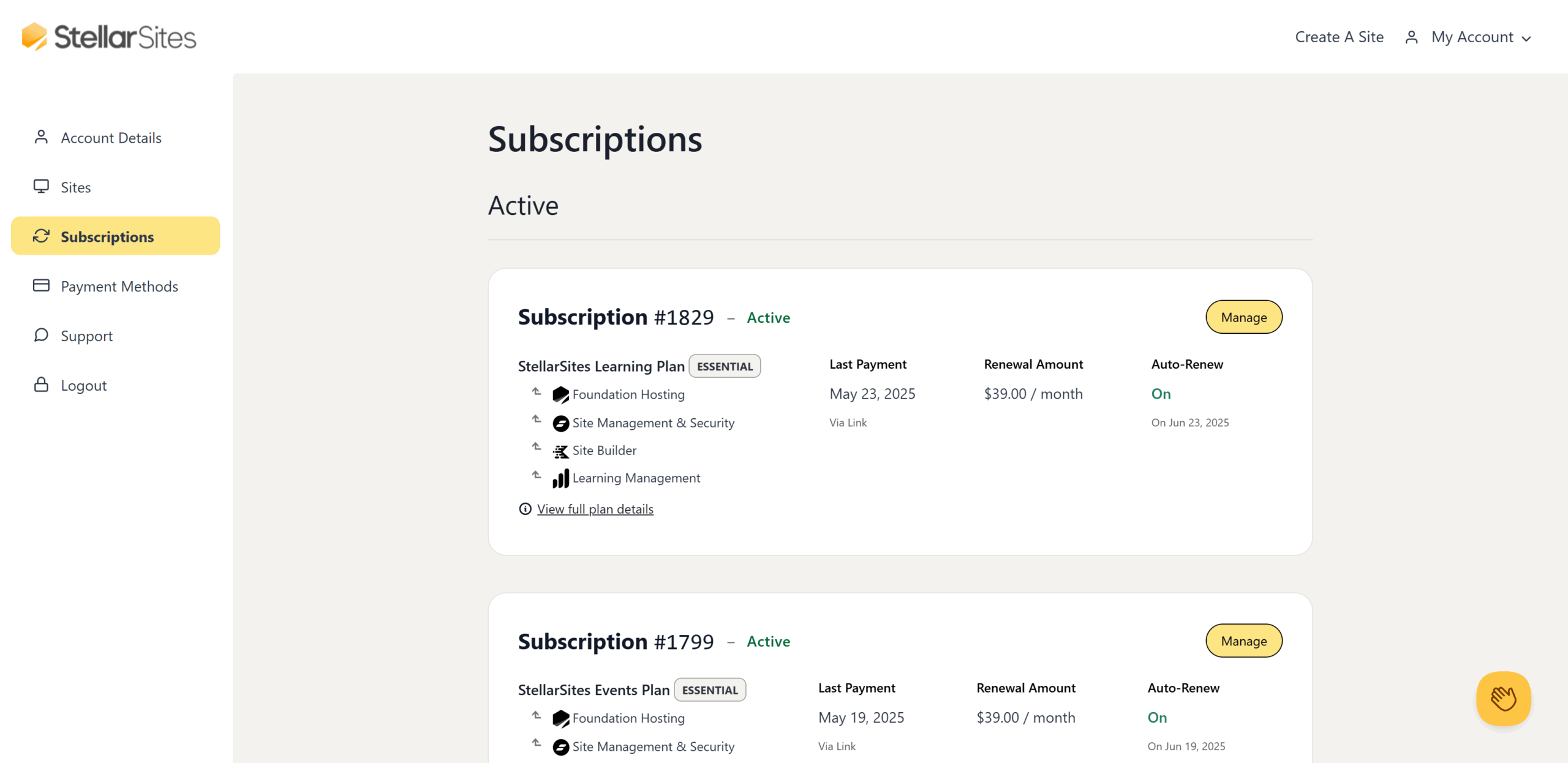
- The last payment date and renewal date of your subscription.
- Your renewal amount and payment method on file.
- The auto-renewal status, which you can enable or disable as needed.
- A list of included features and services in your plan.
Click “Manage” to change your payment method, renew early, and download your invoice.
How to Upgrade Your Plan
Upgrading your StellarSites plan can be done easily from your account dashboard.
Steps to Upgrade:
- Log in to your StellarSites account.
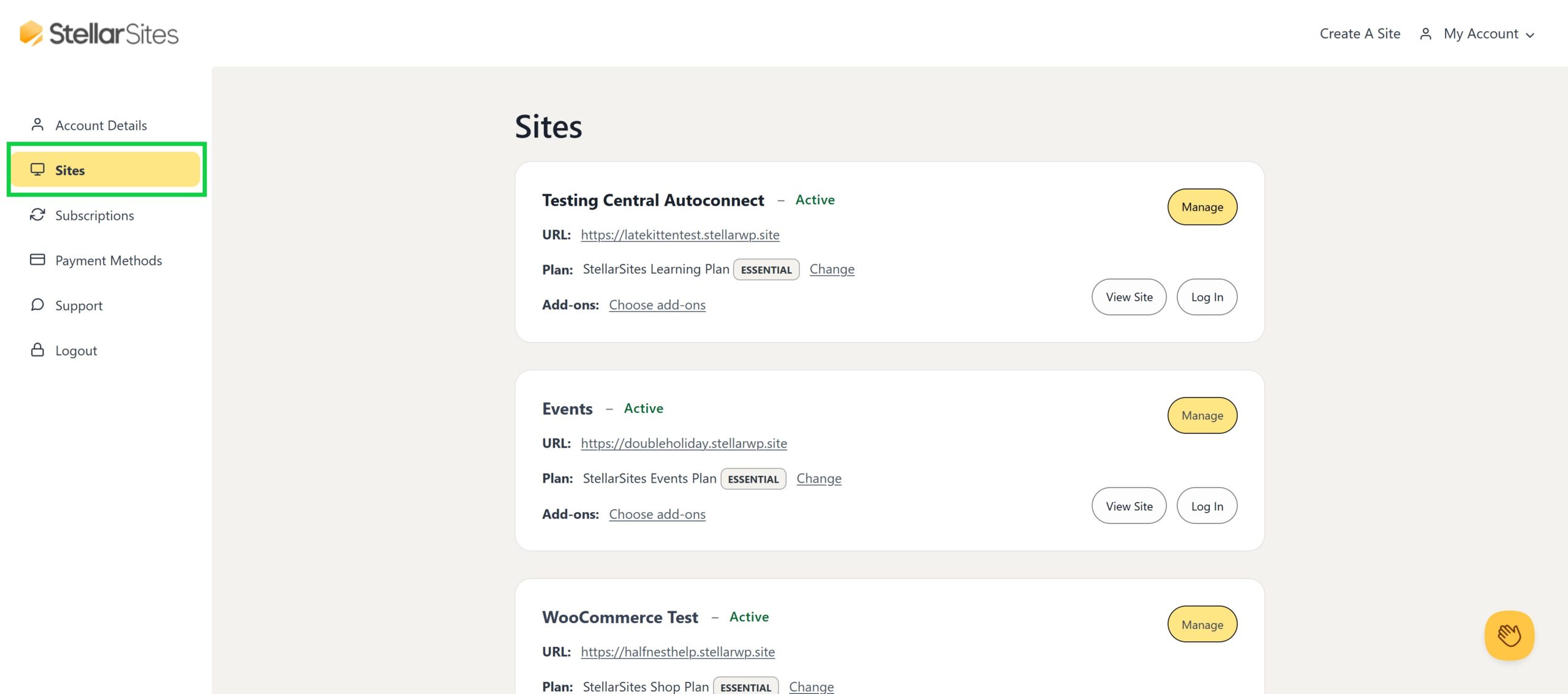
- Navigate to the Sites tab.
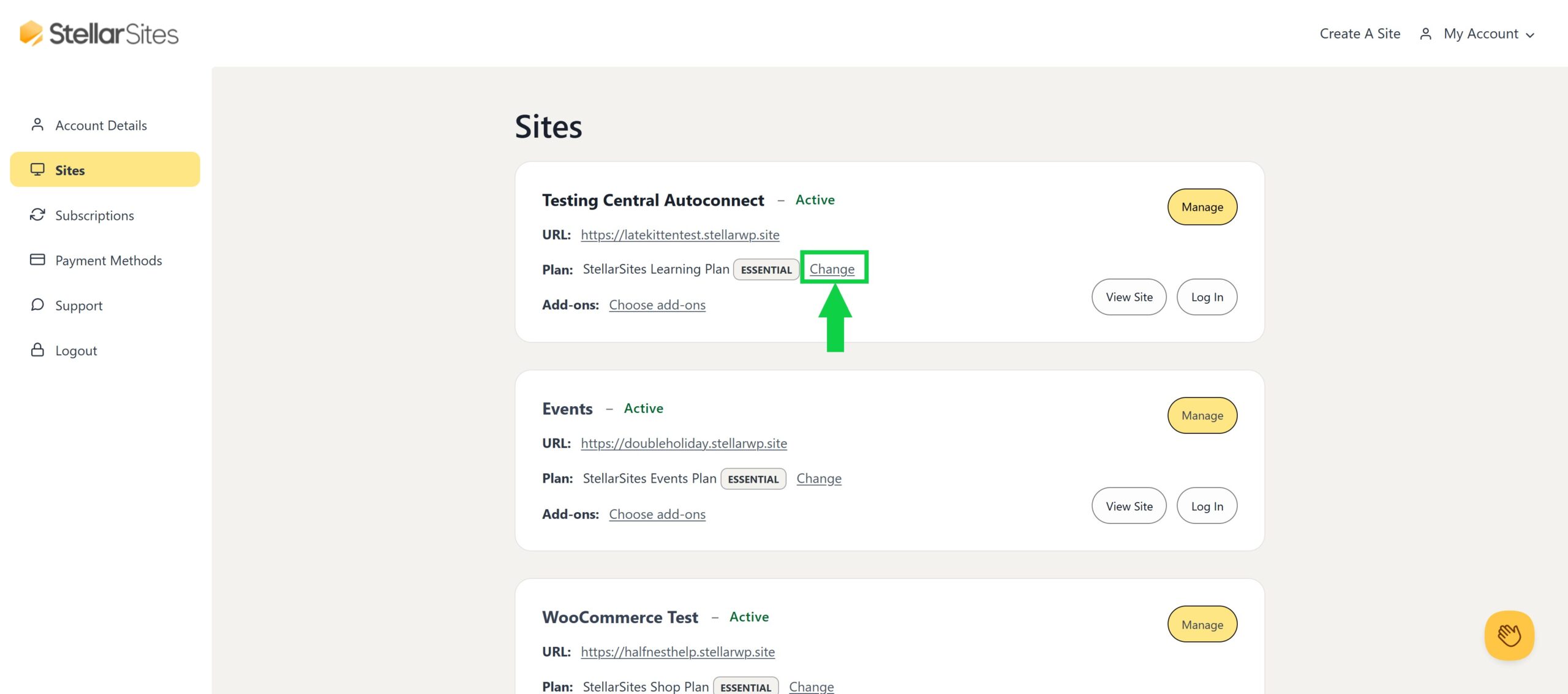
- Locate the site you’d like to upgrade and select Change.
- Choose your desired plan and complete the payment process.

- Your plan will be upgraded immediately after successful payment.
How to Downgrade Your Plan
Currently, downgrades cannot be processed directly from your account. If you need to switch to a lower-tier plan:
- Contact [email protected] with your request.
- The StellarWP team will review your request and assist with the downgrade.
- Any changes will be reflected in your next billing cycle.
For additional assistance, visit the Support section in your StellarSites account.
Managing Auto-Renewal
You can toggle auto-renewal on or off at any time:

- Navigate to the Subscriptions tab.
- Locate the Auto Renew section.
- Use the toggle switch to enable or disable auto-renewal.
If auto-renewal is disabled, your subscription will expire at the end of its billing period unless renewed manually. Disabling auto-renewal does not trigger a refund.
Updating Payment Information
To update your payment method from your StellarSites account:
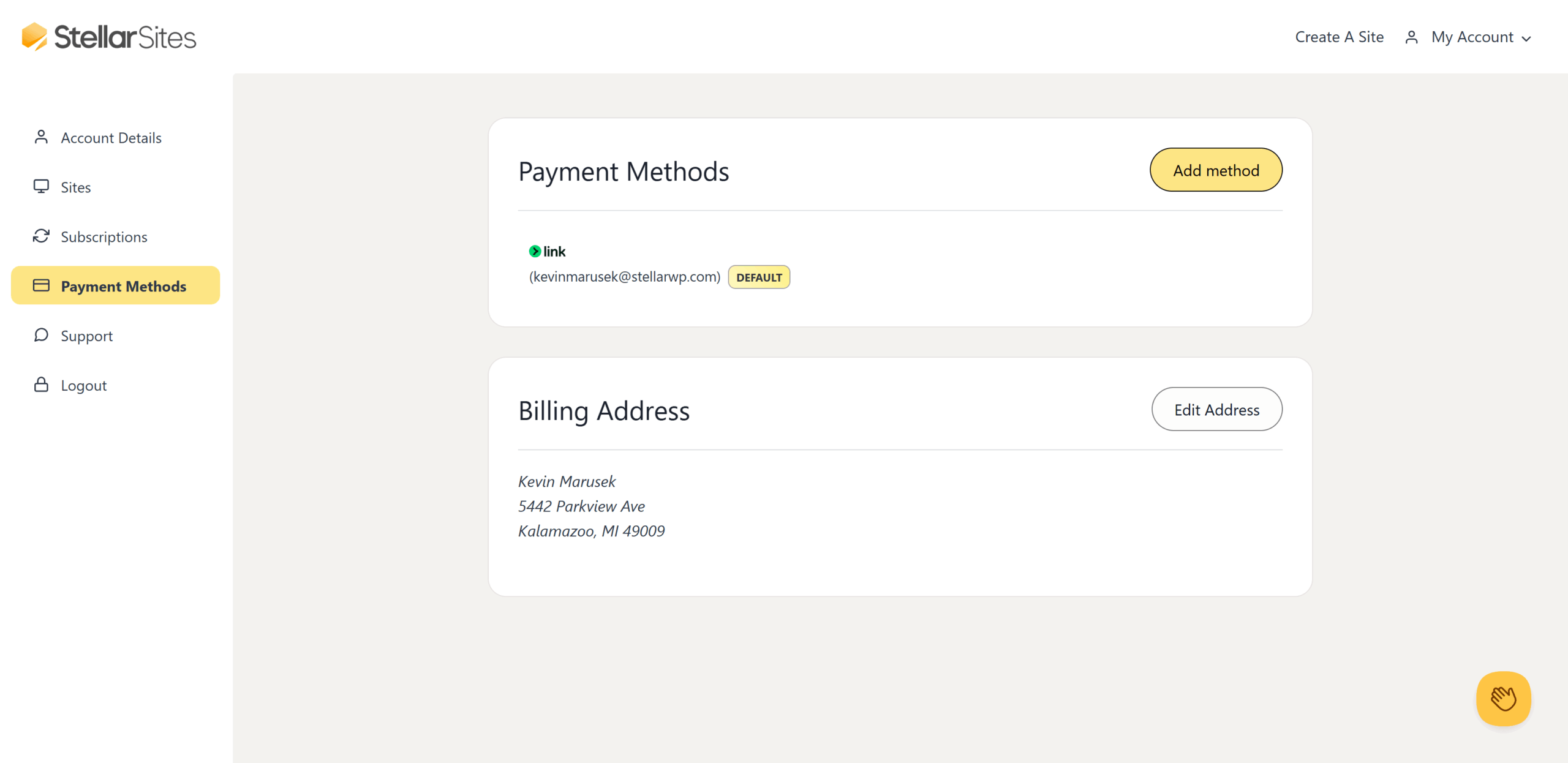
- Go to the Payment Methods tab.
- Click Add method to enter new payment details.
- Set the new payment method as default if you want it to be used for future payments.
- You can also delete old payment methods if they are no longer needed.
Renewing Your Subscription Early
If you want to renew your subscription before the expiration date:
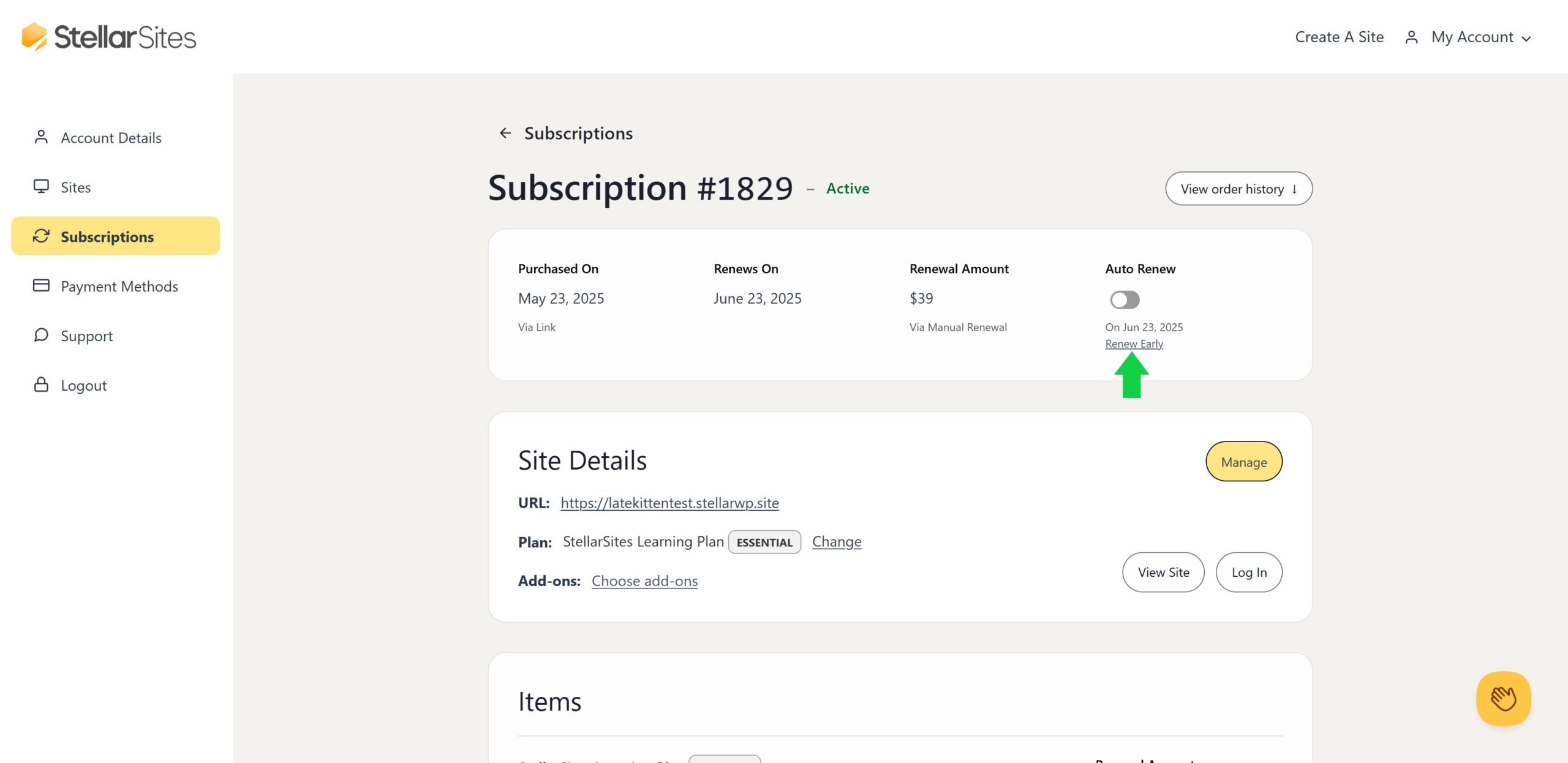
- Navigate to the Subscriptions tab then click “Manage”.
- Click Renew Early next to your active subscription.
- Confirm your payment details and proceed with the renewal.
Viewing Order History & Downloading Invoices

- In the Subscriptions tab → Manage → scroll to the Order History section.
- Click on a specific order number to view details.
- You can download orders for past payments directly from this section.
Accessing Your StellarSite & Solid Central
Your subscription dashboard allows you to:
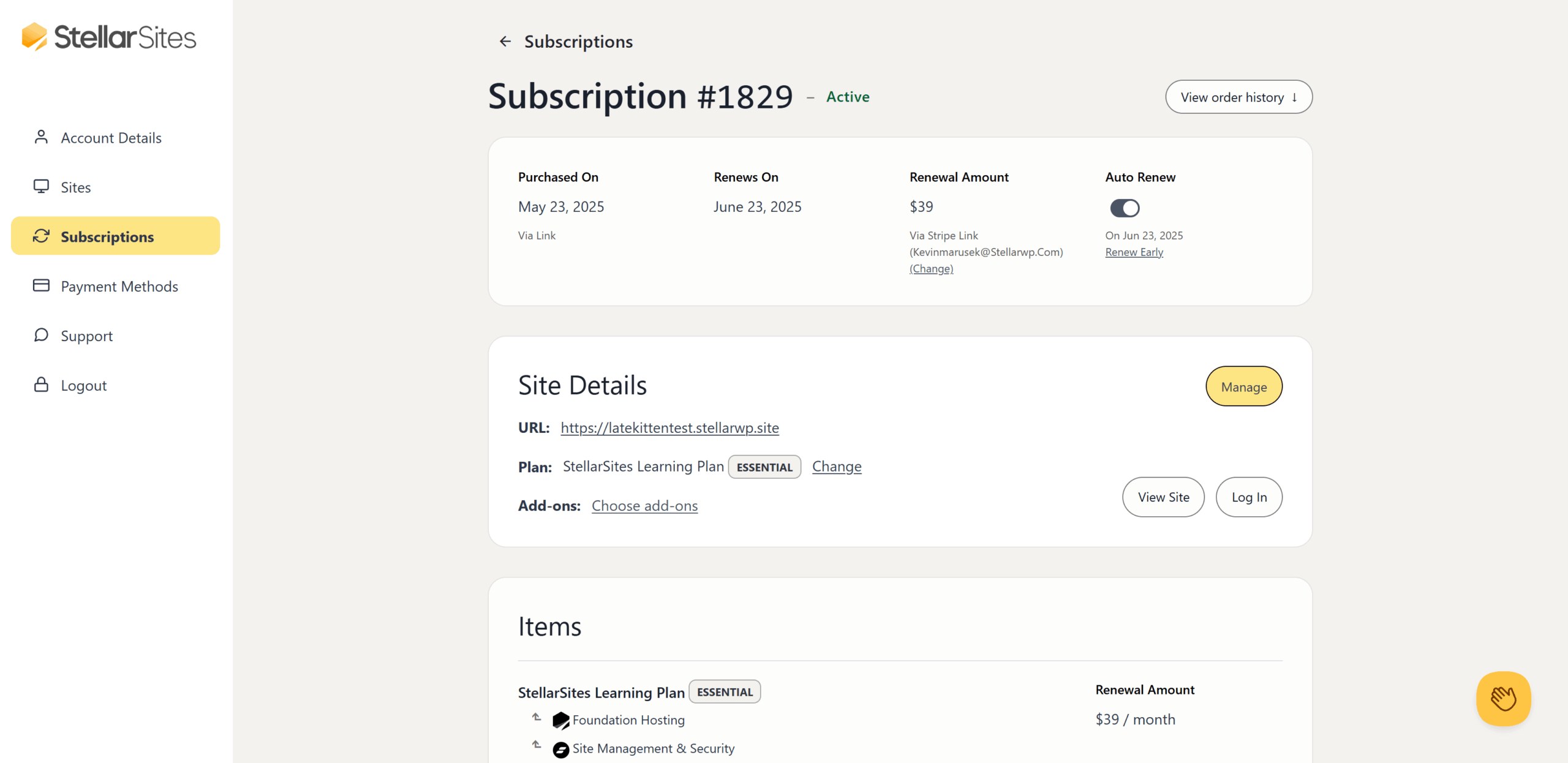
- Log in to your StellarSite directly.
- Access Solid Central, where you can manage plugins, themes, and backups.
- View SFTP/SSH credentials for advanced site management.
Canceling Your Subscription
If you wish to cancel your subscription:

- Navigate to the Subscriptions tab.
- Locate your active subscription.
- Toggle “Auto-Renew” to the off position. You will see “via manual renewal” under “Renewal Amount” indicating that your subscription will not automatically renew.
Once auto-renewal is disabled, your subscription will remain active until the end of your current billing cycle, after which access to your StellarSite will be removed. Toggling off auto-renewal does not trigger a refund.
For further assistance, contact [email protected] or visit the Support section in your account.