

Solid Security
Diagnosis Tips: Raw Details of Site Scanner Logs
Coming soon: Solid Security is becoming Kadence Security. You may see both names used while we update the product, documentation, and customer experience.
In the process of diagnosing problems highlighted by the Kadence Security Site Scanner, you’ll need all the details you can get.
Viewing the Raw Details is the fastest way to zero in on exactly what’s happening with a scan—whether it’s failed or clean—so you know how to move forward and restore your site to a worry-free state.
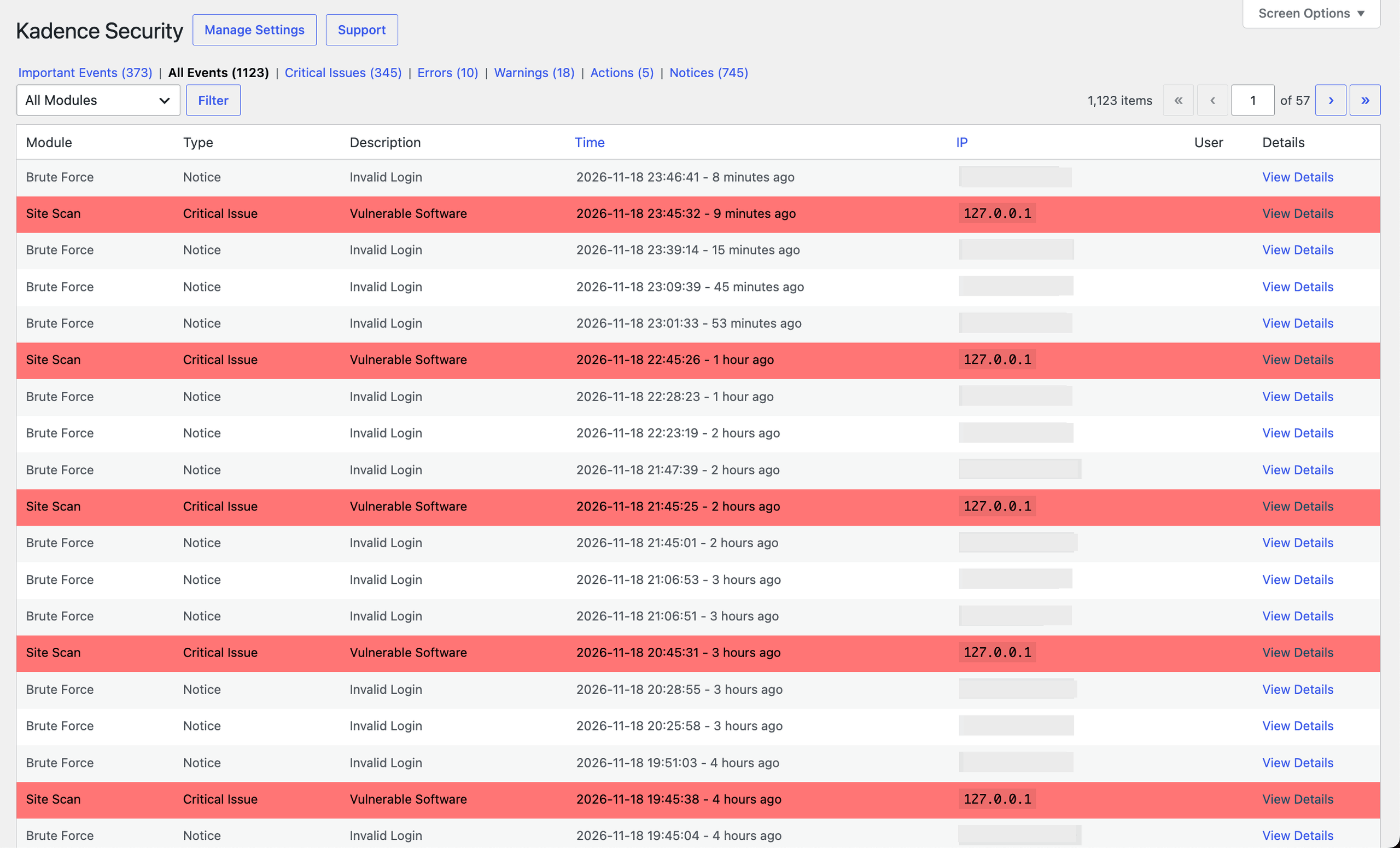
This article covers how to open Raw Details and how to use that data. For what Site Scans check and how to enable scheduled scans, see All about Kadence Security Site Scans. For common error codes and fixes, see Troubleshooting Kadence Security Site Scan Errors. For general log settings and filters, see Security Logs.
How to open Site Scanner Raw Details
- In WordPress Admin, go to Security → Logs.
- Use the event filter so you are looking at Site Scanner activity. Open All Events (or another filter that includes scan results), then filter by the Site Scanner module when that option appears in the list. Only event types that are present in the list can be filtered.
- Find the scan entry you want to dig into (failed or clean).
- Select View Details on that entry.
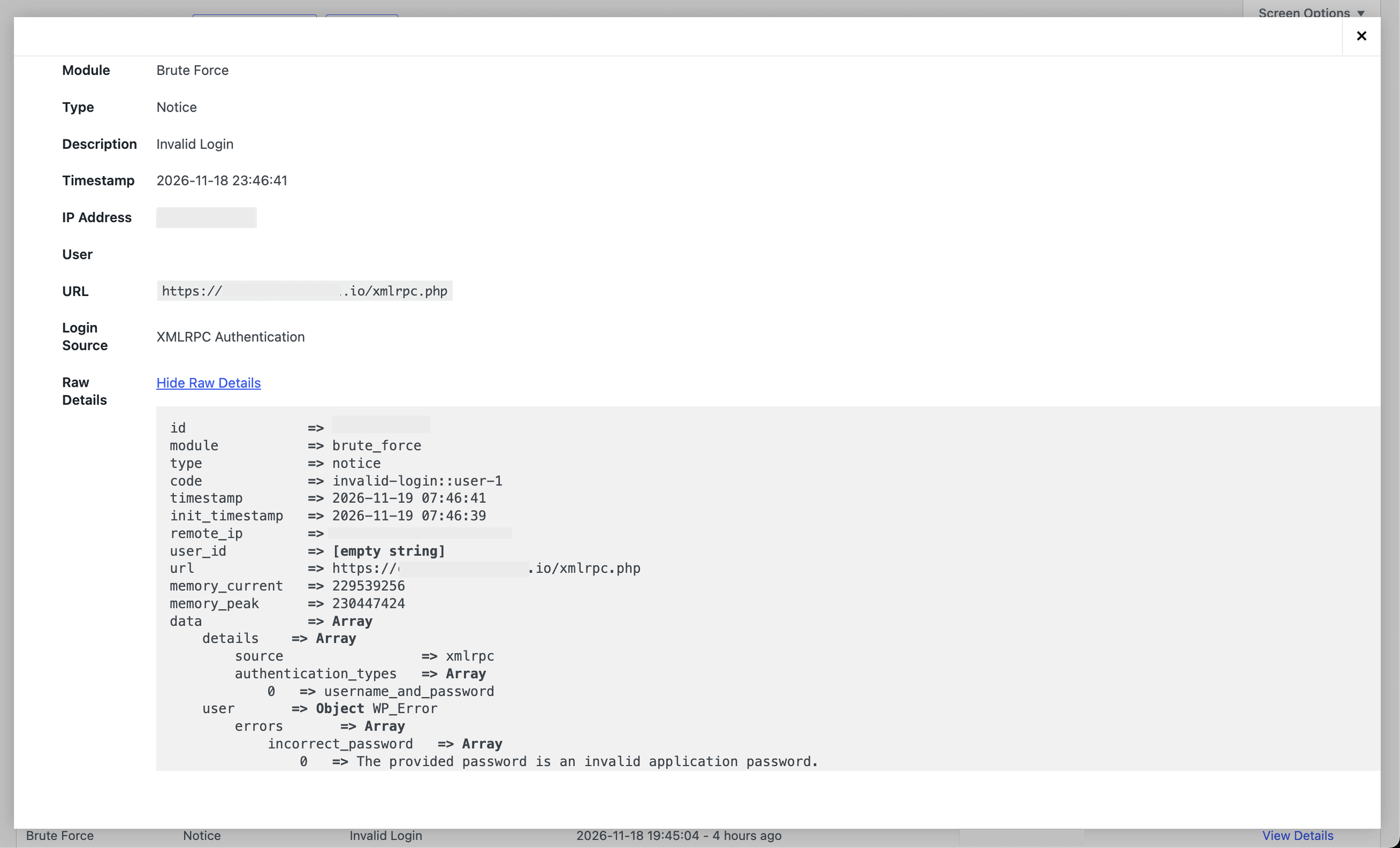
- On the details screen, select Show Raw Details to expand the full scan payload.
- Highlight and copy everything inside the Raw Details section if you need it for your own notes or for a support request.
What Raw Details usually include
Raw Details go beyond the short summary on the Logs list. Depending on the scan, you may see:
- Module — Confirms the entry came from Site Scanner (
site-scanneror similar). - Type and code — Category and specific result or error code (for example, vulnerability findings, connection errors, or temporary server errors).
- Timestamp — When the scan ran and when the log was recorded.
- URL/target — The site URL the scanner checked. Compare this to your live site URL if licensing or verification errors appear.
- Event information — Structured findings: vulnerable software, blacklist status, error messages, or other scan results.
- Server/request context — Headers or related request data that can help when a host firewall, CDN, or proxy is involved.
If the scan completed cleanly, Raw Details still help confirm what was checked and when. If the scan failed, the error code and error message in Raw Details are the starting point for troubleshooting.
How to use Raw Details when a scan fails
- Copy the Error Code and Error Message (or closest equivalent fields) from Raw Details.
- Match them to the guides in Troubleshooting Kadence Security Site Scan Errors (e.g., rate limits, invalid JSON, connection errors (403), missing scan URL, SSL certificate issues).
- Confirm licensing and the licensed URL if the message mentions verification, signature, keypair, or licensing. See SolidWP Licensing: How to Make Sure Your Site Is Licensed Correctly.
- If the host or CDN may be blocking the scanner, allowlist the Site Scanner IP
207.246.255.60as described in All about Kadence Security Site Scans. - Run a manual scan from Security → Site Scans after each change, then open the log entry’s Raw Details to confirm whether the same code still appears.
How to use Raw Details when a scan finds issues
When the scan succeeds but reports vulnerabilities or other findings:
- Use View Details/Raw Details to see which plugins, themes, or core versions were flagged, along with any Patchstack Priority information.
- Follow remediation guidance in Vulnerability Protection with Kadence Security and the Site Scans article.
- Mute an issue only after you have reviewed it and accepted the risk, as described in All about Kadence Security Site Scans.
Sharing Raw Details with support
If you reach out to Liquid Web Software Support, include:
- A copy of the full Raw Details text for the failing or relevant scan (not only a screenshot of the Logs list)
- Your Kadence Security version (Basic or Pro) and WordPress version
- Whether the scan was manual or scheduled
- Steps you already tried (allowlist IP, licensing refresh, plugin conflict test, and similar)
Contact support through your Software Portal account. The team is more than happy to help you get to the bottom of the issues.