

Solid Security
SolidWP Licensing: How to Make Sure Your Site Is Licensed Correctly
Coming soon: Solid Security is becoming Kadence Security. You may see both names used while we update the product, documentation, and customer experience.
Kadence Security Pro (formerly Solid Security Pro) is licensed in WordPress under Settings. Depending on how you purchased, you may see one or both of these menus:
- Settings → Nexcess Licensing — for plans managed through the Software Portal (Liquid Web Software Manager/unified licensing)
- Settings → SolidWP Licensing — labeled Kadence/SolidWP Licensing (Legacy) in the page title; for activating legacy SolidWP plugin licenses
SolidWP products are now part of Kadence. The legacy page manages licenses from your previous SolidWP or iThemes account. If you purchased a new plan through Liquid Web, your products are managed through the Liquid Web Software Manager/Software Portal and typically do not require action on the legacy username/password form.
Which licensing path should I use?
| Purchase type | Where to manage the subscription | What to do in WordPress |
New Liquid Web/Software Portal plan (often a key starting with LWSW-) | Software Portal | Activate under Settings → Nexcess Licensing. The legacy page may still show a Liquid Web Unified License summary if the site is already covered. |
| Older SolidWP or iThemes membership (username and password; no license key string) | Legacy SolidWP members portal when needed; subscription details may also appear in the Software Portal | Use Settings → SolidWP Licensing (see below screenshot for reference) |
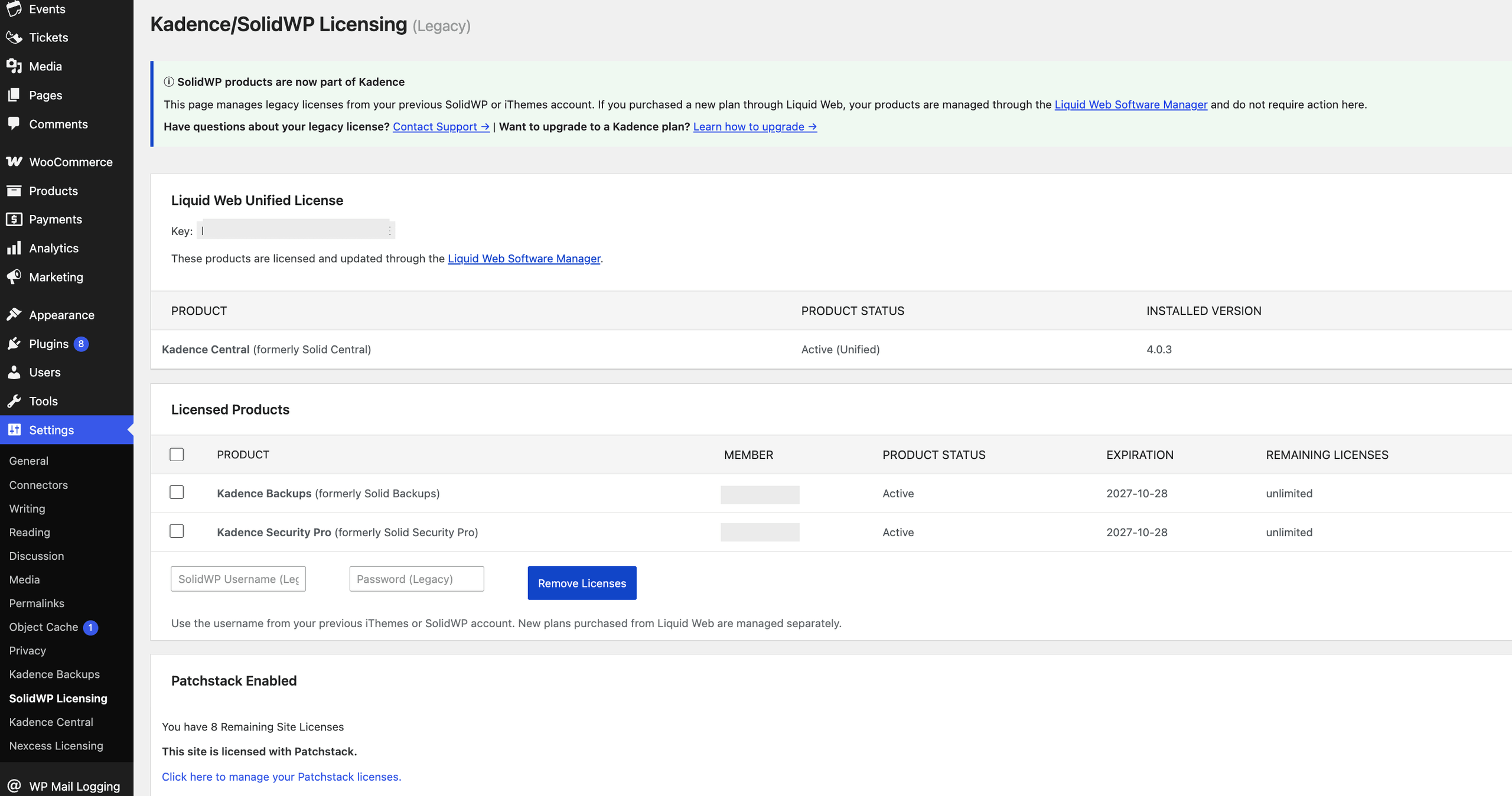
Liquid Web Unified License
On Settings → SolidWP Licensing, you may see a Liquid Web Unified License section.
This section shows products licensed through the Liquid Web Software Manager. You may see a Key field and a product table with columns such as Product, Product Status, and Installed Version. Status shows as Active (Unified) when the product is covered by your unified plan.
If your Kadence Security Pro (or other Kadence products) are already Active (Unified) here, you usually do not need to enter legacy SolidWP credentials for those products.
Licensed Products (Legacy SolidWP/iThemes)
Use this section when your Kadence Security Pro (or legacy SolidWP plugins) license came from a previous SolidWP/iThemes account (username and password licensing, not a LWSW- key).
Note: The password is the one for your previous SolidWP/iThemes members portal, not your WordPress admin password. If you need to reset that account password, use the forgot-password option for that account (or ask Software Support to confirm which email/username is tied to the subscription).
Licensed URL and Site Scanner
Ensure the Licensed URL (when shown for your license type) is correct and matches your site. Most Kadence Security features do not require a license check on every request, but some do interact with the licensing system. Specifically, the Site Scanner performs a brief check to ensure the site is correctly licensed. If you are running into errors related to the Site Scanner, the first troubleshooting step is to check that the licensed URL exactly matches the site URL (including www vs non-www and http vs https).
Patchstack Licensing
If Patchstack virtual patching is included with your Kadence Security Pro license, or you purchased a separate Patchstack entitlement, open Settings → SolidWP Licensing (or confirm status under Settings → Nexcess Licensing when your plan is unified).
You’ll see a Patchstack Enabled Sites section where you need to enter your SolidWP/iThemes account username and password to activate it. When the site is licensed with Patchstack, the page can display the remaining site licenses and confirm that the site is licensed with Patchstack.
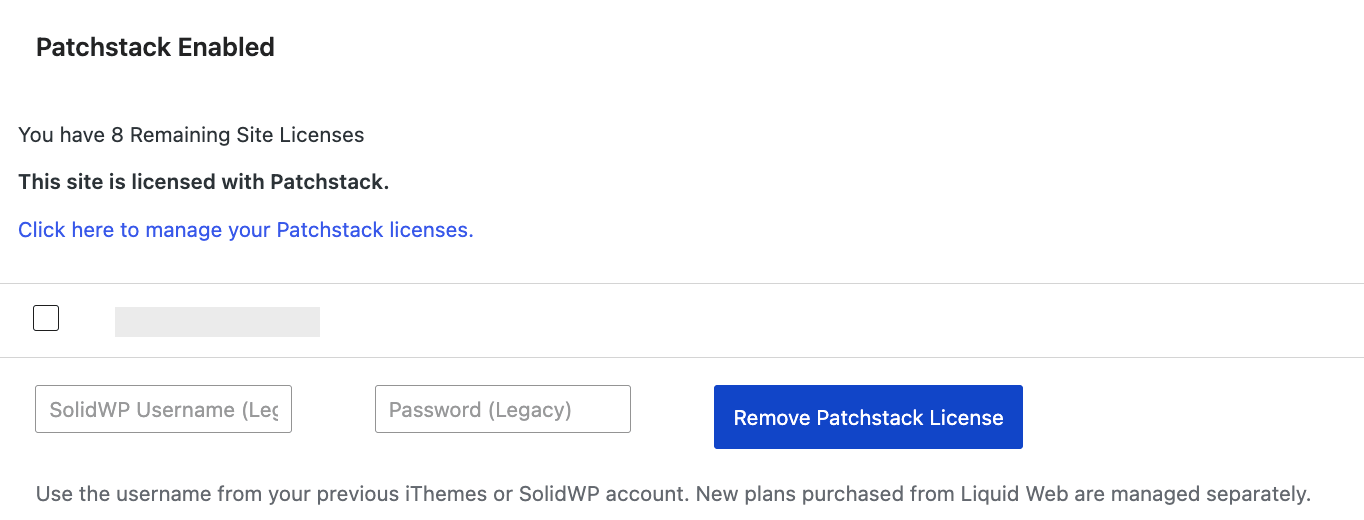
For how Patchstack works with the firewall and vulnerability protection, see Vulnerability Protection with Solid Security and All about Firewall with Kadence Security.
Quick checks if licensing looks wrong
- Confirm whether your subscription is Software Portal/unified or legacy SolidWP/iThemes, then use the matching WordPress screen.
- On unified plans, activate or refresh under Settings → Nexcess Licensing before changing legacy username/password fields.
- On legacy plans, confirm Kadence Security Pro (or legacy SolidWP plugins) is Active under Licensed Products.
- Match the licensed URL to the live site URL if Site Scanner reports license-related errors.
- Confirm Patchstack remaining site licenses if virtual patching or Real-Time Updates depends on Patchstack.
For help with licensing or upgrades, contact Software Support via your Software Portal account with your product name, the email or username on the subscription, and a screenshot of Settings → Nexcess Licensing or Settings → SolidWP Licensing (redact passwords and full license keys).