

The Events Calendar
Automatic Plugin Updates
Automatic update notifications for The Events Calendar and related add-ons appear in the WordPress admin dashboard under Dashboard > Updates.
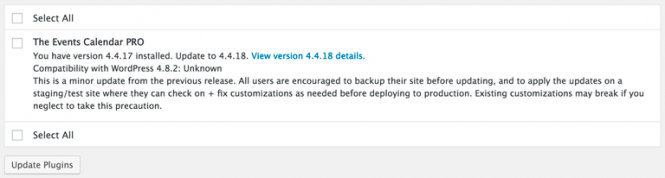
To install updates, select the checkbox next to each plugin and click Update Plugins. WordPress downloads and installs the updates, then automatically reactivates the plugins upon completion.
Hey, I’m not seeing any available updates!
If plugin updates do not appear in the WordPress dashboard when an update is available, verify that your subscription is active and that your license keys are configured properly.
- Check your subscriptions: Log into the Liquid Web Software portal and navigate to Dashboard > Subscriptions to view your account’s active subscriptions. If a subscription has expired, reactivate it to resume updates.
- Copy your license key: Navigate to Dashboard > Licenses (within the portal) to access your Unified License or Legacy License.
- Log into WordPress: Log into your WordPress dashboard to connect the license key:
- Legacy Subscribers: Enter the license key in the designated field for your plugin (e.g., Events > Settings > Licenses for The Events Calendar) and save your changes.
- Unified License Subscribers: Navigate to Settings > Liquid Web Products to manage licenses centrally. Refer to the “Activating License Keys for Automatic Updates” section for additional details.
Once configured, automatic update notifications will appear as plugin updates are released. You may need to refresh the WordPress Updates page after entering a license key.
Filed under
Plugin Updates
Was this page helpful?
Thanks for the feedback!