

Give
How to Add Custom Email Tags
GiveWP allows you to create custom email tags that can be used to add selected data to your email message. This is useful if you have created custom fields or want to send other data from the database.
GiveWP allows you to create custom email tags that can be used to add selected data to your email message. This is useful if you have created custom fields or want to send other data from the database.
Introducing give_add_email_tag()
The give_add_email_tag() function allows you to register custom email tags for donor and admin notifications.
As of 2.2.1+ the give_add_email_tag() function takes an array of arguments to create an email tag:
tag– The name of the tag to register, such as “engraving_message” as in our code example below. In the GiveWP email settings, tags are wrapped with {} but not when they are registered.desc– A description of what the tag displays. This is informational for admins so they know what to expect the tag outputs in the notification.func– The callback function to render the tag’s output.context– The emails that this tag should appear as functional underneath the content editor. Options include:donation– appears on donation related emailsform– information related to the donation form.donor– information related to the donor. Appears on donor emails.general– appears on all emails
is_admin– Whether this tag should only be available to admins. Usually reserved for tags with sensitive information. Default isfalse.
Now that we’ve reviewed the key function in creating custom email tags, let’s see how we can apply this to the custom field created in our “how to create custom form fields” article.
The code above will create a custom template tag that you can then add to your emails.
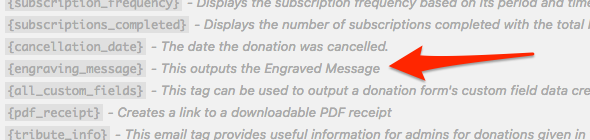
With the example above active, you could use {engraving_message} in your donation receipt and notifications to display the custom field data.