

Give
Translating GiveWP with Loco Translate
Loco Translate is translation editor via browser that allows for editing theme and plugin translation files in the WordPress admin. This documentation walks through translating GiveWP with Loco Translate.
Translating GiveWP using Loco Translate
Loco Translate is a plugin for WordPress that provides in-browser editing of WordPress translation files – it allows the administrator to create custom translations for themes, plugins, and WordPress core. You can learn more about Loco Translate here.
To translate GiveWP or one of its add-ons, navigate to the Loco Translate menu and click on Plugins when you hover the mouse over it. This will display a page listing all the available plugins installed on your site. You’ll need to select the plugin that you want to translate.

For this example, the Give – Annual Receipts add-on will be translated. Click the add-on, and a new page will open that will display the languages already available for translation. If you don’t see a list displayed, you can click to add a New Language:

When you click to add a new language, Loco Translate will then ask which language you want to translate. Make sure you select the correct language on step 1 (the language of your site, for example) and then select Custom on step 2, so you do not lose your translations if the plugin is updated.

Now, it’s time to translate the strings of the plugin you selected. The source text field is where you can see the default text, and the field below is where you’ll add your custom translation.

Syncing Strings
Loco Translate provides a Sync button from within the file editor. The purpose of this function is to fetch the translatable source strings that are currently available and update the file accordingly. This is an important step to take before you start translating the strings to ensure the PO file has the correct strings.
To sync a PO file via WordPress admin, open it in the editor and press the Sync button in the tool bar.

This process fetches the latest source strings from the plugin’s PHP files and populates the editor.
- Translatable strings in the file that are no longer in the source code are dropped.
- New translatable strings (not previously in the file) are added.
Modify the wording using Loco Translate
Sometimes, you might need to change the wording on your site from Donations to Contributions, for example. Loco Translate facilitates this process because you can create a custom translation for the same language that you are using on your site.
In this example, the Give – Annual Receipts add-on that is already in English will be customized to show a different wording.
Navigate to Loco Translate > Plugins > Give – Annual Receipts (or the plugin you would like change the wording for) and click to add a new language. It’s important to select the same language as your site (see steps above about selecting the new language and the translation location) so you can change the wording.
Now, you can select any string you want to change the wording for and “translate” it to the text you want to use. For example, let’s say you want to change the word “amount” to “total”. Here is how it would look:

Save it, and the new wording will already be used on your site.
FAQ
Some translation strings are missing. How can I fix this?
If some translation strings aren’t displaying, follow these steps to troubleshoot:
Check Translation Files — Make sure that the necessary translation files (.po/.mo) are present and up to date. If they are missing, you may need to regenerate them.
Rescan the Plugin for Strings — In Loco Translate, go to the plugin settings and rescan the GiveWP plugin for translatable strings. Learn how to sync strings here.
Clear Cache — If you have a caching plugin enabled, clear your website and browser cache. Outdated cache may prevent new strings from loading. Give this document a read to learn more about caching and how it can cause problems.
Changing the File Location — After you’ve checked all of the above and the translated strings are still not appearing, change the file location from Custom to System. This is an issue that has recently been discovered, however, we do have a workaround for it shown in this screencast. This process starts in Loco Translate’s Relocate tab:
https://www.loom.com/share/3b16d306b71343719c30a84fbad280f1
What are the %s, %1$s, and %d symbols I see in Loco Translate?
These symbols are placeholders (technically called format specifiers) used by GiveWP to inject dynamic information into a strings of text.
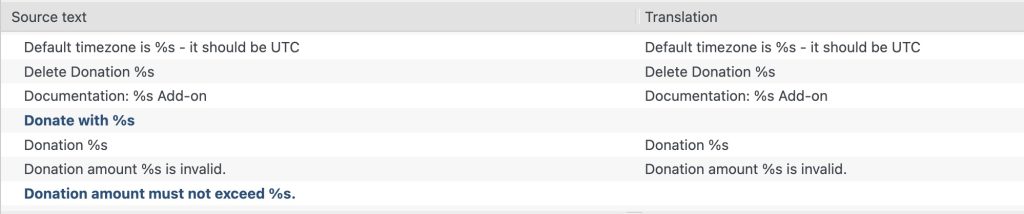
Because donation amounts, form names, and donor details change with every transaction, GiveWP cannot hard-code them into the text. Instead, GiveWP uses these symbols to tell the system where to insert the data.
%susually stands for a string of text (like a donor’s name or a form title).%dusually stands for a number (like a donation count).%1$s,%2$s, etc., are numbered placeholders used when a sentence has multiple pieces of dynamic data.
Never translate these symbols. Always include them in your final translation exactly as they appear in the original text.