Give
Using GiveWP Forms on Your Website
GiveWP forms can be used in a variety of ways but it ultimately depends on your goal. You can embed a form in your pages and posts using the shortcode or the block. Let’s dive into the options for using forms on your website.
Using GiveWP Forms on your website can be done with either:
- the Single Page option
- the GiveWP Donation Form block option
- the Embed Form options
GiveWP is not simply a “Form creation” plugin, because receiving donations through your website requires more than just sticking a form on a page. Instead, you want to make sure that your potential donors can understand the purpose behind your cause, where the funds are going, and much more information than what can easily fit with a form. For that purpose, GiveWP was made to be embedded anywhere in your site to embed it directly with your “Call to Action”, wherever it might be.
Here are the ways you can do that.
The Single Page Option
This option is the quickest way to get your form up and running on your website. This makes GiveWP work just like creating a page or a post. But instead, you are creating a dynamic and convenient landing page.
You’ll notice that as soon as you’ve published your form, the full URL (or “slug”) appears underneath the title of the form. Just like publishing a post or a page, you can now click the “View Form” button and see your form on its own stand-alone page. With one line of PHP you can also customize your “slug.”
The GiveWP Donation Form Block Option
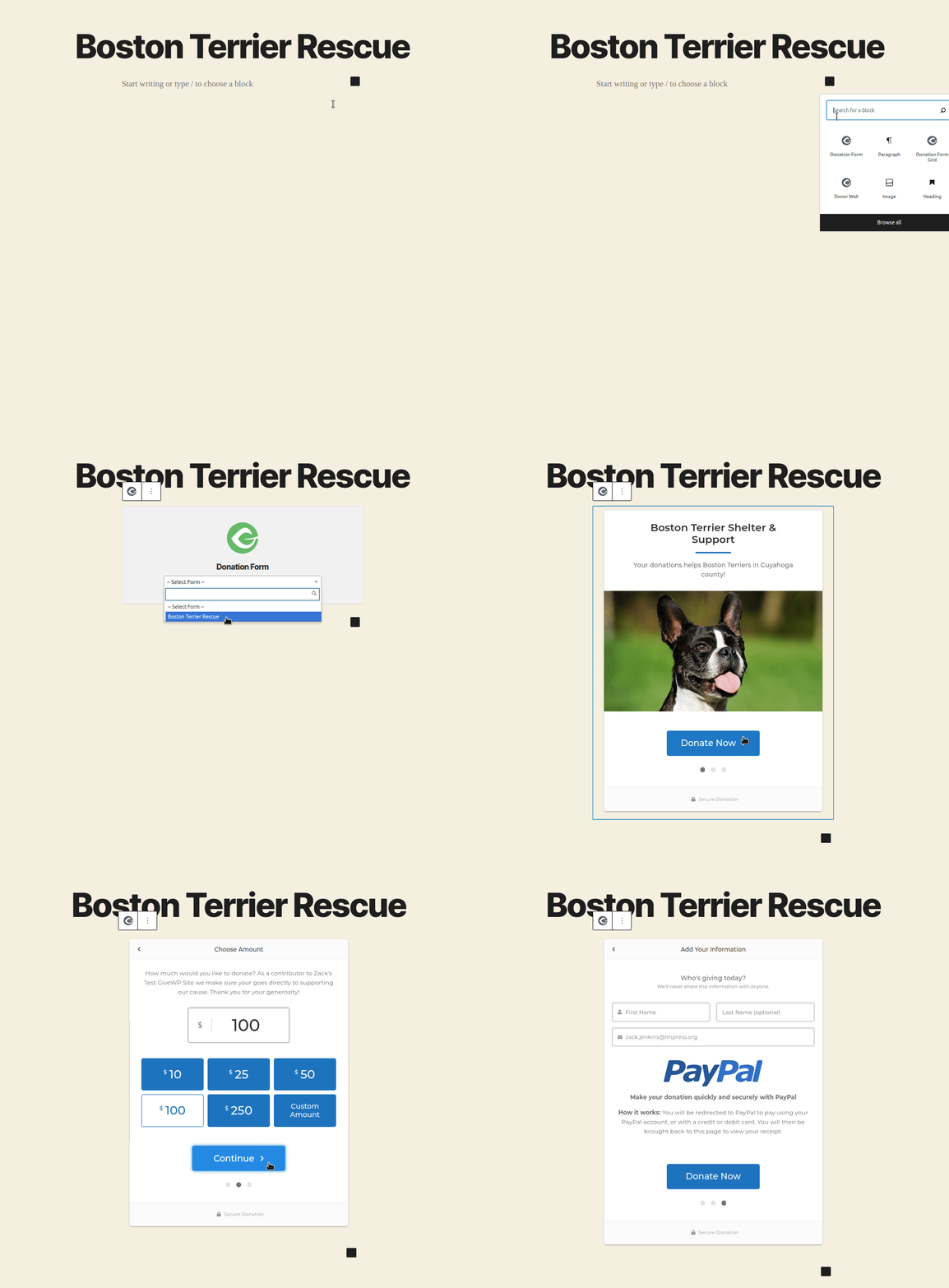
The WordPress editor is now powered by blocks. GiveWP comes with a form block which allows you to embed your GiveWP form on any post or page that is powered by the block-editor.
The Embed Form Options
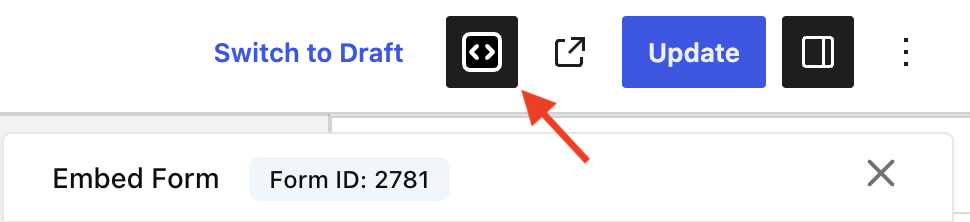
You can access the Embed Form options in the top-right corner of the visual donation form builder, next to Switch to Draft.
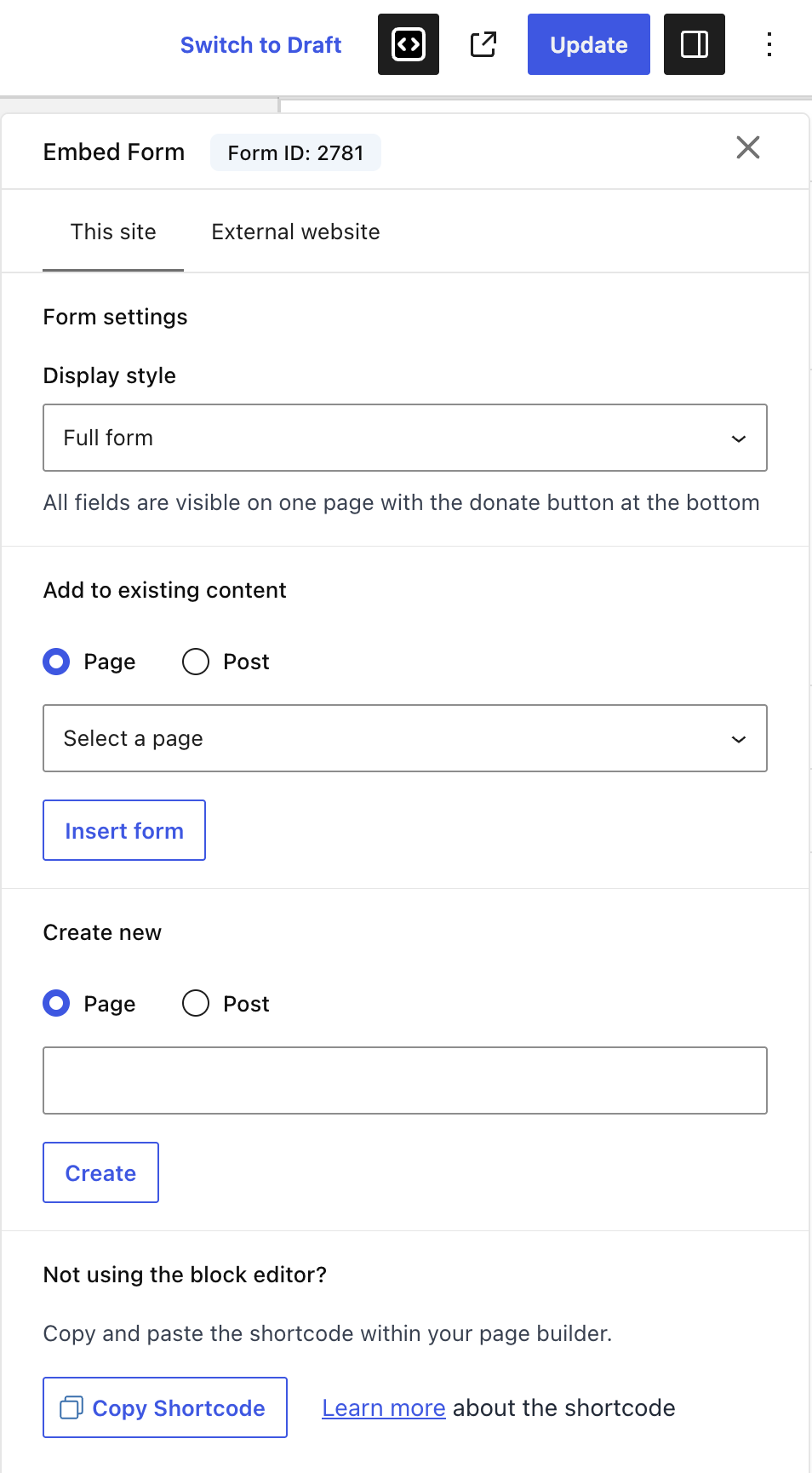
- Shortcode Builder – The This Site panel has all the components to build a customized shortcode. This is useful for those using the WordPress classic editor (instead of the block editor), or a shortcode widget in an external page builder. These options on the panel allow you to custom-tailor a shortcode based on Display style (Full Form, Modal, New Tab), and Button label. You can also add it to an existing or new Page or Post. When the preferred settings are in place, simply click the Copy Shortcode button at the bottom, and paste in the desired location.
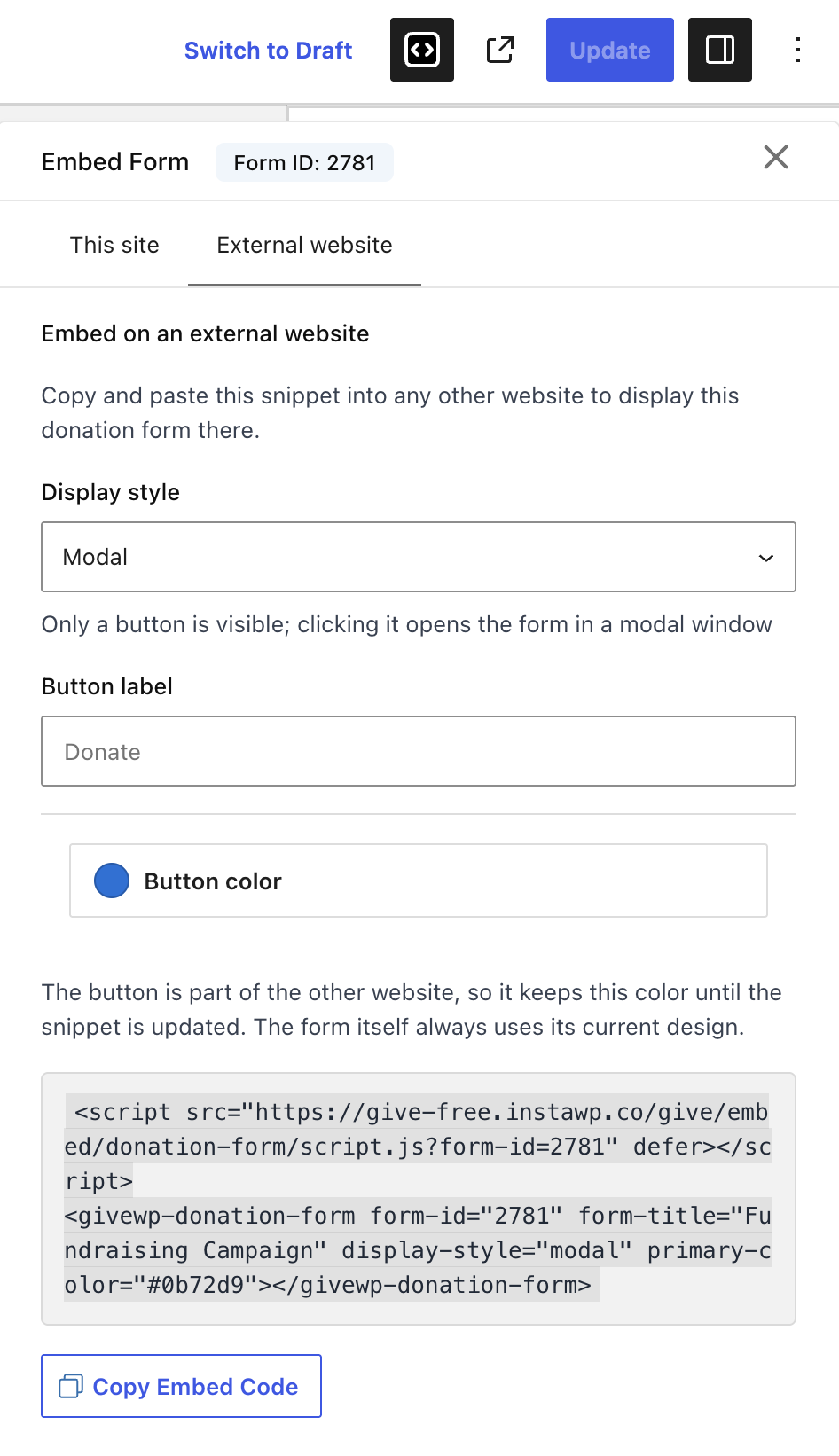
- External Website – This is the newest feature available in this panel, and it’s a very powerful one. Now you have the ability to embed a donation form in an external website. Like the shortcode settings, you can select the Display style (Full Form, Modal, New Tab), and edit the Button label text. To complete the process, click the Copy Embed Code button, then paste it into your website page of choice, and that’s all there is to it! Now you are extending the power of Give donation forms beyond the boundaries of one website, that can provide additional donation-earning opportunities for your project!