

LearnDash
Introducing LearnDash Quizzes
What Are LearnDash Quizzes?
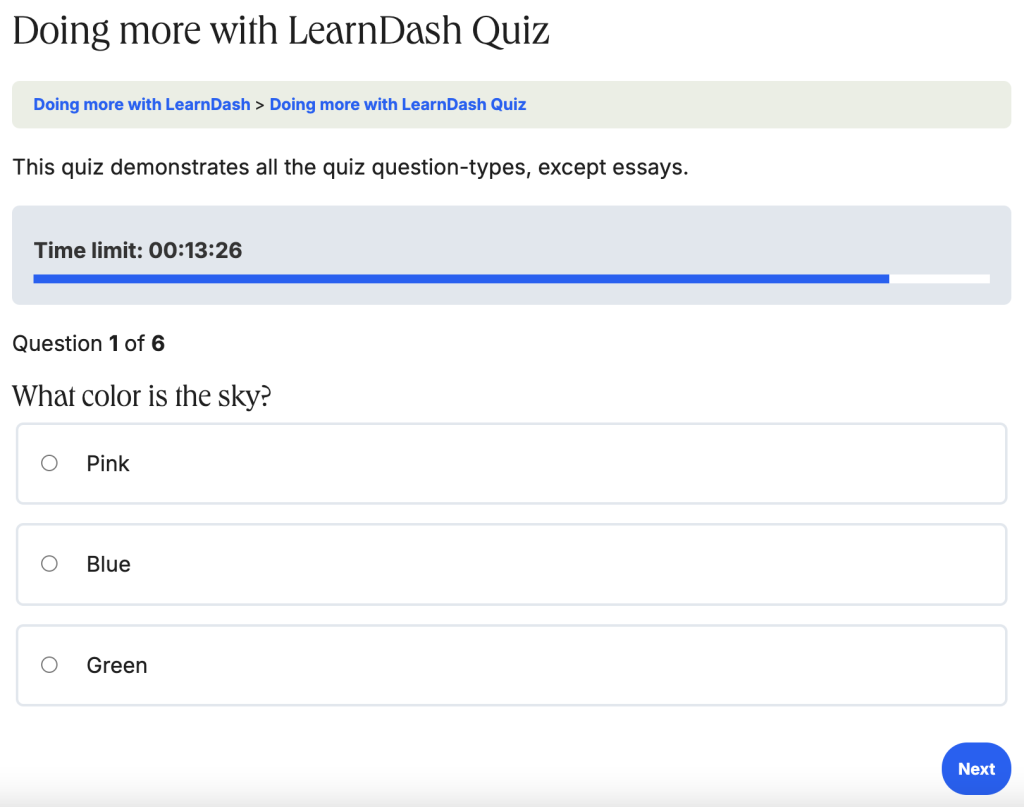
LearnDash Quizzes allow you to build interactive assessments that test learner comprehension, reinforce key concepts, and gate course progression directly within your WordPress site. In short, they transform passive reading or video watching into active knowledge checks.
Whether attached to a specific Course, Lesson, or Topic—or offered as standalone practice tests—LearnDash Quizzes support a wide variety of question formats, automated grading, timers, and customizable result screens to fit any teaching style.
Why Use LearnDash Quizzes?
Simply delivering course material does not guarantee that students are retaining it. LearnDash Quizzes give you the assessment tools needed to validate understanding, automate grading, and keep learners actively engaged:
- Solve Knowledge Gaps & Verify Mastery: Prevent students from skimming through material without truly learning it. With LearnDash Quizzes, you can set passing score thresholds and require quiz completion before learners unlock the next lesson or earn a certificate.
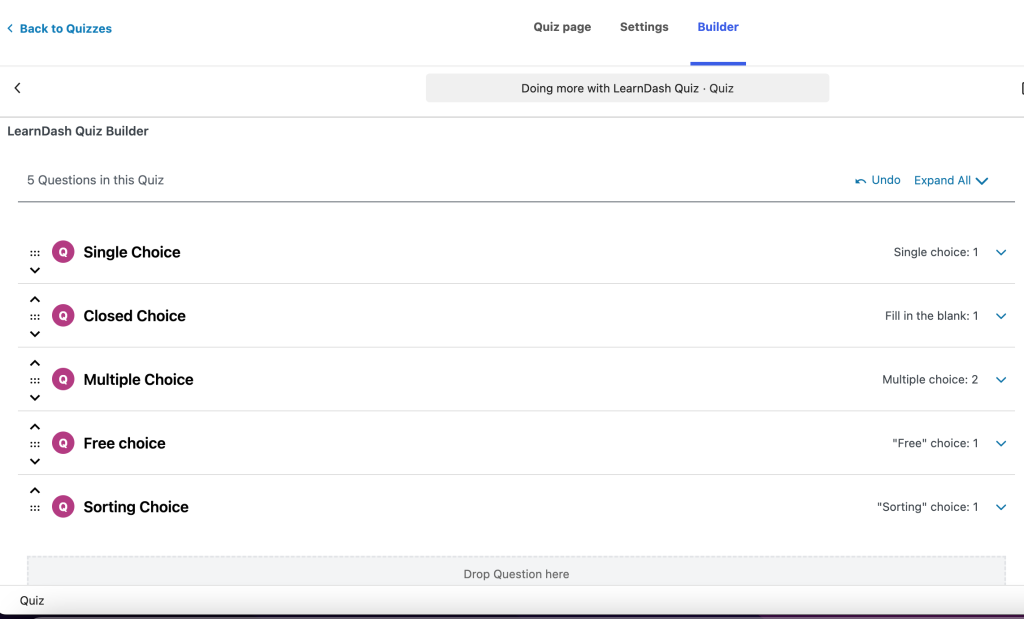
- Save Time and Effort: Eliminate hours of manual grading by letting LearnDash automatically score single-choice, multiple-choice, fill-in-the-blank, matching, and sorting questions—and trigger automated email notifications to students and administrators upon completion.
- Increase Engagement and Motivation: Keep learners invested with interactive question formats, instant feedback on answers, hints, and competitive Leaderboards that showcase top scores and encourage students to improve.
- Unlock Diverse Assessment Possibilities: Go beyond basic multiple-choice tests by incorporating open-ended essay uploads, audio and video media inside questions, randomized question banks, and custom fields to collect extra details from quiz takers.
Common Use Cases
- Use Case 1: Gating Course Progression and Certification
- Scenario: You are offering a compliance or certification course in which students must demonstrate understanding of the material before moving forward or receiving a credential.
- Solution: Set a minimum passing score for your final quiz and restrict progression so learners can advance—or unlock their completion certificate—only after they pass.
- Use Case 2: Preventing Cheating on Timed Exams
- Scenario: You want to run a formal online exam and minimize the chance of students sharing answers or looking up every question.
- Solution: Enable a countdown timer, randomize the order of questions and answer choices, and pull a subset of questions from a larger pool so each student receives a unique test experience.
- Use Case 3: Capturing Leads with a Free Interactive Assessment
- Scenario: You want to attract prospective students to your site with a free diagnostic test or skill assessment while gathering their contact information.
- Solution: Make an introductory quiz open to non-registered visitors and enable Custom Fields to collect each participant’s name and email address before displaying their results.
Pro Tip: Reuse Questions Across Quizzes (Shared Questions)
Enable Shared Questions in your global settings to build a centralized question bank that you can reuse across multiple assessments. Instead of recreating the same questions from scratch for weekly check-ins, midterms, and final exams, you can pull existing questions into multiple quizzes—and any edit you make to a shared question automatically updates everywhere it appears.
Ready to Get Started?
To learn how to configure and customize your quizzes, explore our setup guides below:
- Global Settings – Settings applied to all quizzes on your site
- Quiz Builder – Add, edit, remove, and manage a quiz and all of its questions – organize your quiz structure
- Questions & Question Type – Explore different question types (multiple choice, true/false, essay, etc.)
- Quiz Access & Progression – Set access restrictions and control how a user progresses through a quiz (one question at a time or all at once?)
- Display & Content Settings – Customize the quiz appearance, set time limits, question order, and more
- Display Results – Provide instant feedback on answers and customize quiz result screens
- Custom Fields – Gather extra info from quiz takers: Add fields for name, email, or other relevant data
- Leaderboard – Spice things up with some friendly competition: Display top scores and motivate students to improve
- Email Notifications – Set up alerts for quiz completion and notify both students and admins
You may also check out our other documentation on quizzes, including how to import/export quizzes and other LearnDash items, here.