

LearnDash
PayPal Checkout
LearnDash integrates with PayPal Checkout, a secure and modern payment solution for course sales. This integration uses PayPal’s latest API and offers a streamlined setup with built-in support, no additional plugins required.
With PayPal Checkout, you can:
- Provide a smoother checkout experience for students
- Accept credit card payments directly on your site
- Ensure more reliable payment processing compared to older systems
- Manage student and admin subscriptions with ease
- Reduce setup complexity with native LearnDash support
Upgrading from PayPal Standard
If you’re using the PayPal Standard (IPN) integration, LearnDash recommends switching to PayPal Checkout. Here’s what you need to know:
- PayPal Standard support ends in 2026
- You’ll see a warning in LearnDash until PayPal Standard is disconnected
- Once disconnected, it cannot be re-enabled
Important for Subscriptions: Existing subscriptions created via PayPal Standard cannot be migrated to PayPal Checkout. Students will need to re-purchase the course to continue their subscription. LearnDash is exploring support for PayPal Vaulting, which would allow students to update their payment method without repurchasing. This feature is not yet available, but please share your feedback here. If you rely on custom code or automation based on PayPal Standard, these will need to be updated for compatibility with PayPal Checkout.
New to PayPal?
PayPal Checkout is the only PayPal option available for new LearnDash sites. PayPal Standard will not appear in your settings.
How to Set Up PayPal Checkout
Make sure you have:
- LearnDash 3.0+ using the LearnDash 3.0 Template
- Modern Appearance enabled: WordPress Dashboard > LearnDash > Settings > General
- A verified PayPal Business Account
- An active SSL certificate (HTTPS)
- Registration and login set up on your site (guide here)
Step 1: Connect PayPal
You can connect PayPal using either:
Option 1: Setup Wizard
Select PayPal as your payment method during onboarding.
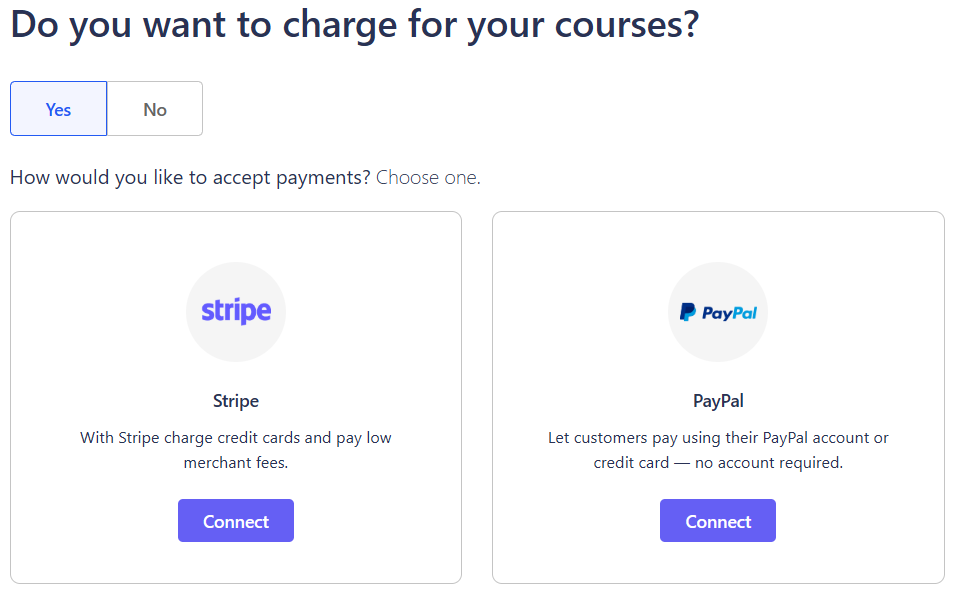
Option 2: Manual Setup
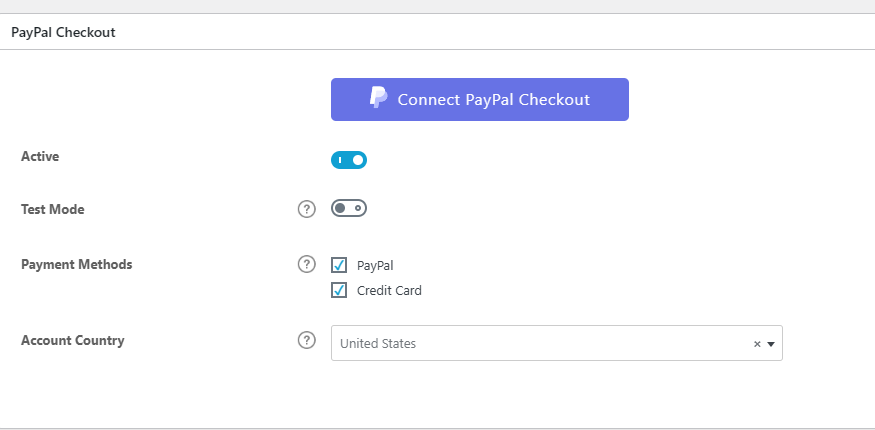
- Go to LearnDash LMS > Settings
- Click the Payments tab
- Activate PayPal Checkout
- Click Connect PayPal Checkout
- Log in to your PayPal account
- Click Return to Store
Test Your Setup (PayPal Sandbox)
To test payments in a sandbox environment:
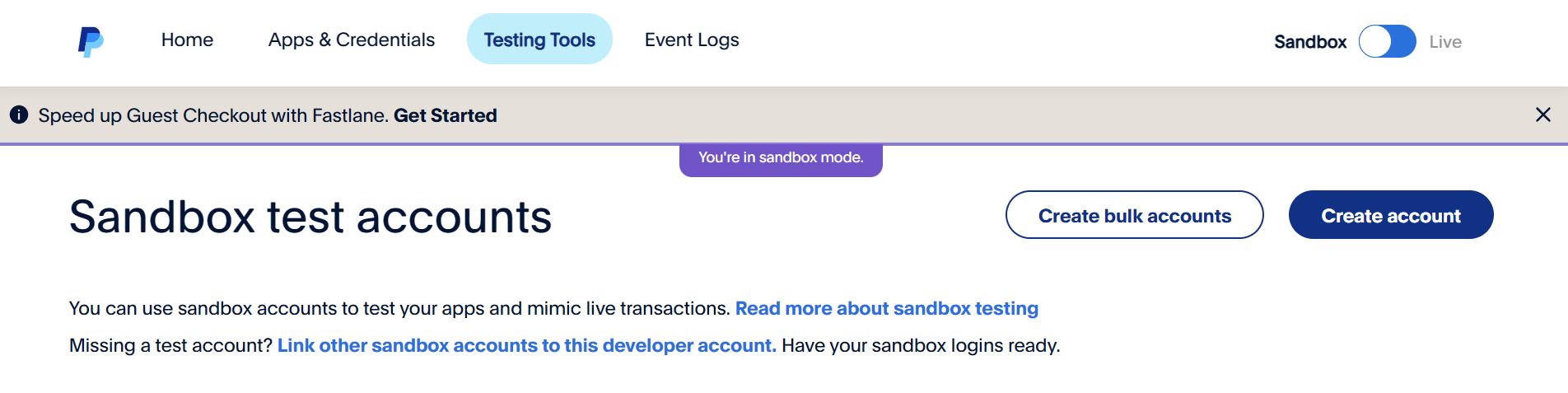
Step 1: Create Sandbox Accounts
- Visit developer.paypal.com
- Navigate to Testing Tools > Sandbox Accounts
- Create two accounts:
- Business Account (to simulate your store)
- Personal Account (to simulate a student)
Step 2: Enable Test Mode in LearnDash
- Go to
LearnDash LMS > Settings > Payments - Click on PayPal Checkout
- Disconnect the live account if connected
- Enable Test Mode
- Log in with your sandbox Business Account
- Click Return to Store
Note: To view or copy sandbox passwords, click on the email in the Sandbox dashboard and use the password icon.
Failed Payment Handling
If a PayPal subscription payment fails, LearnDash will automatically handle the retries to reduce accidental cancellations.
- LearnDash automatically retries the payment up to three times
- Email notifications are sent to the user for each retry attempt
- Retries occur over several days before the system stops trying
- This helps prevent cancellations caused by temporary payment issues (like expired cards or insufficient funds)
Cancellation Behavior and Course Access
- When a PayPal Checkout subscription is canceled, the student is automatically unenrolled from any associated courses.
- The unenrollment happens immediately once the cancellation is processed.
- This ensures that course access always matches the student’s current subscription status.
- Previously, students remained enrolled until the subscription period ended — this update provides a faster and more accurate response to cancellations.
LearnDash Profile – Saved Cards
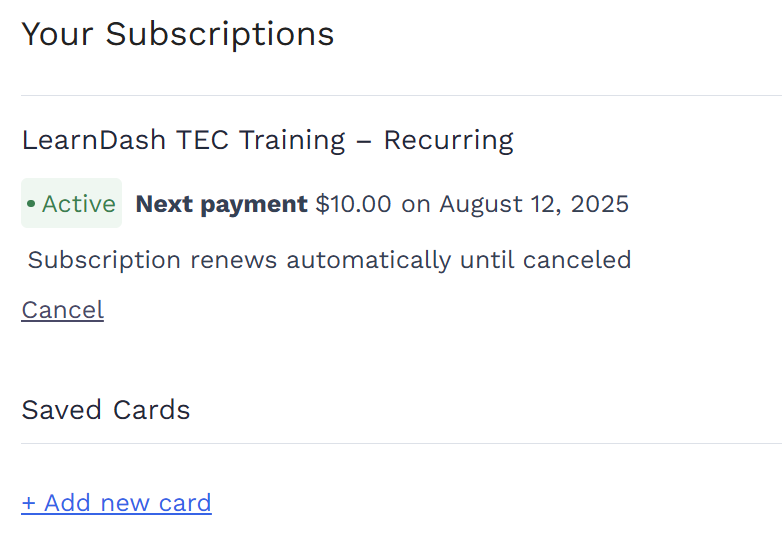
When using the Profile Block or the [ld_profile] shortcode, PayPal Checkout automatically adds a Saved Cards section to each user’s profile.
- The Saved Cards section only appears when PayPal Checkout is properly configured.
- If users do not see the Saved Cards option, it means PayPal Checkout has not been fully set up.
- This feature helps users manage their payment methods for active or future subscriptions.
Developer Hooks and Filters for PayPal Checkout
LearnDash provides several new actions, filters and templates to extend or customize how PayPal Checkout behaves. These can be used by developers to adjust subscription retry settings, email templates, and display options in the LearnDash profile.
New Action:
New Filters
- learndash_profile_show_saved_cards
- learndash_show_telemetry_modal
- learndash_subscription_max_retries
- learndash_subscription_payment_retry_email_message
- learndash_subscription_payment_retry_email_placeholders
- learndash_subscription_payment_retry_email_subject
- learndash_subscription_retry_intervals
New Templates
- src/admin_views/modules/payments/orders/edit/subscription/details/cells/status.php
- themes/ld30/templates/shortcodes/profile/saved-cards/index.php
- themes/ld30/templates/shortcodes/profile/subscriptions/canceled/cancellation-date.php
Managing Subscriptions
PayPal Checkout gives both admins and students tools to manage subscriptions directly.
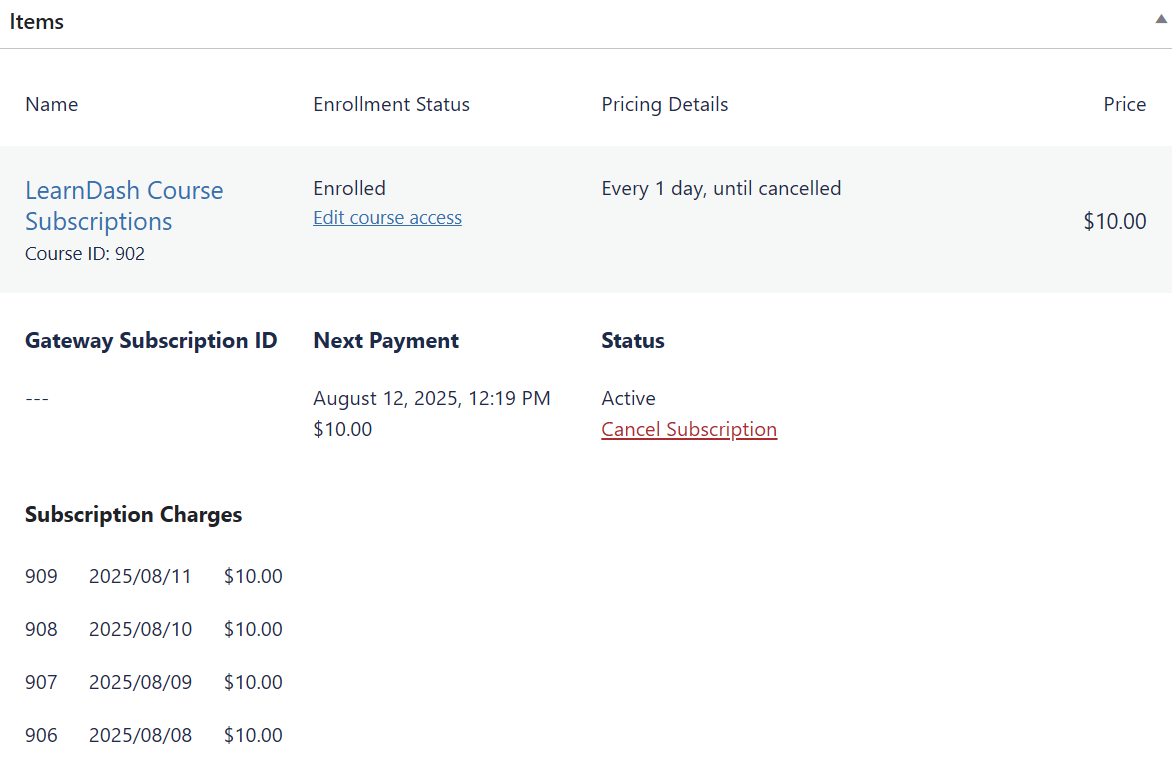
For Administrators:
- Go to LearnDash LMS > Orders
- Click on the order number
- Under Status, click Cancel Subscription
For Students:
- Visit the page with the
[ld_profile]shortcode - Locate your subscription
- Click Cancel
Troubleshooting Tips
If PayPal Connection Window Doesn’t Load (especially on Safari):
- Go to Safari > Settings > Privacy
- Disable “Prevent cross-site tracking”
- Allow ads/trackers for your site
Other Requirements:
- PayPal account must be a Business Account
- Site must be secured with HTTPS
- Disable caching or firewall plugins if the connection fails
Frequently Asked Questions
Can I migrate existing subscriptions from PayPal Standard to Checkout?
No. Subscriptions cannot be transferred. Students must purchase the course again. LearnDash is exploring a future solution using PayPal Vaulting.
Why is PayPal Standard missing from my settings?
Once PayPal Checkout is connected, PayPal Standard is hidden. You can temporarily re-enable it using this filter:
I’m getting the following error when trying to connect my PayPal Business account: “Advanced Credit and Debit is not enabled for your account, please login into your PayPal account to provide more information.”
This error typically appears with older PayPal Business accounts. To resolve it, contact PayPal Support and complete the verification process, which may include submitting additional documents to enable credit card payments.