

LearnDash
LearnDash Shortcodes and Blocks
Use shortcodes and blocks to add LearnDash content to courses, pages, posts and other areas of your site. This article covers common options and examples.
For legacy shortcode certificates, see Certificate Shortcodes. The drag-and-drop certificate builder uses Live data instead.
What’s the Difference?
Shortcodes
- The original way to add dynamic content to the WordPress editor
- Can also be used to insert LearnDash content into page builders
- Contain options (also called parameters) to customize the information displayed
- Here’s an example shortcode, with one parameter:
[ld_course_list num="10"]
Blocks
- Available in the WordPress block editor
- Provide settings for the LearnDash content supported by each block
- Provide an easier interface in which to insert content & customize the options

Which One To Use?
Many LearnDash features are available as both blocks and shortcodes. Some features, such as [ld_video], are available only as shortcodes. Choose the option supported by your editor:
- Using the WordPress block editor? If yes, you can use either. You’ll likely find blocks easier to use, but if you’re comfortable with shortcodes, they are still available to you.
- Using the Classic Editor plugin? If yes, then you’ll need to use a shortcode.
- Using a page builder? Use the page builder’s shortcode widget or module unless it supports the LearnDash block you need.
- Inserting content into a widget/sidebar? Use a block if your theme supports the block-based Widgets editor. Otherwise, use a shortcode in a supported widget.
How to Use Them
Before we explain what each block and shortcode does, let’s briefly discuss how to use them.
Blocks


Blocks are inserted into the WordPress editor by clicking on the + icon, and then either searching for the name of the block or scrolling through the list of available options. When you find the block you want to add, simply click on it.
After adding the block, you can customize the options in the block options panel in the sidebar. The options will vary depending on which block you have selected. This example shows some of the options for the LearnDash Course List block.
Shortcodes
All shortcodes use square brackets ([ and ]), along with the name of the particular shortcode you’re using, and any parameters (options) you want to set.
Here’s a shortcode that displays a user’s LearnDash profile information, in its default state, with no parameters:
[ld_profile]Here’s that same shortcode with parameters added to it, to display the user’s courses in ascending order by course title:
[ld_profile orderby="title" order="ASC"]There’s one other way to use a shortcode. You can check whether a given condition is true, and if it is, output the contents of the shortcode. Here’s an example that checks whether someone is enrolled in the course and, if so, displays a message.
[student]Only a student enrolled in the course would see this.[/student]You’ll notice this version has both an opening & a closing shortcode, with the closing shortcode being preceded with a forward slash (/).
DEVELOPERS
You can also add shortcodes to your theme files or custom plugins via the do_shortcode() function.
All LearnDash Blocks & Shortcodes
The tables below list common LearnDash blocks and shortcodes. Click a name for instructions and examples.
Common LearnDash Blocks/Shortcodes
|
Block |
Shortcode |
Description |
|---|---|---|
|
Displays learner information, course totals, course points, enrolled courses, quiz results and earned certificates. With the LearnDash 3.0 template, it also shows Verify links for earned certificates created with the drag-and-drop builder. |
|
|
Displays the user’s earned course points on any page. |
|
|
Displays a progress bar with the user’s progress for that course. |
|
|
Displays a list of courses. Many options are available to filter & customize the output. When the Course Grid is enabled, it will display courses in a grid layout. |
|
|
Similar to [ld_course_list] but displays a list of lessons. Also works with the Course Grid. |
|
|
Similar to [ld_course_list] but displays a list of topics. Also works with the Course Grid. |
|
|
Similar to [ld_course_list] but displays a list of quizzes. Also works with the Course Grid. |
|
|
Similar to [ld_course_list] but displays a list of groups. Also works with the Course Grid. |
|
|
Displays a complete list of lessons, topics & quizzes associated with that course. |
|
|
Displays the list of groups users are assigned to, whether as users or leaders. |
|
|
Displays the expiration date of a course for the current user. |
|
|
Displays a video anywhere within a lesson or topic page. You must be using video progression for this shortcode to work. |
|
|
Displays the payment button for a particular course, anywhere on the page. |
|
|
Displays a list of registered courses, course progress details & all quizzes the user has taken. |
|
|
Displays a login link that reveals the LearnDash login & registration pop-up modal when clicked. |
|
|
Displays a download link of an earned certificate. |
|
|
Links the logged-in learner to the first incomplete step in a course they can access. |
|
|
Creates a password reset form for users to reset their passwords. |
Conditionally Display Content
Show/Hide content for certain users or groups.
|
Block |
Shortcode |
|---|---|
|
|
|
|
|
|
|
|
|
|
|
|
|
|
|
|
|
|
|
|
Certificate Shortcodes
View our list of certificate shortcodes
Common Blocks and Shortcodes
The sections below explain the main shortcodes and their options. When using a block, check its settings in the editor sidebar for the available controls.
LearnDash Profile
The LearnDash Profile block and [ld_profile] shortcode show information for the logged-in learner. With the LearnDash 3.0 template, the profile includes:
- Avatar (profile image)
- Name
- Link to edit profile
- Total number of courses enrolled in, courses completed, certificates awarded and points earned
- List of registered courses, which includes:
- ability to search courses
- course progress indicators
- links to download certificates
- Verify links for earned certificates created with the drag-and-drop builder
- quizzes taken, along with dates, scores and statistics
For an earned certificate created with the drag-and-drop builder, a Verify link appears next to its certificate icon. Click Verify to open the public verification page in a new tab. Learners can copy and share that page’s URL. Visitors do not need to log in to view it.
Verification links are available with the LearnDash 3.0 template only. They do not appear in the Legacy template. An active LearnDash license is needed for the public page to verify a certificate.
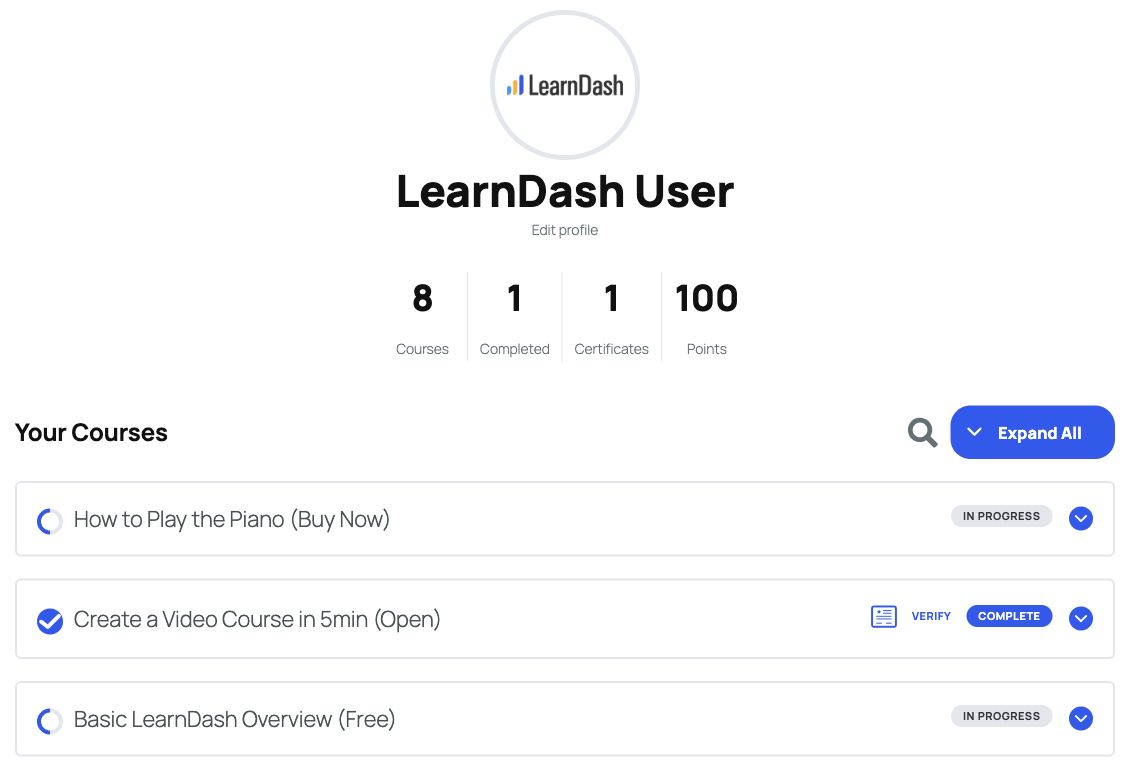
You can also use the button at the top to quickly expand/collapse all registered course information.
The following parameters are available when using the [ld_profile] shortcode:
per_page="10"– sets the number of courses to display on one page, before pagination is usedcourse_points_user="no"– prevents the display of a user’s earned course points (default is “yes”)expand_all="yes"– expands all sections of the profile (default is “no”)orderby="title"– determines how the courses should be sorted (default is “ID”). This should be used in conjunction with theorderparameter. See the full list of orderby parametersorder="ASC"– determines the order in which courses are sorted. This should be used in conjunction with theorderbyparameter. Use either “ASC” or “DESC”. The default is “DESC”.profile_link="no"– determines whether or not the profile link is shown or hidden. The default is yes.show_quizzes="no"– determines whether or not the user’s quiz attempts are shown or hidden. The default is yes.show_search="no"– determines whether the search functions are shown. The default is yes.show_header="no"– determines if the header is shown or hidden. The default is yes.quiz_num="5"– sets the number of quizzes to show per page when quizzes are shown & expanded. The default is the global number of items per page in LearnDash settings.
LearnDash User Course Points
Use [ld_user_course_points] to show a learner’s total course points on a custom profile page.
Simply insert [ld_user_course_points] onto its own line, or use the block, and it will output this:
Earned Course Points: 100
This will display the total, cumulative points that the current user has received. This includes both “earned” course points and any “extra” course points you’ve assigned to the user via their WordPress profile.
There is only one parameter if you want to target a specific user ID: [ld_user_course_points user_id="5"]
This would display the course points for the user with ID 5. The default usage will automatically show points for the logged-in user.
LearnDash Course Progress
The [learndash_course_progress] shortcode displays a progress bar with the current user’s progress for that course.

It is most commonly used on a course, lesson, topic, or quiz page, and it automatically detects 1) which course is currently being accessed, and 2) which user is logged in.
You’ll typically use the default [learndash_course_progress] shortcode without any parameters, but if you’re using it outside of a course, or for a specific user, there are two options you can use:
[learndash_course_progress user_id="5"]– Displays the progress for a specific user[learndash_course_progress course_id="12"]– Displays the progress for a specific course
You can use this shortcode in page builders to add progress to a custom course, lesson or topic layout.
LearnDash Course List
The [ld_course_list] shortcode displays a list of courses and includes many parameters to customize which courses are shown and how they are laid out. The LearnDash Course List is most commonly used in conjunction with the Course Grid.
The Course Grid feature has been merged into the core LearnDash LMS plugin starting with version 4.21.4, so it is no longer necessary to install the separate Course Grid add-on.

See our Course Grid feature article for the available options.
This block allows for the display of a subset of enrolled courses based on the course progress status. This is only available when the “My Courses” option is set to show “Enrolled Courses Only”.
LearnDash Lesson List
The LearnDash Lesson List works in much the same way as the Course List, only it displays lessons instead of courses. Here’s an example of it in use:

This shortcode is best used on a course page, rather than the default course content table. Be sure to upload a featured image for each lesson to replace the placeholder images.
Here’s an example of how to use this shortcode:
[ld_lesson_list course_id="12"]You can specify a specific course by adding the course_id parameter to filter the lessons you want to display.
LearnDash Topic List
The LearnDash Topic List works in much the same way as the Lesson List, only it displays topics instead of lessons.
This would be best used on a lesson page that contains at least a few topics. A featured image will also replace these placeholder images.
Use lesson_id to limit the list to a specific lesson.
Here is an example of how to use the shortcode:
[ld_topic_list lesson_id="34" course_id="12"]
In this example, you can specify the lesson_id and course_id with the shortcode to filter the topics you want displayed.
LearnDash Quiz List
The LearnDash Quiz List works in much the same way as the Lesson List, only it displays quizzes instead of lessons. If your course offers multiple quizzes, you might find this shortcode useful.
Typically, however, quizzes are best displayed either…
- in the course content table, along with the course they are associated with,
- in the course navigation widget, wherever they fall in the natural course progress, or
- at the bottom of a lesson or topic page that the quiz is assigned to (inserted automatically)
Use lesson_id to limit the list to a specific lesson.
LearnDash Group List
The LearnDash Group List works in much the same way as the Course List, only it displays groups instead of courses. If you offer multiple groups that allow for self-enrollment, you might find this shortcode useful.
The LearnDash Group List can be used alongside the Course Grid.
See our Course Grid feature article for the available options.
LearnDash Course Content
The LearnDash Course Content block/shortcode is an exact replica of the default course content table displayed on course pages (below any content you add). It provides a complete overview of the course, including the user’s progress. In it, you’ll find all the lessons, topics, and Quizzes that are assigned to the course. You can show/hide topics & quizzes that are tied to lessons, and you’ll see a status icon that displays the user’s status for that particular lesson/topic/quiz.

You can use this shortcode to:
- insert into a custom course landing page (if using a page builder)
- insert into a sales page powered by WooCommerce, Easy Digital Downloads, MemberPress, or another ecommerce/checkout solution
When using this shortcode on any other page besides a course page, you’ll need to use the course_id parameter. This tells LearnDash which course you want to display content for.
[course_content course_id="12"]Replace 12 with your course ID.
LearnDash User Groups
The LearnDash User Groups block/shortcode displays the list of groups that a user is assigned to.
LearnDash Course Expire Status
This block/shortcode will display the course expiration date for the currently logged-in user. You must enable the “Expire Access” setting on the course edit screen for this to work.
Course access will expire on: December 31, 2019
If used on a course page, [ld_course_expire_status] will automatically detect the course and the user and display a message. The default messages are as follows:
- If a course expires in the future: “Course access will expire on: {date}”
- If a course has already expired: “Course access expired on: {date}”
You can customize the text before and after the date by using the following parameters:
label_before
This is displayed before the date:
[ld_course_expire_status label_before="This course expired on "]label_after
This is displayed after the date:
[ld_course_expire_status label_after=". Please renew your membership to regain access."]format
This changes the format of the date used. By default, we’ll use your WordPress date settings. See a full list of date formatting options here.
[ld_course_expire_status format="F j, Y"]You can also use the course_id & user_id parameters, although you will likely not need them, as we identify them automatically.
Here’s an example of all parameters used together:
[ld_course_expire_status format="F j, Y" label_before="This course expired on " label_after=". Please renew your membership." course_id="12" user_id="5"][ld_video]
Add [ld_video] to a Shortcode block in the WordPress block editor:

This only works if you’re using our built-in Video Progression feature. This must be enabled on the lesson or topic page in order for it to work, and a URL to your video must be entered.
Learn how to set up video progression here.
By default, the video appears above the course content. To position the video elsewhere within the page layout, use the [ld_video] shortcode.
This shortcode does not accept parameters. Insert [ld_video] on its own line anywhere within the lesson or topic content.
You can also use it to position the video in a page builder layout.
LearnDash Payment Buttons
The [learndash_payment_buttons] shortcode displays the enrollment or payment button configured for a course. Its output depends on the course access mode and the learner’s access.
For built-in payments, configure the course price and payment gateway. For an external checkout, use the Closed access mode and set its Button URL. Open courses do not normally show an enrollment button.

If you want to place this button somewhere else on your page (i.e., if you’re using a page builder to create a custom course landing page), you can use the [learndash_payment_buttons] shortcode or block to insert the button anywhere.
If not used directly on a course page, you’ll want to include the course_id:
[learndash_payment_buttons course_id="12"]LearnDash Course Info
This block/shortcode could be used to help build part of a student profile page. LearnDash Course Info displays 3 things:
- a list of registered courses, along with a thumbnail image
- a list of course progress details, which includes:
- course status: Not Started, In Progress, or Completed
- X out of Y steps completed
- the date you started the course
- list of quizzes you’ve taken, which includes:
- quiz name & link to quiz page
- score
- points awarded
- link to statistics
- date you took it
- grading status
Here’s what the registered courses look like when you’ve included a featured image:

Here’s an example of the course progress information:

And here’s the quiz information:

The output might differ slightly depending on which theme you’re using.
You can use any of the following parameters to customize the output of [ld_course_info] (or use a bunch of them together). These are also available when using the Gutenberg block.
registered_show_thumbnail– set to “true” to show the thumbnail, or “false” to hide itregistered_num– limits the number of courses displayedregistered_orderby– order the registered courses by ID, title, date, and moreregistered_order– set to either ascending (“ASC”) or descending (“DESC”)progress_num– limits the number of courses displayed in the progress sectionprogress_orderby– order courses in the progress section by ID, title, date, and moreprogress_order– set to either ascending (“ASC”) or descending (“DESC”)quiz_num– limit the number of quizzes displayedquiz_orderby– order quizzes by ID, title, date, and morequiz_order– set to either ascending (“ASC”) or descending (“DESC”)
Specifying a user_id is optional. If omitted, the system automatically assigns the ID of the logged-in user.
LearnDash Login
Use the LearnDash Login shortcode to add a Login link to a page, post, sidebar widget, or menu item. When clicked, the LearnDash Login Modal pops up.
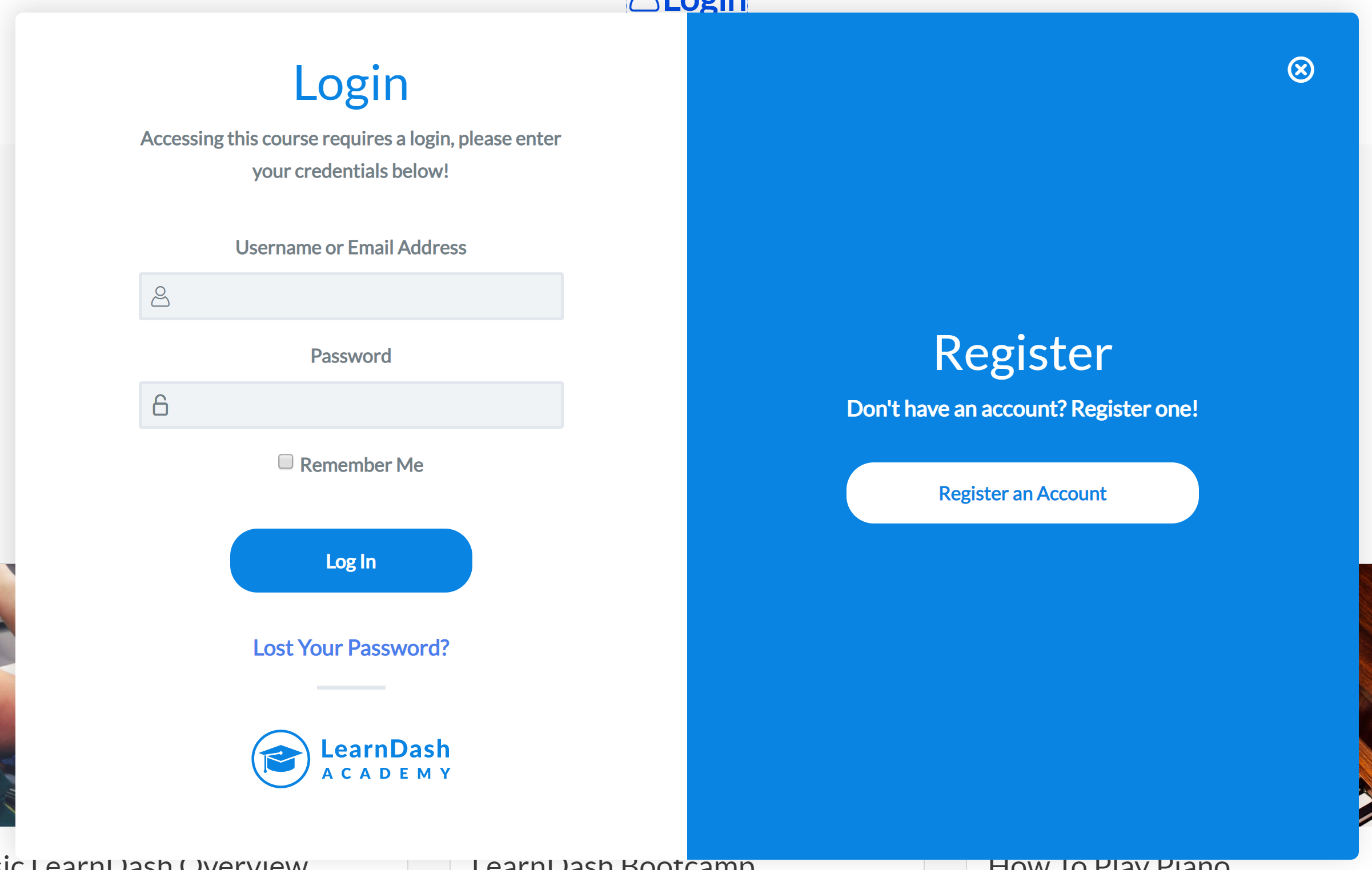
When a user is logged in, the link will update to “Logout”. When clicked, a user will be logged out of the site.
This shortcode will only work if LearnDash Login & Registration is enabled.
Here are the available parameters for this shortcode:
'url'              => false,
'label'            => false,
'icon'             => false,
'placement'        => false,
'class'            => false,
'button'           => false,

'login_url'        => '',
'login_label'      => __( 'Login', 'learndash' ),
'login_icon'       => 'login',
'login_placement'  => 'left',
'login_class'      => 'ld-login',
'login_button'     => 'true',

'logout_url'       => '',
'logout_label'     => __( 'Logout', 'learndash' ),
'logout_icon'      => 'arrow-right',
'logout_placement' => 'right',
'logout_class'     => 'ld-logout',
'logout_button'    => '',
Here’s a sample use case for these attributes:
[learndash_login logout_label="Custom Logout label"]LearnDash Certificate
Use [ld_certificate] to display a download link for an earned certificate. On a custom page, specify the course, quiz or group that awards it.
For a course certificate:
[ld_certificate course_id="123"]For a quiz certificate in a course:
[ld_certificate course_id="123" quiz_id="456"]For a group certificate:
[ld_certificate group_id="789"]Replace the example IDs with your own. The learner must have earned the certificate before its download link is available.
Optional parameters include:
user_id– the learner ID. Defaults to the current user.label– the button or link text.class– a CSS class for the link.context– a custom value for developer filters.
LearnDash Resume Course
Use [ld_course_resume] to link the logged-in learner to the first incomplete step in a course they can access. Completed courses do not show a resume link.
Common parameters include:
course_id– the course ID. If omitted, LearnDash uses the current course or, outside a course, the learner’s last active course.user_id– defaults to the logged-in learner. If you provide an ID, it must match the logged-in learner.label– the text shown on the link or button.
LearnDash Reset Password
The LearnDash Reset Password block lets you create a password reset page for users.
To set this up, create a page and insert the block into the desired location. This enables users to reset their account passwords as needed.
Alternatively, use the [ld_reset_password] shortcode instead of the block. Form width can be customized directly within the block settings or by configuring the width parameter in the shortcode.
Conditionally Display Content
These blocks and shortcodes allow you to show or hide specific content for users based on their enrollment status. You can include HTML, images, video, or other media within these shortcodes.
All of these shortcodes require both an opening tag and a closing tag, formatted as follows:
[shortcode]and an ending[/shortcode]Be sure to include both.
When using these Gutenberg blocks, you’ll see a small indicator when hovering over the block to let you know that the content you add will be placed inside the conditional block:

When using Elementor Templates, the autop="false" can be added within the shortcode for all conditionally displayed content to avoid having unwanted <p> and <br> elements from appearing throughout the template. This can be useful to avoid layout issues within templates.
LearnDash Visitor
[visitor] You can use this block/shortcode to only show certain information to students who are not yet enrolled in a course. It is most commonly used on the course page itself, but can also be used on a custom sales page by specifying a course_id. Here’s an example:
[visitor course_id="12"]This will only be seen by users who DO NOT have access to the course. You could provide a link to a signup form or email capture here.[/visitor]LearnDash Student
[student] Use this shortcode to display content only to students with access to the course.
[student course_id="12"]This will only be seen by users who HAVE ACCESS to the course.[/student]Use one course ID in course_id:
[student course_id="12"]This content is shown to learners with access to this course.[/student]Use group_id="32" to check access to one group instead of a course. Replace 32 with your group ID.
Add user_id to limit the content to that learner. They must also have access to the specified course or group.
[student course_id="12" user_id="5"]This content is shown only to learner 5 when they have access to course 12.[/student]LearnDash Course Not Started
[course_notstarted] shows content to learners who have access to the course but have not completed any steps.
[course_notstarted course_id="12"]This will only be seen by users who have not completed any steps in the course yet. You could provide a message encouraging them to get started.[/course_notstarted]LearnDash Course In Progress
[course_inprogress] This shows content to a student who has started the course, but not yet finished it.
[course_inprogress course_id="12"]This will only be seen by users who have started the course (completed at least one step), but not yet finished it. You could provide encouragement for them to finish it soon.[/course_inprogress]LearnDash Course Complete
[course_complete] Use the [course_complete] shortcode to show content only to students who have fully completed a course (completed all steps & passed all required quizzes).
[course_complete course_id="12"]This will only be seen by users who have fully completed the course. You could provide a link to a certificate here, or some related courses they might want to try next.[/course_complete]LearnDash Quiz Complete
[ld_quiz_complete] Use the [ld_quiz_complete] shortcode to show content only to students who have fully completed a quiz.
[ld_quiz_complete quiz_id="32"]This content is shown to learners who have completed this quiz.[/ld_quiz_complete]LearnDash Group Message
[ld_group] Use the [ld_group] shortcode to show content only to students enrolled in the specified group. Requires group ID.
[ld_group group_id="32"]This will only be seen by users who have access to the group with the ID of 32.[/ld_group]