

LearnDash
Manage certificate fonts
Upload custom fonts to use in the drag-and-drop certificate builder. You can add a font family, choose it for a text element, and see which certificates use it.
Upload a font family
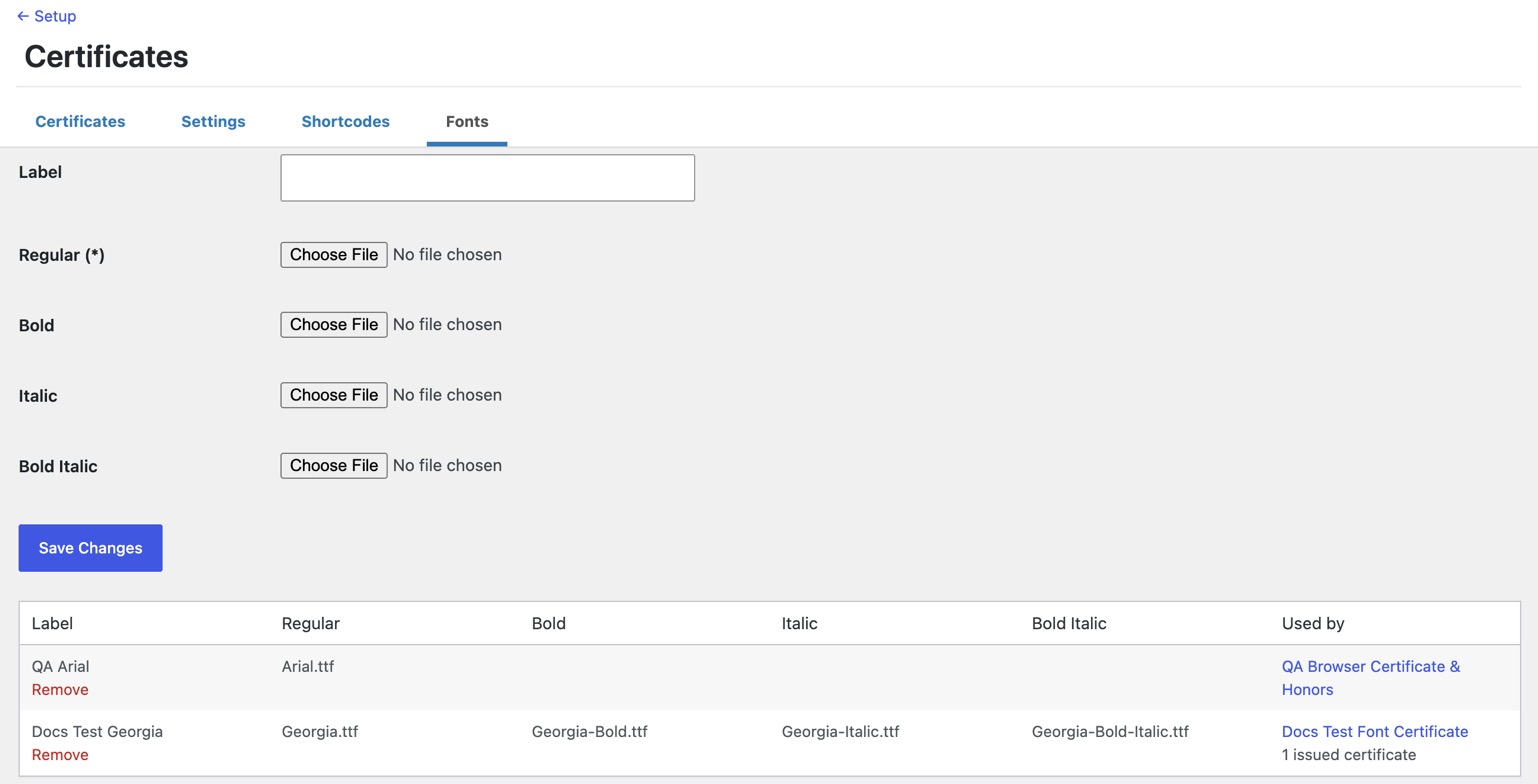
- Go to LearnDash LMS > Certificates > Fonts.
- In Label, enter the name you want to see in the font list. If you leave it blank, LearnDash uses the font’s family name.
- Upload the Regular font file. Regular is required.
- Upload the matching Italic, Bold, and Bold Italic files if you want to use those styles.
- Click Save Changes.
Upload TrueType (.ttf) font files. OpenType (.otf) fonts with PostScript outlines are not supported. Each file should be the matching style from the same font family.
Use a font in a certificate
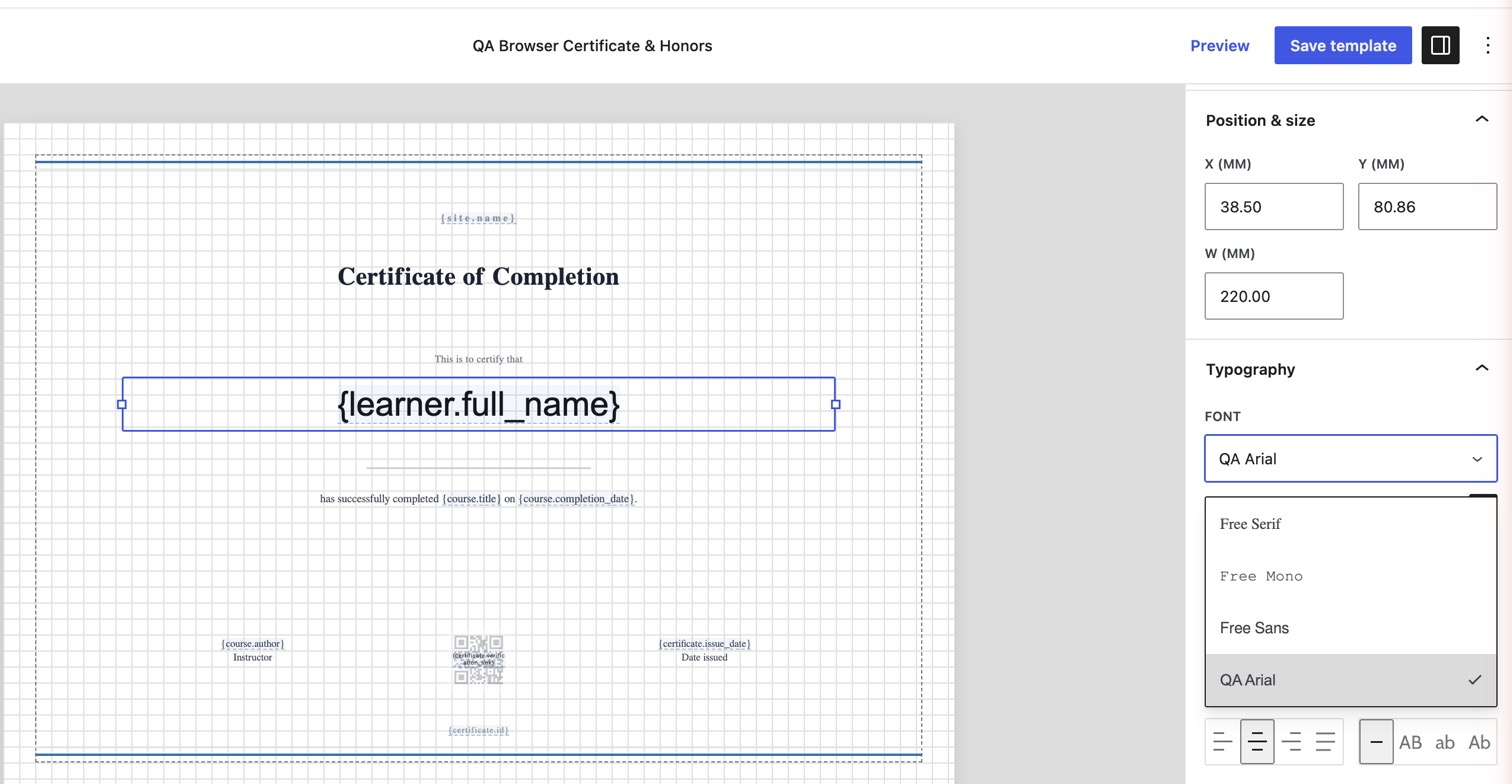
- Open a certificate in the drag-and-drop builder.
- Select a text element.
- Under Typography, choose the font in Font.
- Choose an available style in Appearance, then click Save template.
The font picker shows each font name in its own typeface. Styles that were not uploaded are unavailable in Appearance. If an existing text element uses a style the font does not have, the PDF uses another available style of the same font. Bold Italic falls back to Italic, then Bold, then Regular. Bold and Italic fall back to Regular. Arabic and Hebrew text always uses Free Serif.
See where a font is used
Go to LearnDash LMS > Certificates > Fonts. The Used by column lists the certificate templates that currently use each font. It also shows the number of issued certificates that use that font, including certificates issued before a template was changed.
Remove a font
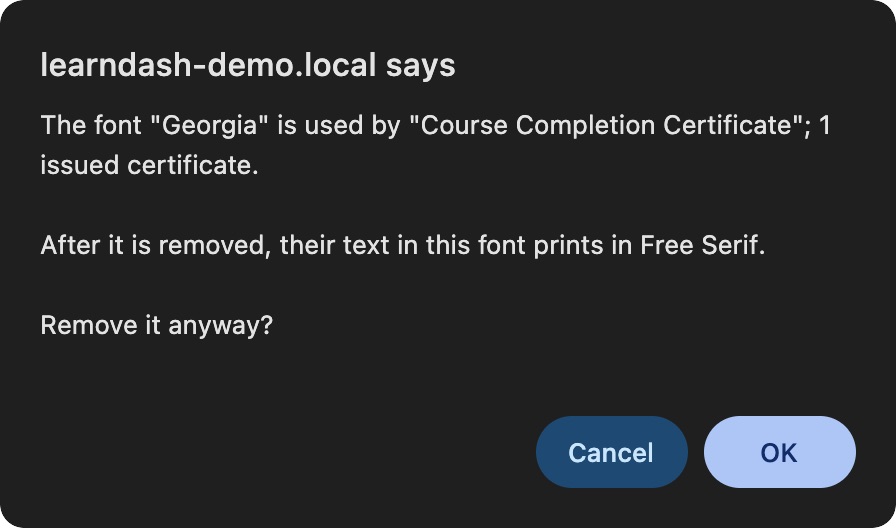
Removing a font changes how text using that font appears. That text prints in Free Serif, including when learners download certificates that were already issued. Before removing a font, check the Used by column and keep a copy of the font files if you may need them again.
- Find the font on the Fonts screen.
- Click Remove.
- If a certificate template or an issued certificate uses the font, your browser asks you to confirm. Click OK only if you want that text to print in Free Serif. Click Cancel to keep the font.
After you remove a font, text elements that used it show the font as not available in Font. Choose another font and click Save template to update the template.