

LearnDash
ProPanel Settings and Dashboard Access
You can control who can open the ProPanel Dashboard, add report links to your site menu, and exclude data from reports under ProPanel > Settings.
Add report links to the header menu
ProPanel can add links to the dashboard and student results page in your site’s primary menu. Go to ProPanel > Settings > Header Menu Settings and enable the setting for each page to include:
- Add the link of the ProPanel Dashboard to the Header Menu
- Add the link of the Student Quiz Reports page to the Header Menu
Click Apply to save the menu settings.
The dashboard and student results page serve different purposes. The dashboard provides reporting tools, while the student page lets learners review their own quiz attempts.
Manage dashboard access
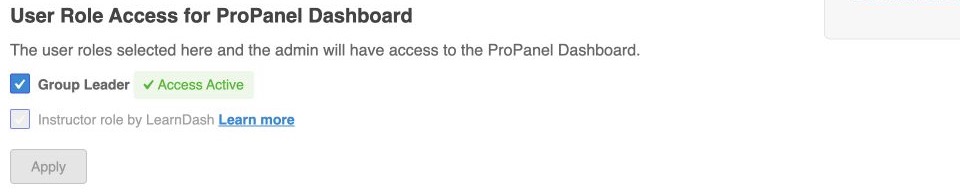
Use User Role Access for ProPanel Dashboard to manage access for supported roles, including Group Leader and Instructor. The Instructor role comes from the separate Instructor Role extension.
Select the supported roles that need access to the dashboard, then click Apply. Administrators automatically have access. Adding a page link to the site menu and allowing a role to use the dashboard are separate settings.
Dashboard role access:
Exclude courses, roles, or users
Open ProPanel > Settings > Exclude Settings to exclude specific courses, user roles, or users from ProPanel reports and graphs.
If expected data is missing from reports, check these exclusions along with the report’s selected date range and filters.
Related settings
For idle tracking, data upgrades, and cached reports, see Time Tracking and Performance.