

LearnDash
Using the Legacy Block-Based Certificate Builder
The legacy LearnDash Certificate Builder uses the WordPress block editor (Gutenberg) to create and customize certificates. This guide explains how administrators can continue working with existing certificates created with the block-based builder.
Important: Legacy Certificate Builder
The legacy block-based builder remains accessible for maintaining existing certificates. When creating a new certificate, LearnDash opens the drag-and-drop Certificate Builder. Existing certificates created with the block-based builder continue to function and can be edited using the WordPress block editor, but they cannot be converted to the drag-and-drop Certificate Builder format. Built-in certificate verification, checksums, and QR code features require the drag-and-drop Certificate Builder. For instructions on creating new certificates with the drag-and-drop builder, see Creating LearnDash Certificates with the Drag-and-Drop Builder
Gutenberg Blocks
The video below demonstrates how to create a course certificate using Gutenberg blocks. Use this video as a reference when editing existing certificates built with the block-based builder.
Classic Editor
The Classic Editor is an alternate legacy method for creating certificates. The video below demonstrates the Classic Editor workflow for administrators maintaining certificates created with that editor.
How It Works
Open an Existing Block-Based Certificate
- In the WordPress admin area, navigate to LearnDash LMS > Certificates.
- Open an existing certificate built with the block-based Certificate Builder.
- The certificate opens in the WordPress block editor for customization.
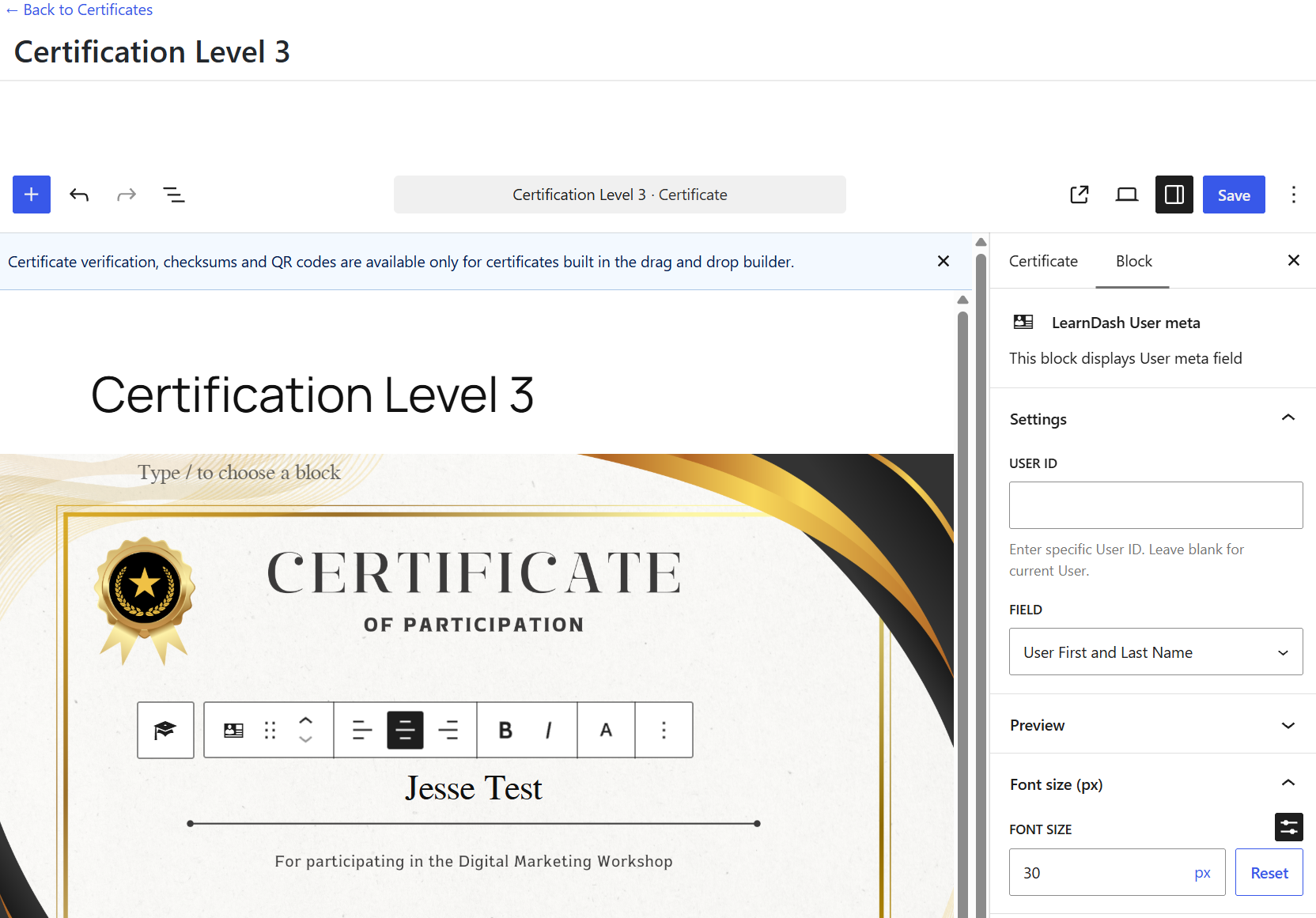
Note: Selecting Add New opens the drag-and-drop Certificate Builder. This guide applies exclusively to existing certificates created with the legacy block-based builder.
Certificate Title
Edit the certificate title within the block editor. This title is internal to the WordPress admin area, enabling easy identification when associating the certificate with a course, quiz, or group.
Background Image
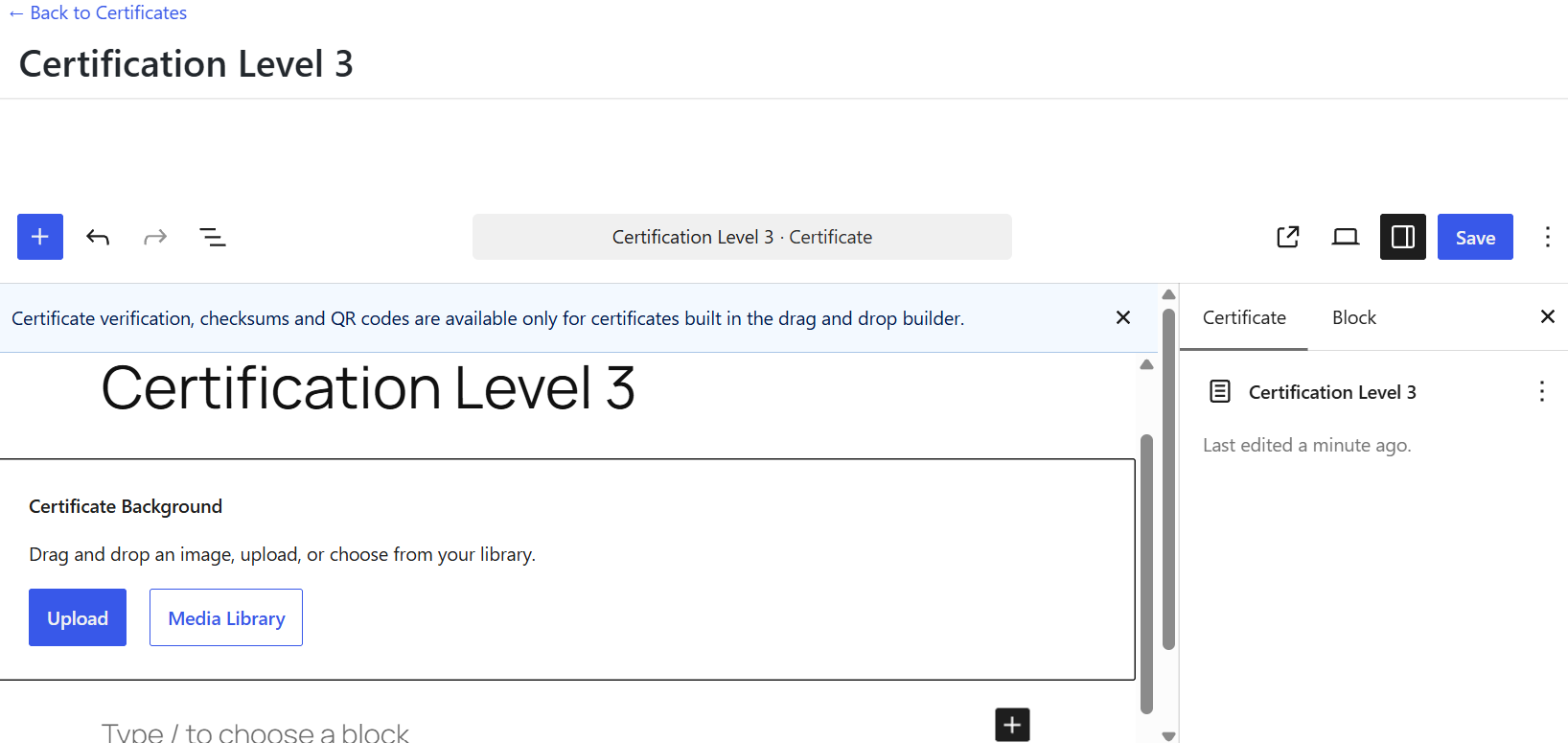
The legacy block-based builder requires a background image before you can continue designing the certificate.
The builder prompts you to select or upload a background image using the media uploader. Once the image is selected, Gutenberg blocks can be placed and positioned over it.
- Offloaded Media: If a media offloading plugin replaces standard WordPress media URLs with external URLs, the builder may display an error stating that the background image is missing. Ensure certificate background images are hosted locally on the server.
- Image Optimization: Active image optimization plugins may prevent certificate images from displaying. Disable optimization for media files used in certificates if issues arise.
Adding Content
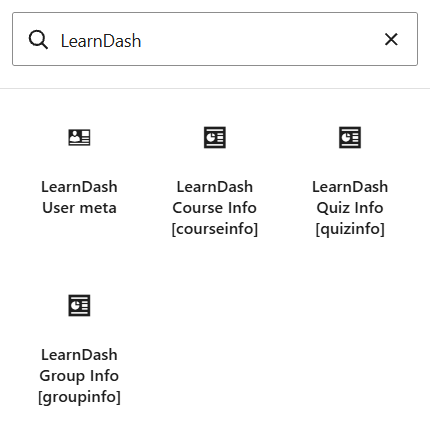
Use the Gutenberg editor to update and customize your certificate layout. You can add supported Gutenberg blocks, including blocks that display dynamic content such as LearnDash Course Info, Quiz Info, User Meta, and Groups Info.
You can also use compatible plugins to add other blocks or shortcodes that are not included with the legacy builder, such as blocks for dynamic dates, times, or images. Test the generated certificate to confirm that the additional content displays as expected.
LearnDash Blocks
LearnDash provides four blocks you can use for your certificate.
- LearnDash Course Info – shows dynamic data specific to the course (e.g., Course Completion Date, Course Title, Course Points, etc.)
- LearnDash Quiz Info – shows dynamic data specific to a quiz (e.g. Quiz Title, Quiz Score, Quiz Timestamp, etc.)
- LearnDash User Meta – shows dynamic data specific to an individual user (e.g. User First Name, User Last Name, User Login, etc.)
- LearnDash Groups Info – shows dynamic data specific to a group (e.g. Group Title, Group Completed On, Group Completed Percentage, etc.)
IMPORTANT: Use the LearnDash Course Info for certificates you plan to associate with a course, and LearnDash Quiz Info for certificates you plan to associate with a quiz. If you associate the certificate that contains the LearnDash Quiz Info block with a course, that data will not appear.
Fonts
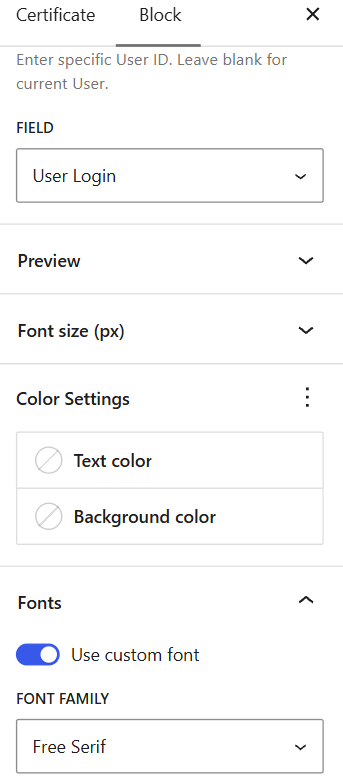
Custom fonts can be assigned to the following blocks via the Block Settings sidebar in the editor:
- Heading
- LearnDash User Meta
- LearnDash Course Info
- LearnDash Group Info
You can find these options in the Block Settings section on the right-hand sidebar of your Editor screen.
To upload custom fonts:
- Navigate to LearnDash LMS > Certificates > Fonts.
- Enter a font label.
- Click Choose File and select the font file from your device.
- Click Save Changes.
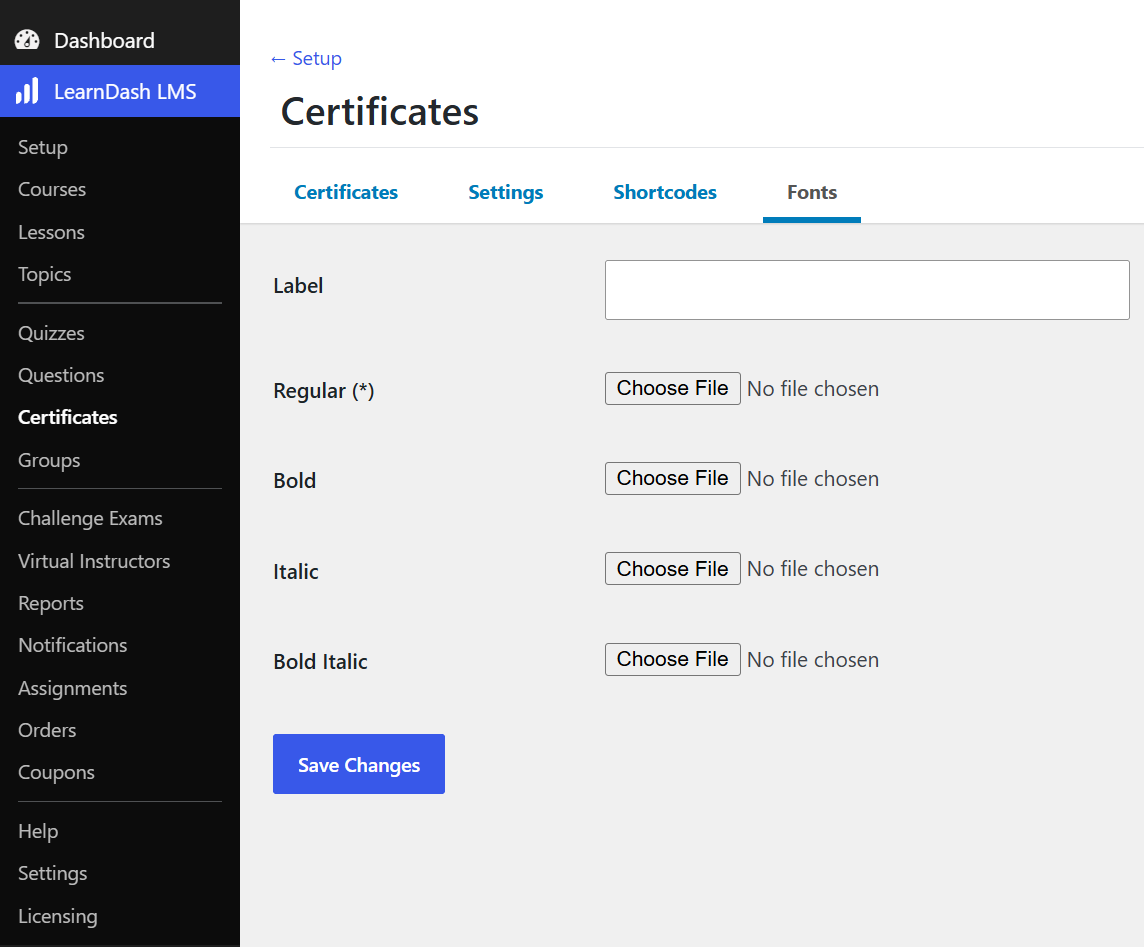
Verify commercial licensing and permissions prior to uploading custom font files.
Previewing a Legacy Certificate
The legacy block-based builder uses real information from your site to preview certificates. Dynamic content is pulled from the database, so the relevant learner and course, quiz, or group activity data must be available for it to appear.
You can preview a legacy certificate using either of the two preview options in the Certificate Builder toolbar:
- Click the External Link icon to open the certificate preview in a new tab.
- Click the Desktop icon to select a viewport, then click Preview in New Tab.
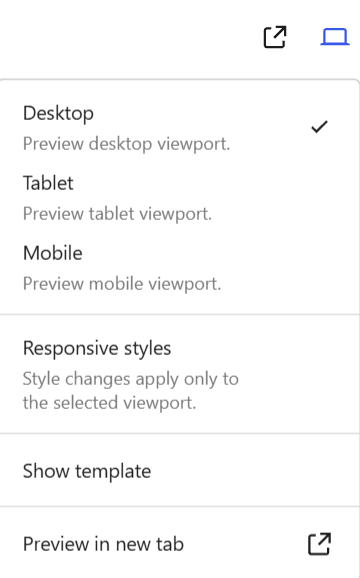
Tip
Assign the certificate to a test course or quiz, then complete the activity before previewing. After reviewing the preview, return to the builder, save updates, and associate the certificate with the target course, quiz, or group.
Once you are done, click Update and associate the certificate with a course, quiz, or group. You can learn more about certificates on our Certificates documentation. You can also check out our Certificate Shortcodes documentation to learn more about how to properly use shortcodes like courseinfo, groupinfo, and usermeta.
FAQs
Why is my certificate background blank?
- Ensure the LearnDash LMS plugin is updated to the latest version.
- Check for active image optimization plugins (e.g., SG Optimizer) that may interfere with certificate background rendering. Disable optimization for certificate media files if necessary.
- Confirm that the background image file is hosted locally on the server rather than an external CDN.
Why is the Certificate Completion Date missing?
Certificates can be awarded upon completing a course, passing a quiz, or completing a group. Dynamic completion dates require matching block types:
- Course Certificates: Use
[courseinfo show="completed_on"]. - Quiz Certificates: Use
[quizinfo show="timestamp"].
Using a quiz block on a course certificate (or vice versa) prevents dynamic completion data from rendering.
For example, if the certificate is associated with a course, use:
Displays the date the course was completed: [courseinfo show="completed_on"]
If the certificate is associated with a quiz, use:
Displays the date and time when the quiz was completed: [quizinfo show="timestamp"]
Resolving Broken Images and Restrictive Server Rules
If background images fail to load or display 404 errors in the browser console, security rules in the site’s .htaccess file (such as those generated by the LearnDash Integrity add-on) may be blocking AJAX requests for image assets.
Solution: To update server rules:
- Connect to the site via SFTP or the hosting file manager.
- Open the
.htaccessfile. - Locate the security block:
### START LEARNDASH INTEGRITY ###. - Locate the restrictive rule:
RewriteRule .(jpg|jpeg|png|gif|avi|flv|wmv|mp4|mov|mp3)$ - [NC,F,L] - Modify the rule to exclude standard image formats (.png, .jpeg, .jpg):
RewriteRule .(gif|avi|flv|wmv|mp4|mov|mp3)$ - [NC,F,L] - Save
.htaccessand refresh the Certificate Builder.
(Note: If your site is on a strictly managed hosting environment and you are uncomfortable editing server files, please reach out to your hosting support team to safely adjust your .htaccess rules.)