

LearnDash
Troubleshooting certificate verification
If a certificate verification link does not work, start with the message shown on the verification page. The message helps you tell whether the problem is with the link, the certificate record, or verification availability.
Verification applies to certificates issued with the new drag-and-drop certificate builder. Certificates from the older builders do not gain verification links automatically.
Certificate not verified
This message appears when LearnDash cannot verify the certificate record. The link may be incorrect, the record may have changed, or the learner’s certificate data may have been deleted. In the Certificates log, this shows as credential_not_found, checksum_mismatch or record_unreadable.
- Ask the learner to copy the verification link from their issued certificate again. Check that the full link was copied.
- Open that link and check the result.
- If it still shows Certificate not verified, check the Certificates log for the reason.
A learner name or course title change alone does not update the details stored on an already issued certificate. Do not edit certificate records in the database to try to fix verification.
Verification unavailable
Verification is unavailable when the LearnDash license is inactive or LearnDash cannot check the certificate’s stored data. In the Certificates log, this shows as gate_closed or check_failed. When the license is inactive, administrators see this notice on LearnDash admin screens. It cannot be dismissed:
Certificate verification pages are unavailable until the license is active. Check your license on the License page.

- Check the LearnDash license on the site that issued the certificate. Click License page in the notice, or go to LearnDash LMS > Licensing.
- If the license is inactive, activate a valid license and open the verification link again.
- If the license is active and verification is still unavailable, check the Certificates log and contact support with the details listed below.
An inactive license makes public verification unavailable. It does not prevent learners from earning certificates or downloading them through the normal learner flow.
Access to certificate page is disallowed
This can happen when a certificate is attached to a course after the learner has already completed it. No issued certificate record exists for that completion.
Adding a certificate to a completed course does not create certificate records for earlier completions. Confirm when the certificate was attached and when the learner completed the course. Contact support before changing completion records.
Turn on certificate logging
- Go to LearnDash LMS > Settings > Advanced > Logs.
- Under What do you want to log?, turn on Certificates.
- Click Save.
- Open the affected verification link again to reproduce the problem.
- Return to Logs and select Certificates under Choose a log to view.
- Click Refresh to load the latest entries. Use Download to save a copy for support.
Logging records events after it is enabled. Turn it off and save when you have finished collecting the information you need. Keep a copy of useful entries before using Delete, which removes the log contents.
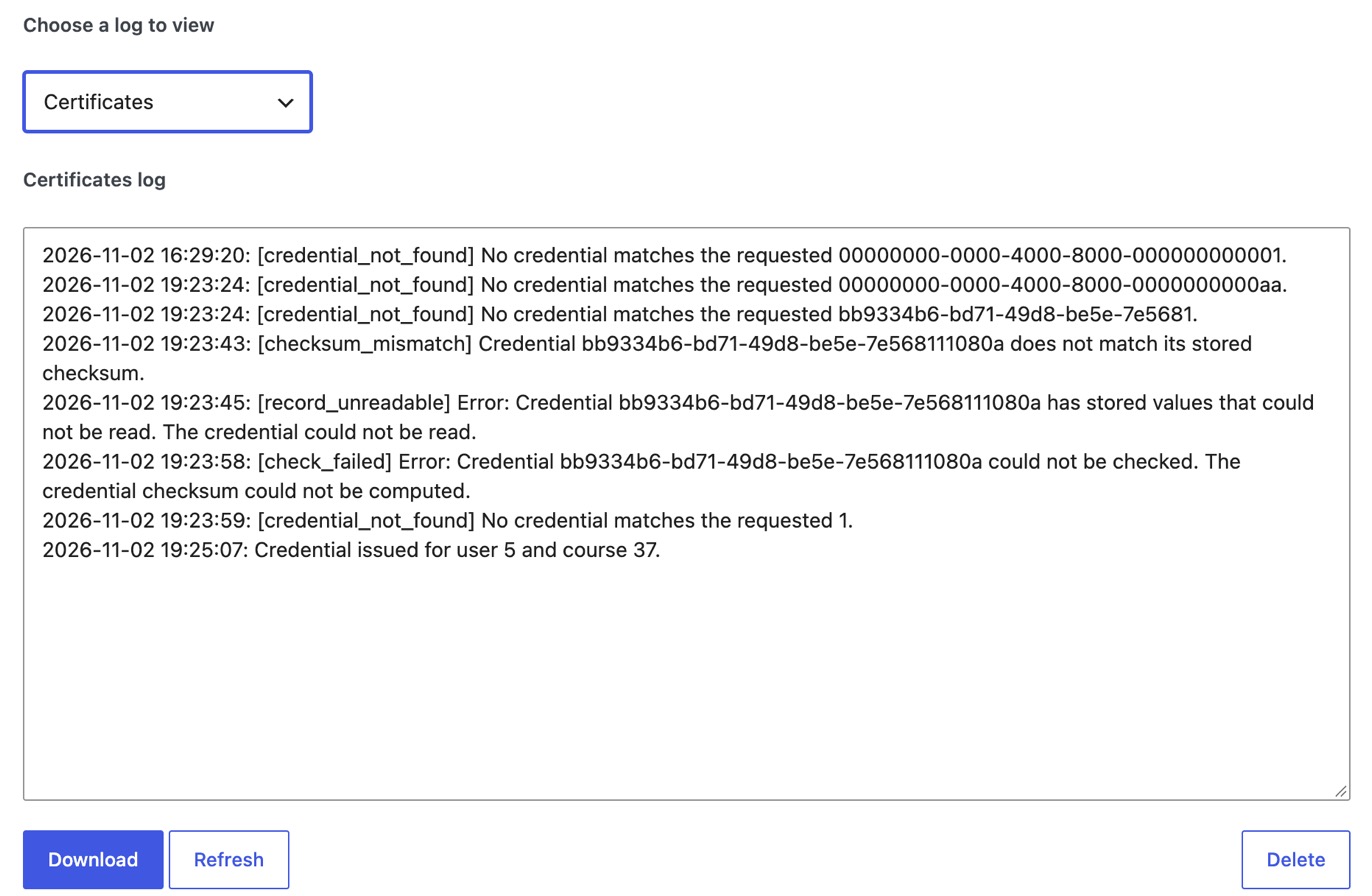
Understand the log entries
credential_not_found: No issued certificate record matches the link.checksum_mismatch: The certificate record does not match its saved checksum. The record or checksum may have changed. Contact support and include the log entry.record_unreadable: LearnDash could not read the stored certificate record. Download the log and contact support.check_failed: LearnDash could not check the certificate’s saved data. For example, its saved design could not be loaded. The page shows Verification unavailable even when the license is active. Download the log and contact support.gate_closed: The LearnDash license on this site is not active, so the certificate was not checked. Activate the license and open the link again.
Credential issued means LearnDash created a certificate record. Credential already held means the learner already has a record, so LearnDash kept it instead of creating another one. These entries have no code in brackets.
Contact support
If the problem continues, include the verification link, the exact message shown, when the problem happened, and the relevant Certificates log entries. For an access error after course completion, also include when the course was completed and when the certificate was attached.
Keep the affected records and logs while the issue is being investigated. Deleting a learner or their certificate data can remove the record needed to verify the certificate.