

Restrict Content Pro
Restricting Post and Page Content
Coming soon: Restrict Content Pro is becoming Kadence Memberships. You may see both names used while we update the product, documentation, and customer experience.
Restricting content on a Post or Page is very easy with Restrict Content Pro, and there are several ways to do it.
You can easily restrict the entire contents of a post or page by simply selecting the desired options in the “Restrict This Content” box, or you can restrict portions of content using the provided shortcodes. Both of these methods are explained in detail below.
Restricting Entire Posts / Pages
On every post, page, and custom post type, there is a meta box called Restrict this Content. It offers several options to restrict the entire contents of your post or page to registered users, either for free or for a fee.
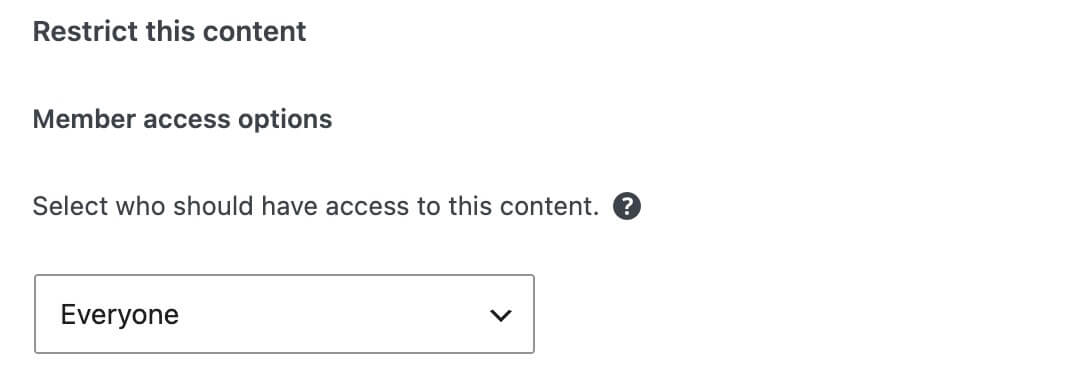
By default, pages are not restricted. In the screenshot above, Everyone has access to read the content.
Now, let’s go through all the available restriction options.
Subscription Level Restrictions
To require visitors to have some kind of subscription to access content, free or paid, select the Members of membership level(s) option in the dropdown, then select Members of any membership level(s). This means your content is visible only to active members at any subscription level, whether free or paid. Anonymous logged-out users will not be able to read the content. See the screenshot below.

To restrict your content so that only members with any paid membership can view it, select the Members of membership level(s) option in the dropdown, and then select Members of any paid membership level(s). Only members with paid membership will be able to see the content. Members with free membership will not be able to see the content. See the screenshot below.

To restrict your content to members of a specific membership level, select the Members of membership level(s) option in the dropdown, select Members of specific membership levels, and then select the subscription levels you want to have access to the content. See the screenshot below.
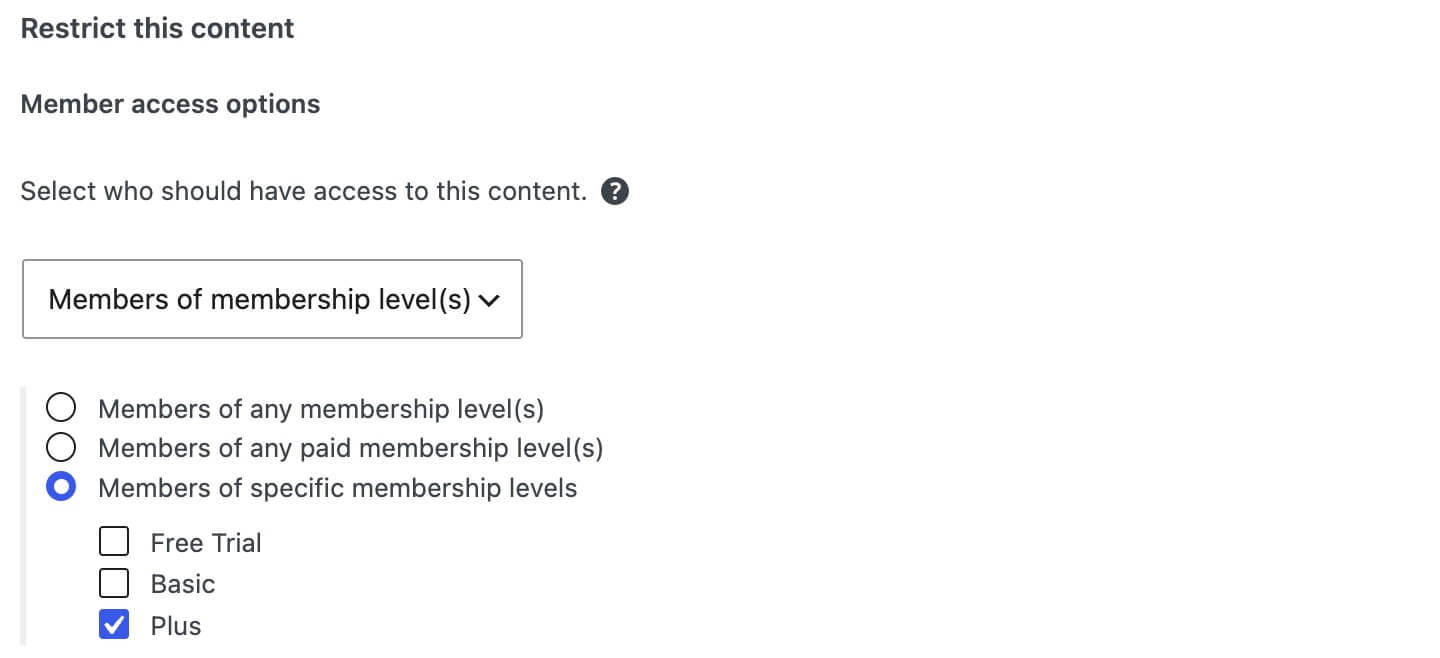
In the screenshot above, only members with the Plus membership can view the content. You can select as many or as few subscription levels as you like.
Access Level Restrictions
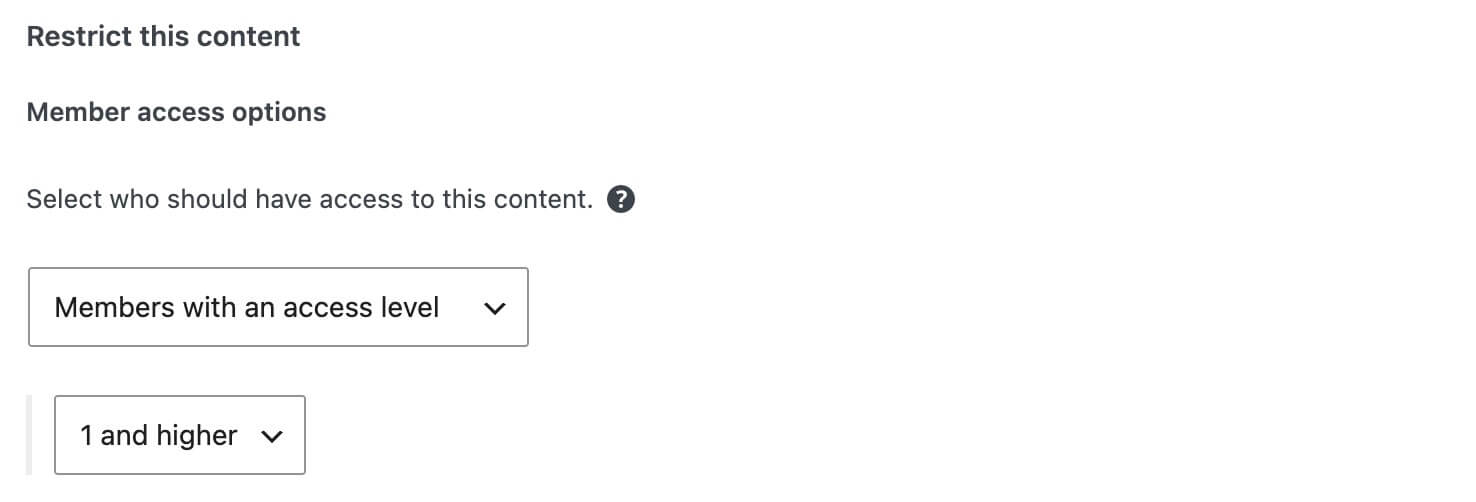
To restrict your content based on a member’s access level, select Members with an access level in the dropdown, then select the lowest access level that can access the content. See the screenshot below.
User Role Restrictions
To restrict your content to members with a specific user role, select Members with a certain user role in the dropdown, then select the user role(s) you want from the list below. See the screenshot below.
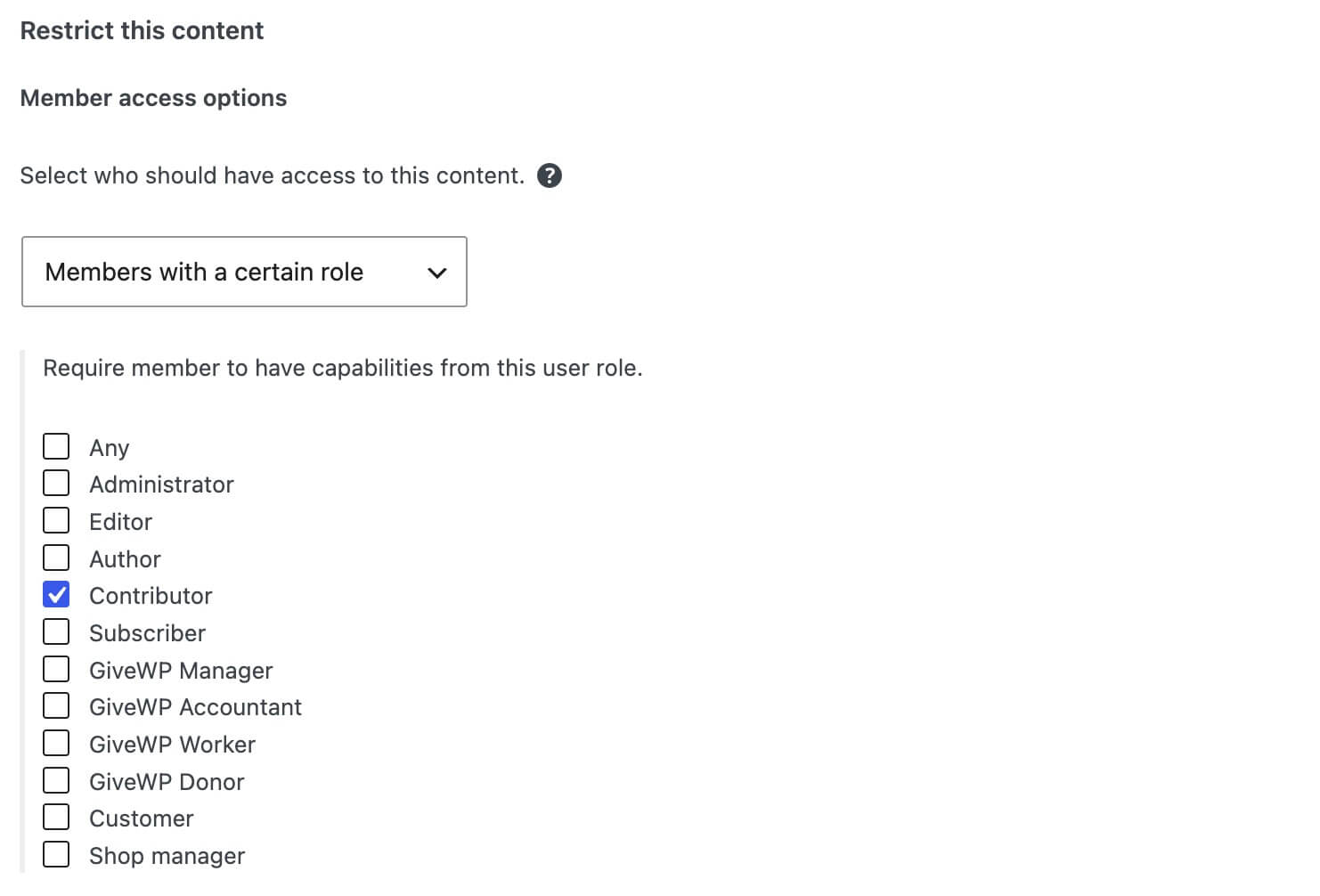
In the screenshot above, users with the “Contributor” role can see the content. If you want the content to be visible to all logged-in users, even those without a membership, select Subscriber in the dropdown. Subscriber is the default role a user receives in WordPress when their account is created.
You can combine some restrictions to create a more granular access control system if needed. For example, you can require that users have a specific membership and a specific user role. See the screenshot below.
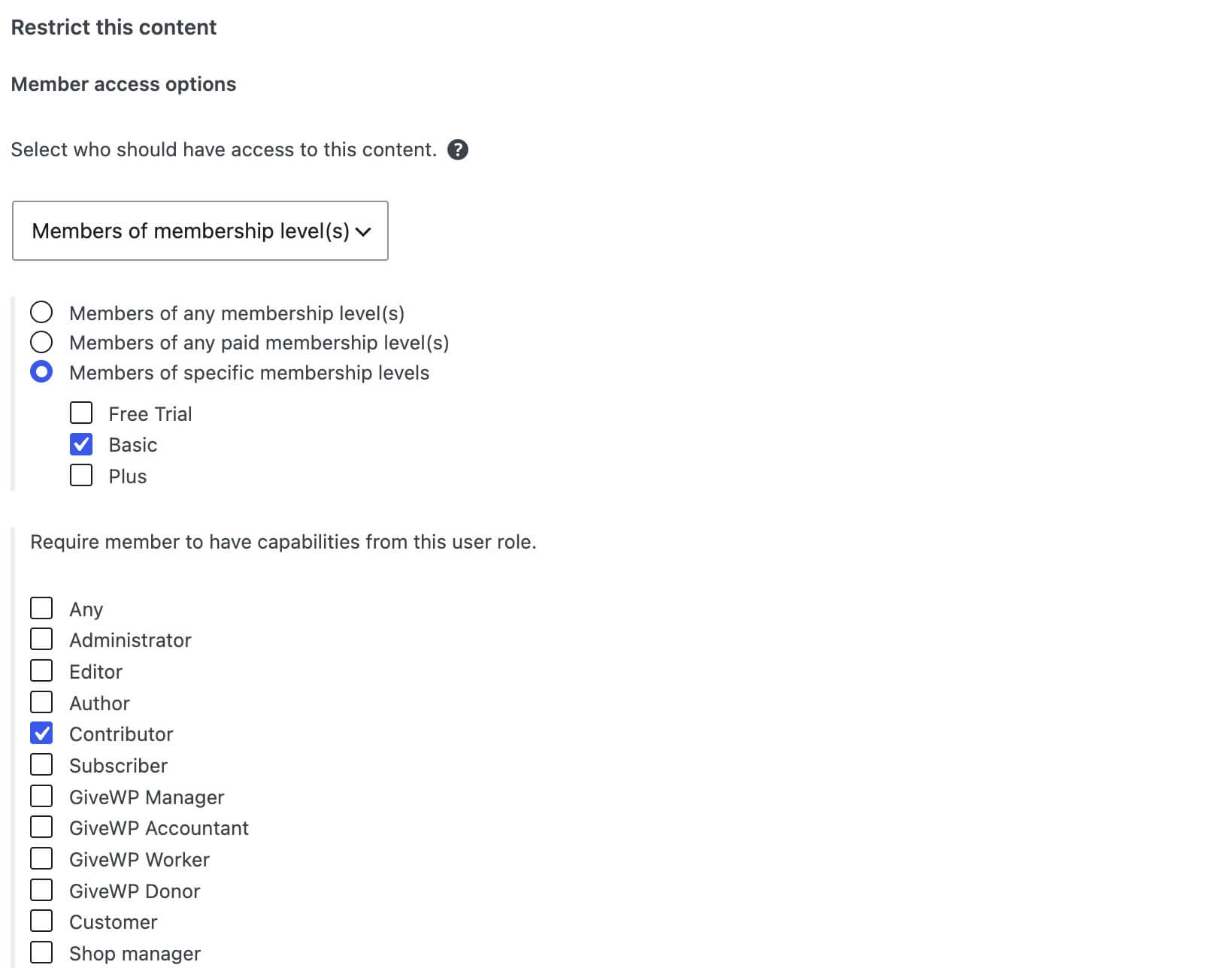
In the screenshot above, only members with the Basic membership and the Contributor user role can see the content.
Restricting Content By Category
You can automatically restrict posts to certain subscription levels, access levels, and paid status based on the category they are filed in.
To set up the category restrictions, go to WordPress Dashboard > Posts > Categories and click “Edit” on the category you wish to set up restrictions for. Any post placed in a restricted category will be automatically restricted to members with the appropriate membership access.
For more information, see Restricting Content by Category.
Restricting an Entire Post Type
You can quickly apply restrictions to all posts in a post type by navigating to the “Restrict Access” submenu in the post type’s menu. The regular post restriction meta box will be available, but the settings you choose here will apply to every post at once. This option is perfect if you want all posts to use the same settings.
For more information, see Restricting an entire post type.
Restricting Portions of Content
Instead of automatically restricting the entire contents of a post/page with the meta box option, you can also restrict only portions of the content with a shortcode. This method is more flexible and best suited for users who want to block off sections of their content for subscribers while leaving other sections open to all users.
To restrict a portion of content, use the [restrict] shortcode. The shortcode will allow you to “hide” blocks of content from all but authorized users.
For example, to restrict a block of text to logged-in users only (both free and paid), you can do this:
[restrict]This is the restricted text[/restrict]If a user is not logged in, then they will see a message like this (text is defined in settings):
You must be logged in to view this content.
The above example uses the shortcode in its simplest form, with no parameters. To get a little more advanced and restrict the content to paid subscribers only, you can use a shortcode like this:
[restrict paid=true]This is the restricted text[/restrict]
When the paid=true parameter is set, then the “Premium Content Message” in Settings will be used.
You can also define a custom message to be shown, instead of using the messages set up in the settings page. To show a custom message to unauthorized users, use this:
[restrict paid=true message="This is the custom message"]This is the restricted text[/restrict]
It is also possible to restrict a block of text to users with a minimum user level using shortcodes. To hide content from all but users with a role of “Author” or greater, use this:
[restrict userlevel="author"]This is the restricted text[/restrict]
You can also restrict content to only users of a specific subscription level by using the “subscription” parameter. If your “Gold” subscription level has an ID of “3”, you would use this to limit the content to only Gold subscribers:
[restrict subscription=3]This is restricted to gold subscribers[/restrict]
To allow users from multiple subscription levels to see the content, separate IDs by a comma:
[restrict subscription="3,5"]This is restricted to gold and platinum subscribers[/restrict]
It is also possible to restrict content to users subscribed to a subscription level that provides at least the specified access level. For example, if you wanted to restrict content to only users with a subscription that provides an access level of 4 or higher, you would use:
[restrict level=4]This is restricted to subscribers with an access level of 4 or higher[/restrict]
Below is a Short Code Reference list of the user roles available: